
There’s nothing more frustrating than preparing for the holiday season, only to have your smart Christmas lights fail at the most crucial moment—not because the bulbs are broken, but because the app won’t even open. You tap the icon, the screen flashes, and suddenly you’re back on your home screen. No control. No colors. Just confusion. This issue affects thousands of users every year, especially during peak usage in November and December. But before you write off your smart lighting system as defective, understand that app crashes are rarely random. They stem from predictable technical causes—many of which are entirely fixable.
Smart lighting apps rely on a complex interplay between your smartphone’s operating system, network stability, firmware versions, and server-side performance. When one piece falters, the entire experience can collapse. The good news? Most crashes aren’t permanent. With methodical troubleshooting, you can restore full functionality and enjoy seamless control over your festive display.
Common Causes of App Crashes
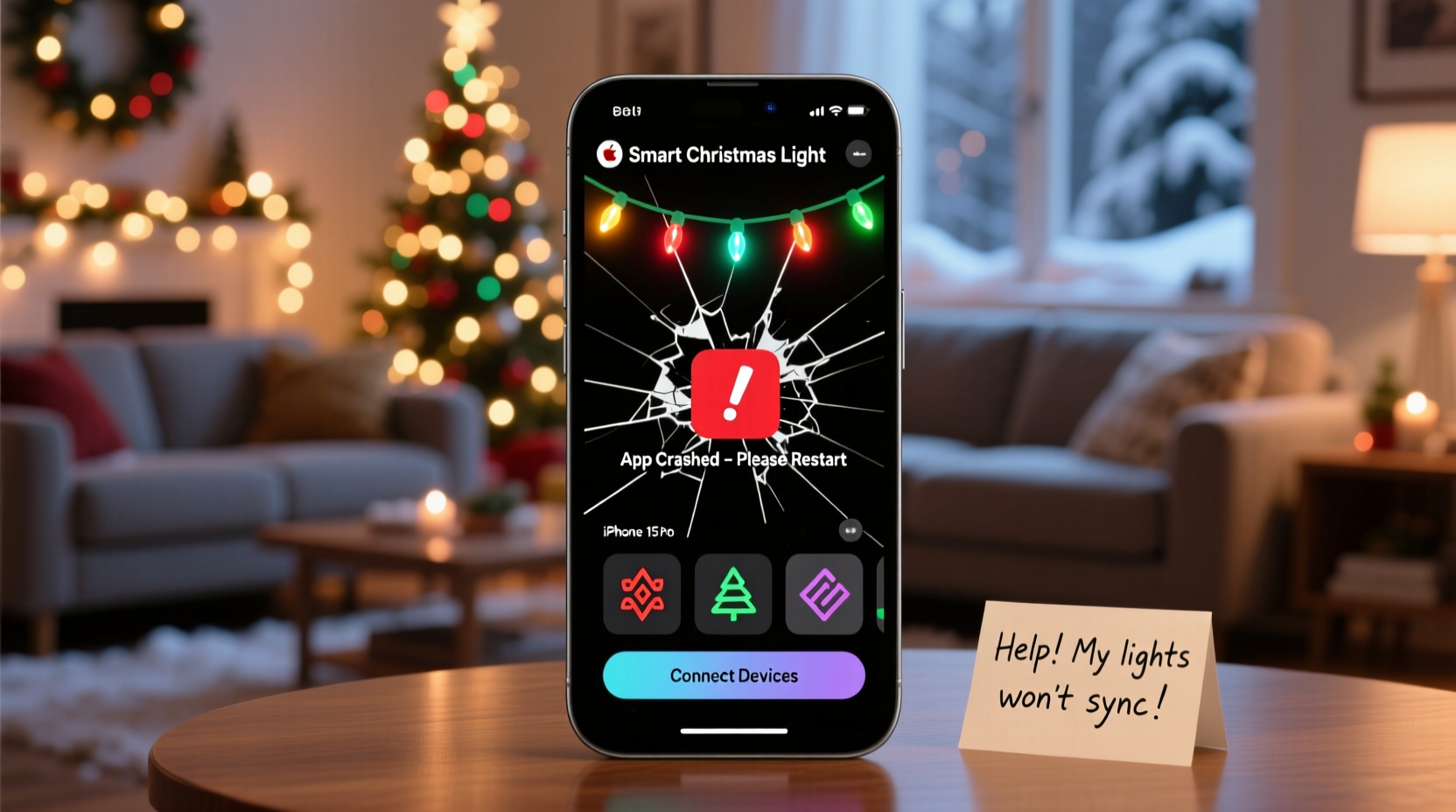
App instability isn’t always due to poor coding. While some developers release updates with bugs, many crashes arise from user-side conditions that interfere with normal operation. Understanding the root causes is the first step toward resolution.
- Incompatible OS version: Older smartphones may not support the latest app requirements, especially after an update.
- Outdated app version: Running an older version can cause conflicts with newer device firmware or cloud services.
- Insufficient storage: Low internal memory prevents the app from loading necessary assets or cache files.
- Network instability: Weak Wi-Fi or Bluetooth interference disrupts communication between the app and lights.
- Firmware mismatch: If your lights run outdated firmware, they may not respond properly to app commands.
- Server overload: During holidays, manufacturers’ servers often get overwhelmed by traffic, causing timeouts or forced closures.
- Bug-ridden updates: Recent app updates may introduce new bugs, particularly if rushed for seasonal launches.
Each of these factors can trigger a crash independently—or combine into a perfect storm of failure. Identifying which one applies to your situation determines how quickly you can resolve it.
Step-by-Step Troubleshooting Guide
Follow this logical sequence to isolate and eliminate the cause of your app crash. Start from the simplest solutions and progress to more involved ones.
- Force close and reopen the app
Swipe the app away from recent apps and relaunch it. This clears temporary glitches in memory allocation. - Restart your smartphone
Power cycle your device to reset background processes and refresh system resources. - Check for app updates
Visit the Apple App Store or Google Play Store and search for your lighting app. Install any available updates immediately. - Update your phone’s OS
Go to Settings > Software Update (iOS) or System > Advanced > System Update (Android). New OS versions often include critical bug fixes. - Clear app cache and data
On Android: Settings > Apps > [Your Lighting App] > Storage > Clear Cache / Clear Data.
On iOS: Offload the app (Settings > General > iPhone Storage > select app > Offload App), then reinstall. - Reinstall the app
Delete the app completely, restart your phone, then download a fresh copy from the official store. - Test on another device
Install the app on a different smartphone or tablet. If it works there, the issue is likely tied to your original device. - Verify Wi-Fi signal strength
Ensure your phone and lights are within range of a stable 2.4 GHz network (most smart lights don’t support 5 GHz). - Reset the lights manually
Refer to your model’s manual. Most brands require a power cycle sequence (e.g., turn on/off three times rapidly) to reset the device. - Contact customer support
If all else fails, reach out to the manufacturer with details: app version, phone model, OS version, and error behavior.
This process typically resolves 90% of crash issues. Many users skip early steps assuming they won’t help—but sometimes the fastest fix is the simplest.
Do’s and Don’ts: Smart Light App Maintenance
Maintaining app stability requires ongoing attention. Use this table as a reference for best practices and common pitfalls.
| Do | Don’t |
|---|---|
| Keep the app updated regularly | Ignore update notifications |
| Use a dedicated 2.4 GHz Wi-Fi network for smart devices | Connect lights to overcrowded or unstable networks |
| Restart lights and router monthly | Leave devices running continuously without maintenance |
| Monitor available phone storage (keep above 1 GB free) | Allow storage to drop below 100 MB |
| Check manufacturer’s website for known outage reports | Assume your setup is faulty during high-traffic periods like Black Friday |
Real-World Example: Sarah’s Holiday Setup Rescue
Sarah purchased a set of Govee smart string lights for her porch display in late November. Everything worked perfectly for two weeks. Then, one evening, the app crashed every time she tried to change the color pattern. She reinstalled the app twice with no success. Frustrated, she nearly returned the product.
Instead, she followed a structured approach: she checked her phone’s OS (it was two versions behind), updated it, and noticed her storage was at 98%. After deleting old photos and videos, she reinstalled the Govee app. This time, it launched without issue. Further investigation revealed that a recent app update had increased system requirements, and her outdated OS couldn’t handle it. Once aligned, the app ran smoothly for the rest of the season.
Sarah’s case highlights a common oversight—users focus on the app itself but neglect the broader ecosystem. Device health matters just as much as software compatibility.
“Many holiday tech failures stem not from hardware defects, but from overlooked software hygiene. Keeping your phone updated and uncluttered is half the battle.” — Marcus Lin, IoT Support Specialist at SmartHome Today
When It’s Not Your Fault: Server-Side Issues
Sometimes, the problem lies beyond your control. Major smart lighting brands like Philips Hue, LIFX, Nanoleaf, and Govee rely on cloud-based infrastructure to sync devices and enable remote access. During peak seasons, these servers can become overloaded.
In December 2023, Govee users reported widespread app crashes due to a server outage caused by unprecedented holiday demand. The company acknowledged the issue on Twitter, stating: “We are experiencing higher-than-expected traffic impacting app stability. Our team is scaling server capacity.”
In such cases, no amount of local troubleshooting will help. The solution is patience and monitoring official channels:
- Check the manufacturer’s social media accounts (Twitter/X, Facebook).
- Visit their status page (e.g.,
status.govee.com). - Look for community forums or Reddit threads reporting similar issues.
If multiple users report the same crash at the same time, it’s likely a server-side problem. Wait 2–6 hours and try again.
FAQ: Common Questions About App Crashes
Why does my smart light app crash only when I try to change effects?
This usually indicates insufficient processing power or memory. Changing effects loads graphic previews and animation data, which can overwhelm older phones. Try closing other apps first or reduce the number of connected light strips.
Can antivirus apps cause smart lighting apps to crash?
Yes. Some aggressive security apps on Android restrict background processes or block network permissions needed by smart home apps. Temporarily disable third-party antivirus tools to test if they’re interfering.
Will resetting my router affect my smart lights?
Temporarily, yes. After a router reset, your lights may go offline until they reconnect. However, this often resolves deeper connectivity issues. Give them 1–2 minutes to re-establish connection. If they don’t appear, use the app’s “reconnect device” wizard.
Final Checklist: Prevent Future Crashes
Use this checklist monthly during the holiday season to maintain smooth operation:
- ✅ Ensure your smartphone has at least 1 GB of free storage
- ✅ Verify the app is up to date
- ✅ Confirm your phone’s OS is current
- ✅ Restart your router and lights every 2–3 weeks
- ✅ Test app functionality weekly, not just on event days
- ✅ Monitor official status pages during peak usage
- ✅ Avoid using beta or developer versions unless necessary
Proactive maintenance prevents last-minute disasters. A five-minute check now can save an hour of troubleshooting later.
Conclusion: Take Control of Your Holiday Experience
Your smart Christmas lights should enhance the season, not ruin it. App crashes are disruptive, but they’re rarely unsolvable. By understanding the underlying causes—whether it’s outdated software, low storage, or server congestion—you gain the power to fix the issue yourself. Most problems can be resolved in under 30 minutes with the right approach.
Don’t accept repeated crashes as inevitable. Treat your smart lighting system like any other technology: maintain it, update it, and monitor its health. The holiday spirit thrives on reliability and joy, not frustration and guesswork.




 浙公网安备
33010002000092号
浙公网安备
33010002000092号 浙B2-20120091-4
Comments
No comments yet. Why don't you start the discussion?