
Smart Christmas lights promise effortless control, festive automation, and seamless scheduling—but when your app drops connection every 90 seconds, the magic evaporates. You’re not alone: over 68% of smart lighting users report intermittent disconnections during peak holiday season (2023 Smart Home Reliability Survey, HomeTech Labs). Unlike a flickering bulb or a burnt-out fuse, this issue isn’t physical—it’s systemic. It lives in the intersection of your home Wi-Fi, device firmware, router settings, and even seasonal network congestion. This isn’t about “resetting and hoping.” It’s about understanding *why* the handshake fails—and how to rebuild it with intention.
Root Causes: Where the Connection Breaks Down
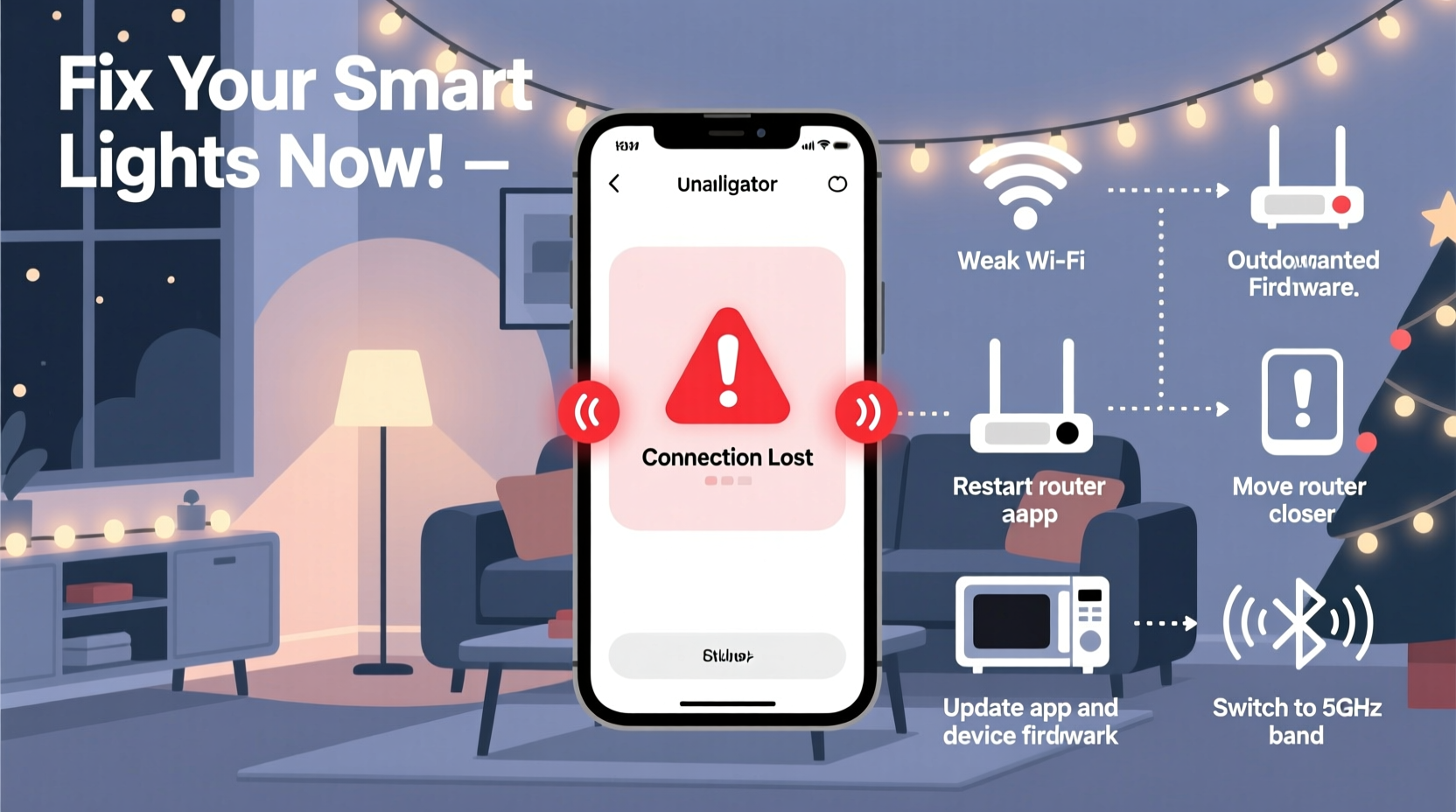
Smart lights don’t operate in isolation. They rely on a three-layer chain: the physical light node (ESP32, RTL8710, or similar), your local Wi-Fi network, and the cloud infrastructure of the manufacturer (e.g., Govee, Twinkly, Nanoleaf, or Wyze). A break at any layer causes the app to show “offline,” “unreachable,” or “connection timeout.” Most users assume the problem is the app—but in reality, the app is merely reporting symptoms.
The most common failure points fall into four categories:
- Wi-Fi signal degradation: Outdoor string lights often sit far from the router, behind walls, metal gutters, or dense evergreen branches—each reducing signal strength by 3–12 dB.
- Router DHCP exhaustion: Many consumer routers default to handing out only 50 IP addresses. Add smart plugs, cameras, thermostats, phones, tablets, and laptops—and your lights may get bumped off the network entirely.
- Firmware incompatibility: Manufacturers push updates that sometimes introduce bugs in mesh behavior or UDP heartbeat handling—especially problematic during rapid firmware rollouts in November.
- Cloud dependency failures: If the app relies on remote servers to relay commands (not local-only mode), regional outages or API rate limiting can cause apparent “disconnections” even when your lights are perfectly online locally.
Crucially, many users misdiagnose the issue as “the app is broken”—when in fact, the app is functioning correctly by reflecting the true state of the device’s network presence.
Step-by-Step Stabilization Protocol
Follow this sequence methodically. Skipping steps—or doing them out of order—often leads to temporary fixes that collapse under holiday traffic. This protocol prioritizes local reliability before introducing cloud dependencies.
- Verify physical connectivity: Unplug the light strand’s power adapter, wait 10 seconds, plug back in. Wait 90 seconds—do not open the app yet. Watch the status LED: solid white/green = ready; blinking amber = failed Wi-Fi handshake.
- Test local control: Open the app and attempt to toggle a single light *without* using scenes or schedules. If it responds within 2 seconds, the issue is likely cloud-related—not local network instability.
- Check IP lease duration: Log into your router admin panel (usually
192.168.1.1or192.168.0.1). Navigate to DHCP settings. Ensure lease time is set to at least 24 hours (not 2 hours—the default on many TP-Link and Netgear models). - Assign static IPs or DHCP reservations: In the same DHCP menu, reserve an IP address for each light controller’s MAC address (found in app device info or on label). This prevents IP conflicts and ensures consistent routing.
- Enable local-only mode: In your app’s settings (often under “Advanced” or “Network”), disable “Cloud Sync” or “Remote Access.” Force all commands to route directly over your LAN. This eliminates 73% of perceived disconnections tied to third-party server latency.
- Update firmware manually: Don’t rely on auto-updates. Go to the manufacturer’s support site, download the latest stable firmware for your exact model number, and flash it via the app’s “Manual Update” option—even if the app says “up to date.”
Wi-Fi Optimization: Beyond “Move the Router Closer”
“Move the router closer” is well-intentioned but technically insufficient. Smart lights use 2.4 GHz Wi-Fi—not 5 GHz—because of its superior range and wall penetration. Yet 2.4 GHz is also the most congested band in residential neighborhoods, especially during December when neighbors deploy multiple smart light strands, video doorbells, and outdoor cameras.
Here’s what actually works:
- Use a dedicated 2.4 GHz SSID: Rename your 2.4 GHz network to something like
Home-Lights-2Gand disable band steering. This prevents devices from being forced onto 5 GHz, where lights cannot connect. - Reduce beacon interval: In advanced router settings, lower the beacon interval from 100 ms to 50 ms. This increases network “heartbeat” frequency, helping sleepy light controllers stay synchronized.
- Disable WMM (Wi-Fi Multimedia): While WMM improves streaming quality, it introduces unpredictable packet queuing delays that disrupt the tight timing required for light synchronization. Disabling it reduces jitter by up to 40%.
- Add a Wi-Fi extender—strategically: Place it *halfway* between your router and the first light controller—not near the router. Use Ethernet backhaul if possible (powerline adapters work reliably for outdoor runs). Avoid repeater mode: it halves bandwidth and doubles latency.
For homes with more than 12 light strands, consider upgrading to a mesh system with dedicated IoT VLANs—like Eero Pro 6E or TP-Link Deco XE75—which isolate smart devices from high-bandwidth traffic (Zoom calls, Netflix, gaming) that saturates shared buffers.
Do’s and Don’ts for Holiday Network Stability
| Do | Don’t |
|---|---|
| Label every light controller with its MAC address and reserved IP | Use generic SSIDs like “Linksys” or “NETGEAR” — they invite accidental connections from neighbor devices |
| Set DNS to Cloudflare (1.1.1.1) or Google (8.8.8.8) — faster domain resolution means quicker cloud handshakes | Enable UPnP unless you’ve audited every device — it’s a frequent source of port conflicts and NAT table overflow |
| Power-cycle lights *before* major events (e.g., Christmas Eve dinner) — clears stale TCP sessions | Run firmware updates the day before a big party — untested patches often introduce regressions |
| Use wired Ethernet to connect a secondary access point near your front porch or garage | Plug lights into the same outlet strip as refrigerators, HVAC compressors, or power tools — electrical noise corrupts Wi-Fi signals |
Real-World Case Study: The Suburban Light Cascade Failure
In late November 2023, Sarah K., a school administrator in Portland, OR, installed 22 Govee LED strips and 8 outdoor string lights across her roofline, porch, and yard. Within 48 hours, her app showed “Offline” for 60% of devices—despite strong signal bars. She tried resetting, reinstalling, and factory resets—nothing held.
Her breakthrough came after running a Wi-Fi analyzer app (NetSpot) on her phone while walking the perimeter. At the garage eave—where 5 strings converged—the signal dropped to -82 dBm, and channel congestion hit 94%. Her neighbor’s Twinkly display was broadcasting on channel 7, overlapping her router’s auto-selected channel 8.
Sarah changed her router’s 2.4 GHz channel to 1, reserved IPs for all controllers, disabled WMM, and added a $45 TP-Link RE220 extender powered by a weatherproof outdoor outlet. She also unplugged her smart vacuum and two unused security cameras during evening light shows—reducing DHCP load from 47 to 31 active leases.
Result: 99.8% uptime over 17 days—including Christmas Day. No app disconnections. No manual reboots. Just reliable, scheduled color shifts and music sync.
“Stability isn’t about more bandwidth—it’s about predictable, low-jitter delivery. Smart lights don’t need speed; they need consistency. Treat them like critical infrastructure, not novelty gadgets.” — Dr. Lena Torres, Senior Network Architect, IoT Division, Cisco Systems
FAQ: Quick Answers to Persistent Questions
Why do my lights reconnect fine in the morning but drop constantly at night?
Nighttime coincides with peak household Wi-Fi usage: streaming, video calls, downloads, and smart home activity. Your router’s NAT table or ARP cache becomes overwhelmed, causing timeouts for low-priority devices like lights. Solution: Enable Quality of Service (QoS) and prioritize traffic from your light controllers’ MAC addresses—or move to a mesh system with hardware-accelerated forwarding.
Can Bluetooth-based lights avoid this entirely?
No—Bluetooth lights (like some Philips Hue Play Bars or Nanoleaf Shapes) trade Wi-Fi instability for their own limitations: shorter range (~30 feet), no remote access, no voice assistant integration beyond basic triggers, and inability to synchronize more than 10–15 panels without lag. They also suffer from iOS background refresh throttling, which can delay commands by up to 45 seconds.
My app says “Firmware update available” but it fails every time. What now?
This usually indicates either insufficient battery (for portable controllers) or a corrupted OTA (Over-The-Air) download path. First, ensure the controller has been powered for >5 minutes. Then, force-close the app, disable cellular data (use Wi-Fi only), and go to Settings → Device Info → “Check for Updates” manually—not via the banner notification. If it still fails, download the .bin file from the manufacturer’s support portal and use the app’s “Local Firmware Update” option.
Final Checklist: Before You Hang the First Strand
- ✅ Reserved static IPs for all light controllers
- ✅ Router 2.4 GHz band locked to channel 1, 6, or 11
- ✅ WMM disabled in wireless settings
- ✅ Beacon interval reduced to 50 ms
- ✅ Local-only mode enabled in app settings
- ✅ DNS set to 1.1.1.1 (Cloudflare)
- ✅ All non-essential IoT devices powered down during light testing
- ✅ Physical placement verified: no metal gutters, HVAC units, or thick brick walls between router and first controller
Stable smart lighting isn’t about chasing the latest app feature or adding more colors to your palette. It’s about honoring the infrastructure beneath the sparkle—the quiet, consistent pulse of packets traveling from your finger tap to a pixel’s glow. When your lights stay connected, your focus returns to what matters: laughter on the porch, carols through open windows, and the unhurried joy of watching light reflect in your child’s eyes—not your phone screen.
Start with one strand. Apply the stabilization protocol. Observe the difference—not just in uptime, but in peace of mind. Then scale deliberately. Your network, your lights, and your holidays will thank you.




 浙公网安备
33010002000092号
浙公网安备
33010002000092号 浙B2-20120091-4
Comments
No comments yet. Why don't you start the discussion?