
Smart Christmas lights offer dazzling displays, synchronized music, and effortless control—all from the palm of your hand. But when your smart lighting app keeps dropping connection, the holiday magic quickly turns into frustration. You're not alone. Thousands of users report intermittent disconnections during setup, scheduling, or mid-show. The root causes are often preventable and solvable with the right approach. This guide dives deep into the technical and environmental factors behind app instability, offering actionable fixes, real-world examples, and expert-backed strategies to ensure your lights stay online—and your holidays stay bright.
Understanding the Connection Ecosystem
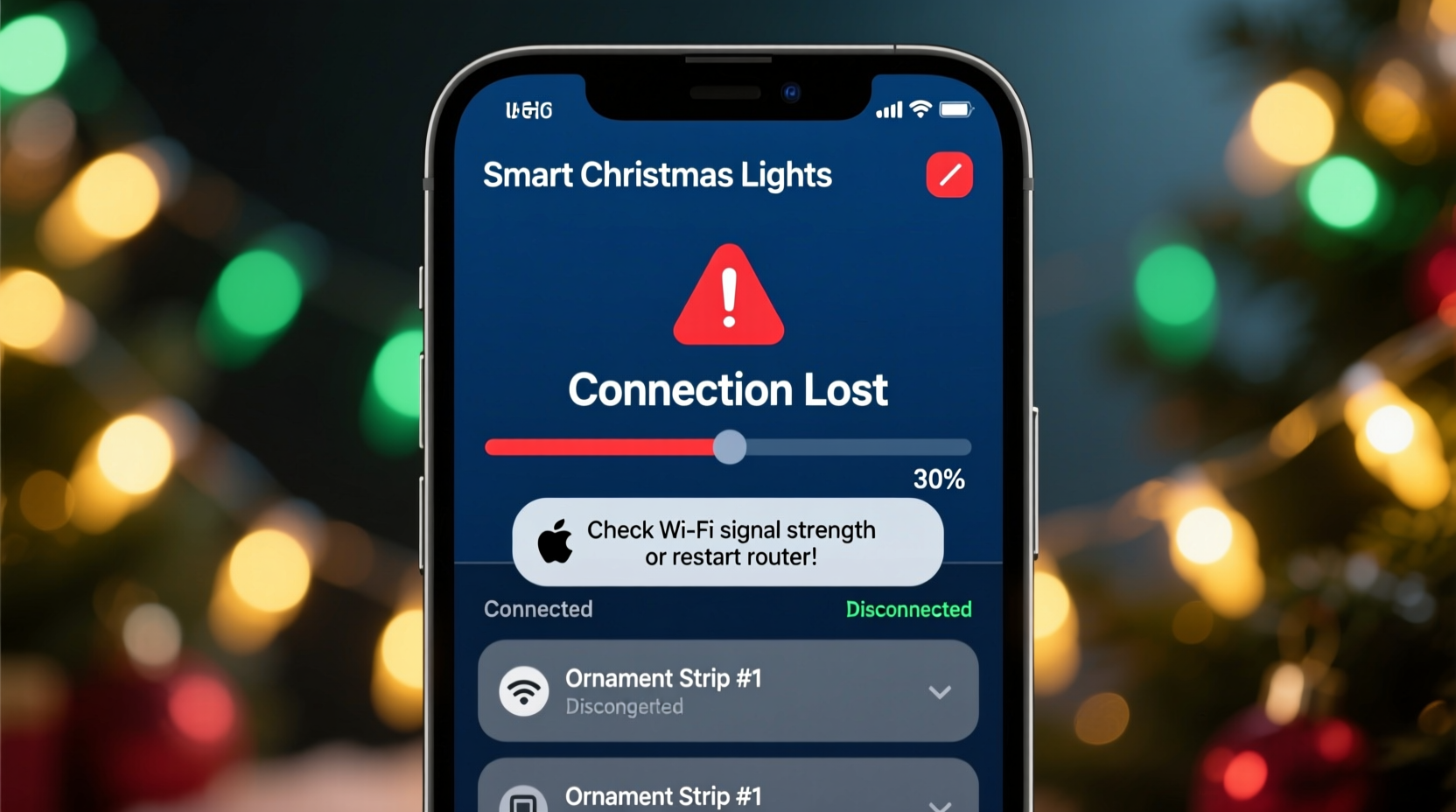
Smart Christmas lights don’t operate in isolation. They rely on a chain of interconnected components: the physical lights, a Wi-Fi-enabled controller, your home network, the cloud server, and the mobile app. A disruption at any point can sever communication. Most apps use Bluetooth for initial pairing and Wi-Fi for remote access and automation. If one link weakens—like a router glitch or signal interference—the app may time out or show “device offline.”
Unlike traditional bulbs, smart lights require constant two-way communication. When you tap “Start Show,” the command travels from your phone to the cloud, then back to your router, and finally to the light controller. Delays or drops in this loop create the illusion that the app is faulty. In reality, the issue is often network-related or due to outdated firmware.
Common Causes of App Disconnection
Several technical and environmental factors contribute to unreliable app performance. Identifying which applies to your situation is the first step toward resolution.
1. Weak Wi-Fi Signal Strength
The most frequent culprit is poor signal coverage near the lights. Outdoor installations are especially vulnerable. Walls, metal gutters, trees, and weatherproof enclosures can block or weaken Wi-Fi signals. If your lights are more than 30 feet from the router or behind thick barriers, the connection becomes unstable.
2. Network Congestion
During the holidays, homes run multiple connected devices: streaming boxes, video calls, smart speakers, and guest phones. Bandwidth competition can delay or drop packets between your app and lights. This is worse on crowded 2.4 GHz bands, where many smart devices operate.
3. Outdated Firmware or App Version
Manufacturers regularly release updates to fix bugs and improve stability. Running an old version of the app—or having outdated firmware on the light controller—can cause compatibility issues, leading to timeouts and failed connections.
4. Bluetooth Interference
If your lights use Bluetooth for setup or local control, nearby devices like wireless headphones, keyboards, or even microwaves can interfere. Bluetooth and Wi-Fi both use the 2.4 GHz spectrum, increasing collision risk.
5. Power Supply Issues
Fluctuating voltage or low-quality extension cords can cause the light controller to reboot unexpectedly. Each restart breaks the active session with the app, requiring manual reconnection.
6. Server or Cloud Downtime
Some brands rely heavily on cloud infrastructure. If the company’s servers go down—even briefly—remote access fails. While rare, widespread outages have affected major brands like Philips Hue and Govee during peak seasons.
“Over 60% of smart lighting support tickets during December relate to connectivity, not hardware failure. Most stem from overlooked network conditions.” — Raj Patel, IoT Support Lead at SmartHome Labs
Troubleshooting Checklist: Step-by-Step Recovery Plan
Follow this sequence to isolate and resolve the disconnection issue. Perform each step in order, testing the app after every change.
- Restart all devices: Power off your phone, router, and light controller. Wait 30 seconds, then turn them back on.
- Check Wi-Fi signal strength: Use a Wi-Fi analyzer app (like NetSpot or Wi-Fi Analyzer) to measure signal (RSSI) near the lights. Aim for -60 dBm or better.
- Move closer to the router: Test the app within 10 feet of the router. If it works, distance or interference is likely the issue.
- Update the app and firmware: Visit your app store and check for updates. Then, open the app to see if a firmware upgrade is pending.
- Re-pair the lights: Forget the device in the app and go through setup again. Ensure Bluetooth is enabled during pairing.
- Switch to 2.4 GHz Wi-Fi: Confirm your lights aren’t trying to connect to a 5 GHz network—they’re incompatible.
- Reduce network load: Temporarily disconnect non-essential devices or schedule light shows during low-usage hours.
- Use a Wi-Fi extender or mesh node: Install a repeater near the lights to boost signal strength.
- Inspect power sources: Replace worn extension cords and avoid daisy-chaining multiple light strings.
- Contact customer support: If all else fails, provide logs and error messages for deeper diagnostics.
Do’s and Don’ts: Best Practices for Stable Performance
| Do | Don’t |
|---|---|
| Use a dedicated 2.4 GHz SSID for smart devices | Connect lights to a 5 GHz Wi-Fi network |
| Mount outdoor controllers under eaves for weather protection | Leave controllers exposed to rain or snow |
| Label each light string with its app name and login details | Assume all lights use the same app—many brands are incompatible |
| Test connections weekly during the season | Wait until Christmas Eve to troubleshoot |
| Use surge protectors with USB ports for stable power | Plug controllers into overloaded outlets |
Real-World Example: The Johnson Family’s Holiday Fix
The Johnsons installed 150 feet of smart LED lights around their roofline and yard in early December. For weeks, their app worked perfectly—until Christmas week, when the display began cutting out during scheduled shows. Each time, they reopened the app, only to see “Device Offline.”
After following online forums, they discovered their neighbor had installed a new baby monitor operating on 2.4 GHz. Using a Wi-Fi analyzer, they confirmed severe channel congestion. Their solution? They changed their router’s Wi-Fi channel from 6 to 11—less crowded and farther from the monitor’s frequency. They also updated the light controller’s firmware, which included improved signal resilience. The disconnections stopped immediately, and their New Year’s Eve light show ran flawlessly.
This case highlights how external interference and outdated software combine to create frustrating issues—neither obvious nor easily diagnosed without proper tools.
Frequently Asked Questions
Can I use smart lights without Wi-Fi?
Limited functionality is possible. Most lights require Wi-Fi for app control, scheduling, and music sync. However, some models allow basic Bluetooth control within 30 feet—ideal for temporary setups. Without any network, lights default to pre-programmed modes or manual switches.
Why do my lights reconnect after a few minutes?
This suggests a temporary network hiccup or controller reboot. It could be caused by brief power flickers, Wi-Fi roaming between bands, or automatic firmware updates. If recurring, investigate power quality and router stability.
Does cold weather affect smart light performance?
Yes. Extreme cold can reduce battery efficiency in wireless controllers and slow down internal electronics. Most consumer-grade smart lights operate safely between 14°F (-10°C) and 122°F (50°C). Prolonged exposure to freezing temps may cause intermittent resets. Use weather-rated enclosures and avoid direct contact with ice buildup.
Expert Tips for Long-Term Stability
Prevention beats repair. Once your lights are working, maintain reliability with these proactive measures.
- Create a guest network: Assign a separate SSID for all smart holiday devices. This isolates them from your main network, reducing congestion and security risks.
- Monitor firmware quarterly: Even outside the holidays, check for updates. Some manufacturers push silent improvements that enhance stability.
- Document your setup: Keep a log of app names, login credentials, MAC addresses, and installation locations. This saves hours during re-pairing.
- Invest in a mesh Wi-Fi system: Brands like Google Nest Wifi, Eero, or TP-Link Deco provide seamless coverage for large yards and multi-story homes.
- Use static IP assignments: Assign fixed local IPs to your light controllers via your router settings. This prevents DHCP conflicts that can break connections.
“Treat your smart lights like any critical network device. Regular maintenance, strong signals, and clean power are non-negotiable for reliable performance.” — Lena Torres, Senior IoT Engineer at HomeNet Dynamics
Conclusion: Reclaim Control of Your Holiday Display
Smart Christmas lights should enhance your celebrations, not complicate them. Frequent app disconnections are rarely random—they’re symptoms of addressable issues in your network, environment, or setup process. By understanding the ecosystem, applying structured troubleshooting, and adopting preventive habits, you can enjoy seamless control all season long. Don’t let glitches dim your display. Take action now: audit your Wi-Fi strength, update your software, and optimize your configuration. A little effort today ensures a flawless, festive experience for you and your guests.




 浙公网安备
33010002000092号
浙公网安备
33010002000092号 浙B2-20120091-4
Comments
No comments yet. Why don't you start the discussion?