
Smart Christmas lights bring convenience, automation, and festive flair to holiday decorating. With a few taps on your phone, you can schedule color changes, sync lights to music, or turn them on remotely. But when your smart lights won’t connect to Wi-Fi, the magic quickly fades. Instead of dazzling displays, you’re left staring at blinking bulbs and error messages in an app.
The good news: most Wi-Fi connectivity problems with smart Christmas lights are fixable. The issue rarely lies with the lights themselves but rather with network configuration, signal strength, device compatibility, or setup oversights. This comprehensive guide walks through every likely cause and provides tested solutions so you can restore your lights to full function—before the holidays arrive.
Understanding Smart Light Connectivity Basics
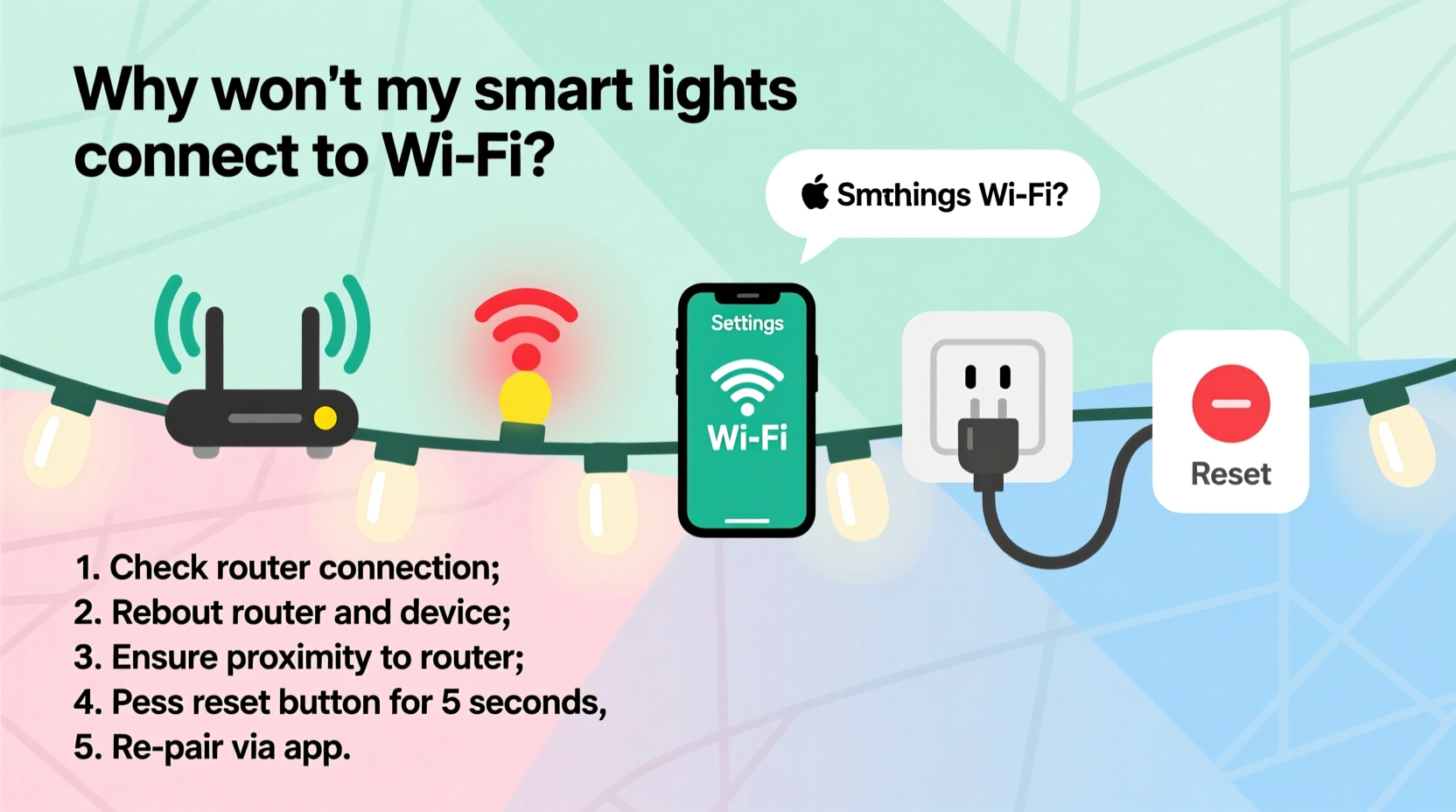
Smart Christmas lights rely on your home Wi-Fi network to communicate with mobile apps and cloud services. Most operate on the 2.4 GHz band—a requirement because many smart lighting systems don't support 5 GHz networks. They connect either directly to your router or via a bridge/hub (like Philips Hue) that relays commands from your app.
When pairing fails, the root cause typically falls into one of these categories:
- Incorrect Wi-Fi frequency (5 GHz instead of 2.4 GHz)
- Weak or unstable signal at the light’s location
- Router settings blocking new devices
- App or firmware issues
- Missteps during initial setup
Before diving into fixes, confirm your expectations are aligned with technical reality. For example, outdoor lights placed far from the router may struggle to maintain a stable link—even if your phone shows strong signal nearby. Physical obstructions like brick walls, metal gutters, or thick insulation can degrade signals significantly.
“Many users assume their smart lights should work like smartphones, but IoT devices have weaker antennas and narrower bandwidth tolerance.” — David Lin, Network Engineer & Home Automation Specialist
Step-by-Step Troubleshooting Process
Follow this systematic approach to isolate and resolve the issue. Start from the simplest checks and move toward advanced configurations.
- Verify Your Wi-Fi Band
Ensure your network operates on 2.4 GHz. Many modern routers broadcast dual bands under the same name (SSID). If both are active, temporarily disable the 5 GHz network in your router settings or rename it so your phone connects only to 2.4 GHz during setup. - Check Proximity to Router
Bring the lights (or their controller module) within 10–15 feet of your router during setup. Even if they’ll be installed farther away later, initial pairing requires strong signal. - Restart Devices
Power cycle your router, smartphone, and the light strand. Unplug each for 30 seconds, then power back on. This clears temporary glitches in memory or communication stacks. - Confirm App Permissions
On iOS and Android, ensure the lighting app has permission to access Wi-Fi and location services (required for network scanning). - Re-pair the Lights
Forget the device in the app, reset the lights using the manufacturer’s method (usually holding a button for 10+ seconds), then attempt pairing again.
Common Setup Mistakes and How to Avoid Them
Even tech-savvy users make errors during initial configuration. These missteps are often the real reason behind failed connections.
| Mistake | Why It Causes Issues | Solution |
|---|---|---|
| Using 5 GHz Wi-Fi | Most smart lights lack hardware support for 5 GHz | Connect phone and lights to 2.4 GHz network only |
| Setting up too far from router | Signal drops below usable threshold | Pair near router, then relocate after success |
| Not resetting lights before re-pairing | Device retains old network credentials | Hold reset button until lights flash rapidly |
| Using guest network | Guest networks often block local device discovery | Use primary network with full access |
| Ignoring firmware updates | Outdated firmware may contain bugs | Check app for available updates post-setup |
Advanced Fixes: Router Settings and Network Optimization
If basic troubleshooting fails, examine your router's configuration. Some security and performance features unintentionally block IoT devices.
Disable MAC Address Filtering
If enabled, your router only allows pre-approved devices. Since new smart lights have unknown MAC addresses, they’ll be denied access. Temporarily disable this feature during setup, then re-enable and add the light’s MAC address manually.
Turn Off AP Isolation
Also known as “client isolation,” this setting prevents devices on the same network from communicating. While useful for public Wi-Fi, it breaks smart home ecosystems. Disable AP isolation in your router’s wireless settings.
Assign a Static IP or Use DHCP Reservation
Prevent IP conflicts by reserving an IP address for your light system. Access your router’s admin panel (usually via 192.168.1.1), find the device list, locate your lights, and assign a permanent local IP.
Reduce Channel Congestion
2.4 GHz has only three non-overlapping channels (1, 6, 11). In dense neighborhoods, interference is common. Log into your router and manually set the channel to the least congested option, which you can identify using apps like Wi-Fi Analyzer.
Real-World Example: Fixing Outdoor String Lights That Wouldn’t Connect
Mark installed Govee LED string lights along his roofline in early December. Despite following the app instructions, the lights stayed unresponsive. He tried multiple times over two days, growing frustrated.
After reading about Wi-Fi bands, he realized his iPhone automatically connected to the 5 GHz network. He renamed his 5 GHz SSID to \"Home-5G\" and restarted the setup with his phone on the 2.4 GHz network named \"Home.\" Still no success.
Next, he brought the control box inside, placing it next to the router. He reset the lights by holding the button for 15 seconds until they blinked rapidly. On his third attempt, the app detected the device and completed pairing. After confirming remote control worked indoors, he moved the lights back outside. Signal remained stable due to a recent router upgrade with improved range.
The root causes? A combination of incorrect band selection and marginal outdoor signal during initial setup. By isolating variables, Mark solved what felt like a complex failure with simple steps.
Manufacturer-Specific Tips
Different brands use unique protocols and apps. Here’s how to troubleshoot top models:
- Govee: Hold the physical button on the controller for 10+ seconds until lights flash red and green. Reopen the app and select “Add Device.” Ensure Bluetooth is enabled even during Wi-Fi setup.
- Philips Hue: Requires a Hue Bridge. Confirm the bridge is linked to the router via Ethernet and powered. Use the Hue app to search for new lights under “Settings > Lights > Add Light.”
- Twinkly: These lights create their own hotspot during setup. Disconnect your phone from home Wi-Fi, join the Twinkly_XXXXX network, then complete configuration in the app before reconnecting to home Wi-Fi.
- Feit Electric: Reset by turning the lights on/off seven times in quick succession. Wait 10 seconds between cycles. The app should detect the device in setup mode.
Troubleshooting Checklist
Use this checklist to verify all critical steps before concluding hardware failure:
- ✅ Confirm router broadcasts 2.4 GHz network
- ✅ Phone is connected to 2.4 GHz, not 5 GHz
- ✅ Mobile data is turned off during setup
- ✅ Lights are within close range of router
- ✅ Lights have been properly reset
- ✅ Router does not use AP isolation or MAC filtering
- ✅ Lighting app is updated to latest version
- ✅ Firmware update available post-connection?
- ✅ Try setup with a different smartphone or tablet
- ✅ Test another smart device (like a plug) in the same location
Frequently Asked Questions
Can smart Christmas lights work without Wi-Fi?
Yes—but with limited functionality. Most allow manual control via physical buttons or IR remotes for basic on/off and color changes. However, scheduling, app control, voice assistant integration, and internet-based effects require Wi-Fi.
Why do my lights connect briefly then disconnect?
This usually indicates signal instability. Common causes include distance from router, interference from appliances (microwaves, cordless phones), or network congestion. Try relocating the router, reducing connected devices, or using a Wi-Fi extender with 2.4 GHz support.
Do smart lights slow down my internet?
No. Smart lights use minimal bandwidth—typically less than 1 Mbps combined. They communicate locally with your router and don’t impact streaming or browsing speeds under normal conditions.
Final Steps and When to Seek Replacement
If you’ve followed all steps and still cannot establish a stable connection, consider these final actions:
- Test the lights with a neighbor’s 2.4 GHz network (if safe and allowed).
- Try a different power outlet—some voltage fluctuations interfere with controllers.
- Contact customer support with specific model number, app logs (if available), and steps already taken.
Persistent failure across multiple networks may indicate a defective control module. Most reputable brands offer one-year warranties. Request a replacement rather than assuming user error.
“The majority of ‘broken’ smart lights returned to us are actually just misconfigured. A proper diagnostic saves time, money, and e-waste.” — Lena Park, Customer Support Lead at Luminara Smart Home
Conclusion
Smart Christmas lights enhance seasonal joy—but only when they work. Connection issues are common, especially during peak setup periods, but almost always solvable with methodical troubleshooting. From verifying Wi-Fi bands to adjusting router settings, the path to resolution follows a logical sequence. Don’t give up after one failed attempt. Reset, recheck, and retry with confidence.




 浙公网安备
33010002000092号
浙公网安备
33010002000092号 浙B2-20120091-4
Comments
No comments yet. Why don't you start the discussion?