
As the holiday season approaches, smart Christmas lights offer convenience, creativity, and festive charm with just a tap on your smartphone. But nothing disrupts the magic faster than an app that keeps dropping connection. You schedule a dazzling light show, only to find the display frozen—or worse, completely off—when guests arrive. If you’ve been asking, “Why does my smart Christmas lighting app keep disconnecting?” you're not alone. Thousands of users face similar frustrations each year, often due to overlooked network details, outdated firmware, or environmental interference. The good news: most of these issues are fixable with the right approach.
This guide dives deep into the common causes behind app disconnections and provides actionable, tested solutions. Whether your lights are Wi-Fi, Bluetooth, or Zigbee-based, understanding how they communicate—and where things go wrong—is the first step toward a stable, reliable setup.
Understanding How Smart Lighting Apps Work
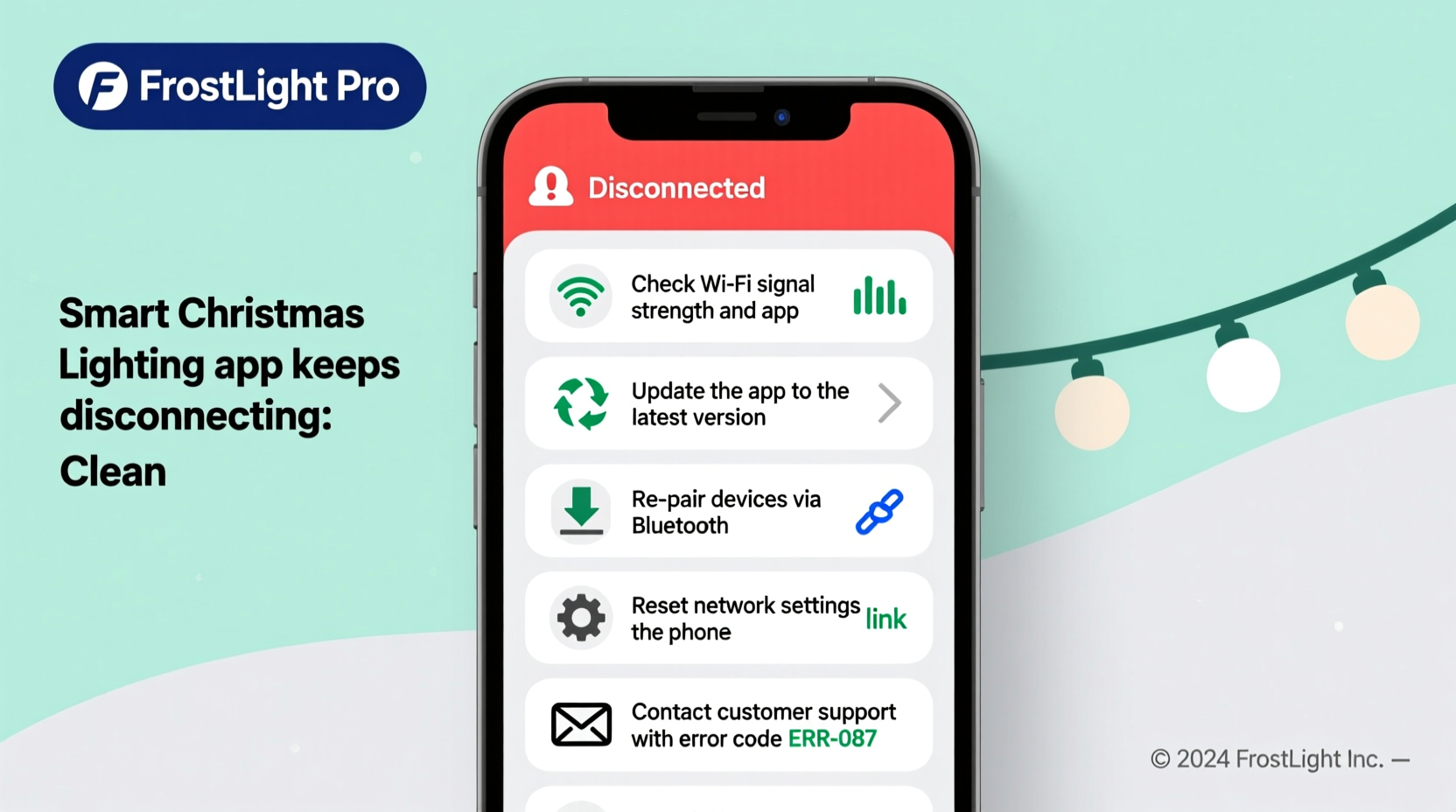
Smart Christmas lights rely on wireless communication protocols to sync with your mobile app. Most operate over Wi-Fi, connecting directly to your home network. Others use Bluetooth for short-range control, while higher-end systems may use mesh networks like Zigbee or Z-Wave through a central hub. The app serves as the interface between you and the device, sending commands such as \"turn on,\" \"change color,\" or \"start sequence.\"
When the app disconnects, it doesn’t necessarily mean the lights are off. It means the communication channel between your phone and the light system has failed. This could be due to:
- Your phone losing internet access temporarily
- The lights dropping off the Wi-Fi network
- Router settings blocking device communication
- Firmware bugs in the lights or app
- Physical distance or signal interference
Unlike traditional appliances, smart lights depend on continuous two-way data flow. Even minor disruptions can sever this link, making stability more complex than simply plugging in a strand.
Common Causes of App Disconnection and How to Fix Them
App disconnections rarely stem from a single cause. More often, they result from a combination of factors. Below are the top five culprits—and how to resolve them.
1. Weak or Unstable Wi-Fi Signal
If your lights are installed far from your router—like on an outdoor tree, garage eaves, or backyard fence—they may struggle to maintain a strong Wi-Fi signal. Walls, metal structures, and even weather conditions (such as heavy rain) can weaken transmission.
Solution: Use a Wi-Fi analyzer app (like NetSpot or Wi-Fi Analyzer) to measure signal strength at the location of your lights. If the signal is below -70 dBm, consider installing a Wi-Fi extender or mesh node nearby. For outdoor setups, weatherproof extenders like Google Nest Wifi Points or TP-Link Deco units offer reliable coverage.
2. Overloaded Network Bandwidth
During the holidays, your home network likely hosts multiple high-bandwidth activities: video calls, streaming services, online gaming, and more. Smart lights don’t consume much data individually, but when combined with dozens of other connected devices, congestion can delay or drop signals.
Solution: Prioritize your smart lighting traffic using Quality of Service (QoS) settings in your router. Assign higher priority to your lights’ IP address or MAC address. This ensures critical commands get through even during peak usage.
3. Outdated Firmware or App Version
Manufacturers regularly release firmware updates to improve device stability, security, and compatibility. An outdated app or light firmware can lead to crashes, timeouts, or authentication failures.
Solution: Open your lighting app and navigate to device settings. Check for available firmware updates. Also, ensure your mobile app is updated via the Apple App Store or Google Play Store. Never skip update notifications—they often contain critical fixes.
4. Router DHCP Lease Time Too Short
DHCP (Dynamic Host Configuration Protocol) assigns temporary IP addresses to devices on your network. If the lease time is too short (e.g., 1 hour), your lights might lose their assigned IP and fail to reconnect automatically.
Solution: Log into your router’s admin panel (usually accessible via 192.168.1.1 or 192.168.0.1). Navigate to LAN settings and increase the DHCP lease time to 24 hours or longer. Alternatively, assign a static IP address to your lights to prevent reassignment altogether.
5. Interference from Other Devices
Wi-Fi operates on shared radio frequencies (2.4 GHz and 5 GHz). Microwaves, baby monitors, cordless phones, and even neighboring networks can interfere with your signal, especially in dense urban areas.
Solution: Switch your lights to the 5 GHz band if supported. While it has shorter range, it’s less crowded and more resistant to interference. In your router settings, rename your 2.4 GHz and 5 GHz networks separately (e.g., “HomeNetwork_2G” and “HomeNetwork_5G”) so you can manually connect your lights to the cleaner band.
“Many holiday lighting failures aren’t hardware problems—they’re network hygiene issues. A well-maintained Wi-Fi environment is the foundation of reliable smart lighting.” — Raj Patel, IoT Network Engineer at SmartHome Labs
Step-by-Step Guide to Restore Stable Connection
If your app keeps disconnecting, follow this systematic process to identify and resolve the root cause.
- Restart all components: Power cycle your router, smart lights, and mobile device. This clears temporary glitches and resets connections.
- Check physical placement: Ensure lights are within optimal range of your router or extender. Avoid placing them behind thick walls or near large metal objects.
- Verify network credentials: Confirm the lights are still connected to the correct Wi-Fi network. Some devices revert to setup mode after power outages.
- Update software: Install the latest version of the app and check for firmware updates for your lights.
- Test with another device: Open the app on a second smartphone or tablet. If it connects, the issue may be with your primary device’s OS or cache.
- Re-pair the device: Remove the lights from the app and go through the setup process again. This refreshes the network handshake.
- Monitor stability: Observe the connection over 24–48 hours. If disconnections persist, proceed to advanced troubleshooting.
Advanced Fixes for Persistent Disconnections
When basic steps fail, deeper configuration may be required. These methods require slightly more technical knowledge but offer long-term stability.
Create a Dedicated IoT Network
Separate your smart lights and other IoT devices onto their own network. Many modern routers support guest networks or IoT VLANs. By isolating low-priority devices, you reduce congestion and improve performance for both your lights and main devices.
Use a Static IP Assignment
Instead of relying on dynamic IP assignment, assign a fixed IP address to your lights. This prevents IP conflicts and ensures consistent connectivity. To do this:
- Find your lights’ current IP and MAC address in the app or router dashboard.
- Access your router settings and navigate to DHCP reservation.
- Reserve an IP address for the device’s MAC address.
Switch to a Hub-Based System
If Wi-Fi proves unreliable, consider upgrading to a hub-based lighting system like Philips Hue or LIFX + Bridge. These use more stable protocols (Zigbee or proprietary mesh) and act as intermediaries between your lights and app, reducing direct Wi-Fi dependency.
| Connection Type | Pros | Cons |
|---|---|---|
| Wi-Fi Direct | No hub needed; easy setup | Prone to network congestion; limited range |
| Bluetooth | Low power; simple pairing | Short range (~30 feet); no remote access |
| Zigbee / Z-Wave | Mesh networking; reliable; low latency | Requires hub; higher cost |
Mini Case Study: The Johnson Family’s Holiday Display Rescue
The Johnsons in suburban Chicago installed 12 strands of Wi-Fi-enabled Christmas lights across their roof, trees, and driveway. Each night, their app would work for 10–15 minutes before showing “Device Offline.” Frustrated, they nearly removed the entire setup.
A local smart home technician diagnosed the issue: their router was located in the basement, and the attic-mounted lights were struggling with signal penetration. Additionally, their DHCP lease was set to 2 hours, causing nightly IP drops.
The solution included:
- Installing a mesh Wi-Fi node in the attic
- Extending DHCP lease to 24 hours
- Updating all light firmware
After these changes, the lights remained connected for the rest of the season. The family even added voice control via Alexa without further issues.
Troubleshooting Checklist
Use this checklist to quickly diagnose and resolve disconnection issues:
- ✅ Restart router, lights, and phone
- ✅ Confirm lights are within Wi-Fi range
- ✅ Update lighting app and firmware
- ✅ Check for network interference (microwaves, neighbors)
- ✅ Extend DHCP lease time or assign static IP
- ✅ Test app on a second mobile device
- ✅ Re-pair lights with the app
- ✅ Consider switching to 5 GHz or using a mesh network
- ✅ Isolate lights on a dedicated IoT network
- ✅ Evaluate upgrading to a hub-based system
FAQ
Can power surges cause my smart lights to disconnect?
Yes. Sudden power interruptions can force lights to reboot and lose network credentials. Use surge protectors rated for outdoor electronics and consider uninterruptible power supplies (UPS) for critical displays.
Why do my lights reconnect automatically sometimes but not others?
This depends on the device’s recovery protocol. Some brands attempt reconnection every few minutes; others wait for manual input. Check your app settings for “auto-reconnect” options or enable push notifications to detect outages faster.
Does cold weather affect smart lighting performance?
Extreme cold can impact battery-powered controllers and condensation inside enclosures. Ensure all outdoor-rated lights have proper IP65 or higher waterproofing. Avoid exposing internal hubs or power adapters to freezing temperatures.
Conclusion: Enjoy a Seamless Holiday Light Experience
Smart Christmas lighting should enhance your holiday spirit—not drain your patience. While app disconnections are common, they’re rarely unavoidable. With a methodical approach, most issues can be resolved in under an hour. Focus on network health, keep software up to date, and don’t hesitate to reconfigure your setup for better reliability.
Remember, the goal isn’t just to make the lights work today—it’s to build a system that performs consistently year after year. Whether you’re managing a modest porch display or a full-home spectacle, stable connectivity turns fleeting tech frustration into lasting seasonal joy.




 浙公网安备
33010002000092号
浙公网安备
33010002000092号 浙B2-20120091-4
Comments
No comments yet. Why don't you start the discussion?