
There’s nothing more frustrating than setting up your smart Christmas tree, launching the companion app, and watching the lights flicker only to lose connection moments later. You’re not alone—thousands of users report recurring Bluetooth disconnections between their smartphones and smart holiday decor. While it may seem like a minor glitch, persistent dropouts can ruin the magic of synchronized light shows, voice-controlled effects, or scheduled routines.
The root cause is rarely the tree itself. More often, it's a combination of environmental interference, outdated software, or incorrect pairing behavior. The good news? Most Bluetooth issues with smart Christmas trees are fixable in under 15 minutes using systematic troubleshooting. This guide breaks down why disconnections happen and how to resolve them permanently—so you can enjoy a seamless, festive experience.
Understanding Bluetooth Behavior in Smart Holiday Decor
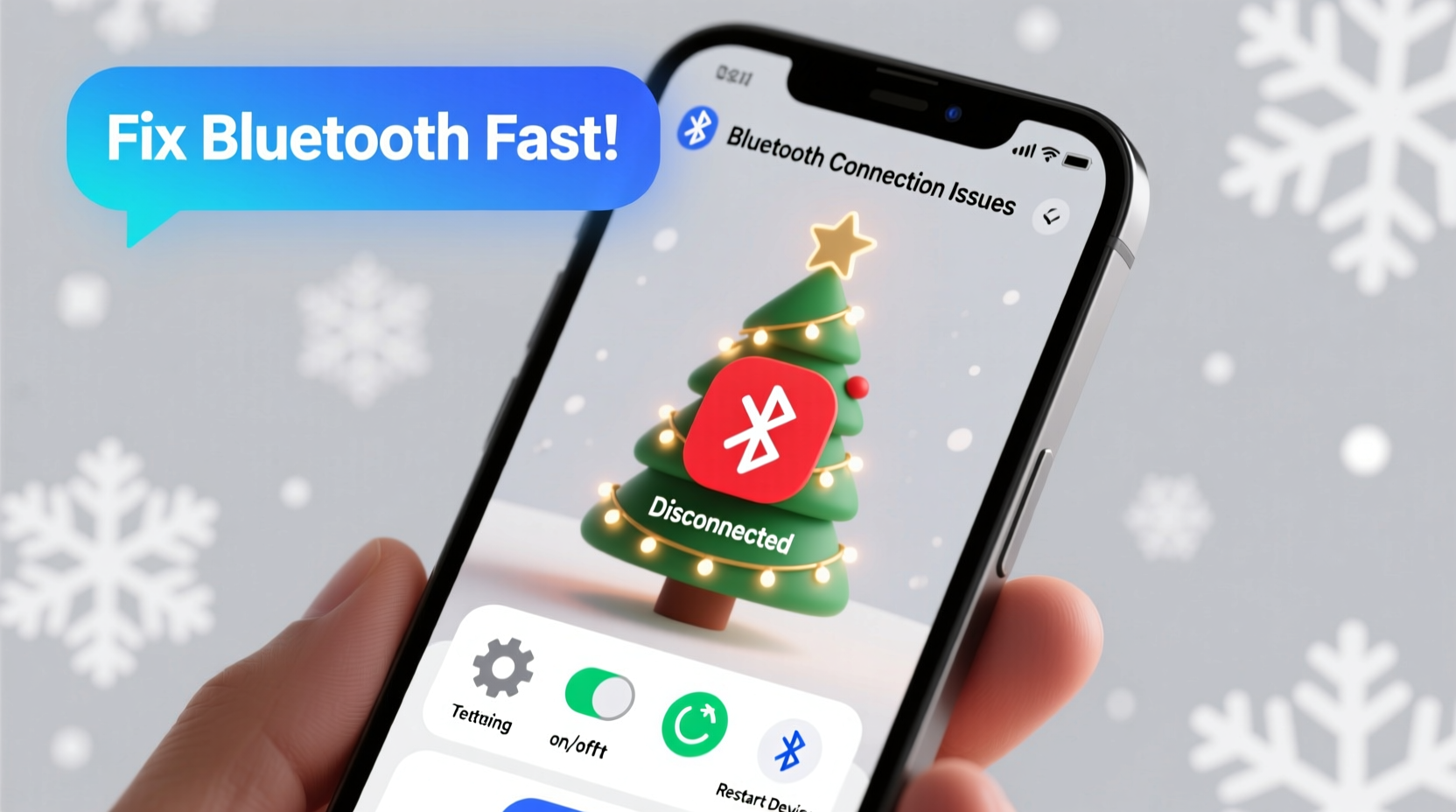
Smart Christmas trees rely on Bluetooth Low Energy (BLE), a wireless protocol designed for short-range communication with minimal power consumption. Unlike Wi-Fi, BLE operates on the 2.4 GHz frequency band but uses adaptive frequency hopping to avoid interference. However, this doesn’t make it immune to disruption—especially during the holidays when homes are filled with competing signals.
BLE connections are inherently less stable than Wi-Fi because they prioritize energy efficiency over bandwidth. Your smart tree’s controller chip maintains a “connection window” where it listens for commands from your phone. If your phone moves too far, enters sleep mode, or gets interrupted by another app, that window closes—and the app registers a disconnect.
“Bluetooth stability in consumer IoT devices hinges on three factors: proximity, signal clarity, and device health. Many holiday products push these limits due to compact design and seasonal use patterns.” — Dr. Alan Reyes, Wireless Systems Engineer at IoT Solutions Group
Additionally, most smart trees aren’t used year-round. When stored improperly or powered off for months, internal clocks drift, firmware becomes outdated, and Bluetooth caches degrade—all contributing to unreliable reconnection attempts.
Step-by-Step Guide to Restore Stable Bluetooth Connection
Follow this sequence to diagnose and fix the core issue behind your app disconnects. Perform each step in order—skipping ahead may lead to temporary fixes that fail again within hours.
- Power-cycle the tree and controller
Unplug the tree for 60 seconds. This resets the microcontroller and clears any stuck processes. Reconnect and wait for the indicator light to stabilize (usually solid blue or green). - Forget the device on your phone
Go to your phone’s Bluetooth settings, locate the tree (often listed as “XmasTree_LED” or similar), and tap “Forget This Device.” This removes corrupted pairing data. - Close and force-stop the app
Swipe the app out of recent apps or go to Settings > Apps > [Your Tree App] > Force Stop. Prevent background interference during re-pairing. - Re-pair from within the app
Launch the app and follow the setup wizard again. Do not pair via phone Bluetooth menu—always let the app initiate discovery. - Maintain close proximity (under 10 feet)
Stay within range during setup. Walls, mirrors, and metal objects weaken signals. Avoid placing your phone in another room while pairing. - Test with a second device
Try connecting using a different smartphone or tablet. If it works, the issue lies with your primary phone’s Bluetooth stack.
Common Causes of Disconnection and How to Fix Them
Even after proper pairing, some factors will continue to interrupt connectivity. Below are the top culprits and targeted solutions.
1. Interference from Other 2.4 GHz Devices
Wi-Fi routers, microwaves, baby monitors, and cordless phones all operate near the same frequency. During holiday gatherings, multiple devices activate simultaneously, creating signal congestion.
- Move your router at least 6 feet away from the tree.
- Use wired internet connections where possible to reduce Wi-Fi load.
- Avoid running the microwave while controlling light sequences.
2. Phone Battery Saver or Doze Mode
Modern smartphones aggressively limit background activity to conserve power. On Android, this includes suspending Bluetooth scanning. iPhones may pause background app refresh.
To fix:
- Android: Settings > Apps > [Tree App] > Battery > Unrestricted
- iOS: Settings > [Tree App] > Background App Refresh = ON
3. Outdated App or Firmware
Manufacturers release updates to patch connection bugs. An old version may lack compatibility with newer OS versions.
Check for updates:
- Visit your app store and search for the app name.
- Look for a \"Firmware Update\" option inside the app under Settings or Device Info.
- If no update appears, visit the manufacturer’s website for model-specific patches.
4. Physical Obstructions and Distance
Bluetooth signals struggle with dense materials. A fireplace mantel, glass cabinet, or large ornament cluster can block transmission.
Solution: Reposition the control box (usually at the base) so it faces outward, unobstructed. Elevate it slightly if placed behind furniture.
5. Multiple Connected Devices
If several family members try to connect at once, the tree’s BLE module may reject secondary requests or switch erratically between controllers.
Recommendation: Designate one primary device for control. Others can view schedules or presets through shared calendars or notifications instead.
Troubleshooting Checklist: Fix Disconnections Fast
Use this checklist whenever your smart tree app drops connection. Print it or save it to your phone for quick access during holiday prep.
✅ Bluetooth Fix Checklist
- Unplugged tree for 60 seconds and restarted
- Forgotten device in phone Bluetooth settings
- App force-closed and relaunched
- Re-paired via app—not system Bluetooth menu
- Phone within 10 feet, no major obstructions
- Background restrictions disabled for the app
- App and firmware updated to latest version
- Other 2.4 GHz devices temporarily turned off during testing
- Only one controller device active at a time
Do’s and Don’ts: Bluetooth Best Practices for Smart Trees
| Do | Don’t |
|---|---|
| Place the control box in an open area near the base | Hide the controller inside a metal stand or drawer |
| Update the app before first use each season | Assume last year’s settings still apply |
| Use a dedicated tablet or old phone mounted nearby as a permanent controller | Control from a phone carried upstairs or in another room |
| Label your tree’s model number and app name on the storage box | Wait until December to figure out which app you need |
Real Example: Sarah’s Sync Struggles
Sarah bought a premium smart tree with music-syncing lights. Every time she started a playlist, the app would disconnect after 30 seconds. She tried restarting her phone repeatedly, but the issue persisted.
After reading online forums, she realized her new Wi-Fi 6 router was mounted directly behind the tree stand. Using a Wi-Fi analyzer app, she discovered severe channel overlap on the 2.4 GHz band. She changed her router’s channel from 6 to 1—which reduced interference—and moved the router sideways by five feet. She also disabled battery optimization for the tree app.
The result? A stable connection throughout multi-song performances. “I didn’t think my router could affect holiday lights,” she said. “But once I treated it like any other tech setup, everything clicked.”
Frequently Asked Questions
Can walls or furniture really block Bluetooth signals?
Yes. Drywall attenuates signal slightly, but metal, water (like in fish tanks), and dense wood significantly weaken Bluetooth. Mirrors with metallic backing are especially problematic. For best results, maintain line-of-sight or minimize solid barriers between your phone and the tree’s controller.
Why does my tree reconnect automatically sometimes but not others?
Automatic reconnection depends on both devices being powered, in range, and not blocked by software restrictions. If your phone killed the app in the background or the tree reset unexpectedly, the handshake fails. Some apps require manual relaunch even if Bluetooth remains connected.
Is there a way to extend the Bluetooth range beyond 30 feet?
Not reliably with standard setups. However, you can use a secondary device as a bridge. For example, leave an old smartphone next to the tree, logged into the app and connected via Bluetooth. Then control that phone remotely using screen-sharing or automation tools like TeamViewer or Apple Sidecar. This effectively turns it into a local server.
Prevent Future Issues: Seasonal Maintenance Tips
Because smart trees are used only once a year, they’re prone to forgotten passwords, lost apps, and degraded hardware performance. A little preparation now saves frustration later.
- Before storing: Power down the tree completely, then remove batteries if the controller has a backup.
- Label everything: Attach a sticker to the storage box with the app name, model number, and default password.
- Create a digital note: Save setup instructions, troubleshooting steps, and customer service links in a cloud note titled “Smart Tree Setup.”
- Test in November: Set up the tree early for a quick function check. Updating the app in November avoids last-minute surprises.
Conclusion: Enjoy a Seamless, Connected Holiday Experience
Your smart Christmas tree should enhance the season, not become a source of stress. Frequent app disconnections are usually fixable with a methodical approach—starting with resetting the connection and addressing interference sources. By understanding how Bluetooth works in holiday tech and applying consistent maintenance, you can ensure reliable performance year after year.
Don’t accept dropped connections as normal. With the right settings, placement, and awareness of common pitfalls, your tree can stay synced, responsive, and magical from the first light-up to New Year’s Eve. Take action tonight: run through the checklist, update your app, and test the connection. A smooth, joyful holiday display starts with a single stable link.




 浙公网安备
33010002000092号
浙公网安备
33010002000092号 浙B2-20120091-4
Comments
No comments yet. Why don't you start the discussion?