
Smart doorbells offer convenience, security, and real-time monitoring — but frequent disconnections from your Wi-Fi network can turn that promise into frustration. If your device keeps dropping its connection, you’re not alone. Thousands of users report intermittent connectivity, delayed alerts, or complete loss of access. The root causes vary, from signal strength and router settings to firmware issues and environmental interference. Understanding these factors is key to restoring reliable performance.
This guide dives deep into the technical and practical reasons behind smart doorbell disconnections. You’ll learn how to diagnose the issue, implement lasting fixes, and optimize your home network for seamless integration with all smart devices.
Common Causes of Smart Doorbell Disconnections
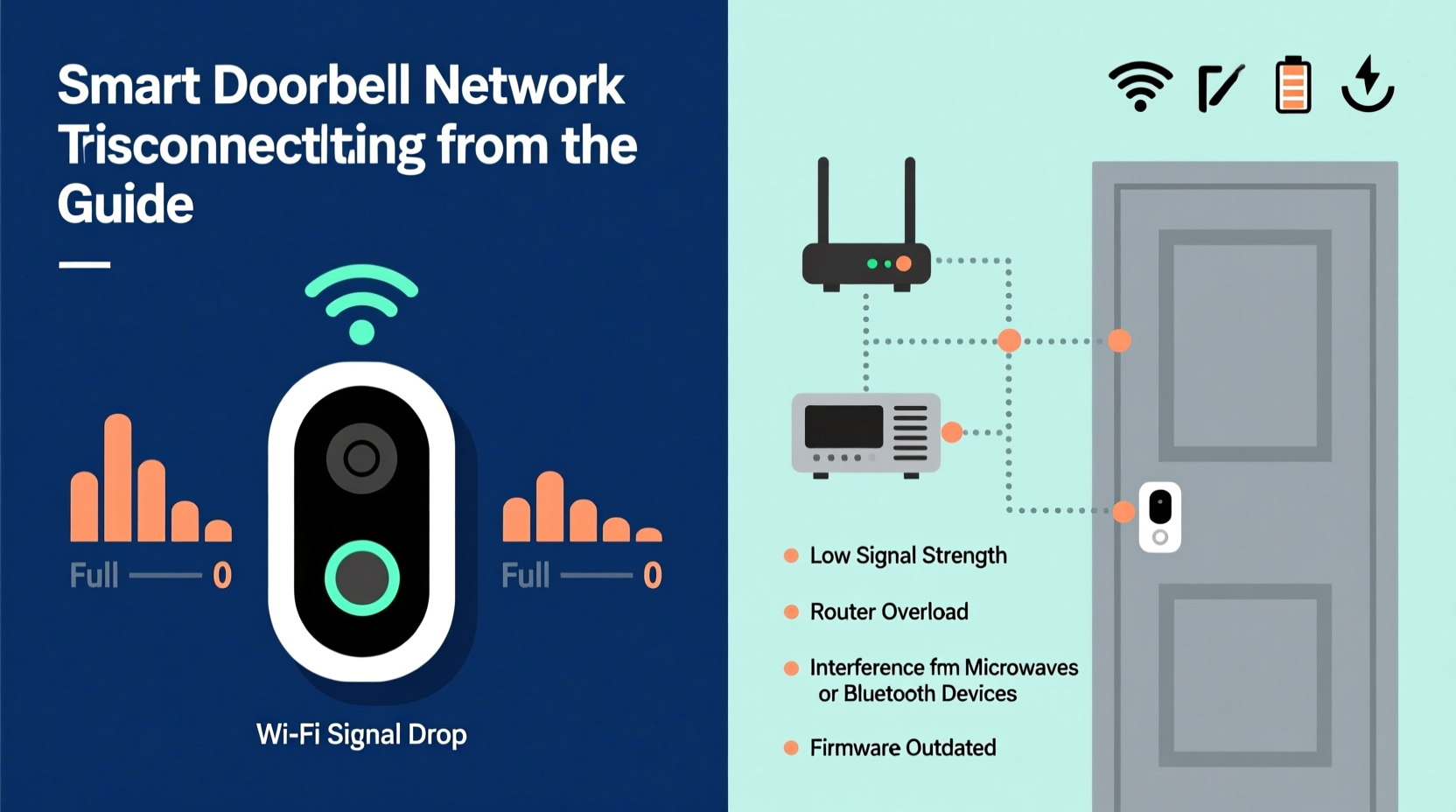
Smart doorbells rely on a stable Wi-Fi connection to transmit video, send push notifications, and enable two-way audio. When that link breaks, functionality suffers. Several underlying issues can cause this instability:
- Weak Wi-Fi signal at the installation location – Exterior walls, metal frames, and distance from the router weaken signal strength.
- Network congestion – Too many connected devices competing for bandwidth can degrade performance.
- Incompatible router settings – Features like AP isolation, outdated encryption, or incorrect frequency bands may block communication.
- Firmware bugs or outdated software – Manufacturers release updates to patch connectivity flaws; missing them leaves devices vulnerable.
- Power supply fluctuations – Poor wiring or low voltage can reset the device repeatedly.
- Interference from other electronics – Microwaves, cordless phones, or baby monitors operating on 2.4 GHz can disrupt signals.
Identifying which factor applies to your setup is the first step toward resolution. Start by evaluating your doorbell’s physical placement and network environment.
Step-by-Step Troubleshooting Guide
Follow this systematic approach to isolate and resolve the disconnection issue. Each step builds on the previous one, ensuring no stone is left unturned.
- Reboot your doorbell and router – Power cycle both devices. Unplug the router for 30 seconds, then restart. This clears temporary glitches in network handshakes.
- Check signal strength at the doorbell – Use a Wi-Fi analyzer app (like Wi-Fi Analyzer or NetSpot) to measure signal quality. Aim for -65 dBm or better; anything below -75 dBm indicates poor reception.
- Verify the correct Wi-Fi band – Most smart doorbells only support 2.4 GHz networks. Ensure you’re not accidentally connecting to a 5 GHz band, which has shorter range and poorer wall penetration.
- Confirm SSID and password accuracy – Typos during setup are common. Re-enter credentials carefully through the manufacturer’s app.
- Inspect firmware status – Open your doorbell’s companion app and check for pending updates under device settings. Install any available patches immediately.
- Review router settings – Disable features like AP (Access Point) isolation, client isolation, or MAC filtering that might prevent local device communication.
- Test power supply voltage – For wired models, use a multimeter to ensure consistent 16–24 VAC. Low voltage triggers resets and failed boot sequences.
- Reduce interference sources – Move nearby electronics away from the doorbell or router, especially those using 2.4 GHz frequencies.
If the problem persists after completing these steps, consider deeper network architecture changes.
Optimizing Your Network for Smart Devices
Your smart doorbell doesn’t operate in isolation. It’s part of a growing ecosystem of IoT devices that demand reliable, dedicated bandwidth. A poorly optimized network will struggle to maintain connections across multiple gadgets.
Modern routers often default to settings designed for speed rather than stability. However, smart home devices prioritize consistent uptime over high throughput. Adjusting your network configuration accordingly improves reliability.
| Setting | Recommended Value | Purpose |
|---|---|---|
| Wi-Fi Band | 2.4 GHz | Better range and wall penetration for outdoor devices |
| Channel Width | 20 MHz | Reduces interference in crowded areas |
| Security Protocol | WPA2-PSK (AES) | Ensures compatibility without sacrificing security |
| AP Isolation | Disabled | Allows device-to-device communication within the network |
| QoS (Quality of Service) | Enabled, prioritize video streams | Prevents buffering during live viewing |
Additionally, avoid using extended guest networks for smart doorbells. These often restrict internal communication and lack proper DNS routing, leading to timeouts and authentication failures.
“Many connectivity issues stem from misconfigured routers, not faulty hardware. Adjusting channel width and disabling isolation features resolves up to 60% of reported dropouts.” — Raj Patel, Senior Network Engineer at HomeTech Labs
Real-World Example: Resolving Persistent Dropouts in a Suburban Home
Consider the case of Maria T., a homeowner in Austin, Texas, who installed a Ring Video Doorbell Pro. Within days, she noticed frequent disconnections—sometimes multiple times per hour. Alerts were delayed, and live view would time out mid-conversation.
Initial troubleshooting revealed her phone had strong Wi-Fi inside the house, but signal dropped significantly near the front door. Her router was located in the basement, nearly 40 feet away with two brick walls in between.
Maria tried rebooting and reconfiguring the device multiple times with no lasting success. She contacted customer support, who suggested a Wi-Fi extender. Instead, she opted for a mesh network system with a satellite node placed near her entryway.
After installing the node and reconnecting the doorbell, signal strength improved from -82 dBm to -58 dBm. The disconnections ceased entirely. Firmware updated automatically, and motion alerts became instantaneous.
This example illustrates that while software and settings matter, physical infrastructure often plays the decisive role. A well-placed access point can be more effective than repeated device resets.
When Hardware May Be the Issue
While most disconnections are network-related, hardware faults do occur. Signs pointing to defective equipment include:
- Repeated failure to reconnect even after full resets
- Overheating or visible damage to the unit
- Intermittent LED behavior not tied to network activity
- Consistent issues across multiple networks (e.g., tested at a neighbor’s house)
For battery-powered models, degraded batteries lose charge quickly and fail to sustain network sessions. Replace them according to manufacturer guidelines — typically every 6 to 12 months depending on usage.
Wired installations should be checked for corrosion, loose terminals, or insufficient transformer output. A failing chime or flickering doorbell light may indicate broader electrical problems affecting the smart device.
If you suspect hardware failure, contact the manufacturer’s support team. Many brands offer free replacements within warranty periods when diagnostics confirm a defect.
Proactive Maintenance Checklist
Prevention is more effective than constant troubleshooting. Use this checklist monthly to maintain peak performance:
- ✅ Reboot your router and modem
- ✅ Check for firmware updates on all smart devices
- ✅ Inspect Wi-Fi signal strength at the doorbell location
- ✅ Clean the doorbell housing to prevent moisture buildup
- ✅ Verify that no new appliances or construction interfere with signal
- ✅ Test battery level (if applicable) and replace if below 50%
- ✅ Review router logs for unusual disconnection patterns
Regular maintenance reduces unexpected outages and extends the lifespan of your smart doorbell and supporting network gear.
Frequently Asked Questions
Why does my smart doorbell disconnect only at night?
Nighttime disconnections may coincide with increased network usage (streaming, downloads) or temperature drops affecting outdoor units. Also, some ISPs throttle bandwidth during peak hours. Monitor usage patterns and consider enabling QoS on your router to prioritize critical devices.
Can a factory reset fix network disconnections?
Yes, a factory reset removes corrupted configurations and forces a fresh setup. However, use it only after exhausting other options. After resetting, reconnect the doorbell to Wi-Fi immediately and ensure it completes firmware updates before mounting it again.
Does weather affect smart doorbell connectivity?
Extreme temperatures, heavy rain, or snow accumulation can impact both signal transmission and device operation. While most doorbells are weather-resistant, prolonged exposure to moisture may lead to internal condensation or corrosion. Install under an eave or use a protective cover if possible.
Final Recommendations and Next Steps
A smart doorbell that frequently disconnects defeats its primary purpose: providing peace of mind. While occasional blips are normal, persistent dropouts require attention. Start with simple checks — signal strength, firmware, and router settings — before moving to infrastructure upgrades like mesh networks or signal boosters.
Remember, your doorbell is only as reliable as the network it depends on. Investing in a robust, smart-home-optimized Wi-Fi system pays dividends across all connected devices, from cameras to thermostats.
Take action today: walk to your front door with your phone, run a quick speed test, and assess the real-world conditions your doorbell faces. Then apply the steps outlined here to lock in a stable, long-term connection.




 浙公网安备
33010002000092号
浙公网安备
33010002000092号 浙B2-20120091-4
Comments
No comments yet. Why don't you start the discussion?