
Smart fridges promise convenience—remote temperature control, internal camera access, grocery tracking, and voice integration. But when your appliance keeps dropping its Wi-Fi connection, those features become inaccessible, defeating the purpose of owning a \"smart\" device. Frequent disconnections are frustrating and often stem from overlooked network issues, hardware limitations, or environmental interference. The good news is that most causes are fixable with systematic troubleshooting. This guide breaks down the root reasons behind unstable connections and provides actionable solutions to ensure your smart fridge stays reliably online.
Common Causes of Smart Fridge Wi-Fi Disconnection
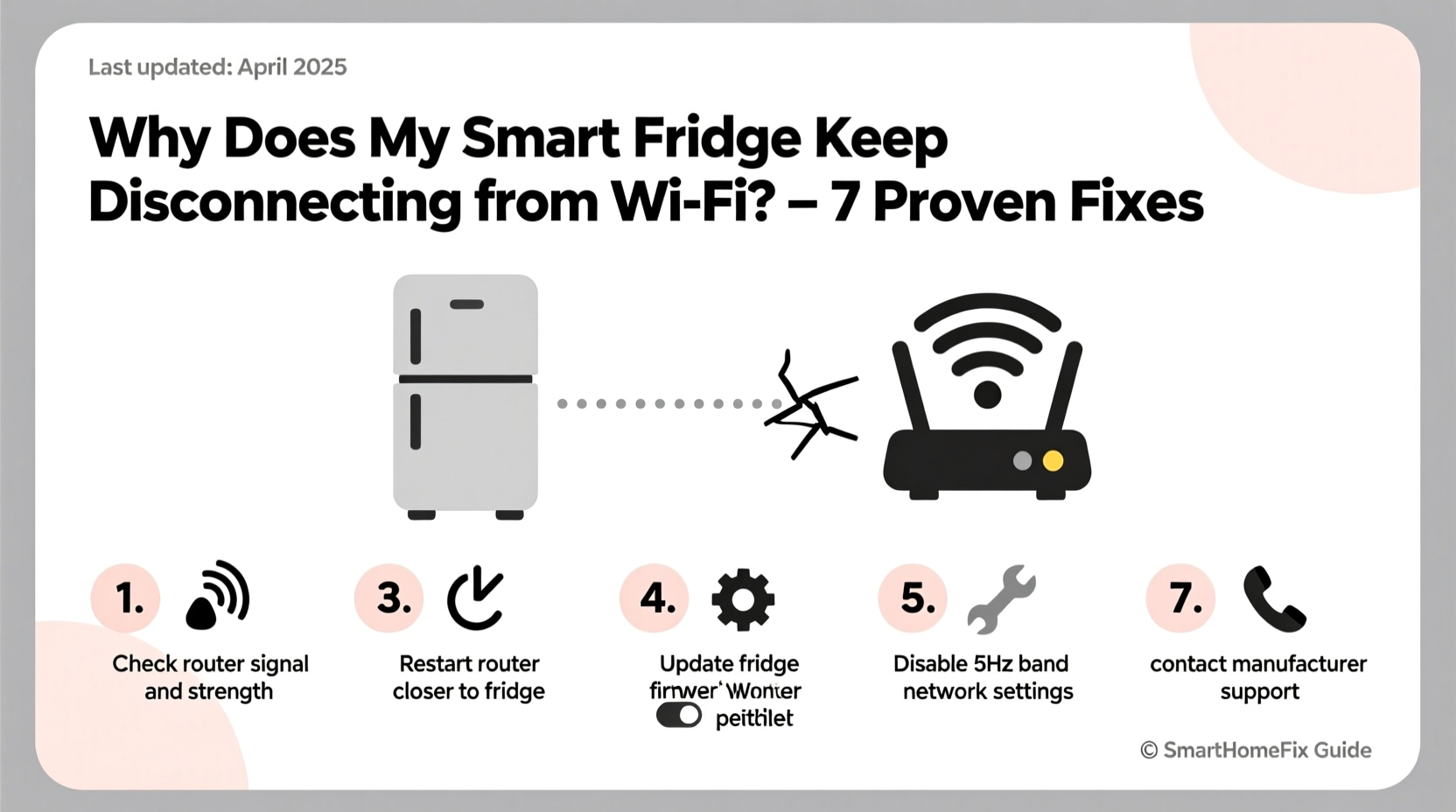
Before diving into fixes, it’s essential to understand what might be causing the instability. Unlike smartphones or laptops, smart fridges have limited processing power and often rely on older Wi-Fi standards. Their placement in kitchens—often behind metal cabinets or near large appliances—further complicates signal reception.
- Weak Wi-Fi signal: Distance from the router or physical obstructions (walls, appliances) can weaken signal strength.
- Network congestion: Too many connected devices may overload your router’s bandwidth allocation.
- Incompatible Wi-Fi bands: Some fridges only support 2.4 GHz networks, not 5 GHz, which newer routers prioritize.
- Firmware bugs: Outdated or corrupted firmware can cause communication errors between the fridge and router.
- Router settings: Features like AP isolation, MAC filtering, or automatic channel switching can interfere with IoT devices.
- Electromagnetic interference: Microwaves, dishwashers, or refrigerant compressors emit signals that disrupt Wi-Fi.
Step-by-Step Troubleshooting Guide
Follow this structured approach to identify and resolve the disconnection issue. Start with the simplest fixes before moving to advanced diagnostics.
- Restart both the fridge and router. Unplug the fridge for 30 seconds and reboot your router. This clears temporary glitches.
- Check if the fridge is within range. Move closer to the router temporarily to test connection stability.
- Verify Wi-Fi band compatibility. Ensure your fridge is connected to a 2.4 GHz network if it doesn’t support 5 GHz.
- Forget and re-add the network. In the fridge’s settings, remove the saved Wi-Fi and reconnect using the correct password.
- Update the fridge’s firmware. Check the manufacturer’s app or website for available updates.
- Assign a static IP address. Prevent IP conflicts by reserving an IP for the fridge in your router settings.
- Disable conflicting router features. Turn off AP isolation, client isolation, or aggressive firewall rules.
- Test with a different network. Use a mobile hotspot to see if the problem persists—this isolates whether the issue is with your home network.
Optimizing Your Network for Smart Appliances
Smart fridges are part of the growing Internet of Things (IoT) ecosystem, which demands consistent but low-bandwidth connectivity. Unlike streaming devices, they don’t need high speeds but require persistent uptime. Optimizing your network for such devices improves reliability across all smart home gadgets.
Modern dual-band routers often automatically steer devices to 5 GHz for speed, but this band has shorter range and poorer wall penetration. Since most smart fridges lack 5 GHz support, they either fail to connect or drop frequently when forced onto incompatible networks.
| Wi-Fi Band | Range | Speed | Suitable for Smart Fridges? |
|---|---|---|---|
| 2.4 GHz | Longer (up to 150 ft indoors) | Lower (~150 Mbps) | Yes — recommended |
| 5 GHz | Shorter (~50 ft indoors) | Higher (~900 Mbps) | No — most models don't support it |
To prevent automatic band steering, consider renaming your 2.4 GHz and 5 GHz networks with distinct SSIDs (e.g., “Home_WiFi_2G” and “Home_WiFi_5G”). This allows you to manually select the correct band during setup.
“Many IoT disconnections stem from poor network segmentation. A dedicated 2.4 GHz SSID for smart appliances reduces interference and improves uptime.” — David Lin, Senior Network Engineer at NetSecure Labs
Real-World Example: Resolving Persistent Drops in a Samsung Family Hub
A homeowner in Portland reported their Samsung Family Hub fridge losing Wi-Fi every few hours. The fridge was located on the opposite side of the kitchen, about 35 feet from the router, with two drywall partitions and a dishwasher in between. Initial attempts—restarting, reconnecting, updating apps—failed.
The breakthrough came when they used a Wi-Fi analyzer app and discovered the signal strength at the fridge’s location was -78 dBm, below the recommended threshold. They renamed their 2.4 GHz network separately and manually connected the fridge. Then, they installed a mesh Wi-Fi extender halfway between the router and kitchen. After these changes, the fridge maintained a stable connection for over three weeks without a single drop.
This case highlights how environmental factors and default router behavior can undermine even properly configured devices.
Do’s and Don’ts When Fixing Smart Fridge Connectivity
Avoid common pitfalls that prolong downtime. Follow this checklist to stay on track.
| Do | Don’t |
|---|---|
| Use a separate 2.4 GHz network name | Merge 2.4 GHz and 5 GHz under one SSID |
| Place the router centrally or use extenders | Assume the fridge should work anywhere |
| Update firmware monthly | Ignore software update notifications |
| Label your fridge’s MAC address | Enable MAC filtering without whitelisting |
| Monitor connection via router admin panel | Blame the fridge without testing the network |
Advanced Fixes for Persistent Issues
If basic steps don’t resolve the problem, consider deeper technical interventions.
Set Up a VLAN or Guest Network for IoT Devices
Creating a dedicated network segment for smart appliances isolates them from high-traffic devices. This prevents bandwidth competition and enhances security. Most modern routers (like ASUS, Netgear Orbi, or Google Nest Wi-Fi) support guest networks with customizable settings. Enable the guest network, restrict internet-only access (no local network), and connect your fridge there.
Use a Wi-Fi Range Extender or Mesh System
For homes with thick walls or large kitchens, a single router isn’t enough. A Wi-Fi extender placed between the router and fridge can boost signal strength. Better yet, invest in a mesh system (e.g., Eero, TP-Link Deco) that blankets your home in seamless coverage. Mesh nodes automatically route traffic through the strongest path, minimizing dead zones.
Factory Reset the Fridge’s Network Settings
If the device appears frozen or unresponsive, perform a network reset. On most models, this is found under Settings > Network > Reset Network. Note: This erases saved Wi-Fi credentials, so have your password ready.
Check for Router Firmware Updates
Just as your fridge needs updates, so does your router. Log into your router’s admin interface (usually via 192.168.1.1 or 192.168.0.1) and check for firmware upgrades. Manufacturers often release patches that improve IoT device compatibility.
FAQ: Common Questions About Smart Fridge Wi-Fi Issues
Why does my smart fridge disconnect when I use the microwave?
Microwaves operate on the 2.4 GHz frequency band, the same as most Wi-Fi networks. When running, they emit electromagnetic noise that interferes with nearby signals. To minimize disruption, ensure your microwave is well-shielded and consider upgrading to a router with better channel management (e.g., auto-switching to less congested channels).
Can a VPN or firewall block my smart fridge?
Yes. If your router runs a VPN or has strict firewall rules, it may block outbound connections from unknown devices. Smart fridges communicate with cloud servers for updates and app syncing. Disable any full-network VPNs or adjust firewall settings to allow known IoT device traffic.
Does unplugging the fridge erase its Wi-Fi settings?
Most modern smart fridges retain network configurations even after power loss. However, a prolonged outage (over 10 minutes) may require reconnection, especially if the internal battery backup is depleted. Always keep the fridge plugged in during troubleshooting.
Conclusion: Regain Control Over Your Smart Kitchen
A smart fridge that constantly drops Wi-Fi undermines the very benefits it was designed to deliver. The solution rarely lies in replacing the appliance. Instead, focus on optimizing your network environment, ensuring compatibility, and applying targeted fixes based on real-world conditions. By understanding the limitations of IoT devices and the nuances of home networking, you can achieve lasting connectivity. Take action today: test your signal, separate your Wi-Fi bands, and consider a mesh upgrade if needed. Once stabilized, your smart fridge will function as intended—making your kitchen truly intelligent.




 浙公网安备
33010002000092号
浙公网安备
33010002000092号 浙B2-20120091-4
Comments
No comments yet. Why don't you start the discussion?