
Smart home devices promise convenience, automation, and peace of mind—but nothing disrupts that promise faster than a thermostat that stops responding, a camera that drops its feed, or a smart lock that won’t connect. If your smart home device keeps going offline without warning, you’re not alone. Millions of users experience this issue, often due to overlooked network conditions, outdated firmware, or subtle hardware limitations. The good news is that most causes are fixable with the right knowledge and tools.
Understanding why these disconnections happen—and how to systematically address them—can transform your smart home from unreliable to rock-solid. This guide breaks down the most common reasons behind random offline events, provides actionable prevention strategies, and walks you through real-world troubleshooting steps used by professionals.
Common Causes of Random Offline Disconnections
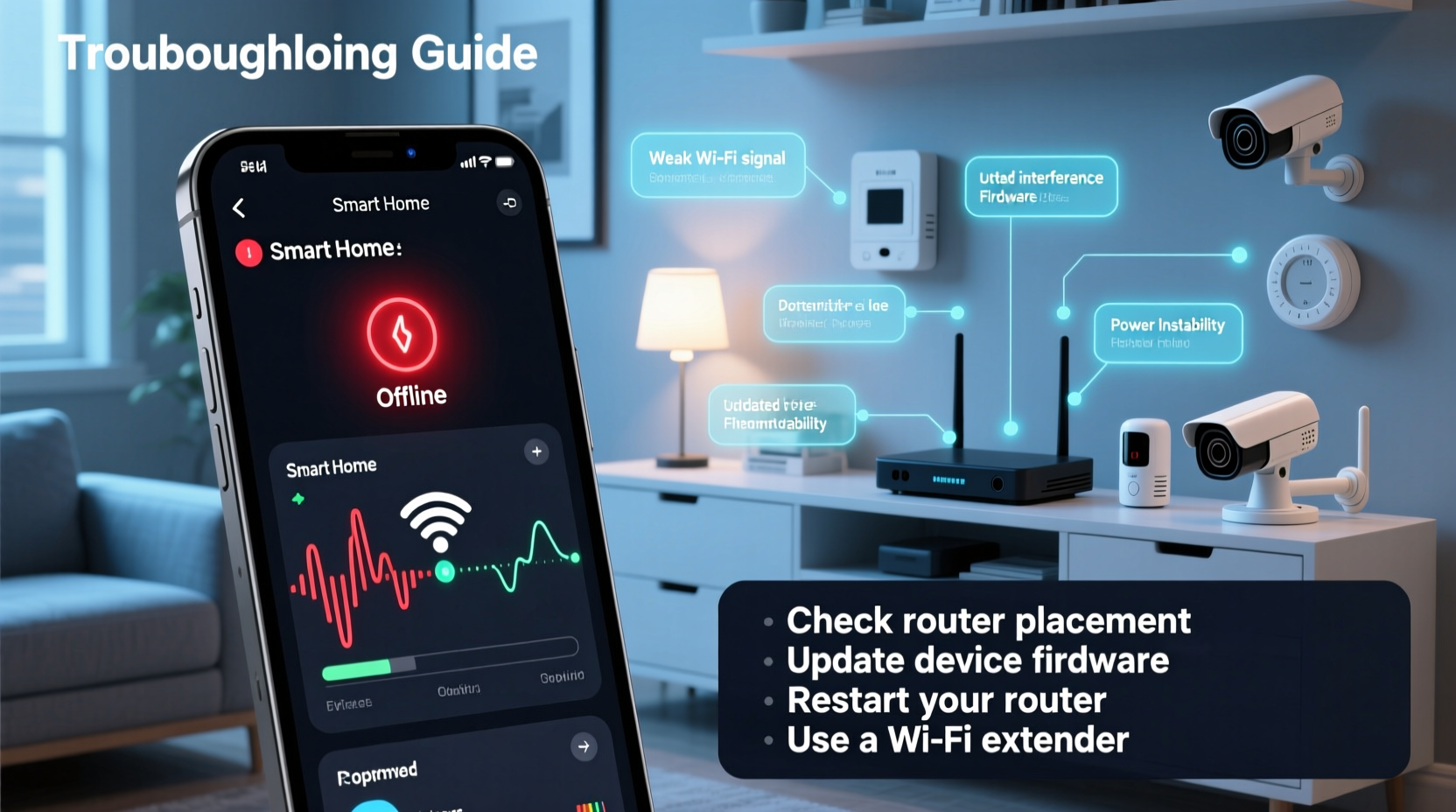
Smart home devices rely on a complex ecosystem: Wi-Fi networks, internet service, device firmware, cloud servers, and local power sources. A failure in any one of these components can result in an offline state. Below are the primary culprits.
- Unstable Wi-Fi signal: Devices located far from the router or behind thick walls may struggle to maintain a consistent connection.
- Network congestion: Too many devices using bandwidth simultaneously can overwhelm your router, especially during peak usage times.
- Firmware bugs: Outdated or poorly coded firmware can cause crashes or unexpected reboots.
- Router channel interference: Overlapping Wi-Fi channels from neighboring networks can degrade performance.
- Power fluctuations: Smart plugs or battery-powered sensors may disconnect due to brief power loss or low charge.
- Cloud server issues: Even if your local network is fine, outages at the manufacturer’s servers can make devices appear offline.
- DHCP lease expiration: Some routers assign temporary IP addresses; if renewal fails, the device loses connectivity.
Step-by-Step Guide to Diagnose and Fix Offline Issues
Follow this structured approach to identify and resolve the root cause of your device dropping offline.
- Check the physical status: Confirm the device has power. Look for indicator lights. Restart it manually if necessary.
- Verify Wi-Fi strength: Use a Wi-Fi analyzer app (like NetSpot or Wi-Fi Analyzer) to measure signal strength where the device is installed. Aim for -60 dBm or better.
- Test other devices: See if multiple smart devices are offline. If yes, the problem is likely network-wide, not isolated to one unit.
- Reboot your router: Unplug it for 30 seconds, then plug it back in. Wait five minutes for full restart before testing again.
- Update firmware: Check the device’s app for pending updates. Manufacturers often release patches for connectivity bugs.
- Assign a static IP: Prevent DHCP-related dropouts by reserving a permanent IP address for the device in your router settings.
- Switch Wi-Fi bands: Move devices from crowded 2.4 GHz to 5 GHz if supported and within range—or vice versa for better wall penetration.
- Contact customer support: If all else fails, reach out with logs or error messages. Some issues require backend fixes from the vendor.
Optimize Your Network for Smart Home Reliability
Your router is the backbone of your smart home. Most consumer-grade routers weren’t designed for dozens of always-on IoT devices. Upgrading your network setup can dramatically reduce disconnections.
Use a Mesh Wi-Fi System
Traditional routers lose strength over distance and through obstacles. Mesh systems like Google Nest Wifi, Eero, or TP-Link Deco use multiple nodes to blanket your home in seamless coverage. They also handle device handoffs smoothly, reducing dead zones.
Enable Quality of Service (QoS)
QoS lets you prioritize traffic for critical devices. For example, you can give higher priority to security cameras or voice assistants so they don’t get starved during video streaming.
Change Wi-Fi Channel Manually
Routers automatically select channels, but they may not choose the least congested one. Use a tool like InSSIDer to scan nearby networks and manually set your router to a less crowded 2.4 GHz channel (1, 6, or 11) or a clear 5 GHz channel.
| Wi-Fi Band | Best For | Limits |
|---|---|---|
| 2.4 GHz | Long-range, wall-heavy areas, older devices | Slower speeds, more interference |
| 5 GHz | High-bandwidth devices (cameras, speakers), low-latency tasks | Poor wall penetration, shorter range |
| 6 GHz (Wi-Fi 6E) | Newest devices requiring ultra-fast, low-interference connections | Limited device support, very short range |
“Over 70% of ‘faulty’ smart devices we see in support tickets turn out to be network-related. The device isn’t broken—it just can’t talk to the router.” — David Lin, Senior Network Engineer at SmartHome Labs
Preventive Maintenance Checklist
Staying proactive is the best way to avoid surprises. Perform these actions regularly to keep your smart home online and responsive.
- ✅ Reboot your router monthly to clear memory leaks and refresh connections.
- ✅ Update all smart device firmware as soon as updates become available.
- ✅ Audit connected devices quarterly—remove old or unused ones to reduce network load.
- ✅ Test battery levels on wireless sensors and replace them proactively.
- ✅ Monitor your internet uptime using tools like Downdetector or PingPlotter.
- ✅ Label each smart device with its location and IP address for faster troubleshooting.
- ✅ Use a UPS (uninterruptible power supply) for your router and modem to survive brief outages.
Real-World Example: The Case of the Intermittent Thermostat
Consider Sarah, a homeowner in Austin, Texas, who noticed her smart thermostat frequently went offline during evenings. The HVAC system would default to manual mode, causing discomfort and wasted energy.
She first assumed the device was faulty and considered returning it. But after logging into her router’s admin panel, she discovered that the thermostat’s signal strength dropped below -75 dBm every night around 7 PM—coinciding with her family’s heavy use of tablets and streaming services.
Using her mesh Wi-Fi app, she realized the thermostat was connecting to a distant node. She adjusted the placement of one satellite unit closer to the thermostat’s location and enabled band steering to favor 5 GHz when possible. After these changes, the signal stabilized at -58 dBm, and the thermostat stayed online consistently.
Sarah’s experience highlights a crucial point: symptoms may appear device-specific, but the root cause often lies in network behavior under load.
When the Problem Isn’t On Your End
Sometimes, no matter how optimized your home network is, external factors interfere. Cloud-based smart devices depend on remote servers maintained by manufacturers. If those servers go down, your device will show as offline—even if everything locally works perfectly.
To determine if the issue is widespread:
- Visit Downdetector.com and search for your device brand (e.g., Ring, Nest, Philips Hue).
- Check the manufacturer’s status page (e.g., status.hue.com, nest.com/system-status).
- Look for reports on community forums or social media.
If a server outage is confirmed, there’s little you can do except wait. However, some advanced users mitigate this by using local control platforms like Home Assistant or Hubitat, which allow devices to function even when the cloud is unreachable.
FAQ: Common Questions About Smart Device Connectivity
Why does my smart plug go offline but come back after a few minutes?
This is often due to brief Wi-Fi dropout or power flicker. It could also indicate a weak signal or router instability. Try relocating the plug closer to the router or installing a Wi-Fi extender.
Can too many smart devices overload my Wi-Fi?
Yes. While modern routers support hundreds of devices, practical limits exist based on bandwidth and processing power. If you have more than 25–30 active IoT devices, consider upgrading to a business-grade router or segmenting your network with VLANs.
Should I put all my smart devices on a separate Wi-Fi network?
Yes, ideally. Many newer routers support guest networks or dedicated IoT SSIDs. Isolating smart devices improves security and reduces congestion on your main network used for streaming and work.
Final Recommendations for Long-Term Stability
Reliable smart home performance doesn’t happen by accident. It requires intentional design, regular maintenance, and awareness of both technical and environmental factors. Start by auditing your current setup: map device locations, test signal strength, and ensure firmware is up to date.
Invest in quality networking gear—not just flashy gadgets. A $200 mesh system pays for itself in reduced frustration and improved automation reliability. Finally, document your configuration. Knowing which device uses which IP, band, and power source makes troubleshooting faster and more effective.
Remember, a smart home should simplify life, not complicate it. By addressing connectivity issues head-on, you reclaim the seamless experience you originally signed up for.




 浙公网安备
33010002000092号
浙公网安备
33010002000092号 浙B2-20120091-4
Comments
No comments yet. Why don't you start the discussion?