
If you've ever turned on your festive smart Christmas lights only to find them slowly fading out moments later, you're not imagining things—and you're definitely not alone. Smart home systems are designed for convenience, energy efficiency, and ambiance, but sometimes that intelligence backfires during the holidays. One of the most common frustrations is when your smart lights—especially holiday strands—dim or turn off automatically without warning.
This behavior rarely means a hardware failure. Instead, it’s usually the result of hidden automations, ambient light sensors, or time-based routines built into your smart ecosystem. While these features make sense for everyday lighting, they can clash with the joyful brightness expected from Christmas displays.
Understanding why this happens is the first step toward reclaiming full control over your holiday ambiance. More importantly, knowing how to disable or reconfigure these settings ensures your lights stay bright exactly when you want them to.
Why Smart Homes Automatically Dim Christmas Lights
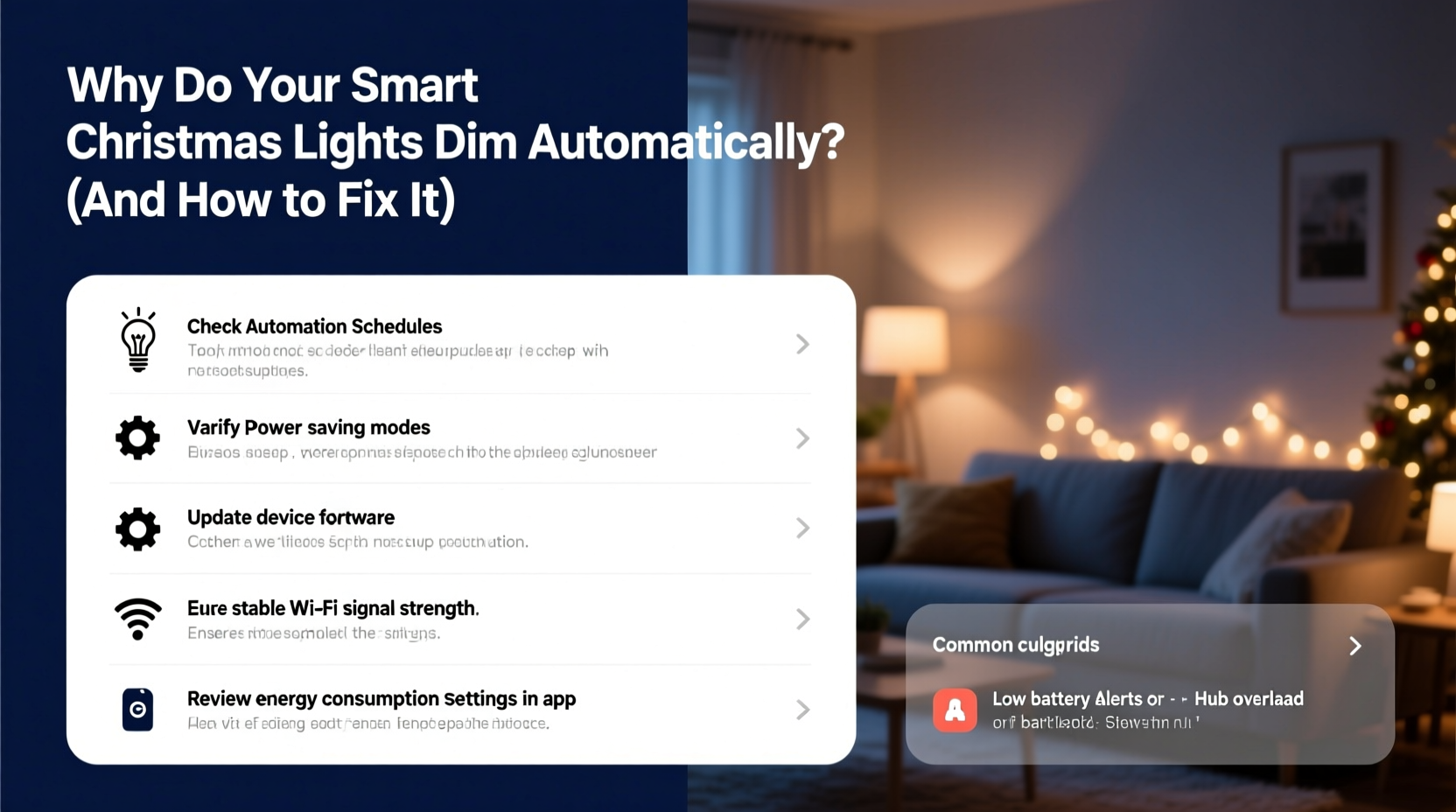
Smart lighting systems don’t operate in isolation. They’re part of a larger network of devices, rules, and environmental triggers that aim to optimize comfort and efficiency. When Christmas lights are connected to this network, they inherit those behaviors—even if they're inappropriate for seasonal use.
The automatic dimming of your holiday lights typically stems from one or more of the following causes:
- Scheduled Routines: Many users set up “Goodnight” or “Away” scenes that dim or turn off all lights at a certain time. These routines often include every connected bulb, including temporary holiday setups.
- Geofencing Triggers: If your system uses location-based automation (geofencing), it may assume you’ve left the house and initiate power-saving modes, dimming non-essential lights—including Christmas displays.
- Ambient Light Sensors: Some smart bulbs and hubs come equipped with or are paired with light sensors that adjust brightness based on natural daylight. During dawn or dusk, this can cause gradual dimming.
- Voice Assistant Misinterpretations: Accidental voice commands like “Dim the lights” or “Turn down the brightness” picked up by Alexa, Google Assistant, or Siri can silently alter settings.
- Third-Party Integrations: Apps like IFTTT, Home Assistant, or weather-based automations might trigger dimming based on sunset times, energy usage alerts, or even moon phases.
These features are helpful in daily life—but during the holidays, they can undermine the spirit of the season.
How to Stop Automatic Dimming: A Step-by-Step Guide
Fixing unwanted dimming requires identifying and disabling the responsible automation. Follow this structured approach to regain control over your Christmas lights.
- Open Your Smart Home App
Launch the app associated with your system—whether it’s Philips Hue, SmartThings, Apple Home, Google Home, or another platform. - Navigate to Automations or Scenes
Look for sections labeled “Routines,” “Scenes,” “Automations,” or “Schedules.” These contain the rules governing your lights. - Review Active Schedules
Check for any routine that includes “Dim All Lights,” “Night Mode,” or “Energy Saving.” Pay attention to timing—many activate around sunset or bedtime. - Edit or Exclude Holiday Lights
Within each automation, see if you can deselect your Christmas lights. Most apps allow granular device selection. Remove holiday bulbs from dimming routines while keeping others intact. - Disable Geofencing Temporarily
If your system turns off lights when no one is home, consider disabling geofencing during the holiday season—or create an exception for decorative lighting groups. - Turn Off Adaptive Lighting Features
Some systems (like Apple Home’s Adaptive Lighting) adjust color temperature and brightness throughout the day. Disable this for holiday-specific light groups. - Check for Sensor-Based Rules
If you have smart sensors (motion, light, or occupancy), ensure they aren’t triggering dimming. For example, a rule like “Dim lights when ambient light exceeds 300 lux” could affect outdoor Christmas displays at sunrise. - Test Changes Manually
After adjustments, manually turn on your lights and observe for at least 15 minutes. Confirm no delayed dimming occurs.
Once completed, your lights should remain at full brightness unless manually adjusted.
Do’s and Don’ts: Managing Smart Holiday Lighting
| Do | Don’t |
|---|---|
| Create a dedicated “Holiday Lights” group in your app for easy management. | Include Christmas lights in broad routines like “Goodnight” or “Away Mode.” |
| Set a fixed brightness level (e.g., 100%) and save it as a scene. | Rely on default automation settings without reviewing them first. |
| Use physical switches or smart plugs with override capability for manual control. | Place outdoor smart strings in areas with strong direct sunlight if using light sensors. |
| Label holiday devices clearly (e.g., “Front Porch Xmas Lights”) to avoid confusion. | Assume voice assistants won’t pick up accidental commands—use wake-word confirmation if available. |
| Update firmware before the season to prevent bugs affecting behavior. | Ignore unusual behavior—early intervention prevents recurring issues. |
Real Example: How One Family Fixed Their Flickering Display
The Rivera family in Portland, Oregon, installed a new set of smart LED Christmas lights along their roofline in early December. The display looked stunning—until they noticed the lights began dimming shortly after dusk, eventually turning off completely by 9 PM.
They initially suspected a power issue or faulty strand. After replacing connectors and checking voltage, they turned to their Philips Hue app. There, they discovered a “Sunset Fade” routine they had created months earlier for indoor mood lighting. The automation was set to gradually dim all outdoor lights after sunset to save energy.
Although useful in summer, this routine clashed with their holiday setup. By editing the automation and excluding the “Christmas Roof Lights” group, they stopped the dimming instantly. They then created a new scene called “Holiday Bright” set to 100% brightness with no fade-out period.
“We didn’t realize our own routine was working against us,” said Maria Rivera. “Once we isolated the holiday lights, everything stayed perfect through New Year’s.”
“We often overlook how our everyday automations impact seasonal devices. Creating device-specific groups is the simplest way to avoid conflicts.” — Jordan Lee, Smart Home Integration Consultant
Troubleshooting Checklist
Use this checklist to quickly identify and resolve automatic dimming issues:
- ✅ Verify which app or platform controls your lights (Hue, HomeKit, etc.)
- ✅ Open the automations or routines section
- ✅ Identify any schedule involving dimming or turning off lights
- ✅ Check if Christmas lights are included in those routines
- ✅ Remove holiday lights from non-essential automations
- ✅ Disable geofencing for decorative lighting groups
- ✅ Turn off adaptive or circadian lighting features for holiday devices
- ✅ Test lights manually after changes
- ✅ Set a dedicated “Festive On” scene at full brightness
- ✅ Label and group holiday devices separately for future ease
Frequently Asked Questions
Can smart plugs help prevent automatic dimming?
Yes. Using a smart plug to power your Christmas lights adds a layer of control. You can set the plug to stay on regardless of bulb-level automations. However, note that some smart bulbs will still attempt to dim if powered through a constant source—if the command comes from the hub, the bulb may respond even when continuously powered. Best practice: pair smart plugs with dumb (non-smart) LED strings for total automation independence.
Will factory resetting my bulbs stop the dimming?
Resetting may temporarily stop the behavior, but it’s not a reliable fix. Once reconnected to your network, the bulbs will likely sync again with existing automations and resume dimming. Instead of resetting, focus on adjusting the rules in your smart home app. Reset only if you plan to reconfigure everything from scratch.
Why do my lights dim only at sunrise or sunset?
This is a clear sign of a time- or sensor-based automation. Many systems link lighting behavior to astronomical clocks (sunrise/sunset). While great for security lighting, this feature interferes with holiday displays meant to shine brightly regardless of time. Look for automations labeled “Sunset,” “Dawn,” or “Daylight Adjust” and exclude your Christmas lights from them.
Take Control of Your Holiday Ambiance
Your Christmas lights should enhance joy, not become a technical puzzle. The automatic dimming you’re experiencing isn’t a flaw—it’s a side effect of a system designed to be too helpful. With a few targeted adjustments, you can preserve the magic of your display while keeping the rest of your smart home running smoothly.
The key is separation: treat holiday lighting as a special category. Give it its own group, its own scenes, and its own rules. Resist the temptation to lump it in with general home automation. By doing so, you protect your festive atmosphere from unintended interference.
Smart homes should adapt to your life—not dictate how your holidays look. Take ten minutes now to audit your automations. Ensure your lights shine bright all season long, just as they were meant to.




 浙公网安备
33010002000092号
浙公网安备
33010002000092号 浙B2-20120091-4
Comments
No comments yet. Why don't you start the discussion?