
As holiday seasons approach, many homeowners rely on smart lighting systems to create festive atmospheres with precision and ease. Yet nothing disrupts the cheer faster than walking into a room expecting a bright display of twinkling lights—only to find them mysteriously dimmed. If your smart home is dimming your Christmas lights without warning or input, you're not alone. This behavior can stem from a range of causes, from automation conflicts to firmware quirks. Understanding the root causes is essential to restoring control and ensuring your holiday ambiance remains intact.
Smart lighting systems are designed for convenience, but their complexity means that unintended behaviors can emerge when devices, apps, or routines interact unpredictably. The good news: most issues are diagnosable and fixable with a methodical approach.
Common Causes of Unexpected Dimming
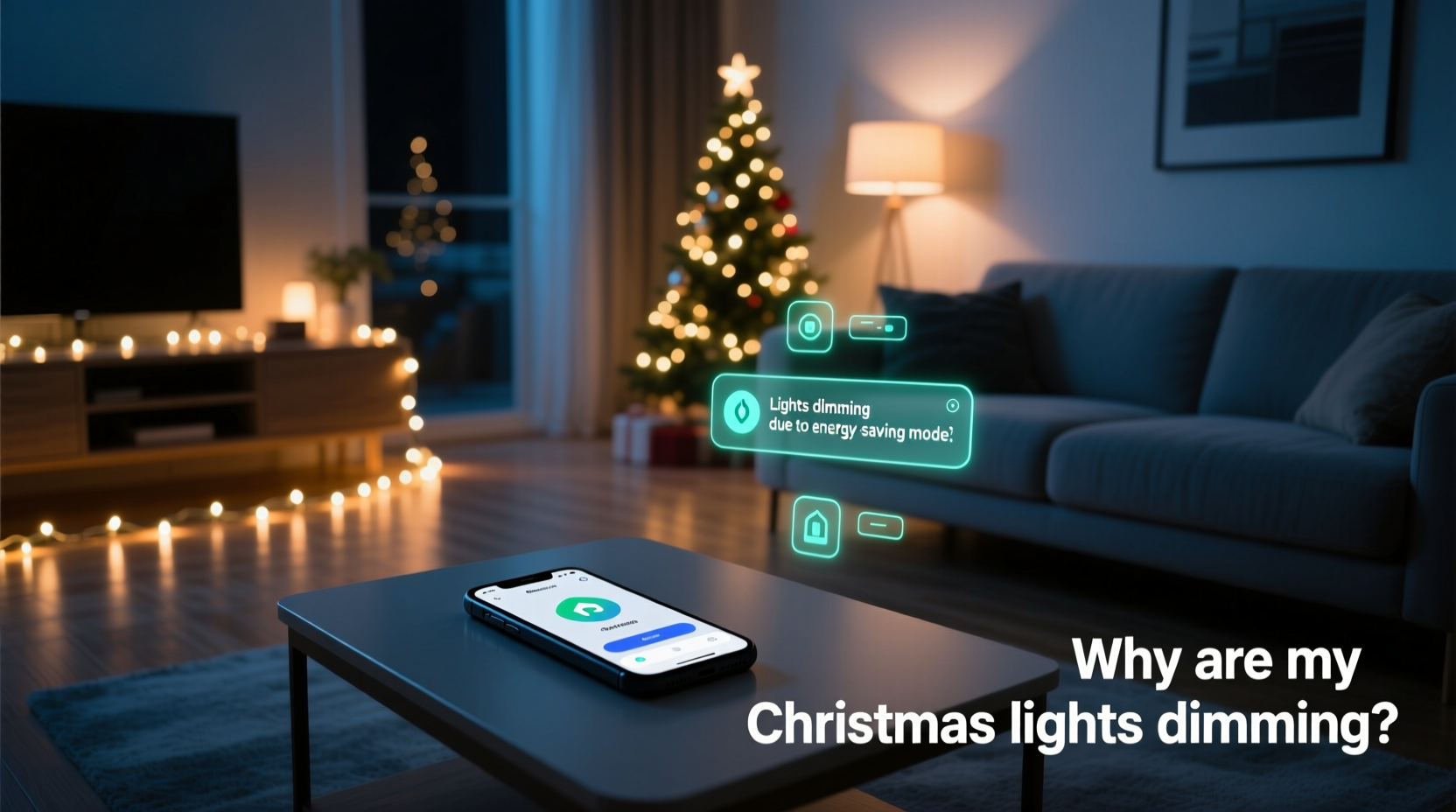
The first step in resolving unexpected dimming is identifying potential triggers. Smart home ecosystems integrate multiple components—voice assistants, mobile apps, scheduling tools, sensors, and third-party integrations—all of which can influence light behavior.
- Scheduled automations: Many users set up seasonal routines like “Sunset Lighting” or “Evening Wind Down,” which may inadvertently apply to holiday lights.
- Geofencing actions: When your phone leaves or enters a location zone, some systems trigger lighting changes. If your Christmas lights are grouped with general room lighting, they may be affected.
- Voice assistant commands: Accidental voice triggers (e.g., “Alexa, dim the lights”) can activate if background noise is misinterpreted.
- Third-party app integrations: Weather-based lighting, sunrise/sunset trackers, or music-synced effects might override manual settings.
- Firmware or software bugs: Updates to hubs or bulbs can introduce glitches, especially in older or less-supported models.
- Power-saving modes: Some smart bulbs reduce brightness during low usage periods to conserve energy or extend lifespan.
These triggers often operate silently in the background, making it difficult to pinpoint the exact cause without reviewing system logs or automation histories.
Diagnosing the Issue: A Step-by-Step Guide
Follow this structured process to identify and resolve the source of unexpected dimming.
- Check active automations: Open your smart home app (e.g., Google Home, Apple HomeKit, Samsung SmartThings) and review all routines affecting lights. Look for any that reference time, location, or ambient conditions.
- Review device grouping: Ensure your Christmas lights aren’t grouped with bedroom or living room lights that follow dimming schedules. Separate holiday lights into their own scene or zone.
- Inspect recent updates: Check if any firmware updates were applied to bulbs, bridges, or hubs within the past few days. Visit manufacturer websites or support forums for known issues.
- Test with manual control only: Turn off all automations and voice assistant access. Manually set lights to full brightness and observe over 24 hours.
- Monitor logs (if available): Advanced platforms like Home Assistant or Hubitat provide detailed logs showing exactly which command triggered a dimming event and from where.
- Reset individual bulbs: Power cycle smart bulbs by turning them off at the switch for 10 seconds, then back on. This forces reconnection and clears temporary glitches.
This diagnostic sequence helps eliminate variables systematically. Most users discover the issue lies in an overlooked automation or a poorly configured group setting.
Do’s and Don’ts: Managing Smart Holiday Lighting
| Do | Don’t |
|---|---|
| Create a dedicated scene for holiday lights (e.g., “Christmas Display – Full Brightness”) | Group Christmas lights with general room lighting that has scheduled dimming |
| Label devices clearly in your app (e.g., “Front Porch – Xmas Lights”) | Use generic names like “Light Strip 3” that make identification difficult |
| Set up a maintenance reminder to check firmware every 3 months | Ignore update notifications—these often contain critical bug fixes |
| Use physical switches cautiously—turning off power can disconnect smart bulbs | Reliably use wall switches to control smart bulbs unless designed for it |
| Disable unused voice assistant features like “Adaptive Lighting” during holidays | Assume default settings are safe—always audit them before festive setups |
Following best practices reduces the risk of interference and makes troubleshooting far more efficient when problems arise.
Real-World Example: The Case of the Flickering Front Yard
Mark, a homeowner in Portland, installed Philips Hue light strips along his roofline each December. In 2023, he noticed the lights dimmed every evening around 7:15 PM—even though he hadn’t touched his app. He initially suspected a hardware failure, replacing two strips before realizing the pattern was too consistent for a defect.
After reviewing his Apple Home automations, Mark discovered an old “Winter Evening” routine tied to sunset time. Though created for indoor mood lighting, the routine included “All Outdoor Lights” as a group—which now encompassed his Christmas display due to a previous reorganization. He had forgotten to exclude holiday lights from the automation.
By editing the automation to target specific zones and creating a new “Holiday Mode” scene exempt from dimming rules, Mark resolved the issue. He also added a calendar reminder to audit automations annually before decorating.
This case illustrates how minor configuration oversights can lead to frustrating outcomes—and how simple corrections restore intended functionality.
“Many smart home issues aren’t failures of technology, but mismatches between user intent and system logic. Clarity in naming, grouping, and automation scope prevents 80% of common problems.” — Lena Patel, Smart Home Systems Engineer at IoT Solutions Group
Expert Tips for Preventing Future Issues
Maintaining reliable control over holiday lighting requires proactive management. Consider these advanced strategies to avoid recurring problems.
- Leverage vacation or holiday modes: Platforms like SmartThings and Home Assistant allow custom modes (e.g., “Holiday Mode”) that suspend regular routines and enforce festive settings.
- Set up notifications: Enable alerts for automation triggers. Knowing when and why a light changed helps catch issues early.
- Isolate holiday circuits: If using smart plugs, dedicate one plug exclusively to Christmas lights and avoid linking it to multi-device scenes.
- Document your setup: Keep a simple list of which lights are in which groups and what automations affect them. A screenshot of your app layout can save hours later.
Prevention is always more effective than troubleshooting after the fact. A few minutes of planning can preserve weeks of seamless holiday enjoyment.
Troubleshooting Checklist
Use this checklist to quickly address and resolve unexpected dimming:
- ✅ Verify no active automations include Christmas lights
- ✅ Confirm lights are not grouped with rooms that have dimming schedules
- ✅ Check for recent firmware updates on bulbs and hub
- ✅ Test lights after disabling all voice assistant access
- ✅ Power cycle each bulb by cutting power for 10+ seconds
- ✅ Rename and relabel devices for clarity in your app
- ✅ Create a standalone “Christmas Lights On” scene at 100% brightness
- ✅ Review logs (in advanced systems) for command sources
- ✅ Disable adaptive or circadian lighting features temporarily
- ✅ Contact manufacturer support if issue persists across multiple bulbs
Going through this list ensures no stone is left unturned and gives you confidence in your diagnosis.
Frequently Asked Questions
Why do my smart Christmas lights dim at the same time every night?
This typically indicates a scheduled automation based on time or sunset. Even if you didn’t create one, some apps generate default routines. Check your smart home app under “Routines,” “Automations,” or “Scenes” for any time-based triggers affecting your lights.
Can voice assistants accidentally dim my holiday lights?
Yes. Voice assistants like Alexa or Google Assistant can misinterpret background speech, TV audio, or ads as commands. To prevent this, disable “Hey Google” detection when not needed, require confirmation for brightness changes, or exclude holiday lights from voice-controlled groups.
Will power outages affect my smart lights’ settings?
It depends on the bulb. Most modern smart bulbs restore to their last state after power loss, but cheaper models may revert to default brightness (often 100%). Check your bulb’s specifications. For reliability, consider bulbs with “power-on behavior” settings you can customize via the app.
Conclusion: Take Control of Your Holiday Lighting Experience
Unexpected dimming of Christmas lights isn’t a mystery—it’s a signal that your smart home system is responding to a rule, update, or configuration you may have overlooked. With the right diagnostic approach, clear labeling, and preventive habits, you can ensure your holiday display shines brightly exactly when and how you intend.
Your smart home should enhance the season, not complicate it. By auditing automations, isolating festive lighting, and staying informed about device behavior, you reclaim control and peace of mind. The holidays are fleeting; your lights shouldn’t fade without permission.




 浙公网安备
33010002000092号
浙公网安备
33010002000092号 浙B2-20120091-4
Comments
No comments yet. Why don't you start the discussion?