
Smart light bulbs offer convenience, energy efficiency, and customizable lighting experiences. But when they start flickering or disconnecting from your network, the frustration can outweigh the benefits. Flickering isn’t always a sign of hardware failure—often, it stems from compatibility issues, Wi-Fi instability, or firmware bugs. Understanding the root causes and knowing how to respond can save time, prevent unnecessary replacements, and restore seamless control over your smart home lighting.
Common Causes of Smart Light Bulb Flickering
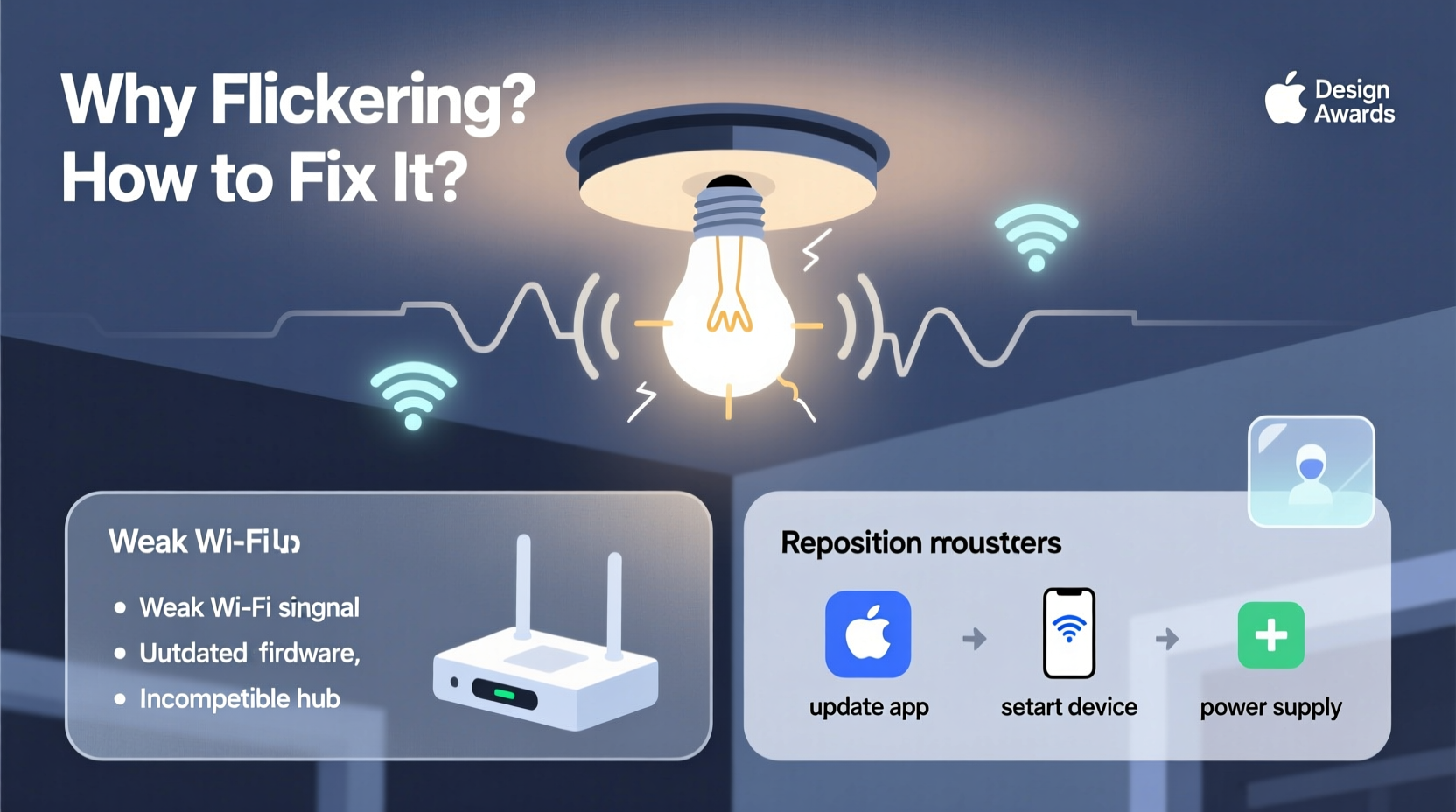
Flickering in smart bulbs differs from traditional bulb flicker caused by faulty wiring. In smart lighting systems, the issue is often software-related or tied to communication between devices. The most frequent culprits include:
- Incompatible dimmer switches: Many older dimmers are designed for incandescent bulbs and don’t work well with low-wattage LEDs used in smart bulbs.
- Low standby power: Some smart bulbs require continuous power to stay connected. If the switch cuts all power, the bulb resets and may flicker during reconnection.
- Voltage fluctuations: Unstable household voltage can disrupt sensitive electronics inside smart bulbs.
- Firmware bugs: Outdated or buggy firmware may cause erratic behavior, including intermittent flashing.
- Overheating: Enclosed fixtures without proper ventilation can cause thermal throttling or temporary shutdowns that appear as flicker.
How Connectivity Issues Affect Performance
Smart bulbs rely on stable wireless connections—typically Wi-Fi, Bluetooth, or Zigbee—to receive commands from apps or voice assistants. When connectivity degrades, users experience delays, unresponsiveness, or complete disconnections. These issues often manifest alongside flickering, especially during command execution.
Wi-Fi congestion is a leading cause. As more devices join a network, bandwidth shrinks, increasing latency and packet loss. Smart bulbs operating on crowded 2.4 GHz bands are particularly vulnerable. Interference from microwaves, cordless phones, or neighboring networks can further degrade signal quality.
Another factor is router placement. If your router is far from the bulb or blocked by walls and appliances, signal strength drops significantly. This weak link leads to dropped connections and inconsistent performance.
“Even minor interference on the 2.4 GHz band can disrupt IoT device communication. For reliable smart lighting, signal stability matters more than raw speed.” — Dr. Alan Reyes, Network Infrastructure Specialist
Step-by-Step Guide to Diagnose and Fix Flickering
Follow this systematic approach to identify and resolve flickering issues:
- Verify physical installation: Ensure the bulb is securely screwed into the socket. A loose connection can cause intermittent contact and visible flicker.
- Test in another fixture: Move the bulb to a different lamp or ceiling socket to rule out fixture-specific problems like poor wiring or incompatible dimmers.
- Bypass the dimmer switch: Temporarily replace any dimmer with a standard toggle switch. If flickering stops, the dimmer is likely incompatible.
- Check for overheating: Turn off the light and feel the bulb after 30 minutes of use. Excessive heat suggests inadequate ventilation—consider using open-top fixtures.
- Update firmware: Open your smart lighting app (e.g., Philips Hue, LIFX, or TP-Link Kasa) and check for available updates. Install them even if no new features are listed—bug fixes often address stability issues.
- Reset the bulb: Perform a factory reset per manufacturer instructions. This clears corrupted settings and forces re-pairing.
- Observe pattern: Note whether flicker occurs when turning on, during color changes, or randomly. Patterned flicker (e.g., three blinks) may indicate error codes—consult your manual.
Troubleshooting Connectivity Problems
When bulbs drop off the network or fail to respond, connectivity should be your primary focus. Start with the basics before diving into advanced solutions.
Wi-Fi Signal Strength Test
Use a Wi-Fi analyzer app on your smartphone to measure signal strength where the bulb is installed. Aim for at least -70 dBm. Below -80 dBm indicates poor reception.
Router Optimization Tips
- Position your router centrally and elevated, away from metal objects and large appliances.
- Reduce channel congestion by switching to a less-used Wi-Fi channel (use tools like Wi-Fi Analyzer or NetSpot).
- Enable Quality of Service (QoS) settings to prioritize IoT traffic.
- Consider setting up a separate SSID for smart devices to reduce main network load.
Mesh Networks and Extenders
If bulbs are located far from the router, a mesh Wi-Fi system (like Google Nest Wifi or Eero) provides better coverage than single-band extenders. For Zigbee-based systems (e.g., Philips Hue), ensure the hub is centrally located and within range of all bulbs.
Do’s and Don’ts: Smart Bulb Maintenance Table
| Do | Don't |
|---|---|
| Use smart-bulb compatible dimmers (ELV or trailing-edge) | Use old incandescent-only dimmers |
| Keep firmware updated monthly | Ignore app update notifications |
| Install bulbs in well-ventilated fixtures | Place in enclosed recessed cans unless rated for it |
| Label bulbs in multi-room setups for easier management | Assign random names like “Light 1” or “Bulb 5” |
| Power cycle the router every few weeks | Leave routers running indefinitely without rebooting |
Real Example: Resolving Persistent Flicker in a Living Room Setup
Mark, a homeowner in Portland, noticed his LIFX bulbs flickered every evening around 7 PM. The issue worsened over time, affecting multiple rooms. He initially assumed the bulbs were defective and considered replacing them.
Instead, he followed a structured diagnosis. First, he ruled out physical defects by testing bulbs in other sockets. Then, he observed the flicker coincided with his family turning on the microwave and streaming video—both heavy 2.4 GHz users.
Using a Wi-Fi scanner, Mark discovered his network was on Channel 6, shared by six nearby networks. He changed his router to Channel 11, which had only one competing signal. He also enabled QoS prioritization for IoT devices.
The flickering stopped immediately. Later, he upgraded to a dual-band mesh system, assigning smart devices to a dedicated 2.4 GHz guest network. His bulbs have remained stable for over eight months.
Expert-Recommended Checklist for Stability
Use this checklist to maintain optimal smart bulb performance:
- ✅ Confirm the bulb has consistent power (no full-power cutoff switches)
- ✅ Verify compatibility with existing dimmers or replace with ELV models
- ✅ Update bulb firmware and app regularly
- ✅ Test Wi-Fi signal strength near each bulb location
- ✅ Reboot router and hub monthly
- ✅ Reset and re-pair bulbs showing erratic behavior
- ✅ Use a mesh network or extender if signal is weak
- ✅ Avoid overcrowding the 2.4 GHz band with non-essential devices
Frequently Asked Questions
Why does my smart bulb flicker when turned off?
This is usually caused by a small electrical current leaking through the switch, often due to illuminated switches or electronic dimmers. The residual power causes the LED to briefly activate. Installing a bypass resistor or switching to a mechanical toggle can resolve this.
Can I use smart bulbs with any voice assistant?
Most major brands support Alexa, Google Assistant, and Siri (via HomeKit). However, integration depends on both the bulb brand and your ecosystem. Always verify compatibility before purchase. Some bulbs require a bridge (like Hue) for full functionality.
Why does only one bulb in a group flicker?
Single-bulb flicker often points to localized issues: a failing driver inside the bulb, poor socket contact, or weaker signal reception. Try swapping the bulb with one from a working fixture. If the problem moves, the bulb is faulty. If it stays, the issue is environmental.
Final Steps for Long-Term Reliability
Maintaining flicker-free, responsive smart lighting requires ongoing attention—not just initial setup. Treat your smart bulbs like any other connected device: monitor their status, keep software current, and optimize your network environment.
Regular maintenance prevents minor glitches from escalating into system-wide failures. Schedule a monthly check: review firmware updates, test responsiveness, and walk through each room to observe unusual behavior. Early detection makes troubleshooting faster and less disruptive.
As smart homes evolve, so do expectations for reliability. A flickering bulb isn’t just an annoyance—it breaks the illusion of seamless automation. By understanding the technical underpinnings and applying consistent care, you ensure your lighting enhances rather than hinders daily life.




 浙公网安备
33010002000092号
浙公网安备
33010002000092号 浙B2-20120091-4
Comments
No comments yet. Why don't you start the discussion?