
Smart light bulbs promise convenience, energy efficiency, and dynamic lighting control—but when they start flickering unexpectedly, the experience quickly turns frustrating. Flickering can range from subtle, barely noticeable pulses to disruptive flashes that affect ambiance and eye comfort. While occasional flicker might seem harmless, persistent instability often points to underlying issues with power supply, compatibility, firmware, or network connectivity. Understanding the root causes and knowing how to systematically address them ensures your smart lighting performs reliably over time.
Common Causes of Smart Light Bulb Flickering
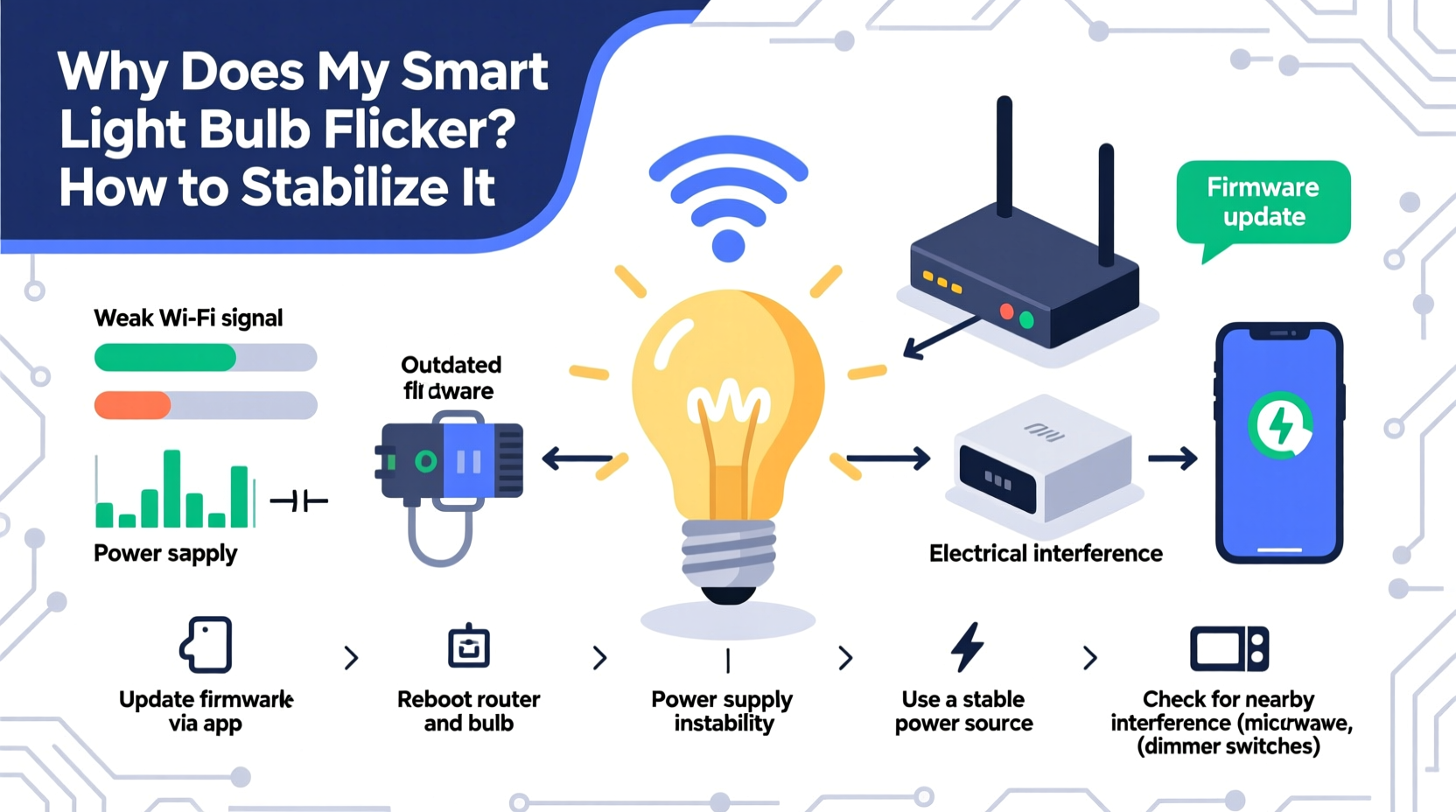
Flickering in smart bulbs isn’t usually due to a single factor. Instead, it’s often the result of a combination of electrical, hardware, and software conditions. Identifying which cause applies to your setup is the first step toward resolution.
- Voltage fluctuations: Inconsistent voltage from the home’s electrical system can cause bulbs to flicker, especially during peak usage times.
- Incompatible dimmer switches: Traditional dimmers designed for incandescent bulbs may not work properly with LED-based smart bulbs, leading to erratic behavior.
- Wi-Fi or Bluetooth interference: Signal congestion from nearby devices or weak router coverage can disrupt communication between the bulb and hub or app.
- Firmware bugs: Outdated or corrupted firmware can lead to unstable operation, including random on/off cycling or color shifts.
- Loose bulb connection: A bulb not fully screwed into the socket may create intermittent contact, causing flickering.
- Overloaded circuits: Too many devices drawing power on the same circuit can create voltage drops that affect bulb stability.
How to Diagnose the Source of Flickering
Before making changes, determine whether the flickering is isolated to one bulb, multiple bulbs on the same circuit, or all smart lights in your home. This helps narrow down potential causes.
- Isolate the bulb: Remove the flickering bulb and install it in a known working fixture elsewhere in the house.
- Check other bulbs: Observe if other smart bulbs on the same circuit exhibit similar behavior.
- Test without automation: Disable any scheduled routines, scenes, or motion triggers in your smart home app to rule out programmed behavior.
- Monitor timing: Note when flickering occurs—during Wi-Fi activity, at night, or after device reboots—as patterns can reveal triggers.
- Use a multimeter: For advanced users, measuring voltage at the socket can detect irregularities beyond normal ±5% tolerance.
Mini Case Study: The Bedroom Bulb That Wouldn’t Stay Still
Sarah installed two new smart bulbs in her bedroom ceiling fixture. One worked perfectly; the other flickered intermittently, especially at night. After trying resets and app updates, she swapped the bulbs between sockets. The flickering followed the bulb, indicating a hardware flaw. She contacted customer support and received a replacement under warranty. The new bulb operated smoothly, confirming a defective unit was the culprit. This case illustrates why isolating variables is essential before assuming broader electrical issues.
Compatibility and Electrical Factors
Not all smart bulbs are compatible with every type of switch or electrical environment. Mismatches here are among the most common reasons for flickering.
Dimmer Switch Conflicts
Many homes use trailing-edge (ELV) or leading-edge dimmers originally built for high-wattage incandescent bulbs. Smart LED bulbs consume far less power, and some draw so little current that older dimmers cannot regulate them properly, resulting in ghosting or flickering even when “off.”
The solution is either to replace the dimmer with one rated for low-wattage LED loads or bypass it entirely by installing a smart switch that controls the fixture directly while keeping the bulb always powered.
| Dimmer Type | Compatible with Smart Bulbs? | Recommended Action |
|---|---|---|
| Traditional Leading-Edge (Incandescent) | No | Replace with smart switch or LED-compatible dimmer |
| Trailing-Edge (ELV) | Limited | Verify bulb wattage meets minimum load requirement |
| Smart Dimmer (e.g., Lutron Caséta) | Yes | Pair with compatible smart bulbs via hub |
| No Dimmer (Standard Switch) | Yes | Ensure switch fully cuts power when off |
“Using non-dimmable smart bulbs with any kind of dimmer—even if set to full brightness—can cause premature failure and persistent flickering.” — Raj Mehta, Electrical Systems Engineer, Smart Home Institute
Network and Firmware Stability
Unlike traditional bulbs, smart bulbs rely on wireless signals to receive commands. When those signals degrade or drop, the bulb may enter recovery mode, reboot, or misinterpret commands—all of which can manifest as flickering.
Wi-Fi congestion from streaming devices, neighboring networks, or physical obstructions like thick walls can weaken signal strength. Similarly, Bluetooth-based bulbs suffer when too far from the controller or blocked by metal fixtures.
Step-by-Step Guide: Improve Network Stability
- Relocate your router: Position it centrally and away from large appliances or mirrors that reflect signals.
- Switch to 2.4 GHz band: Most smart bulbs only support 2.4 GHz Wi-Fi. Ensure your phone and bulb are on the same network band.
- Add a Wi-Fi extender: Install a mesh node or repeater near flickering bulbs to boost coverage.
- Reduce interference: Keep bulbs away from microwaves, cordless phones, and baby monitors operating on similar frequencies.
- Update firmware: Open your smart lighting app and check each bulb for available updates. Apply them promptly.
- Re-pair stubborn bulbs: Remove and re-add the bulb to your network to clear cached errors.
Power Supply and Circuit Load Management
Even with perfect compatibility and strong Wi-Fi, unstable power delivery can sabotage smart bulb performance. Voltage sags, surges, or harmonic distortions from other appliances can trigger flickering.
For example, turning on an air conditioner or vacuum cleaner may cause a temporary voltage drop, making bulbs dim momentarily. In sensitive smart bulbs, this dip can register as a command fluctuation, leading to visible flicker.
To assess circuit health:
- Use a plug-in voltage monitor to log fluctuations over 24 hours.
- Avoid sharing circuits with high-draw appliances like refrigerators or space heaters.
- Install a whole-home surge protector to smooth out transient spikes.
If multiple lights flicker simultaneously when large appliances cycle on, consult an electrician to evaluate neutral wire integrity and panel grounding—issues that can escalate into safety hazards.
Do’s and Don’ts: Power & Installation Best Practices
| Do | Don’t |
|---|---|
| Use bulbs within their rated voltage range (typically 120V in North America) | Install smart bulbs in enclosed fixtures unless rated for it |
| Tighten bulbs securely to ensure full contact | Use extension cords or power strips for permanent lighting circuits |
| Match bulb base type (E26, GU10, etc.) precisely to fixture | Exceed fixture wattage limits—even with efficient LEDs |
| Test new bulbs before enclosing in shades or recessed cans | Ignore manufacturer warnings about outdoor or damp location use |
Comprehensive Checklist to Stabilize Your Smart Bulbs
Follow this actionable checklist to resolve and prevent flickering across your smart lighting ecosystem:
- ✅ Verify the bulb is fully screwed into the socket
- ✅ Confirm the wall switch is in the “on” position (smart bulbs need constant power)
- ✅ Replace outdated dimmer switches with LED-compatible or smart alternatives
- ✅ Update all bulbs to the latest firmware version via the app
- ✅ Test Wi-Fi signal strength near each bulb (aim for -70 dBm or better)
- ✅ Re-pair bulbs showing erratic behavior
- ✅ Eliminate sources of electromagnetic interference near fixtures
- ✅ Check for loose wiring in the fixture or junction box (turn off power first)
- ✅ Avoid using timers or mechanical switches that cut power periodically
- ✅ Contact manufacturer support if flickering persists under warranty
Frequently Asked Questions
Why does my smart bulb flicker when turned off?
This is typically caused by a small residual current flowing through the circuit, often due to an incompatible dimmer or electronic switch that doesn’t fully disconnect power. The tiny trickle charges the bulb’s internal capacitor until it briefly activates, then shuts off—repeating the cycle. Replace the switch or install a bypass resistor to eliminate the ghost current.
Can voltage fluctuations damage my smart bulbs?
Yes. While most smart bulbs have built-in surge protection, repeated voltage spikes or chronic undervoltage can degrade internal components, especially the driver circuitry. Over time, this leads to flickering, shortened lifespan, or complete failure. Using a surge protector or UPS for critical lighting circuits adds valuable protection.
Is it safe to ignore minor flickering?
Occasional flicker during Wi-Fi reconnection or firmware updates is normal. However, consistent or worsening flickering should not be ignored—it may indicate electrical faults, overheating, or component failure. Persistent flicker can also disrupt sleep patterns and cause eye strain. Address it proactively to maintain both safety and comfort.
Final Steps and Long-Term Stability
Resolving smart bulb flickering requires a methodical approach: start with simple fixes like reseating the bulb and checking the switch, then progress to network optimization and electrical evaluation. Most flickering issues stem from compatibility mismatches or environmental factors rather than defective hardware.
Once stabilized, maintain performance by scheduling quarterly checks of firmware updates, cleaning dust from fixtures, and auditing your home network’s health. Treat smart bulbs as part of a larger connected ecosystem—they perform best when integrated thoughtfully into a well-maintained infrastructure.
“The reliability of smart lighting depends as much on your home’s electrical foundation as it does on the bulb itself.” — Lena Torres, Senior IoT Consultant, Home Automation Labs




 浙公网安备
33010002000092号
浙公网安备
33010002000092号 浙B2-20120091-4
Comments
No comments yet. Why don't you start the discussion?