
Smart light bulbs promise convenience, ambiance, and hands-free control through voice assistants like Alexa. But when your lights suddenly go offline or fail to respond, the experience quickly turns frustrating. One of the most common complaints among smart home users is recurring disconnections between their smart bulbs and Alexa. The issue isn’t always a defective bulb—it’s often rooted in network instability, configuration errors, or compatibility gaps. Understanding the underlying causes and applying targeted solutions can restore reliability and bring back seamless automation.
Common Causes of Smart Bulb Disconnections from Alexa
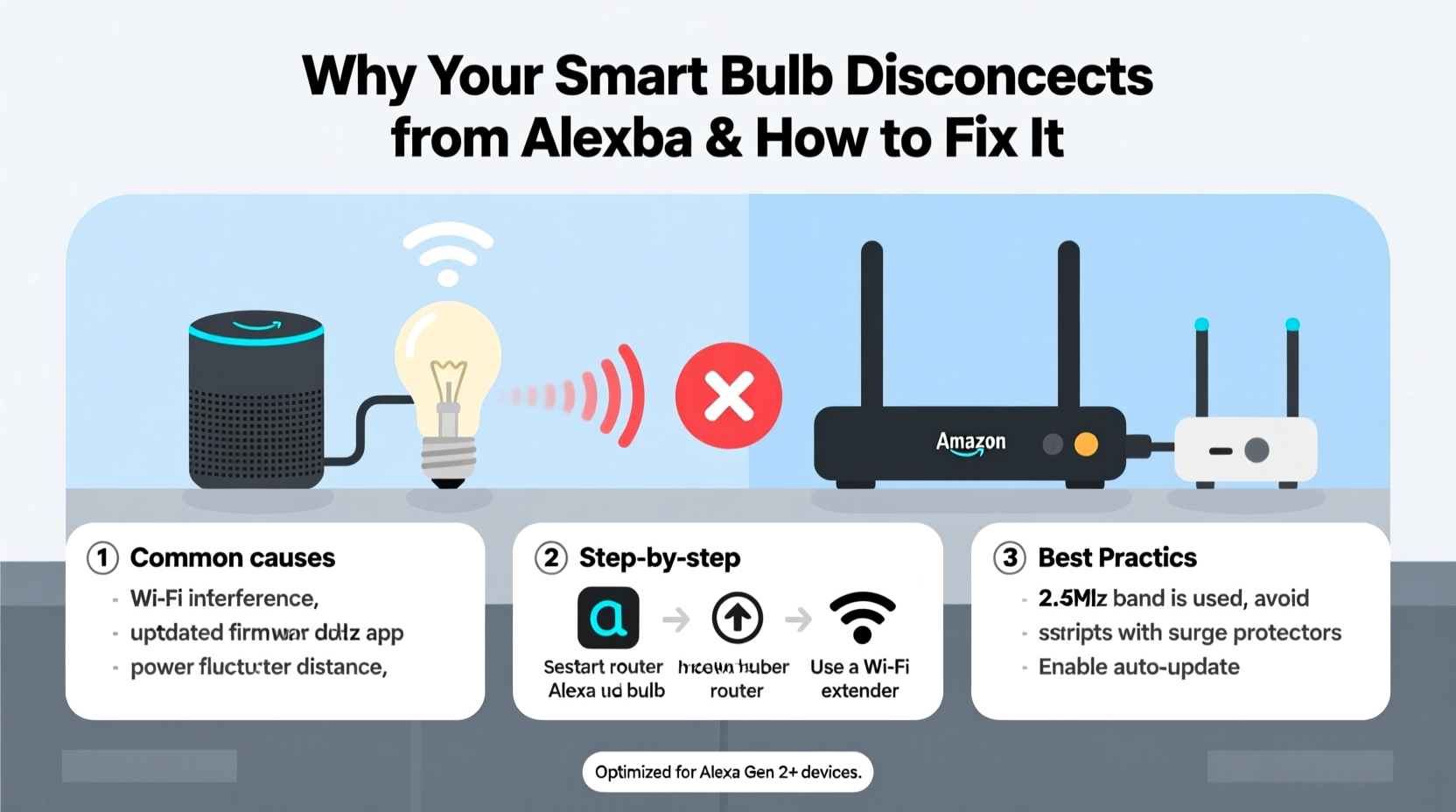
Before troubleshooting, it's essential to identify what might be triggering the disconnection. Smart bulbs rely on a stable Wi-Fi connection, proper pairing with your hub (if applicable), and consistent communication with the cloud service that bridges them to Alexa. Any disruption in this chain can cause the bulb to appear offline.
- Weak Wi-Fi signal: If the bulb is far from the router or behind thick walls, signal strength may drop below usable levels.
- Network congestion: Too many devices on the same network can slow response times and disrupt communication.
- Incompatible protocols: Not all smart bulbs use the same wireless standard. Some use Wi-Fi, others Zigbee or Bluetooth—each with different integration requirements.
- Firmware issues: Outdated firmware on the bulb or the Alexa app can lead to bugs and failed connections.
- Router settings: Features like AP isolation, aggressive DHCP timeouts, or outdated DNS configurations can block device communication.
- Power interruptions: Frequent power cycling—such as turning the switch off—can reset the bulb and break its link to Alexa.
Step-by-Step Guide to Stabilize Your Smart Light Bulb Connection
Resolving disconnection issues requires a methodical approach. Follow these steps in order to diagnose and fix the root cause.
- Reboot your entire network. Power down your router, modem, and any mesh extenders. Wait 30 seconds, then power them back on. This clears temporary glitches and resets IP assignments.
- Check the bulb’s proximity to the router. Move the bulb closer temporarily to test if signal strength is the issue. If it connects reliably nearby, consider relocating the router or adding a Wi-Fi extender.
- Forget and re-pair the bulb with Alexa. In the Alexa app, go to Devices > Lights, select the problematic bulb, and remove it. Then rediscover devices under “+” > “Add Device.”
- Update firmware. Open the manufacturer’s app (e.g., Philips Hue, LIFX, Sengled) and check for firmware updates. Apply any available patches.
- Verify 2.4 GHz Wi-Fi band usage. Most smart bulbs only support 2.4 GHz networks. Ensure your phone and bulb are connected to the correct band, especially if your router broadcasts a combined SSID for 2.4 and 5 GHz.
- Assign a static IP address. In your router settings, assign a fixed local IP to your bulb to prevent IP conflicts and DHCP-related dropouts.
- Disable AP isolation. Also known as client isolation, this setting prevents devices on the same network from communicating—blocking Alexa from reaching your bulb.
Real Example: Sarah’s Kitchen Lights Keep Going Offline
Sarah installed four smart bulbs in her kitchen ceiling fixture. Initially, they worked perfectly with Alexa. But after two weeks, one bulb would randomly disappear from the app, and voice commands failed intermittently. She tried restarting Alexa and the bulbs—no lasting fix.
After checking her router, she discovered the kitchen was near the edge of her Wi-Fi coverage. A concrete wall blocked direct signal access. She moved her Wi-Fi extender closer to the kitchen and switched her phone to the 2.4 GHz network to confirm the bulb was on the same band. After re-pairing the bulb, it stayed connected consistently. Additionally, she stopped turning off the lights at the wall switch overnight, which had been causing daily reboots. These small changes eliminated the disconnections entirely.
Do’s and Don’ts for Stable Smart Lighting Performance
| Do’s | Don’ts |
|---|---|
| Use a dedicated 2.4 GHz network for smart devices | Connect smart bulbs to a 5 GHz-only network |
| Keep bulbs powered continuously (avoid wall switch cutoff) | Turn off smart bulbs using the physical switch regularly |
| Update firmware monthly | Ignore firmware update notifications |
| Use a mesh Wi-Fi system in large homes | Expect strong signals in basements or distant rooms without extenders |
| Label bulbs clearly in the Alexa app | Name all bulbs “Living Room Light” without differentiation |
Expert Insight: Network Design Matters
“Most smart home failures aren’t due to bad hardware—they’re symptoms of poor network hygiene. A well-segmented, updated, and properly configured Wi-Fi environment is the foundation of reliable automation.” — Marcus Tran, IoT Infrastructure Engineer at HomeNet Labs
This quote underscores a critical point: even high-end smart bulbs will underperform on an unstable network. Investing time in optimizing your home Wi-Fi setup pays dividends across all connected devices—not just lights.
Tips for Long-Term Stability
Maintaining a rock-solid connection isn’t just about fixing problems—it’s about preventing them. Implement these practices to reduce future disruptions.
- Segment your network. If your router supports VLANs or guest networks, create a separate subnet for IoT devices. This reduces interference and improves security.
- Monitor signal strength. Use apps like Wi-Fi Analyzer (Android) or built-in iOS field test mode to measure RSSI (signal strength) near each bulb. Aim for -70 dBm or better.
- Limit the number of bulbs per circuit. Overloading a single electrical circuit can cause voltage fluctuations that affect bulb stability.
- Choose hubs wisely. For Zigbee or Z-Wave bulbs (like Philips Hue), ensure the hub is centrally located and always powered. A failing hub means all connected bulbs go dark in Alexa’s eyes.
When to Consider a Hub-Based System
If you're relying solely on Wi-Fi bulbs, you're at the mercy of your router’s performance. Hubs like the Philips Hue Bridge, Amazon Echo Plus (with built-in Zigbee), or SmartThings offer more resilient communication. They act as local controllers, reducing dependency on cloud services and minimizing latency.
Hubs communicate directly with bulbs using low-power, mesh-friendly protocols. Even if your internet goes down, local commands (like turning lights on via Alexa) may still work—something Wi-Fi-only systems often can’t do.
Checklist: How to Fix and Prevent Alexa Smart Bulb Disconnections
Use this checklist to systematically troubleshoot and lock in a stable setup:
- ✅ Reboot router, modem, and Alexa device
- ✅ Confirm bulb is on 2.4 GHz Wi-Fi network
- ✅ Remove and re-add the bulb in the Alexa app
- ✅ Check for firmware updates in the manufacturer’s app
- ✅ Disable AP isolation in router settings
- ✅ Assign a static IP to the bulb via router admin panel
- ✅ Avoid turning off smart bulbs at the wall switch
- ✅ Test signal strength near the bulb location
- ✅ Consider upgrading to a mesh Wi-Fi system (e.g., Eero, Google Nest Wifi)
- ✅ Evaluate switching to a hub-based lighting system for better reliability
Frequently Asked Questions
Why does my smart bulb show as “offline” in Alexa even though it’s working?
This usually indicates a communication breakdown between the bulb’s cloud server and Alexa. The bulb may still function locally via its own app, but Alexa loses visibility. Try re-linking the skill in the Alexa app under “Skills & Games” > “Your Skills.” Log out of your account in the smart bulb skill, then log back in to reauthorize.
Can too many smart bulbs overload my Wi-Fi?
Yes. Each bulb consumes a small amount of bandwidth and occupies a DHCP lease. In homes with 20+ devices, network congestion can occur. Use a router that supports at least 50 DHCP clients and consider offloading smart devices to a separate SSID. Mesh systems handle high device counts better than basic routers.
Does using a dimmer switch affect smart bulb connectivity?
Traditional wall dimmers interfere with smart bulbs because they reduce voltage, which can destabilize the bulb’s internal electronics. Always use trailing-edge (ELV) dimmers rated for LED loads—or better yet, bypass the dimmer entirely and control brightness through the app or voice commands.
Conclusion: Achieve Reliable, Hassle-Free Smart Lighting
Smart light bulbs that disconnect from Alexa don’t have to be a constant annoyance. With a clear understanding of network dynamics, proper setup practices, and proactive maintenance, you can achieve a responsive, dependable lighting system. Start by evaluating your Wi-Fi environment, ensure firmware is current, and eliminate common pitfalls like power cycling via switches. For long-term peace of mind, consider investing in a hub-based ecosystem or a robust mesh network tailored for smart homes.




 浙公网安备
33010002000092号
浙公网安备
33010002000092号 浙B2-20120091-4
Comments
No comments yet. Why don't you start the discussion?