
Smart lighting systems promise convenience, energy savings, and seamless automation. But if you’ve woken up one March or November morning to find your bedroom lights turning on at 5:00 a.m. instead of 6:00 a.m., or your porch light failing to activate at dusk, you’re not alone. Many users report that their carefully crafted lighting schedules reset or shift unexpectedly after daylight saving time (DST) changes. This disruption isn’t random—it’s rooted in how these systems interpret time, sync with networks, and manage location-based settings. The good news is that most issues can be prevented with the right setup and configuration.
The root cause lies in a mismatch between local time adjustments and how smart devices process time zones, UTC offsets, and geolocation data. While some platforms handle DST gracefully, others falter due to firmware limitations, poor time synchronization, or user misconfiguration. More importantly, many users don’t realize that “locking” a preset isn’t always about preventing edits—it’s about stabilizing time references so automation remains consistent regardless of seasonal shifts.
How Smart Lighting Systems Handle Time
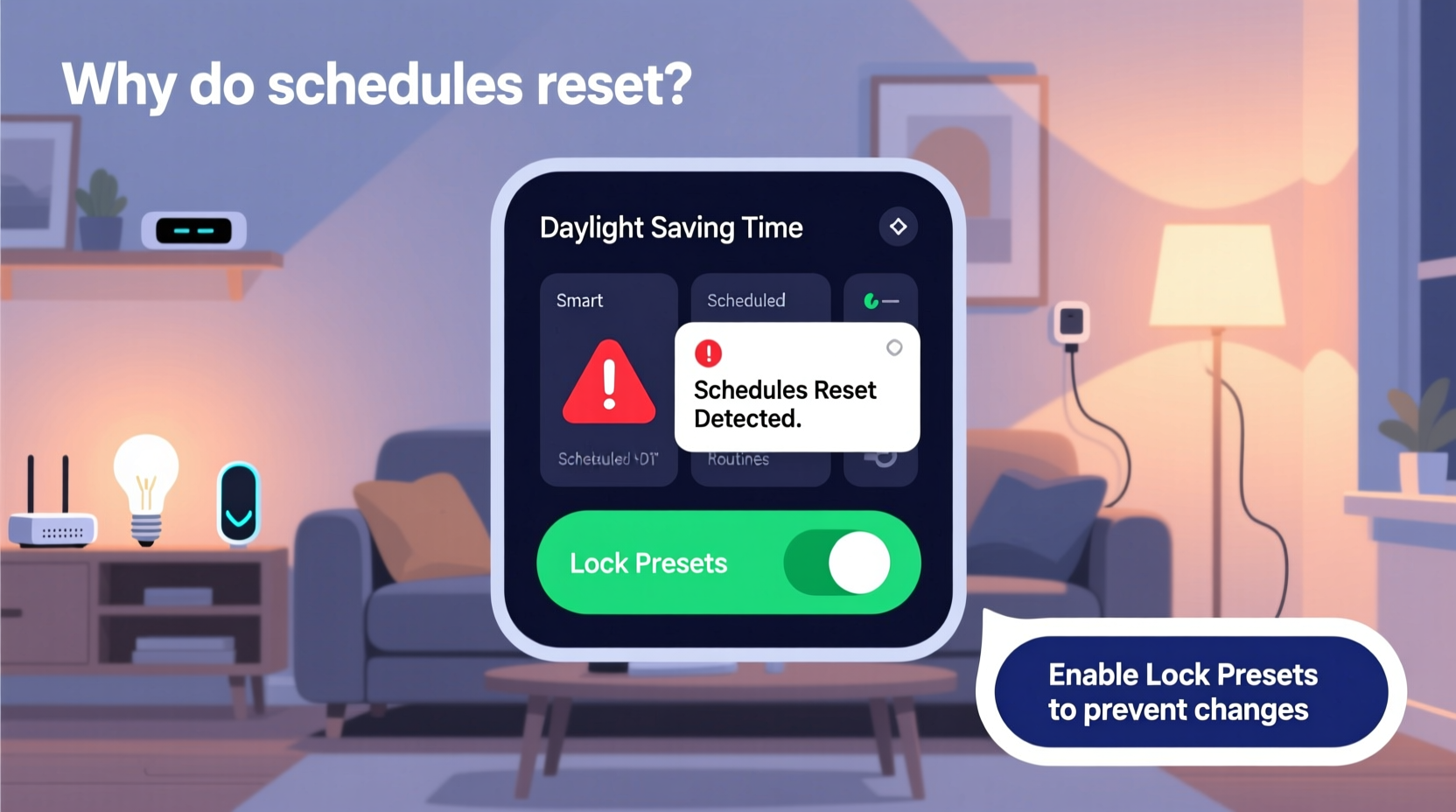
At the core of every smart lighting schedule is a clock—but not necessarily a traditional one. Most smart hubs and bulbs operate using Coordinated Universal Time (UTC), adjusting local times based on your device’s time zone setting. When daylight saving begins or ends, your phone, tablet, or hub receives a signal from a network time server to “spring forward” or “fall back.” In theory, this should adjust all automations accordingly. However, complications arise when:
- The hub fails to receive the update promptly
- Firmware doesn’t support automatic DST transitions
- Geolocation services are disabled or inaccurate
- Schedules are tied to relative times (e.g., “30 minutes after sunset”) without recalculating properly
For example, a Philips Hue bridge may correctly adjust its internal clock during DST, but an older firmware version might not propagate that change to linked routines. Similarly, third-party apps like IFTTT or Google Home sometimes cache old timing rules, leading to outdated triggers. Even if your phone updates instantly, your smart home ecosystem may lag behind by hours—or revert entirely.
“Time synchronization is the silent foundation of home automation. A single second off can cascade into failed routines, especially during DST transitions.” — Dr. Alan Reyes, IoT Systems Engineer at SmartHome Labs
Common Reasons Schedules Reset After Daylight Saving Time
Understanding why your smart lighting reverts requires examining both technical architecture and user behavior. Below are the five most frequent causes:
- Inaccurate or missing time zone configuration: If your hub is set to “UTC” manually or detects the wrong region, it won’t apply DST rules at all. This leads to schedules drifting by one hour twice a year.
- Outdated firmware or app versions: Older software may lack updated DST transition dates, particularly as governments revise DST policies (e.g., parts of the U.S. considering permanent standard time).
- Use of static time triggers instead of dynamic conditions: Setting a light to turn on at “7:00 PM” every day will jump with the clock change. But scheduling based on “sunset + 15 minutes” adapts automatically—if the system recalculates daily.
- Cloud dependency without fallback logic: Systems relying solely on cloud servers may fail to update if internet connectivity drops during the transition window.
- User-initiated resets or sync conflicts: Manually changing device time or syncing multiple controllers (e.g., Alexa, Home Assistant, and Apple Home) can overwrite existing schedules.
How to Lock Presets and Prevent Schedule Resets
“Locking” a preset doesn’t mean freezing brightness or color; it means anchoring automation logic to reliable time references. True stability comes from combining correct configuration with intelligent scheduling practices.
Step-by-Step: Securing Your Lighting Automation Against DST Shifts
- Verify and set the correct time zone: Open your smart lighting app (e.g., Hue, LIFX, SmartThings), navigate to Settings > System > Time Zone, and confirm it reflects your current location. Enable “Automatic Time Zone Detection” if available.
- Update all firmware and apps: Check for updates in the manufacturer’s app and your smartphone’s OS. Firmware patches often include DST rule updates and time-handling fixes.
- Replace fixed-time triggers with event-based ones: Instead of scheduling “Turn on at 6:30 PM,” use “Turn on 20 minutes after sunset.” This ensures alignment with natural light cycles regardless of DST.
- Disable manual time overrides: Ensure no device is set to “Set Time Manually.” Let NTP (Network Time Protocol) handle synchronization via Wi-Fi or Ethernet.
- Test schedules post-DST: Simulate the next time change in your app (if supported) or manually adjust your phone’s clock by one hour to verify automations adapt correctly.
- Back up your routines: Export or document your key scenes and schedules. Some platforms allow JSON export or screenshot-based archiving for quick restoration.
Advanced: Use Local Execution Over Cloud Triggers
To reduce reliance on external servers, prioritize local automation. Platforms like Home Assistant, Hubitat, or newer Thread-enabled devices execute rules directly on a local hub. This eliminates delays caused by cloud outages during critical time updates.
| Strategy | Effectiveness | Difficulty |
|---|---|---|
| Event-based triggers (sunrise/sunset) | ★★★★★ | Low |
| Local automation (Hubitat, Home Assistant) | ★★★★★ | Medium |
| Firmware & app updates | ★★★★☆ | Low |
| Manual time locking (not recommended) | ★☆☆☆☆ | High risk |
Real-World Example: A Homeowner’s DST Surprise
Consider Sarah, a homeowner in Denver using a combination of Philips Hue lights and Google Home routines. She had programmed her living room lights to turn on at “6:15 PM” each evening and dim gradually by 10:00 PM. She also used a separate scene labeled “Good Morning” to gently brighten bedroom lights starting at 6:30 AM.
When daylight saving began in March, she noticed her morning routine activated at 5:30 AM—disrupting her sleep—and her evening lights came on too early, wasting energy. Confused, she checked her phone: it showed the correct time. Only after contacting support did she learn that her Google Home routine was still referencing Mountain Standard Time (MST), while her Hue bridge had updated to Mountain Daylight Time (MDT). The disconnect occurred because she had created the Google routines months earlier using a deprecated integration method that didn’t sync time zone changes dynamically.
The fix? She migrated all automations to the native Hue app using “sunrise offset” triggers and enabled “Sync with Location” in Google Home. She also scheduled quarterly maintenance checks before each seasonal shift. Since then, her system has adapted seamlessly—even during irregular power outages.
Checklist: Secure Your Smart Lighting Before Next DST Change
- ✅ Confirm time zone is auto-detected and correct
- ✅ Update all device firmware and mobile apps
- ✅ Replace fixed-time schedules with sunrise/sunset-relative triggers
- ✅ Verify internet connectivity and NTP sync status
- ✅ Test automation behavior by simulating a time change
- ✅ Back up all scenes and routines
- ✅ Switch to local execution where possible (e.g., Matter over Wi-Fi)
- ✅ Disable any manual time overrides on hubs or bridges
Frequently Asked Questions
Can I completely disable DST adjustments on my smart lights?
Technically, yes—but not recommended. You can set your hub to a fixed UTC offset (e.g., UTC-7 permanently), but this will cause all automations to drift further out of sync with local daylight over time. It’s better to embrace DST handling through proper configuration than to bypass it.
Why do some of my lights follow DST while others don’t?
This usually indicates mixed ecosystems. For instance, a LIFX bulb connected directly to Wi-Fi may pull time from your router, while a Zigbee-based bulb relies on a hub. If the hub’s time is incorrect or unsynced, only part of your system adjusts. Standardize time sources across devices to maintain consistency.
Will switching to Matter protocol solve DST-related issues?
Matter improves interoperability and includes robust time-handling standards. Devices compliant with Matter 1.2+ use UTC with automatic DST rules based on geolocation. As adoption grows, cross-platform inconsistencies should decrease significantly. However, legacy integrations may still require manual oversight.
Conclusion: Take Control of Your Smart Lighting Stability
Daylight saving time shouldn’t mean daylight disrupting your smart home. The frustration of resetting schedules stems not from inevitable flaws, but from overlooked configurations and outdated practices. By aligning your system with dynamic time events, ensuring firmware is current, and leveraging local automation, you can create lighting routines that adapt intelligently—not regress unpredictably.
The goal isn’t just to survive DST—it’s to design a system so resilient that you forget it exists. That’s the hallmark of truly smart technology: it works silently, reliably, and in harmony with your life. Don’t wait for next spring’s time change to catch you off guard. Audit your setup today, implement the checklist above, and enjoy lighting that behaves exactly as intended—every day of the year.




 浙公网安备
33010002000092号
浙公网安备
33010002000092号 浙B2-20120091-4
Comments
No comments yet. Why don't you start the discussion?