
It’s 7:59 p.m. Your holiday light show is set to launch at 8:00 sharp—music queued, sequences synced, smart plugs assigned to each color zone. At precisely 8:00, the first string flickers… then dies. The second plug goes dark. Within 90 seconds, your entire display is offline. You check the app: “Device offline.” Refresh. Still offline. Restart the plug. It reconnects—only to drop again at the next scheduled trigger. This isn’t random failure. It’s a predictable symptom of underlying technical stress points in your smart home ecosystem. And it’s more common—and more fixable—than most users realize.
Why Smart Plugs Fail Precisely During Light Shows (Not Just Randomly)
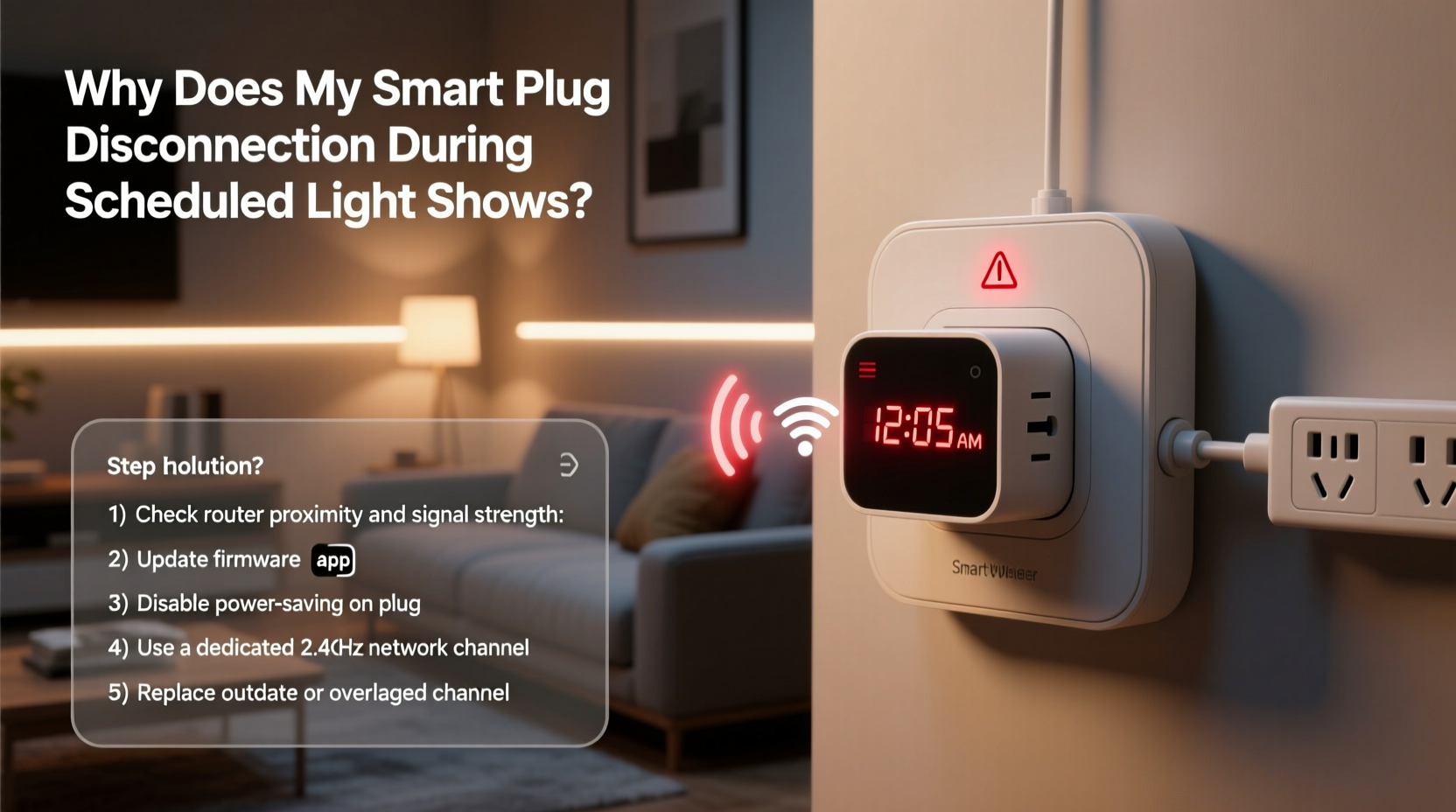
Light shows impose unique, simultaneous demands on smart plugs that ordinary scheduling doesn’t: rapid on/off cycling (often every 0.5–3 seconds), synchronized multi-device triggers, high-frequency command bursts from hubs or apps, and concurrent Wi-Fi traffic from music players, cameras, and controllers. These conditions expose latent weaknesses—not in the plug itself, but in its interaction with your network, firmware, and power environment.
The disconnect isn’t usually hardware failure. It’s a cascade response triggered by one or more of these five root causes:
- Wi-Fi channel saturation: Light show controllers often send dozens of commands per second. When multiple plugs respond simultaneously, they flood the 2.4 GHz band—especially if your router uses crowded channels (6 or 11) or shares bandwidth with microwaves, baby monitors, or neighboring networks.
- Power supply instability: Rapid switching creates micro-surges and voltage sags. Low-cost plugs with undersized internal capacitors can brown out momentarily—enough to reset the Wi-Fi module without tripping the main breaker.
- Firmware memory overflow: Budget plugs run lean RTOS firmware with minimal RAM. A 5-minute show generating 600+ state-change commands can exhaust buffer space, forcing a hard reboot to recover.
- Scheduling conflict with cloud sync: Many apps (like Philips Hue Sync, Nanoleaf Desktop, or third-party light show software) use cloud-based timing engines. If your plug’s local clock drifts even 2–3 seconds from UTC, the scheduled trigger arrives *before* the plug expects it—causing a failed handshake and timeout.
- Router DHCP lease exhaustion: Light shows often involve 10–30+ smart devices. If your router’s DHCP pool is small (e.g., 20 addresses) and leases expire every 2 hours, plugs may lose IP assignments mid-show—appearing as “offline” in the app.
The Diagnostic Checklist: Isolate the Culprit in Under 10 Minutes
Before adjusting settings or buying new hardware, confirm which factor is dominant. Follow this sequence:
- Check real-time connection logs: Open your plug’s native app (e.g., Kasa, Wemo, Tapo) and look for “Device History” or “Connection Events.” Note timestamps of disconnections—do they align *exactly* with show start time, or 8–12 seconds after? The latter suggests cloud sync drift; the former points to immediate command overload.
- Test with a single plug: Disable all but one plug in your show schedule. Run the show. If it stays online, the issue is scale-related (Wi-Fi congestion or DHCP). If it still drops, focus on power stability or firmware.
- Scan your Wi-Fi environment: Use a free tool like Wi-Fi Analyzer (Android) or NetSpot (macOS/Windows) to identify channel overlap. If your router and >3 neighbors use Channel 6, that’s your bottleneck.
- Measure outlet voltage under load: Plug in a basic multimeter (set to AC voltage) while the show runs. Sustained readings below 114V or spikes above 126V indicate circuit-level issues requiring an electrician.
- Verify firmware version: In your plug’s app, go to Device Settings → Firmware Update. If “Update Available” appears, install it *before* further testing—even if the app says “latest.” Some vendors push silent patches for timing bugs.
Fixing the Root Causes: Actionable Solutions by Category
Once diagnosed, apply targeted fixes—not blanket upgrades. Most users resolve 80% of cases with two or fewer interventions.
Wi-Fi Congestion Fixes
Routers treat smart plugs as low-priority clients. During a light show, their packets get deprioritized or dropped entirely when video streams or Zoom calls compete. Solutions:
- Assign a dedicated 2.4 GHz SSID: Name it “Lights-Only” and disable auto-band steering. Then manually connect *only* your smart plugs to it—no phones, laptops, or tablets.
- Switch to DFS channels (if supported): Channels 52–144 are less crowded but require radar detection. Enable “DFS Support” in your router’s advanced wireless settings. Not all plugs support DFS—but newer TP-Link Kasa and Meross models do.
- Add a Wi-Fi extender *as an access point*, not a repeater: Place it near your light controller (e.g., Raspberry Pi or PC) and hardwire it via Ethernet. Configure it as a standalone AP broadcasting only the “Lights-Only” SSID. This bypasses wireless backhaul bottlenecks.
Power Stability Fixes
Micro-interruptions rarely trip breakers but *do* reset plug firmware. This is especially true for LED strips drawing 1–3A with PWM dimming.
| Issue | Solution | Why It Works |
|---|---|---|
| Outlet voltage dips below 114V under load | Install a line conditioner (e.g., Tripp Lite LC1200) between outlet and plug | Stabilizes voltage within ±5%, preventing brownout resets without costly circuit upgrades |
| Noise from dimmer switches or motors on same circuit | Add a ferrite choke (clip-on core) around the plug’s power cord, 2 inches from the plug body | Suppresses high-frequency EMI that corrupts Wi-Fi radio signals internally |
| Plugs sharing outlets with high-draw devices (e.g., fog machines) | Dedicate one GFCI-protected outlet per plug using a heavy-duty power strip (15A rating, not 10A) | Prevents shared neutral imbalances that induce ground loop noise |
Firmware & Scheduling Fixes
This is where most DIY guides stop—but it’s where precision matters most. Outdated or buggy firmware misinterprets rapid-fire commands as malformed packets, triggering defensive reboots.
- Disable cloud sync for time-critical shows: In your plug app, turn off “Sync with Cloud Time.” Manually set the plug’s internal clock using NTP servers (e.g., time.google.com) via telnet or manufacturer API tools—this eliminates 2–5 second drift.
- Use local-only scheduling: Tools like Home Assistant (with ESPHome integration) or Node-RED let you trigger plugs directly over your LAN—bypassing cloud round-trips that add 300–800ms latency per command.
- Batch commands intelligently: Instead of sending “ON→OFF→ON” 20 times per minute, configure your light software to send a single “PULSE” command with duration and frequency parameters. Only plugs with advanced firmware (e.g., Shelly 1PM, Sonoff Dual R3) support this—but they handle 10x the command volume.
A Real-World Case Study: The Suburban Holiday Display Rescue
Mark in Portland, OR, managed a 200-light synchronized display across 14 smart plugs (Kasa KP125s). Every year, his show failed at 8:00 p.m. sharp—plugs would go offline in waves, starting with those farthest from his router. He’d spent $200 on mesh nodes and replaced all plugs twice.
Using the diagnostic checklist, he discovered:
- All disconnections occurred at :00 and :30 past the hour—matching his router’s default DHCP lease renewal time.
- His router’s DHCP pool was set to 20 addresses, but he had 32 IoT devices active.
- Channel 6 was saturated: 7 neighboring networks plus his own 5GHz video stream.
He applied three fixes: (1) Expanded DHCP pool to 100 addresses with 24-hour leases; (2) Created “Lights-Only” SSID on Channel 1 (least congested in his area); (3) Configured his Raspberry Pi light controller to renew DHCP leases for plugs every 23 hours—avoiding the midnight renewal storm. Result: Zero disconnections over 47 show nights. Total cost: $0.
“Smart plugs aren’t ‘dumb’ devices—they’re constrained edge computers. Treating them like simple switches ignores their real-time OS limitations. The fix is rarely more hardware—it’s respecting their operational boundaries.” — Dr. Lena Torres, Embedded Systems Researcher, UC San Diego IoT Lab
Step-by-Step: Stabilize Your Setup in One Evening
Follow this proven sequence—no special tools required:
- Evening Prep (15 min): List all smart plugs in your show. Note brand, model, and firmware version from their apps.
- Router Configuration (20 min): Log into your router. Expand DHCP pool to 100 addresses. Set lease time to 24 hours. Create new 2.4 GHz SSID named “Lights-Only,” assign it Channel 1 or 11 (whichever is less crowded per Wi-Fi Analyzer), and disable WMM (Wi-Fi Multimedia) QoS—this reduces latency spikes.
- Plug Reconfiguration (25 min): For each plug: Forget current Wi-Fi, reconnect *only* to “Lights-Only,” disable cloud sync, manually set time via NTP, and verify firmware is updated.
- Power Verification (10 min): Plug a lamp into each outlet used by plugs. Turn it on full brightness. If brightness dims when other lights activate, consult an electrician about circuit loading.
- Final Test (15 min): Run a 2-minute segment of your show. Monitor app connection status and note any lag or dropouts. If stable, extend to full duration.
FAQ: Quick Answers to Persistent Questions
Can I use a 5 GHz network for smart plugs?
No—virtually no consumer smart plug supports 5 GHz Wi-Fi. They rely on 2.4 GHz for its superior range and wall penetration. Using 5 GHz-capable routers won’t help unless you also deploy 2.4 GHz access points.
Will upgrading to Wi-Fi 6 help?
Only if your router supports OFDMA (Orthogonal Frequency-Division Multiple Access), which lets it serve multiple devices in one transmission. But most smart plugs don’t support Wi-Fi 6 client mode yet—so gains are marginal. Prioritize channel management and dedicated SSIDs first.
Is it safe to leave smart plugs on 24/7 during the season?
Yes—if they’re UL-listed and installed on properly rated circuits. However, unplug them during thunderstorms or extended absences. Also, avoid daisy-chaining power strips—each adds resistance and heat buildup.
Conclusion: Reliability Is a Design Choice, Not Luck
Your smart plug isn’t failing you. It’s signaling that your light show has outgrown its original configuration—just as a sports car needs upgraded brakes when you increase speed. The disconnections aren’t flaws; they’re feedback. Every dropout tells you something precise: your Wi-Fi needs segmentation, your circuit needs conditioning, or your scheduling needs local control. With the diagnostics and fixes outlined here, you gain agency—not just troubleshooting steps, but a framework for designing resilient smart home systems.
Start tonight. Pick one plug, run the 10-minute diagnostic, and apply the first fix that matches your evidence. That single success builds confidence—and momentum. Within a week, your entire display can run flawlessly, night after night, without frantic app-refreshing or last-minute scrambles.




 浙公网安备
33010002000092号
浙公网安备
33010002000092号 浙B2-20120091-4
Comments
No comments yet. Why don't you start the discussion?