
It’s a quiet frustration that repeats like clockwork: you carefully download and install the latest firmware update for your Wi-Fi router—perhaps to patch security vulnerabilities, improve speed, or resolve long-standing instability. Within minutes, your smart lights dim unexpectedly, your coffee maker stops responding, and your smart plug blinks erratically in the corner of the kitchen counter. The app shows “Offline.” You restart the plug. You reboot the router. You toggle Wi-Fi on your phone. Nothing restores the connection—until you manually reconfigure the plug’s network credentials, sometimes multiple times. This isn’t random failure. It’s a predictable collision between legacy device design and modern networking standards—a mismatch amplified by firmware updates that silently shift foundational assumptions about how devices join and stay on your network.
The Root Cause: Firmware Updates Reset Network Assumptions
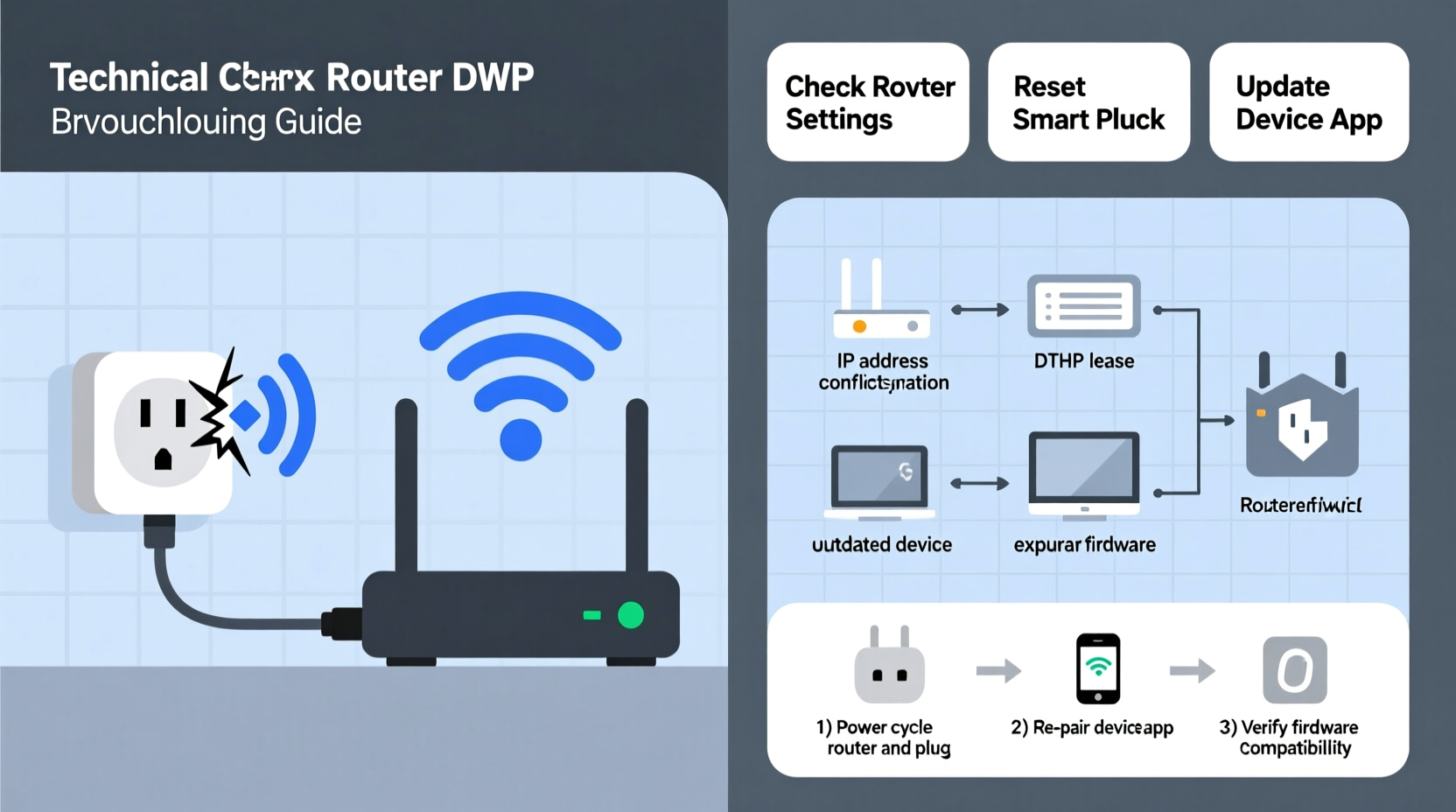
Router firmware updates rarely change only what’s advertised—like “improved QoS” or “enhanced parental controls.” They often overhaul core networking components: the DHCP server configuration, DNS resolution behavior, Wi-Fi authentication protocols (WPA2 → WPA3), multicast handling, or even the default SSID broadcast settings. Smart plugs—especially those released before 2021—were typically built with narrow, hardcoded expectations: they assume DHCP lease times won’t drop below 24 hours; they expect IPv4-only networks; they rely on mDNS (multicast DNS) for local discovery, which many updated routers now throttle or disable by default for security; and they frequently hardcode support for older WPA2-PSK (AES) but fail silently when the router enables WPA3 transition mode or disables TKIP entirely.
Crucially, most smart plugs lack robust reconnection logic. Unlike smartphones or laptops, they don’t actively monitor network health, renegotiate DHCP leases proactively, or fall back gracefully when mDNS fails. Instead, they attempt a single rejoin sequence at boot—and if that fails, they enter a low-power “waiting state” where they appear offline in the app but remain physically powered. No error code appears. No LED pattern signals trouble. Just silence.
Five Technical Triggers Hidden in Your Router Update
Firmware updates introduce subtle but consequential changes. Below are the five most common technical shifts that break smart plug connectivity—and why each one matters:
| Trigger | What Changes | Why Your Plug Fails |
|---|---|---|
| DHCP Lease Time Reduction | Router cuts default lease from 24 hours to 2 hours | Plug’s embedded TCP/IP stack doesn’t renew leases before expiration—causing IP address loss and inability to resolve cloud servers or local gateways |
| IPv6 Privacy Extensions Enabled | Router starts assigning temporary IPv6 addresses alongside stable ones | Plug’s firmware uses only the deprecated stable IPv6 address for cloud registration—when it expires, the plug can’t authenticate with the vendor’s backend |
| mDNS Filtering or Rate-Limiting | Router blocks or throttles multicast DNS packets (port 5353) | Plug relies on mDNS to locate local hubs (e.g., Home Assistant) and discover the router’s gateway IP—without it, local control fails and cloud fallback may time out |
| Wi-Fi Beacon Interval Increase | Beacon interval raised from 100ms to 300ms to reduce airtime overhead | Plug’s Wi-Fi chipset expects beacons every ~100–150ms; longer gaps cause its radio to assume signal loss and disconnect |
| WPA3 Transition Mode Misconfiguration | Router enables WPA3-SAE but leaves WPA2 fallback disabled or inconsistent | Plug supports WPA2 but not WPA3; during handshake, it receives mixed cipher suite offers and aborts connection rather than negotiating down safely |
A Real-World Example: The “Silent Disconnect” in Portland
In early 2023, a home automation consultant in Portland, Oregon, received identical reports from seven clients using Netgear Nighthawk R7000 routers and Kasa KP115 smart plugs. All had updated to firmware version 1.4.3.24, released to address CVE-2022-40735. Within 48 hours, every KP115 went offline—but only *after* the first nightly DHCP renewal cycle (which occurred at 2:17 a.m.). The plugs remained powered and responsive to physical button presses, yet showed no activity in the Kasa app. Initial troubleshooting—router reboots, plug resets, app reinstalls—failed. Only after packet capture revealed repeated DHCPDECLINE messages did the root cause surface: the new firmware enforced RFC 2131-compliant lease validation, rejecting the KP115’s malformed DHCPREQUEST (it included a client identifier field formatted as ASCII instead of hex). Netgear issued a hotfix (v1.4.3.26) two weeks later—but until then, affected users had to manually assign static IPs via the router UI and disable DHCP for each plug. This wasn’t user error. It was an unannounced protocol enforcement breaking backward compatibility.
Step-by-Step Recovery & Prevention Protocol
When your smart plug goes dark post-update, follow this precise sequence—not as a workaround, but as a diagnostic and stabilization process:
- Verify physical layer integrity: Confirm the plug’s LED is solid (not blinking rapidly or off). If off, check circuit breaker and outlet voltage. If blinking rapidly (e.g., 3x per second), it’s in pairing mode—skip to Step 5.
- Check router logs: Log into your router admin interface and navigate to Status > System Log or Advanced > Logs. Filter for “DHCP”, “association”, or “disconnection”. Look for entries like “DHCPNAK to [plug MAC]” or “deauth reason=4” (disassociated due to inactivity).
- Temporarily disable security enhancements: In your router’s wireless settings, turn off WPA3, disable “Enhanced Open” (if present), set beacon interval to 100ms, and increase DHCP lease time to 48 hours. Save and reboot the router.
- Force DHCP renewal on the plug: Unplug the smart plug for 10 seconds, then plug it back in while holding its physical button for 5 seconds until the LED pulses slowly. This triggers a full network re-scan and DHCP request—not just a cached reconnect.
- Re-enroll only if necessary: If Steps 1–4 fail, use the app to initiate “Add Device” and follow pairing instructions—but ensure your phone is connected to the *same* 2.4 GHz network (not 5 GHz) and that location permissions are enabled. Do not skip the “confirm SSID” screen.
- Lock in stability: Once online, assign a static IP reservation in your router’s DHCP settings using the plug’s MAC address. Then, re-enable security features one-by-one, testing connectivity after each change.
Expert Insight: Why “Just Reboot Everything” Doesn’t Solve It
“The idea that ‘rebooting fixes everything’ is dangerously misleading for IoT ecosystems. Smart plugs operate on resource-constrained microcontrollers with minimal memory and no persistent storage for complex network state. When a firmware update changes how DHCP or TLS handshakes behave, the plug doesn’t ‘forget’ its password—it loses the contextual negotiation logic required to interpret new server responses. That’s not a glitch; it’s architectural debt. Vendors prioritize cost and time-to-market over robustness, and consumers pay the price in reliability.” — Dr. Lena Torres, Embedded Systems Researcher, UC San Diego Wireless Lab
Do’s and Don’ts After Router Firmware Updates
- DO review your router’s changelog before installing—look for keywords like “DHCP”, “mDNS”, “WPA3”, “beacon”, or “client isolation”
- DO maintain a spreadsheet of all smart devices: model, firmware version, MAC address, and static IP assignment status
- DO enable your router’s “Client Isolation” only if absolutely needed for guest networks—not your primary LAN
- DON’T assume “auto-update” is safe for routers managing critical smart home infrastructure
- DON’T use third-party firmware (e.g., DD-WRT, OpenWrt) unless you’ve validated plug compatibility—many disable mDNS entirely by default
- DON’T rely solely on cloud-based control; configure local execution (e.g., Home Assistant automations) as a fallback
FAQ
Can I prevent this without avoiding router updates altogether?
Yes—but it requires proactive coordination. First, subscribe to your smart plug brand’s firmware release notes and your router manufacturer’s security bulletins. Second, schedule updates during low-risk windows (e.g., weekday mornings when you’re home to intervene). Third, enable your router’s “firmware rollback” feature if available. Finally, invest in plugs with Matter/Thread support (e.g., Nanoleaf, Eve Energy)—they use standardized, resilient networking stacks less likely to break on router updates.
Why do only some of my smart plugs disconnect—not all?
Different manufacturers implement Wi-Fi stacks differently. A TP-Link plug may use Espressif’s ESP-IDF SDK (which handles DHCP renewal aggressively), while a Belkin Wemo may rely on Broadcom’s older BCM43362 driver (which assumes static leases). Chipset age matters too: plugs using Realtek RTL8710BN (common in 2018–2020 models) have known issues with WPA3 handshake timeouts, whereas newer Mediatek MT7688-based devices handle transitions more gracefully. Your mix of hardware creates a natural stress test for router updates.
Is resetting my router to factory defaults the best fix?
No—factory reset erases your entire network configuration (port forwards, QoS rules, VLANs, static leases) and rarely resolves the underlying issue. It’s equivalent to replacing a fuse without checking the overloaded circuit. Instead, identify the specific setting causing conflict (via log analysis), adjust only that parameter, and document the change. This preserves your network’s integrity while restoring plug functionality.
Conclusion: Treat Your Network Like Critical Infrastructure
Your smart plug isn’t broken. Your router isn’t defective. What you’re experiencing is the growing friction between consumer-grade IoT devices—designed for simplicity and low cost—and enterprise-grade networking standards evolving for security and scale. Every firmware update is a small act of infrastructure modernization. But unlike servers or phones, smart plugs lack the software agility to adapt on the fly. That places the burden on you: to monitor, anticipate, and intervene—not as a technician, but as a steward of your digital environment. Start today. Audit one smart device. Note its MAC address. Check your router’s current DHCP lease time. Test mDNS responsiveness with a tool like avahi-browse -at (on Linux/macOS) or Bonjour Browser (Windows). Small actions compound. Within a month, you’ll move from reactive panic to confident control—transforming firmware updates from connection-breaking events into routine, manageable maintenance. Your smart home deserves that level of intentionality.




 浙公网安备
33010002000092号
浙公网安备
33010002000092号 浙B2-20120091-4
Comments
No comments yet. Why don't you start the discussion?