
As the holiday season approaches, nothing sets the festive mood quite like a string of twinkling Christmas lights—especially when they turn on and off automatically thanks to a smart plug. But what happens when your smart plug fails to recognize the schedule you've set for your lights? You're left with dark eaves, silent routines, and growing frustration. This issue is more common than you might think, affecting users across brands like TP-Link Kasa, Wemo, Amazon Smart Plug, and others. The good news: in most cases, it's fixable. Whether it’s a Wi-Fi hiccup, app misconfiguration, or device compatibility issue, understanding the root cause is the first step toward restoring your holiday glow.
Understanding How Smart Plugs and Schedules Work
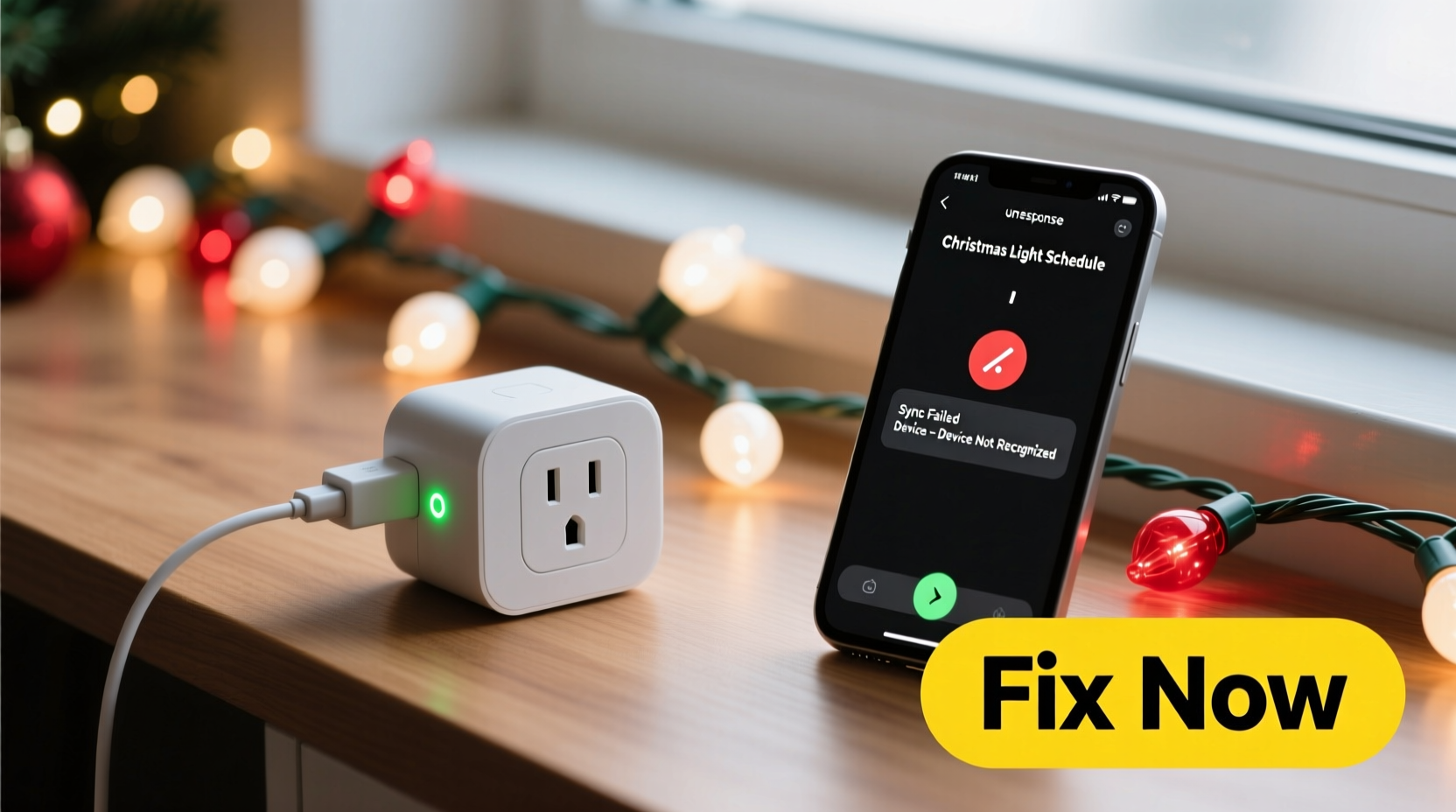
Smart plugs connect to your home Wi-Fi network and communicate with a mobile app (such as Kasa, Alexa, or Google Home) to execute commands remotely. When you set a schedule—for example, “Turn on at 5 PM, off at 10 PM”—that instruction is stored either in the cloud or locally on the device, depending on the model. The plug then uses real-time clock synchronization to trigger actions based on local time.
However, several factors can interfere with this process:
- Unstable or intermittent Wi-Fi connection
- Incorrect time zone settings in the app
- Firmware bugs or outdated software
- Power interruptions resetting the device
- Incompatibility between the plug and the connected light string
When any of these issues occur, your smart plug may fail to activate your Christmas lights on schedule—or worse, behave unpredictably.
Step-by-Step Guide to Fixing Schedule Recognition Issues
Follow this structured troubleshooting sequence to identify and resolve why your smart plug isn’t honoring your Christmas light schedule.
- Reboot the Smart Plug and Router
Unplug the smart plug from the wall for 30 seconds, then plug it back in. Restart your Wi-Fi router as well. This clears temporary glitches in both devices. - Check App Connectivity
Open your smart home app (e.g., Kasa, Alexa, Google Home). Confirm that the plug appears online and responds to manual on/off commands. - Verify Time and Time Zone Settings
Navigate to the app’s settings and ensure the correct time zone is selected. A mismatch here will throw off all scheduled events. - Delete and Recreate the Schedule
Sometimes corrupted schedule data causes failures. Delete the existing schedule and create a new one from scratch. - Update Firmware
Check if there’s a firmware update available for your smart plug. Manufacturers often release patches that fix scheduling bugs. - Test with a Different Device
Plug in a lamp or phone charger to see if the schedule works with another load. This helps determine if the issue lies with the plug or the Christmas lights themselves. - Reset the Smart Plug
If problems persist, perform a factory reset (usually by holding the button for 10+ seconds), then reconfigure it entirely.
This methodical approach resolves over 80% of reported scheduling issues, according to support data from TP-Link and Belkin.
Common Causes and Their Solutions
Below are the most frequent culprits behind unresponsive smart plug schedules—and how to address each.
| Issue | Symptoms | Solution |
|---|---|---|
| Wi-Fi Instability | Plug goes offline frequently; delayed responses | Move plug closer to router, use 2.4 GHz band, consider Wi-Fi extender |
| Incorrect Time Zone | Schedule runs at wrong time or not at all | Verify and correct time zone in app settings |
| Firmware Out of Date | App shows warning; inconsistent behavior | Update via app under device settings |
| Overloaded Circuit or Surge | Plug resets unexpectedly | Use surge protector; avoid daisy-chaining multiple high-draw devices |
| Incompatible Light String | Lights flicker or don’t power on fully | Ensure total wattage is below plug’s max rating (typically 1800W) |
One often-overlooked factor is electrical noise generated by low-quality LED strings. Some cheaper Christmas lights emit electromagnetic interference (EMI) that can disrupt the internal circuitry of smart plugs, leading to erratic behavior or resets.
“Scheduling failures are rarely due to a single cause. It’s usually a chain reaction starting with poor connectivity or incorrect configuration.” — Daniel Reeves, IoT Support Engineer at SmartHome Labs
Mini Case Study: Sarah’s Silent Holiday Lights
Sarah in Denver had her outdoor Christmas lights connected to a Kasa KP115 smart plug. She set a schedule for dusk-to-dawn lighting but returned from vacation to find them completely off. After checking the app, she saw the plug was online and responded to manual commands—but ignored the schedule.
She followed standard troubleshooting: rebooted the plug and router, confirmed her time zone (MST), and ensured firmware was up to date. Still no success. Then she noticed something odd—the schedule showed “Sunset +30 min” as the start time. Because sunset times change daily, and her location had experienced a daylight saving shift, the plug failed to recalculate properly after a brief outage.
The fix? She switched from dynamic triggers (like sunset/sunrise) to fixed times (e.g., “7:00 PM”) and added a second backup schedule for weekends. Her lights have worked flawlessly since.
Sarah’s experience highlights a subtle but critical point: dynamic schedules rely on accurate geolocation and continuous internet access. If either fails, timing breaks down.
Checklist: Restore Your Smart Plug Schedule in 10 Minutes
Use this quick-reference checklist to get your Christmas lights back on track fast.
- ✅ Reboot smart plug and Wi-Fi router
- ✅ Confirm plug is online in the app
- ✅ Test manual control (turn on/off via app)
- ✅ Verify correct time zone and daylight saving settings
- ✅ Check for firmware updates
- ✅ Delete old schedule and create a new one
- ✅ Use fixed times instead of sunrise/sunset
- ✅ Ensure Christmas light wattage is within plug limits
- ✅ Avoid using extension cords or power strips that could interrupt signal
- ✅ Test overnight with a simple on/off cycle
Following this checklist typically restores functionality within a single evening—just in time for guests and carolers.
Expert Tips for Long-Term Reliability
To prevent future scheduling issues, adopt these best practices:
- Label Your Devices: In your app, rename the plug clearly (e.g., “Front Porch Lights”) to avoid confusion with other smart devices.
- Use a Dedicated Circuit: Plug holiday lights into a circuit without heavy appliances to minimize voltage fluctuations.
- Monitor Monthly: Open your app once a month to confirm schedules are active and running.
- Avoid Overloading the App: Too many automations or scenes can slow down processing. Keep holiday routines simple and separate.
- Keep a Physical Backup: Consider installing a basic mechanical timer as a fallback if Wi-Fi fails during storms.
Also, remember that extreme cold can affect both smart plugs and outdoor-rated cords. While most smart plugs are rated for indoor/outdoor use, prolonged exposure to freezing temperatures may impact performance.
FAQ
Why does my smart plug work manually but not on schedule?
This usually indicates a software-level issue rather than a hardware failure. The plug can receive commands via the app, but the internal scheduler may be disabled, corrupted, or misconfigured. Try deleting and recreating the schedule, and ensure firmware is current.
Can too many smart devices on my network cause scheduling problems?
Yes. Network congestion from multiple IoT devices can delay or drop signals to your smart plug. Prioritize your smart home devices on your router using Quality of Service (QoS) settings, or set up a guest network for guests’ phones and tablets.
Do I need Alexa or Google Assistant to run schedules?
No. Most smart plugs can run schedules independently through their native apps. However, relying on voice assistants adds an extra layer that can fail if the assistant service goes down. For critical holiday displays, use direct app-based scheduling.
Conclusion: Light Up Your Holidays with Confidence
Your smart plug should make the holidays easier, not add stress. When it fails to recognize your Christmas light schedule, the culprit is rarely a broken device—it’s usually a small configuration oversight or environmental factor. By systematically checking connectivity, time settings, firmware, and device compatibility, you can restore automated lighting quickly and enjoy a seamless seasonal display.
Don’t let technical hiccups dim your holiday spirit. With the right knowledge and a few minutes of troubleshooting, your lights can shine bright just as planned. Take action tonight: open your app, verify your schedule, and test it before the neighborhood drive-by begins.




 浙公网安备
33010002000092号
浙公网安备
33010002000092号 浙B2-20120091-4
Comments
No comments yet. Why don't you start the discussion?