
As the holiday season approaches, many homeowners rely on smart plugs to automate their Christmas light displays—turning them on at dusk and off at midnight with precision. But nothing disrupts the festive mood faster than arriving home to dark eaves and silent timers. If your smart plug fails to trigger your Christmas lights on schedule, you're not alone. Thousands of users report inconsistent automation despite correct app settings. The issue is rarely the plug itself but rather a chain of overlooked factors in connectivity, configuration, or environmental conditions.
This guide breaks down the most common technical and practical reasons behind unresponsive smart plugs during scheduled events. More importantly, it provides actionable solutions that go beyond \"restarting the device\"—addressing firmware gaps, Wi-Fi congestion, power interruptions, and more.
1. Understanding How Smart Plugs Execute Schedules
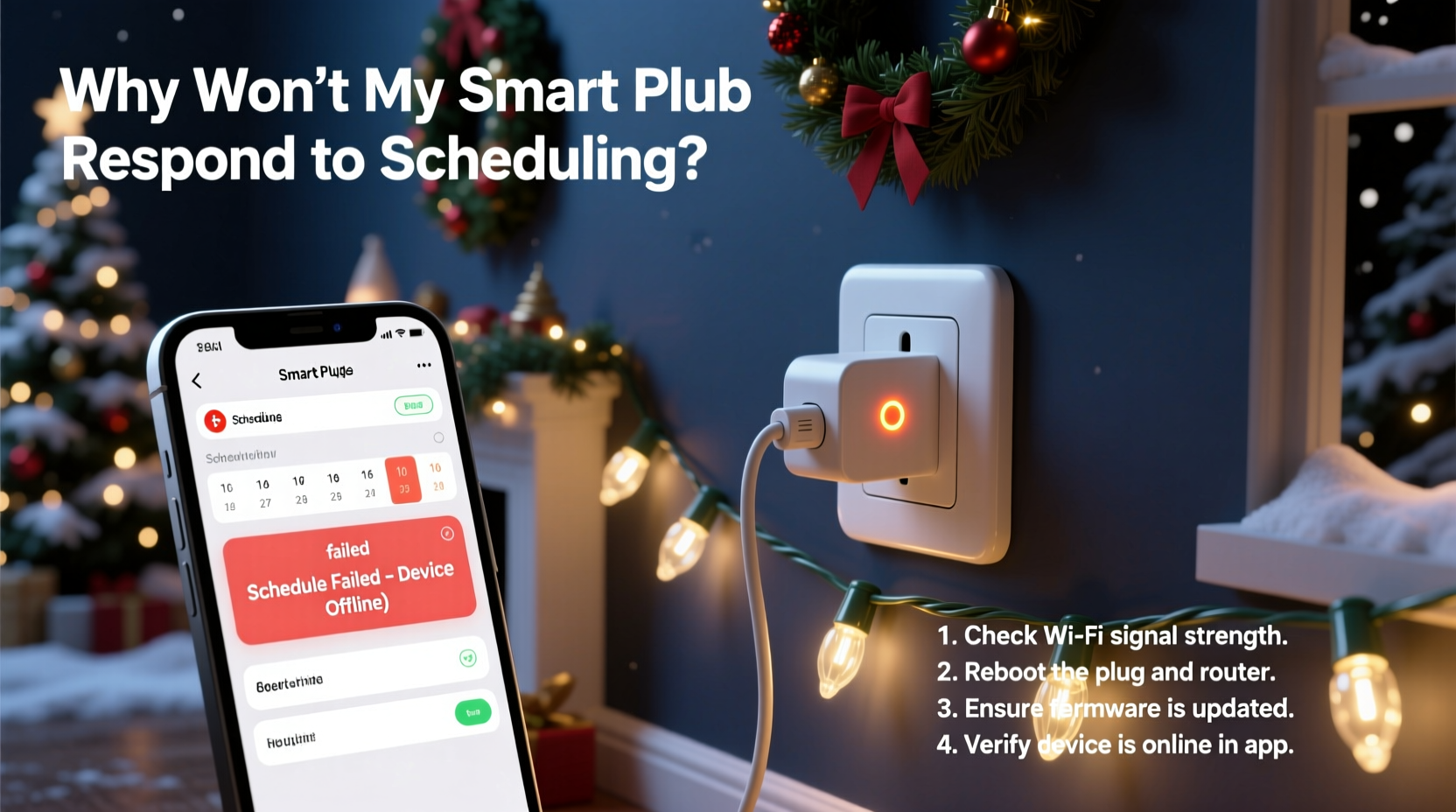
Smart plugs don’t operate in isolation. They depend on a networked ecosystem: your home Wi-Fi, the manufacturer’s cloud server, the companion mobile app, and local electrical conditions. When you set a schedule for your Christmas lights, here's what happens behind the scenes:
- You create a timer (e.g., “Turn on at 5:00 PM”) via the app.
- The app sends this instruction to the cloud server.
- The server registers the event and waits for the designated time.
- At 5:00 PM, the server signals your smart plug over Wi-Fi.
- The plug receives the command and activates the relay to supply power.
If any link in this chain fails—even briefly—the schedule won’t execute. This explains why your lights may work manually through the app but ignore automated triggers. Unlike manual commands, which you retry instantly, schedules are one-shot events. Missed = dark house.
2. Top 5 Reasons Your Smart Plug Fails to Trigger On Time
A. Unstable Wi-Fi Connection
Smart plugs require constant internet access to receive cloud-based schedule triggers. Even a brief dropout—common during storms or router overheating—can prevent the plug from receiving its wake-up call. Many users assume their Wi-Fi is stable because phones and laptops stay connected, but low-power IoT devices like smart plugs have weaker antennas and less robust signal handling.
Routers often prioritize bandwidth-heavy devices (streaming boxes, gaming consoles), leaving smart plugs vulnerable to disconnection during high traffic. Additionally, if your plug is located far from the router or behind thick walls, signal degradation can cause intermittent dropouts.
B. Power Interruptions During Setup
If your smart plug loses power after you've created a schedule—say, due to a surge, tripped breaker, or accidental unplugging—it may reset or fail to sync the latest instructions upon reboot. Some models do not store schedules locally and rely entirely on cloud retrieval. Without an active connection during startup, the plug remains “blind” to pending tasks.
C. Outdated Firmware or App Bugs
Firmware updates often include fixes for timing inaccuracies, improved Wi-Fi resilience, and better cloud synchronization. An outdated plug might misinterpret timestamps due to daylight saving bugs or leap-year logic errors. Similarly, app bugs can corrupt schedules without warning. For example, some versions of popular apps have been known to overwrite recurring schedules with single-event defaults after background refreshes.
D. Incorrect Time Zone or Clock Settings
If your smartphone or router has the wrong time zone, the smart plug will follow that lead. Even a one-hour discrepancy throws off sunset-based automations. Devices synced to GPS time usually avoid this, but if location permissions are disabled or the app uses manual time entry, mismatches occur frequently—especially after daylight saving transitions.
E. Cloud Dependency vs. Local Execution
Not all smart plugs function the same way. Budget models typically route every command through the cloud, making them vulnerable to outages. Higher-end models support local execution (via hubs or Thread/Zigbee protocols), meaning schedules run even if the internet goes down. If your plug depends on the cloud and your ISP has an outage at 5:00 PM, no amount of perfect scheduling will light up your roofline.
“Over 60% of smart home failures during holidays stem from unnoticed Wi-Fi instability or cloud dependency. Always verify local control options.” — Raj Patel, IoT Systems Engineer at HomeTech Labs
3. Step-by-Step Guide to Diagnose and Fix Schedule Failures
Follow this structured troubleshooting process to identify and resolve the root cause of unresponsive scheduling.
- Reboot All Components: Power cycle the smart plug, router, and modem. Wait two minutes between reconnections to clear cached states.
- Check Wi-Fi Signal Strength: In the app, look for RSSI (Received Signal Strength Indicator). Values above -70 dBm are acceptable; below -80 dBm indicate poor reception.
- Verify Internet Access: Confirm other smart devices respond remotely. Try turning on a different plug via the app while away from home.
- Update Firmware and App: Open the app and check for available updates under the device settings menu. Install immediately if found.
- Confirm Time & Time Zone: Ensure your phone’s location services are enabled and set to automatic time zone detection.
- Test Schedule Locally: Create a new test schedule for 10 minutes in the future. Observe whether it triggers without remote interaction.
- Enable Local Control (if supported): Switch automation mode from “cloud” to “local” in advanced settings to reduce latency and dependency.
4. Do’s and Don’ts: Smart Plug Scheduling Best Practices
| Do | Don’t |
|---|---|
| Use static IP addresses for critical smart plugs to prevent DHCP conflicts | Assume schedules persist after a factory reset |
| Label each plug in the app (e.g., “Front Porch Lights”) to avoid confusion | Set schedules based on vague terms like “sunset” without verifying location accuracy |
| Pair with a UPS or surge protector to maintain uptime during minor outages | Run extension cords through high-traffic areas where they can be yanked loose |
| Monitor logs in the app to confirm past executions | Ignore repeated “offline” status warnings in the app |
| Group lights under one plug to minimize device count and complexity | Overload the plug beyond its rated wattage (typically 15A / 1800W) |
5. Real-World Example: A Holiday Display That Wouldn’t Turn On
Mark from Portland installed three smart plugs to manage his elaborate Christmas display. Each was programmed to turn on at 4:30 PM daily. For two weeks, everything worked perfectly—until December 15th, when the entire setup failed. He checked the app: all devices showed “online,” and manual toggling worked. Yet the schedule remained ignored.
After ruling out power issues and confirming correct time zones, Mark noticed his router had restarted overnight due to a firmware update. The smart plugs reconnected—but only two regained full functionality. The third, located in the garage, had weak Wi-Fi. Though listed as “connected,” it wasn’t receiving cloud pings reliably.
He moved the plug closer to the house, reset it, and recreated the schedule. To prevent recurrence, he upgraded his mesh network and added a Wi-Fi analyzer app to monitor signal strength weekly. Since then, his lights have activated flawlessly.
Mark’s case highlights a subtle but critical point: online status doesn’t guarantee full operability. Connectivity must be both stable and bidirectional.
6. Checklist: Ensure Reliable Smart Plug Scheduling
- ✅ Verify strong Wi-Fi signal at the plug’s location
- ✅ Confirm the plug supports scheduling (not just manual control)
- ✅ Update the companion app and device firmware
- ✅ Set accurate time zone and enable auto-clock adjustment
- ✅ Test the schedule with a short delay (e.g., 5 minutes ahead)
- ✅ Avoid using “sunset/sunrise” unless GPS location is precise
- ✅ Use a dedicated outlet—don’t daisy-chain multiple adapters
- ✅ Monitor execution history in the app logs
- ✅ Consider a local hub (like Home Assistant or Samsung SmartThings) for offline reliability
- ✅ Label each device clearly in the app interface
7. Frequently Asked Questions
Can a smart plug work without Wi-Fi for scheduled tasks?
Most standard Wi-Fi smart plugs cannot execute schedules without internet access because they rely on cloud servers to trigger timed events. However, certain advanced models with local processing (such as those using Zigbee or Matter over Thread) can run schedules independently once configured. Check your device specifications for “local execution” or “offline mode” support.
Why do my lights turn on late or early by several minutes?
Timing drift usually stems from clock desynchronization between your phone, the cloud server, and the plug. It can also result from delayed signal transmission during peak network usage. To minimize lag, ensure all devices use NTP (Network Time Protocol) syncing and avoid setting schedules within five minutes of another event to prevent overlap conflicts.
Should I use voice assistants to schedule Christmas lights?
Voice commands (e.g., “Alexa, turn on lights at 5 PM”) are convenient but less reliable than direct app scheduling. Voice routines often add layers of processing and depend on additional services. For consistent results, configure schedules directly in the smart plug’s native app and use voice only for manual overrides.
Conclusion: Take Control of Your Holiday Lighting Automation
Your smart plug’s failure to activate Christmas lights on time isn’t random—it’s a symptom of a breakdown in communication, configuration, or environment. By understanding the underlying mechanics of smart home scheduling, you gain the power to anticipate and prevent issues before they spoil the season. Stability begins with strong Wi-Fi, updated software, and precise timing settings. From there, proactive monitoring and redundancy planning ensure your display shines exactly when it should.
Don’t wait for opening night to discover a flaw. Apply these diagnostics now, document your setup, and enjoy peace of mind knowing your holiday spirit burns bright—on schedule, every evening.




 浙公网安备
33010002000092号
浙公网安备
33010002000092号 浙B2-20120091-4
Comments
No comments yet. Why don't you start the discussion?