
Smart speakers have become essential in modern homes, offering voice-controlled access to music, news, timers, and smart home devices. But nothing disrupts the peace quite like your device suddenly blasting music at 2 a.m. with no command given. If you’ve found yourself asking, “Why does my smart speaker randomly play music unprompted?” you’re not alone. Thousands of users report this unsettling behavior across Amazon Echo, Google Nest, and Apple HomePod devices.
This issue isn’t just annoying—it can raise privacy concerns and make you question whether your device is compromised. The good news: in most cases, the cause is technical, not malicious, and it’s fixable. This guide dives into the real reasons behind uninvited playback, offers proven solutions, and helps you regain full control over your smart speaker.
Common Causes of Unprompted Music Playback
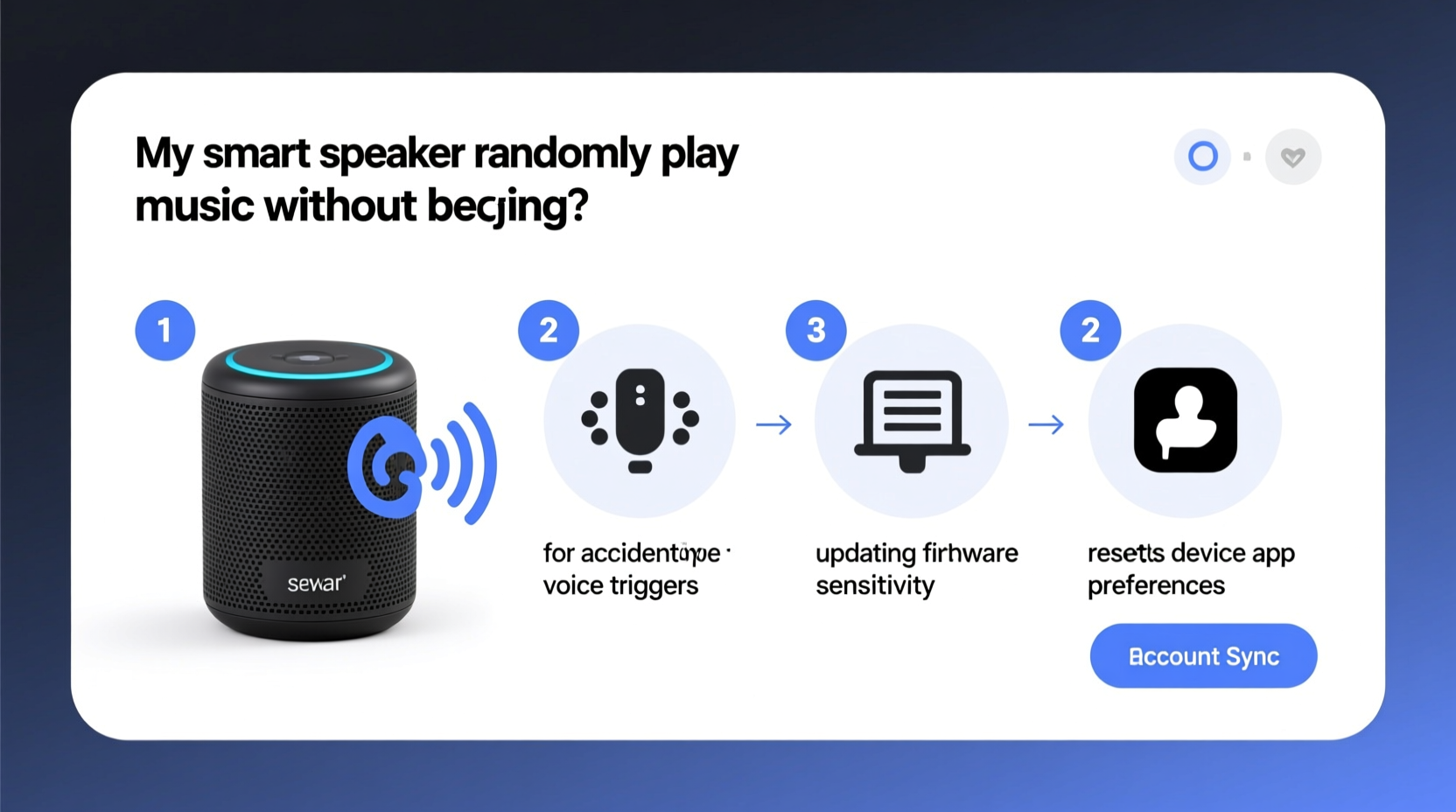
Random music playback usually stems from misinterpreted voice commands, app glitches, or background integrations. Understanding the root causes is the first step toward resolution.
- False Wake Word Detection: Smart speakers use wake words (like “Alexa,” “Hey Google,” or “Hey Siri”) to activate. Background noise, TV dialogue, or similar-sounding phrases can trick the microphone into thinking it was called.
- Connected App Triggers: Third-party apps such as Spotify, Pandora, or IFTTT may be configured to trigger music based on routines, location, or time—without your knowledge.
- Firmware or Software Bugs: Outdated firmware or bugs in the companion app (e.g., Alexa or Google Home) can cause erratic behavior, including phantom audio playback.
- Unauthorized Access or Hacked Accounts: While rare, compromised accounts can allow remote access. If someone gains control of your account, they could initiate playback remotely.
- Scheduled Routines Gone Wrong: Custom routines set up for alarms, weather updates, or music playlists might contain hidden music triggers that activate unexpectedly.
“Voice assistants are designed to respond to natural speech patterns, which means they sometimes hear commands that weren’t intended. It’s a trade-off between sensitivity and accuracy.” — Dr. Lena Patel, Human-Computer Interaction Researcher, MIT Media Lab
Step-by-Step Guide to Fix Random Music Playback
Follow this structured approach to identify and eliminate the source of unwanted music. Start with the simplest fixes before moving to advanced troubleshooting.
- Check Active Routines and Alarms
Open your smart speaker’s companion app (e.g., Alexa or Google Home), go to Routines, and review all active automations. Look for any that include music playback—even if labeled as “morning alarm” or “commute update.” Disable or edit suspicious entries. - Review Recently Played Commands
In the Alexa app, navigate to Settings > History. For Google Home, go to Assistant > History. Scan for unexpected “Play music” or “Turn on speaker” entries. If you see unfamiliar activity, especially during times you weren’t home, investigate further. - Adjust Microphone Sensitivity
Some devices allow you to reduce wake word sensitivity. On certain Echo models, say: “Alexa, lower your sensitivity.” Alternatively, manually adjust via Device Settings > Microphone Sensitivity. Lowering sensitivity reduces false triggers from ambient noise. - Reboot the Device
Unplug your smart speaker for 30 seconds, then plug it back in. A hard reset clears temporary glitches and resets network connections. Wait two minutes for full reboot before testing. - Update Firmware and App
Ensure both the smart speaker firmware and the mobile app are up to date. Outdated software is a common culprit. In the app, check Device Settings > About > Check for Software Updates. - Disconnect Unused Music Services
Go to Account Settings > Music & Media. Remove linked services you don’t actively use (e.g., old Spotify accounts, trial subscriptions). Fewer integrations mean fewer potential triggers. - Disable Drop-In and Announcements
Family members or shared contacts with access can send audio messages or initiate Drop-In calls that play music. Turn off these features unless needed. In Alexa: Communications > Drop-In & Announcements > Off.
Security Checklist: Is Your Speaker Compromised?
If random playback persists despite troubleshooting, consider the possibility of unauthorized access. Use this checklist to verify your device’s security.
| Action | How to Perform | Status |
|---|---|---|
| Change your account password | Update password on Amazon, Google, or Apple ID. Use a strong, unique combination. | ✅ / ❌ |
| Review trusted devices | In account settings, remove unknown phones, tablets, or browsers. | ✅ / ❌ |
| Enable two-factor authentication (2FA) | Add SMS or authenticator app verification for login attempts. | ✅ / ❌ |
| Check shared household members | Remove unknown users from your Alexa/Google Home household. | ✅ / ❌ |
| Inspect connected third-party apps | Revoke access to apps you don’t recognize in permissions settings. | ✅ / ❌ |
If any box remains unchecked, complete those steps immediately. A single weak point—like an old phone still logged in—can allow unintended access.
Real-World Example: How One User Fixed the Issue
Sarah, a teacher from Portland, began hearing classical music from her Google Nest Mini every night around 10:30 p.m. No one was speaking, and she lived alone. Initially concerned about hacking, she followed basic troubleshooting: rebooting, checking routines, and disabling announcements. Nothing worked.
After reviewing her Assistant history, she noticed a recurring command: “Play relaxing piano music.” It was timestamped each night at 10:30. She never issued it. Then she remembered setting up a sleep routine months ago using IFTTT (If This Then That) to help her wind down. The automation was triggered by her smartwatch detecting bedtime—but due to a sync error, it activated nightly regardless of actual activity.
She deleted the IFTTT applet, updated her Google Home app, and disabled the routine. The music stopped immediately. Sarah now reviews all automations quarterly and keeps only essential ones active.
Do’s and Don’ts: Prevent Future Playback Issues
Maintaining control over your smart speaker requires ongoing awareness. Follow these best practices to prevent recurrence.
| Do | Don't |
|---|---|
| Regularly audit routines and connected apps | Leave unused third-party integrations active |
| Use physical mute buttons when privacy is critical | Assume the microphone is inactive without checking the LED |
| Set up voice profiles for accuracy | Allow children to create unrestricted routines |
| Keep software updated automatically | Ignore firmware update notifications |
| Review voice history weekly | Share your Wi-Fi password freely with guests |
One often-overlooked factor is placement. Avoid positioning your speaker near TVs, radios, or appliances that emit sound resembling wake words. Even a sitcom character saying “Alex” can trigger a response.
Frequently Asked Questions
Can someone really hack my smart speaker to play music?
While rare, yes—especially if your account lacks two-factor authentication or uses a weak password. Hackers who gain access to your cloud account can control your speaker remotely. However, most cases stem from misconfigured settings, not breaches. Regularly monitor login alerts and connected devices to stay safe.
Why does my Alexa turn on by itself and play music from my phone?
This typically happens when Bluetooth pairing is enabled and your phone reconnects automatically. If your phone was previously playing music, Alexa may resume playback upon reconnection. To stop this, disable auto-connect in Bluetooth settings or forget the device in your phone’s Bluetooth menu.
Will resetting my smart speaker delete all my settings?
Yes. A factory reset erases all preferences, Wi-Fi passwords, routines, and linked accounts. Use this only as a last resort after backing up important configurations. After reset, you’ll need to set up the device again like new.
Conclusion: Take Control of Your Smart Speaker Experience
Random music playback from your smart speaker is more than a nuisance—it undermines trust in a device meant to simplify your life. But in nearly all cases, the solution lies in careful configuration, regular maintenance, and awareness of connected services. By auditing routines, securing your account, and understanding how voice recognition works, you can eliminate unwanted interruptions for good.
Technology should serve you, not surprise you. Take ten minutes today to review your smart speaker’s settings. Update passwords, disable unused features, and ensure only trusted users have access. Small actions now prevent bigger frustrations later.




 浙公网安备
33010002000092号
浙公网安备
33010002000092号 浙B2-20120091-4
Comments
No comments yet. Why don't you start the discussion?