
Smart speakers have become central to modern homes, offering voice-controlled convenience for music, weather, shopping, and home automation. However, many users report their devices activating without being called—responding to conversations, turning on mid-sentence, or even recording when not prompted. These unexpected behaviors can be unsettling, intrusive, and raise valid concerns about privacy and control. Understanding the root causes and knowing how to adjust settings is essential to maintaining both functionality and peace of mind.
This guide explores the technical and environmental factors behind unintended smart speaker responses and provides clear, actionable steps to disable or minimize them across major platforms like Amazon Alexa, Google Assistant, and Apple Siri.
Why Smart Speakers Activate Unexpectedly
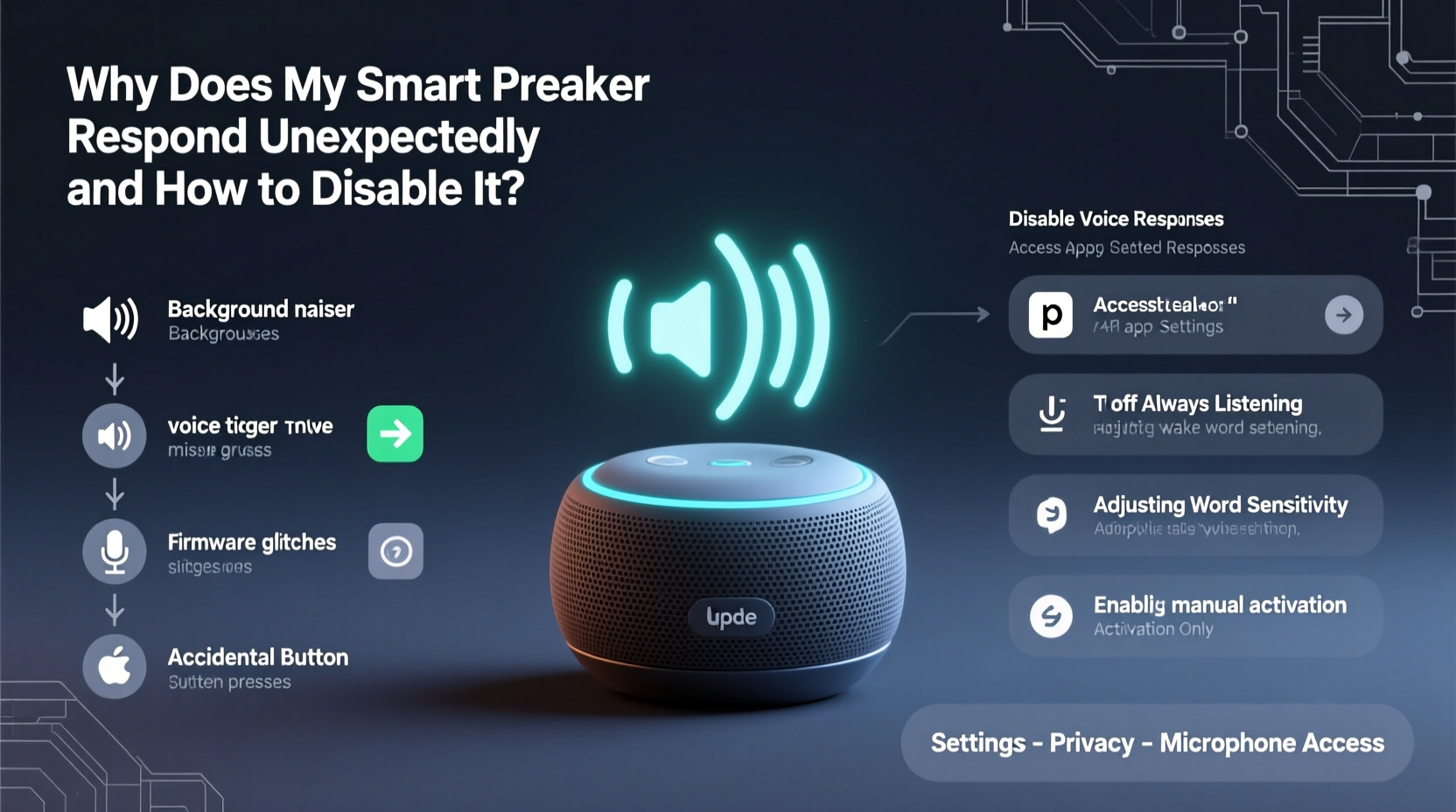
Smart speakers are designed to listen continuously for a wake word—such as “Alexa,” “Hey Google,” or “Hey Siri”—which triggers the device to begin processing commands. While this feature enables hands-free operation, it also makes the system prone to false positives. The microphone is always active in standby mode, analyzing ambient sound for potential wake words. Several factors contribute to misinterpretations:
- Similar-sounding phrases: Words that phonetically resemble wake words (e.g., “Alex” sounding like “Alexa”) can trigger activation.
- Background noise: TV dialogues, radio broadcasts, or other people talking may contain sounds mistaken for commands.
- Poor audio filtering: Lower-quality microphones or software glitches may fail to distinguish between intended speech and noise.
- Cross-device interference: Multiple smart speakers in one household may respond simultaneously or interfere with each other.
- Firmware bugs: Outdated or flawed software updates can cause erratic behavior.
A 2022 study by Northeastern University found that smart speakers activated unintentionally an average of 19 times per day in typical households, often due to media content mimicking wake words. This highlights a systemic design trade-off: sensitivity versus accuracy.
How to Disable Unwanted Responses: Step-by-Step Guide
Disabling unwanted responses doesn’t mean sacrificing all functionality. You can fine-tune your device’s behavior through hardware controls, app settings, and network-level adjustments. Below is a universal approach applicable to most smart speakers.
- Physically mute the microphone. Use the dedicated mute button on your device. When activated, the microphone is disabled, and no audio is processed. Look for a red LED indicator confirming muting.
- Change the wake word (if supported). Some platforms allow customization to reduce false triggers.
- Adjust sensitivity settings. Certain models let you modify how aggressively the device listens.
- Disable voice purchasing and sensitive actions. Prevent accidental orders or data access.
- Review and delete voice recordings. Regularly clear stored audio to limit exposure.
- Turn off the device completely when not in use. Unplug or use a smart plug for full control.
For Amazon Echo Devices
To manage Alexa's responsiveness:
- Open the Alexa app.
- Tap Devices, select your Echo.
- Go to Device Settings > Wake Word.
- Choose a less common alternative (e.g., “Computer” instead of “Alexa”).
- Under Privacy Settings, enable “Delete voice recordings automatically” after 3 or 18 months.
- Disable “Brief Mode” if you don’t need verbal confirmations.
For Google Nest & Home Devices
To reduce Google Assistant’s false activations:
- Open the Google Home app.
- Select your device > Settings > Voice Match.
- Toggle off “Hey Google” detection if not needed.
- Train Voice Match more accurately by re-enrolling your voice.
- Under General > Microphone Access, disable mic when privacy is critical.
- Use Digital Wellbeing settings to schedule quiet hours.
For Apple HomePod & Siri
iOS and HomePod offer granular privacy controls:
- Go to Settings > Siri & Search on your iPhone.
- Turn off “Listen for ‘Hey Siri’” or “Press Side Button for Siri.”
- On the HomePod, press and hold the top to mute—indicated by a red light.
- Enable “Improve Siri & Dictation” only if comfortable sharing anonymized data.
- Delete Siri history via Settings > Privacy > Analytics & Improvements > Show All.
Do’s and Don’ts: Managing Smart Speaker Behavior
| Action | Do | Don't |
|---|---|---|
| Wake Word Usage | Use unique, less common wake words (e.g., “Echo” instead of “Alexa”) | Use names commonly spoken at home (e.g., “Alex”) |
| Mic Management | Mute when discussing private topics or during sleep | Assume silence means the mic is off |
| Software Updates | Keep firmware updated for bug fixes and security patches | Ignore update notifications for extended periods |
| Voice Purchasing | Require voice PIN or disable entirely | Leave voice buying enabled without safeguards |
| Data Storage | Set auto-delete for voice recordings | Store years of unreviewed audio history |
Real-Life Example: The Case of the Overactive Echo
Sarah, a teacher in Portland, noticed her Amazon Echo Dot frequently lit up during family dinners. It would chime in response to casual talk, sometimes playing music or repeating phrases. After ruling out pranks, she reviewed her Alexa app and discovered over 50 unintended activations in two days. One entry showed the device had recorded a fragment of a conversation about “Alex’s birthday,” mistaking it for “Alexa.”
She took action: first, she changed the wake word to “Ziggy,” a less common term in her household. Next, she muted the device during evenings and enabled automatic deletion of voice history every three months. She also placed the speaker farther from the living room TV, which often aired commercials containing similar-sounding phrases. Within a week, unintended activations dropped to zero. Sarah regained trust in the device while retaining its utility for morning alarms and grocery lists.
“Voice assistants are powerful tools, but they’re only as reliable as their configuration. Users must treat them like any connected device—secure, monitored, and regularly maintained.” — Dr. Lena Torres, IoT Security Researcher at MIT
Advanced Tips to Minimize False Triggers
Beyond basic settings, deeper optimizations can enhance control and reliability:
- Limit connected accounts: Revoke access to apps and services you no longer use. Each integration increases potential attack surface and background activity.
- Use guest mode: If hosting visitors, disable personalized responses to prevent accidental access to personal routines or calendars.
- Monitor network traffic: Advanced users can inspect device behavior using a firewall or router dashboard to detect unusual data uploads.
- Disable follow-up mode: On Alexa, turn off “Extended Listening” so the device doesn’t stay awake after a command unless reactivated.
- Create quiet zones: In multi-room setups, assign specific tasks to specific devices to reduce overlap and confusion.
FAQ: Common Concerns About Smart Speaker Behavior
Can my smart speaker record me when I’m not using it?
No—not in the traditional sense. The device only begins recording after detecting the wake word. However, it constantly processes audio locally to detect that word. Only upon recognition is the snippet sent to the cloud. That said, false detections do result in unintended recordings, which is why reviewing and deleting history is crucial.
Is it safe to keep a smart speaker in the bedroom or bathroom?
It depends on your comfort level. While convenient for alarms or timers, placing a listening device in private spaces increases privacy risks. If used there, ensure the microphone is physically muted when not actively needed. Consider using a manual switch or smart plug for full control.
What happens to my voice data after it’s recorded?
Major companies state that voice recordings are used to improve speech recognition and personalize responses. You can usually opt out of data retention programs and delete stored clips. However, metadata (like timestamps and device IDs) may still be retained for operational purposes.
Checklist: Secure Your Smart Speaker in 7 Steps
Follow this checklist to regain control over your device’s responsiveness and protect your privacy:
- ✅ Mute the microphone when not in use.
- ✅ Change the wake word to a less common phrase.
- ✅ Disable voice purchasing and sensitive skills.
- ✅ Set automatic deletion of voice history (3–18 months).
- ✅ Update firmware regularly.
- ✅ Position the speaker away from media sources (TV, radio).
- ✅ Review voice activity log monthly for anomalies.
Conclusion: Take Control of Your Smart Environment
Unexpected responses from smart speakers stem from a combination of design limitations, environmental factors, and user settings. While these devices aim to simplify life, they require intentional management to function reliably and respectfully within personal spaces. By adjusting wake words, muting microphones, and understanding how data is handled, you can enjoy the benefits of voice technology without compromising privacy or peace.
The key is not to reject innovation, but to master it. A smart home should serve its inhabitants—not interrupt them. With the right configurations, your smart speaker can remain a helpful assistant rather than an unwelcome intruder.




 浙公网安备
33010002000092号
浙公网安备
33010002000092号 浙B2-20120091-4
Comments
No comments yet. Why don't you start the discussion?