
You're sitting in silence when suddenly your smart speaker chirps to life—no command given, no music playing, just an unexpected beep or a voice response out of nowhere. It’s not just unsettling; it can feel like a breach of privacy. You’re not alone. Thousands of users report their Amazon Echo, Google Nest, or Apple HomePod activating without clear cause. While these devices are designed to respond to wake words like “Alexa,” “Hey Google,” or “Hey Siri,” false triggers happen more often than manufacturers admit. The good news? Most random activations are fixable with the right adjustments.
This article breaks down the real reasons behind unintended smart speaker activations, from environmental interference to software quirks, and delivers actionable solutions you can apply today. Whether you're dealing with phantom beeps, mid-night voice responses, or sudden volume changes, understanding the root causes is the first step toward regaining control.
Common Causes of Random Smart Speaker Activation
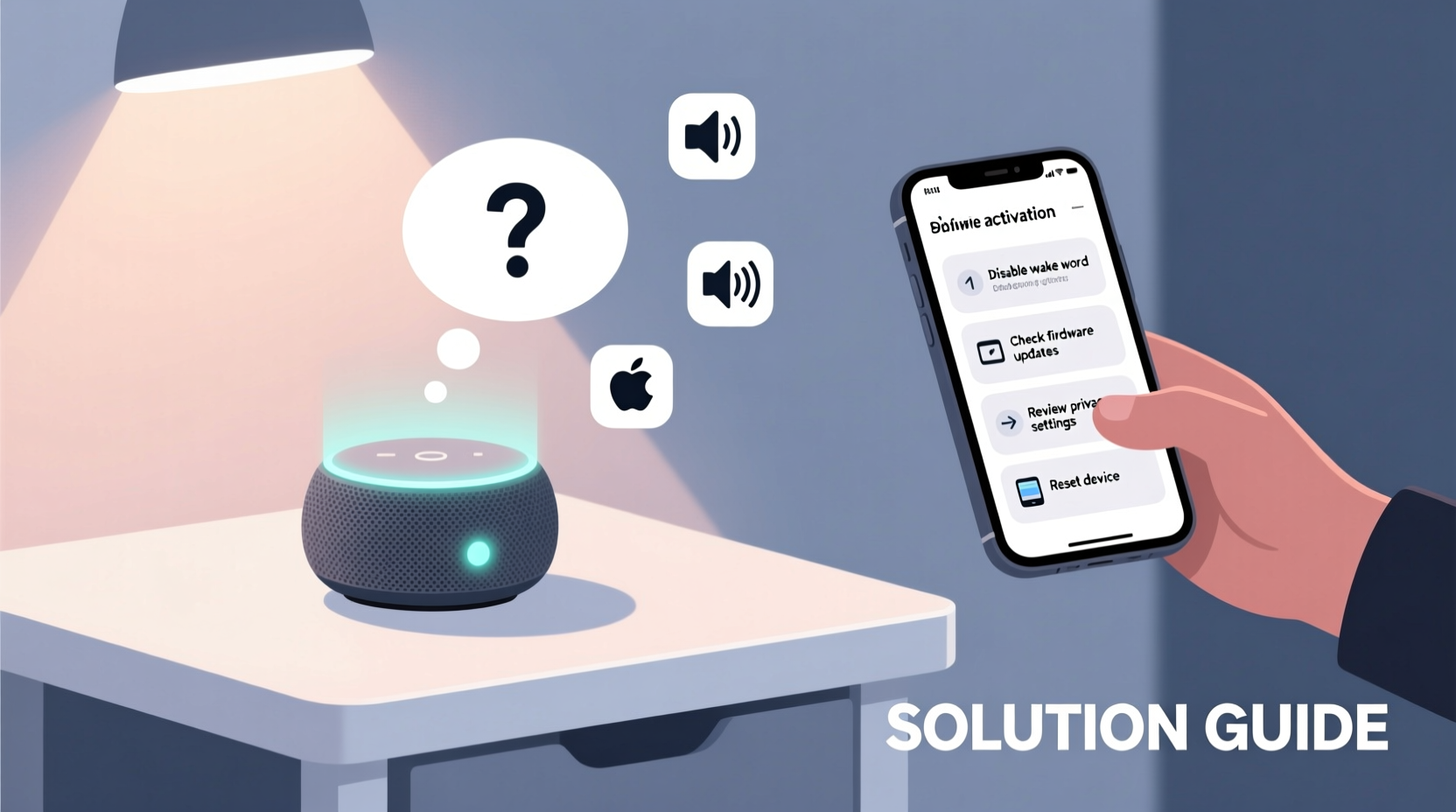
Smart speakers use far-field microphones and machine learning models to detect wake words amid background noise. But that system isn’t perfect. False positives occur when the device misinterprets sounds as a wake word. Here are the most frequent culprits:
- Background noise mimicking wake words: Words like “election,” “alexia,” or “Google Maps” can trick the system into thinking you’ve issued a command.
- TV or radio audio: Dialogue from shows, ads, or commercials often contains phrases similar to wake words, especially during product demos or tech reviews.
- Poor microphone sensitivity settings: Overly sensitive mics pick up distant or faint sounds that resemble commands.
- Firmware bugs or glitches: Outdated or buggy software may cause erratic behavior, including unexplained power-on events.
- Connected app or service triggers: Third-party apps, routines, or smart home automations might inadvertently activate your speaker.
- Physical interference: Vibrations from nearby appliances or accidental button presses (e.g., volume up) can wake the device.
“False wake word detection remains one of the top support issues for voice assistant devices. Environmental acoustics play a bigger role than most users realize.” — Dr. Lena Patel, Senior Acoustic Engineer at VoiceTech Labs
Step-by-Step Guide to Diagnose and Stop Unwanted Activations
Follow this structured approach to identify and eliminate the source of random activations. Each step builds on the previous one, ensuring no stone is left unturned.
- Review recent activity logs: Check your Alexa or Google Home app for a history of voice commands. Look for timestamps when the device turned on unexpectedly and see what it thought was said.
- Adjust microphone sensitivity: In the device settings, lower the sensitivity if available. For example, Alexa allows tuning of “Voice Detection Sensitivity” under Device Settings > Microphone.
- Relocate the speaker: Move it away from high-noise zones—especially near televisions, kitchen appliances, or windows facing streets.
- Disable unnecessary routines: Go to Routines in your app and disable any automation that uses the speaker as a trigger or action unless essential.
- Update firmware: Ensure your device is running the latest software. Updates often include fixes for voice recognition errors.
- Test with mic off: Turn off the microphone manually (using the physical button) for 24 hours. If no random activations occur, the issue is audio-based.
- Reset the device: As a last resort, perform a factory reset and reconfigure from scratch to eliminate corrupted settings.
Do’s and Don’ts: Best Practices for Smart Speaker Stability
| Do’s | Don’ts |
|---|---|
| Place the speaker centrally but away from noise sources | Install it directly next to a TV or stereo system |
| Use the physical mute button at night | Rely solely on software muting |
| Regularly review voice history for anomalies | Ignore repeated false triggers |
| Customize your wake word if supported (e.g., Alexa → “Computer”) | Choose a wake word that sounds like common phrases |
| Keep software updated | Delay firmware updates indefinitely |
Real-World Example: Fixing Nighttime Echo Triggers
Sarah, a teacher from Portland, noticed her Amazon Echo Dot would light up and say “Yes?” around 2 a.m. multiple times a week. She initially suspected a security flaw. After checking the Alexa app, she discovered the device registered commands like “Alexa, turn on the lights” despite no one speaking. She followed the diagnostic steps: reviewed voice history, found no clear audio matches, then muted the mic overnight. The activations stopped—but only temporarily.
She then realized her bedroom TV, set to autoplay news clips in the morning, was emitting faint audio even when off due to a standby mode glitch. The sound leakage included phrases like “Alexa demo” during a tech segment. By unplugging the TV completely and relocating the Echo away from the entertainment center, Sarah eliminated the issue permanently. Her case highlights how secondary electronics can create hidden triggers.
Advanced Fixes for Persistent Problems
If basic troubleshooting doesn’t resolve the issue, consider deeper interventions:
- Change the wake word: Alexa supports “Amazon,” “Echo,” or “Computer” instead of “Alexa.” Switching reduces conflicts with names or common speech.
- Limit third-party skill access: Some skills listen for custom phrases and may activate unintentionally. Disable unused skills in the Alexa or Google Assistant app.
- Use network segmentation: Place your smart speaker on a separate Wi-Fi network (via VLAN or guest mode) to prevent interference from other IoT devices sending spurious signals.
- Disable broadcast features: Turn off “Drop In” and “Announcements” if not needed. These allow remote activation from linked devices.
- Enable voice confirmation: Require verbal confirmation before executing certain actions, reducing the impact of false triggers.
For Google Nest users, explore the “Voice Match” settings to ensure only authorized voices can activate sensitive functions. Similarly, Alexa’s “Brief Mode” can suppress verbal confirmations (“OK”) that make random responses more noticeable.
FAQ: Common Questions About Random Smart Speaker Activation
Can someone remotely access my smart speaker without permission?
Legitimate remote access requires account login credentials. While rare, unauthorized access is possible through phishing or weak passwords. Always enable two-factor authentication (2FA) on your Amazon or Google account. If concerned, review active devices in your account settings and remove unknown ones.
Why does my speaker light up but not say anything?
This usually indicates the device detected a partial wake word or a command meant for another device. It could also signal a routine trigger, such as a timer expiring or a smart home alert. Check the app’s activity log to see what prompted the light ring.
Is it safe to leave my smart speaker always listening?
Manufacturers state that audio is processed locally until the wake word is detected, after which snippets are sent to the cloud. However, for maximum privacy, use the physical mute button when not in use—especially during private conversations or while sleeping.
Checklist: How to Stop Your Smart Speaker From Turning On Randomly
Use this checklist to systematically eliminate unwanted activations:
- ✅ Review voice history in the companion app
- ✅ Relocate the speaker away from TVs and noisy areas
- ✅ Lower microphone sensitivity settings
- ✅ Change the wake word to something less common
- ✅ Disable unused routines and third-party skills
- ✅ Update the device firmware to the latest version
- ✅ Test with microphone physically turned off
- ✅ Reset the device to factory settings if problems persist
- ✅ Enable two-factor authentication on your account
- ✅ Use mute button during sleep or private moments
“The key to minimizing false wakes isn’t disabling features—it’s configuring them intelligently. A well-tuned smart speaker should feel invisible until you need it.” — Mark Tran, IoT Security Consultant
Conclusion: Regain Control of Your Smart Home Experience
Your smart speaker should serve you—not startle you in the middle of the night. Random activations are rarely signs of hacking, but they do point to configuration issues, environmental factors, or overlooked settings. By methodically addressing each potential cause, you can restore reliability and peace of mind.
Start with simple fixes: reposition the device, adjust sensitivity, and audit your routines. Then move to advanced steps like changing wake words or resetting the unit. Most importantly, stay proactive. Regular maintenance and awareness of your device’s behavior will prevent future surprises.




 浙公网安备
33010002000092号
浙公网安备
33010002000092号 浙B2-20120091-4
Comments
No comments yet. Why don't you start the discussion?