
Waking up in the middle of the night to the sudden voice of your smart speaker can be unsettling, even eerie. You're not imagining things—many users report their devices activating without command during quiet hours. While smart speakers like Amazon Echo, Google Nest, and Apple HomePod are designed for convenience, unintended wake-ups can disrupt sleep and raise privacy concerns. The good news is that most causes are fixable with a few targeted adjustments. This guide breaks down the real reasons behind nighttime activations and provides actionable steps to regain control of your device.
Common Causes of Random Smart Speaker Activation
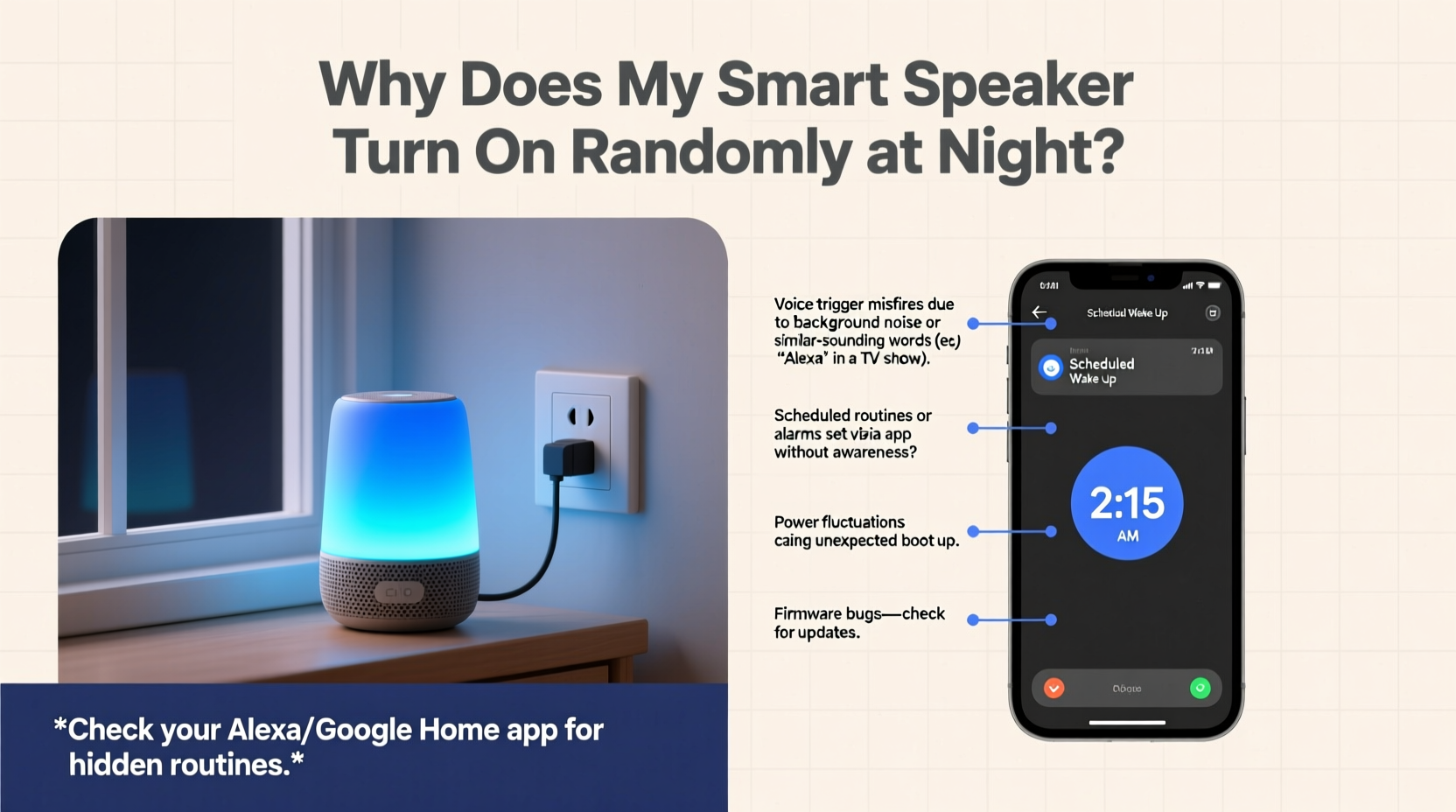
Smart speakers rely on voice recognition and audio processing to detect wake words such as “Alexa,” “Hey Google,” or “Hey Siri.” When the system misinterprets ambient noise as a command, it triggers an unintended response. At night, when background noise levels drop, certain sounds become more pronounced—and more likely to confuse the microphone.
- Background noises: Snoring, creaking floors, pets moving, or HVAC systems cycling can mimic wake words.
- Poor microphone sensitivity settings: Overly sensitive microphones pick up distant or muffled sounds more easily.
- Firmware glitches: Outdated or buggy software may cause erratic behavior, including phantom activations.
- Nearby media playback: TV shows, movies, or ads containing wake words can trigger the device.
- Bluetooth interference or app notifications: Some alerts routed through the speaker may activate it without visible cues.
Understanding these root causes is the first step toward eliminating unwanted interruptions.
How Wake Word Detection Works (And Why It Fails)
Smart speakers use machine learning models trained to recognize specific wake phrases. These models analyze sound patterns in real time, filtering out non-relevant audio. However, no system is perfect. False positives occur when:
- A word sounds phonetically similar to the wake phrase (e.g., “election” sounding like “Alexa”).
- The speaker mishears part of a sentence spoken in another room.
- Low-frequency vibrations interfere with internal sensors.
According to Dr. Lena Patel, senior researcher in human-computer interaction at MIT Media Lab:
“Wake word engines are optimized for responsiveness, not perfection. In quiet environments, they can become hyper-vigilant, increasing the chance of false activation—especially if the acoustic signature is even remotely close.”
This trade-off between sensitivity and accuracy explains why nighttime—when homes are typically quieter—is peak time for random activations.
Device-Specific Behavior Patterns
Different brands handle wake word detection differently. Below is a comparison of common smart speakers and their tendencies toward nighttime activation:
| Smart Speaker | Wake Word | Common Triggers | User-Adjustable Sensitivity? |
|---|---|---|---|
| Amazon Echo (all models) | Alexa | TV ads, similar-sounding words (“Alex,” “excellent”) | Yes – via Alexa app |
| Google Nest Audio/Mini | Hey Google / OK Google | Voice assistants in commercials, children talking | Limited – relies on model training |
| Apple HomePod Mini | Hey Siri | Other Apple devices saying “Siri,” music lyrics | No – fixed sensitivity |
| Facebook Portal (discontinued) | Hey Facebook | Rare, but could activate during video calls | Yes – disable option available |
Knowing your device’s quirks helps you tailor solutions effectively.
Step-by-Step Guide to Stop Nighttime Activations
Follow this structured approach to diagnose and resolve random wake-ups:
- Review recent voice history
Open your companion app (Alexa, Google Home, or Home app) and check the microphone history. Look for recordings triggered between midnight and 6 AM. Identify whether the activation was due to speech, noise, or silence. - Adjust microphone sensitivity
For Amazon Echo: Go to Settings > Device Settings > [Your Device] > Microphone Sensitivity. Lower the setting by one level and test over two nights. For Google Nest, while direct sensitivity controls aren’t exposed, you can train the assistant using voice match improvements. Change the wake word (if supported)
Amazon Echo allows switching from “Alexa” to “Echo,” “Computer,” or “Ziggy.” Choose a less commonly heard word to reduce false triggers. To change:- Open Alexa app
- Go to Devices > Echo & Alexa > Select your device
- Tap “Wake Word” and select a new option
- Disable responses at night
Use routines to mute feedback during sleeping hours. Example routine:- When: Time = 10:00 PM to 7:00 AM
- Action: Set volume to 0%, disable verbal confirmations
- Physically mute the microphone
Press the microphone off button (usually a red slash icon). This disables listening entirely. Use this if disturbances persist and privacy is a concern. - Update firmware
Ensure your device runs the latest software. Manufacturers frequently release updates that improve voice detection accuracy and reduce bugs.
Real-World Case: Sarah’s Midnight Alexa Mystery
Sarah, a teacher from Portland, began waking up to her Echo Dot announcing weather updates at 2:17 AM every other night. No one was speaking. She checked her voice history and found repeated entries labeled “Alexa, what’s the weather?” despite silence.
After testing various fixes, she discovered the culprit: her heating system’s air ducts made a low groaning noise when the thermostat kicked in. The sound, lasting less than a second, contained frequencies that mimicked “Alexa.”
She resolved it by:
- Moving the Echo from the bedroom vent to a shelf farther from airflow
- Changing the wake word to “Ziggy”
- Setting a “Do Not Disturb” schedule from 10 PM to 7 AM
Sarah’s experience highlights how environmental factors—not user error—are often to blame.
Checklist: Prevent Unwanted Smart Speaker Wake-Ups
Use this checklist monthly or whenever issues arise:
- ✅ Review voice history for unexplained activations
- ✅ Lower microphone sensitivity if adjustable
- ✅ Change wake word to something unique
- ✅ Enable Do Not Disturb mode during sleep hours
- ✅ Relocate speaker away from noise sources (HVAC, pets, TVs)
- ✅ Ensure device firmware is up to date
- ✅ Test microphone mute button functionality
- ✅ Disable unnecessary skills or routines that auto-trigger
Advanced Fixes for Persistent Issues
If basic troubleshooting doesn’t resolve the issue, consider deeper interventions:
Use a Smart Plug to Power Cycle Automatically
Connect your smart speaker to a programmable smart plug. Set it to cut power between 11 PM and 6 AM. This ensures zero activity overnight. Just ensure cloud backups and alarms aren’t dependent on the speaker being online.
Limit Connected Services
Some third-party apps (like news briefings or reminder services) push notifications that activate the speaker. Audit connected skills in your app and disable those you don’t actively use.
Factory Reset as Last Resort
If the device continues to behave erratically:
- Back up any custom settings or routines
- Hold the action button (varies by model) for 25+ seconds until light ring cycles
- Reconnect through the app and reconfigure with updated preferences
This clears corrupted cache files and resets voice models.
Frequently Asked Questions
Can someone hack my smart speaker to turn on at night?
While rare, unauthorized access is possible if your Wi-Fi network is compromised or weak passwords are used. However, random activations are almost always due to audio misinterpretation, not hacking. Secure your router, enable two-factor authentication, and review login history regularly to rule out intrusion.
Does covering the microphone stop it from turning on?
Covering the mic with fabric or tape may dampen sound but isn’t reliable or recommended. It can trap moisture and damage hardware. Instead, use the built-in mute button—it physically disconnects the mic and activates a visual indicator (red light).
Will turning off voice recordings help prevent random wake-ups?
Disabling voice recording storage doesn’t affect wake word detection, which happens locally on the device. However, reviewing past recordings helps identify patterns in false triggers. You can delete old clips for privacy without impacting performance.
Conclusion: Regain Control of Your Nighttime Peace
Your smart speaker should enhance your life, not interrupt your sleep. Random activations at night are usually the result of environmental acoustics, overly sensitive settings, or outdated software—not malfunctions or security breaches. By adjusting placement, modifying wake word sensitivity, scheduling quiet hours, and staying updated, you can eliminate most unwanted behaviors.
Technology works best when it operates seamlessly in the background. Take a few minutes tonight to audit your device settings. A small adjustment now can lead to quieter, more restful nights ahead.




 浙公网安备
33010002000092号
浙公网安备
33010002000092号 浙B2-20120091-4
Comments
No comments yet. Why don't you start the discussion?