
Smart thermostats are designed to learn your habits, optimize heating and cooling, and reduce energy costs. But when your carefully set temperature suddenly shifts without warning, it can be frustrating—and confusing. You're not alone: many homeowners report their smart thermostat overriding manual adjustments, seemingly at random. The truth is, these changes are rarely random. They stem from built-in automation features, learning algorithms, or external triggers that, while intended to help, sometimes interfere with user control.
Understanding the reasons behind unexpected setting changes is the first step toward regaining control. More importantly, knowing how to lock your preferences ensures your home stays comfortable on your terms—not the thermostat’s algorithm. This guide explains the most common causes of automatic adjustments and provides actionable steps to secure your desired settings permanently.
Why Smart Thermostats Change Settings Automatically
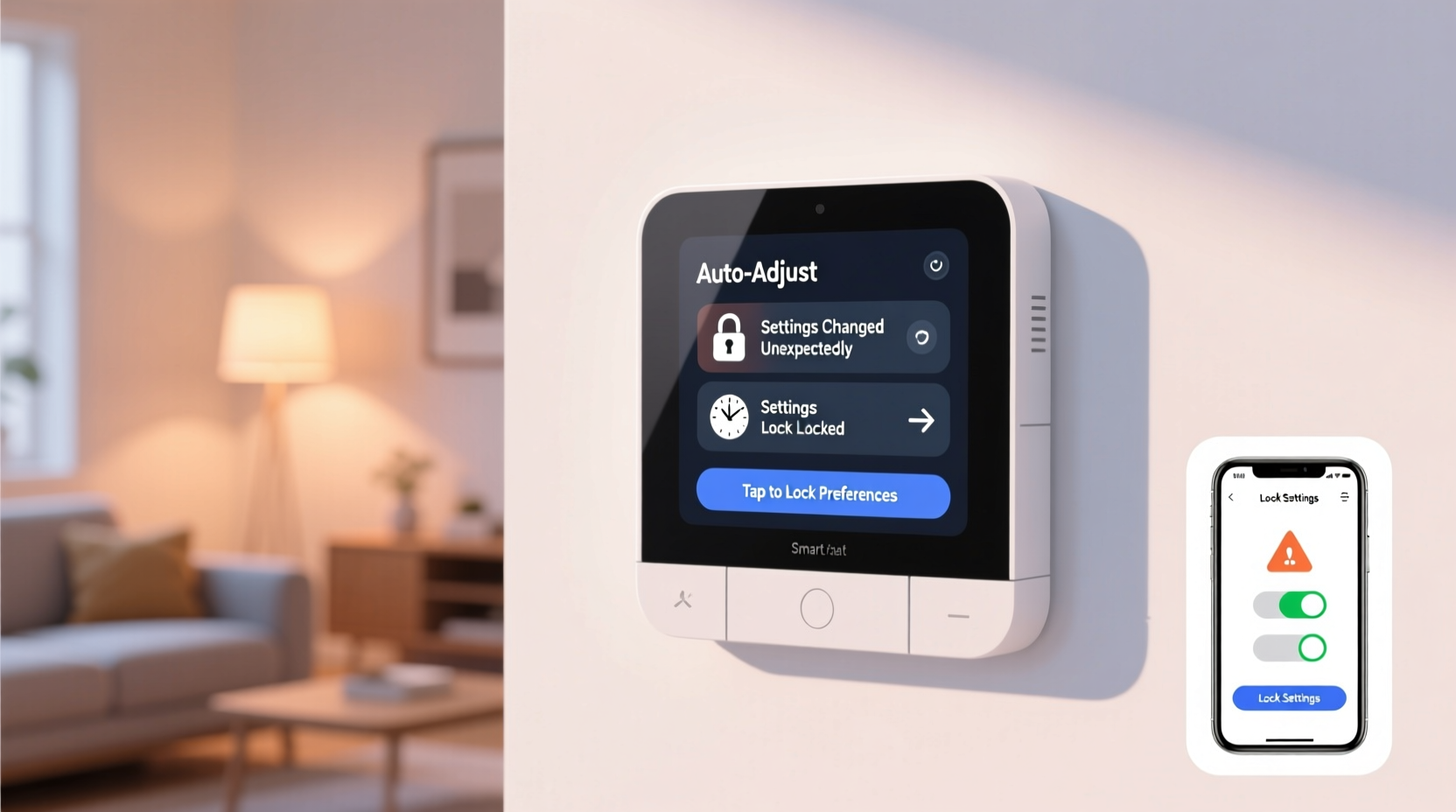
Smart thermostats use a combination of sensors, schedules, and machine learning to adjust temperatures based on perceived patterns. While this technology can enhance efficiency, it may also override manual inputs under certain conditions. The following are the primary reasons your thermostat might be changing settings without your permission:
- Learning Mode Behavior: Devices like the Nest Learning Thermostat observe your manual adjustments over time and create a schedule based on those patterns. If you frequently change the temperature at specific times, the thermostat assumes this is intentional and begins automating it—even if you later prefer stability.
- Predictive Scheduling: Some models anticipate when you’ll return home using geofencing (GPS tracking via your smartphone). When it detects you’re approaching, it pre-heats or cools the house, which can feel like an unwanted override.
- Energy-Saving Features: Programs like Eco Mode or Auto-Schedule automatically adjust temperatures during inactive periods to save energy. These settings often reactivate after being disabled unless locked properly.
- Firmware Updates: After an update, some thermostats reset to default behaviors or re-enable features you previously turned off.
- Remote Access Conflicts: Multiple users accessing the thermostat through different devices (e.g., family members via apps) can lead to unintentional changes.
- Sensor Triggers: Occupancy sensors or ambient temperature fluctuations may prompt temporary adjustments, especially in multi-room systems.
How to Lock Your Smart Thermostat Preferences
Locking your thermostat doesn’t mean giving up smart functionality. Instead, it allows you to define fixed parameters within which the device operates. Here’s how to maintain full control across major brands:
Nest Thermostat: Use Scheduled Modes and Disable Learning
- Open the Google Home app (formerly Nest app).
- Select your thermostat and tap “Settings.”
- Go to “Schedule” and manually input your preferred temperature times.
- Turn off “Learning” mode to prevent the device from creating its own schedule.
- Enable “Eco Temperatures” only if you want limited flexibility, or disable them entirely.
- Set a PIN under “Security” to prevent others from making changes via the device interface.
Ecobee: Set Hold Options and Use Vacation Mode Strategically
- In the Ecobee app, go to “Thermostat” > “Settings” > “Preferences.”
- Adjust “Hold Duration” to “Until I Change” so manual adjustments stick.
- Create permanent schedules under “Program” instead of relying on Smart Recovery.
- Use “Vacation Mode” to lock temperatures during extended absences.
- Enable “My Home/Away” and disable motion-based detection if occupancy sensing causes erratic behavior.
Honeywell Home: Disable Smart Response and Customize Schedules
Honeywell’s adaptive recovery feature (Smart Response) learns how long your HVAC system takes to reach a set temperature and starts early. While useful, it can appear as though the thermostat is changing settings prematurely.
- Access the thermostat menu or mobile app.
- Navigate to “System Setup” > “Equipment” > “Recovery Settings.”
- Turn off “Adaptive Intelligent Recovery” to stop predictive pre-heating.
- Manually program daily schedules with fixed temperature points.
- Use “Permanent Hold” mode to lock current settings indefinitely.
Checklist: Securing Your Smart Thermostat Settings
Follow this checklist to ensure your preferences stay locked and your comfort remains consistent:
- ✅ Review and manually set your daily temperature schedule
- ✅ Disable learning or auto-scheduling features
- ✅ Turn off geofencing or location-based adjustments (if unwanted)
- ✅ Set hold duration to “Until I Change” or “Permanent”
- ✅ Disable Eco or Energy-Saving modes unless actively needed
- ✅ Update firmware to avoid bugs that cause resets
- ✅ Assign a PIN or password to prevent unauthorized changes
- ✅ Confirm all users understand the locked settings to avoid conflicts
Do’s and Don’ts of Smart Thermostat Management
| Do | Don't |
|---|---|
| Set a fixed schedule aligned with your routine | Rely solely on learning mode for long-term control |
| Use Permanent Hold when you want unchanging temps | Assume manual changes will always override automation |
| Regularly review app logs for unexpected triggers | Ignore firmware update notifications—they often fix stability issues |
| Limit remote access to trusted household members | Allow multiple users to make changes without coordination |
| Label your thermostat settings (e.g., “Workday,” “Weekend”) | Use Vacation Mode for short trips—set a custom hold instead |
Real-World Example: The Case of the Overcooling Living Room
Sarah, a homeowner in Austin, Texas, noticed her living room was uncomfortably cold every weekday afternoon, despite setting the thermostat to 74°F. She manually adjusted it each day, only to find it dropped again the next afternoon. After reviewing her Nest app’s activity log, she discovered the thermostat was activating “Cool-to-Degree” mode based on outdoor humidity data and her past habit of lowering the temperature during a heatwave two weeks prior.
She resolved the issue by:
- Disabling the “Weather Intelligence” feature in the app.
- Deleting the old learning profile and resetting the schedule.
- Setting a fixed weekday program with a maximum cooling threshold of 73°F.
- Enabling a 4-digit PIN to prevent accidental touches by guests.
Within days, the unwanted cooling stopped. Sarah regained confidence in her system by understanding that automation, while helpful, requires boundaries.
“Smart thermostats should serve the homeowner, not the other way around. If your device is making decisions you didn’t authorize, it’s time to recalibrate—not just the thermostat, but your expectations of control.” — Dr. Marcus Lin, HVAC Systems Engineer and Smart Home Consultant
Troubleshooting Unexpected Changes: A Step-by-Step Guide
If your thermostat continues to change settings despite your efforts, follow this diagnostic process:
- Check the Activity Log: Most apps provide a timeline of changes, including whether they came from the device, an app user, or an automated feature.
- Identify the Trigger: Was it a geofence event? A scheduled Eco mode activation? A sensor reading? Pinpointing the source helps target the fix.
- Review User Access: Ensure no family member or guest has made changes via the app. Remove unused accounts if necessary.
- Disable Automation Gradually: Turn off one feature at a time (e.g., Away Assist, Smart Recovery) to isolate the culprit.
- Reset and Reconfigure: As a last resort, perform a factory reset and rebuild your schedule manually without enabling learning features.
- Contact Support: If changes persist without explanation, there may be a software bug or hardware fault requiring manufacturer assistance.
Frequently Asked Questions
Can I completely disable the learning feature on my smart thermostat?
Yes, most smart thermostats allow you to disable learning or auto-scheduling. For example, Nest lets you turn off Learning Mode, while Ecobee offers “Fixed Schedule” options that ignore behavioral patterns. Once disabled, the thermostat will follow only your manually programmed settings.
What’s the difference between Temporary Hold and Permanent Hold?
A Temporary Hold applies your current temperature setting until the next scheduled period (e.g., until 5 PM). A Permanent Hold keeps the temperature constant until you manually change it, ignoring all schedules and automations. Use Permanent Hold when you want full, uninterrupted control.
Will locking my settings reduce energy savings?
Not necessarily. While automation can optimize efficiency, a well-designed manual schedule tailored to your actual routine often performs just as well—or better. The key is consistency. Avoid frequent manual overrides, as those disrupt efficiency more than a fixed program ever would.
Final Thoughts: Take Back Control
Your smart thermostat should enhance your comfort, not complicate it. Unwanted setting changes are usually the result of powerful features operating without clear boundaries. By understanding how automation works—and how to disable or constrain it—you transform your device from an unpredictable actor into a reliable tool.
Start by auditing your current settings, disabling unnecessary learning modes, and establishing a fixed schedule that reflects your real-life routine. Use hold functions wisely, protect access with passwords, and monitor activity logs periodically. These steps don’t diminish the “smart” aspect of your thermostat; they refine it to serve your needs precisely.
Technology should adapt to you—not the other way around. With the right configuration, your smart thermostat can deliver both comfort and convenience, exactly as you intended.




 浙公网安备
33010002000092号
浙公网安备
33010002000092号 浙B2-20120091-4
Comments
No comments yet. Why don't you start the discussion?