
Smart thermostats are designed to make home climate control more efficient, convenient, and energy-saving. But when your device starts adjusting the temperature without your input—especially at inconvenient times—it can feel more like a nuisance than an innovation. If you’ve found yourself asking, “Why does my smart thermostat keep changing settings automatically?” you’re not alone. Thousands of homeowners report similar frustrations, often stemming from misunderstood features, connectivity issues, or incorrect configurations. The good news is that most causes are fixable with the right knowledge and a few simple adjustments.
Understanding How Smart Thermostats Work
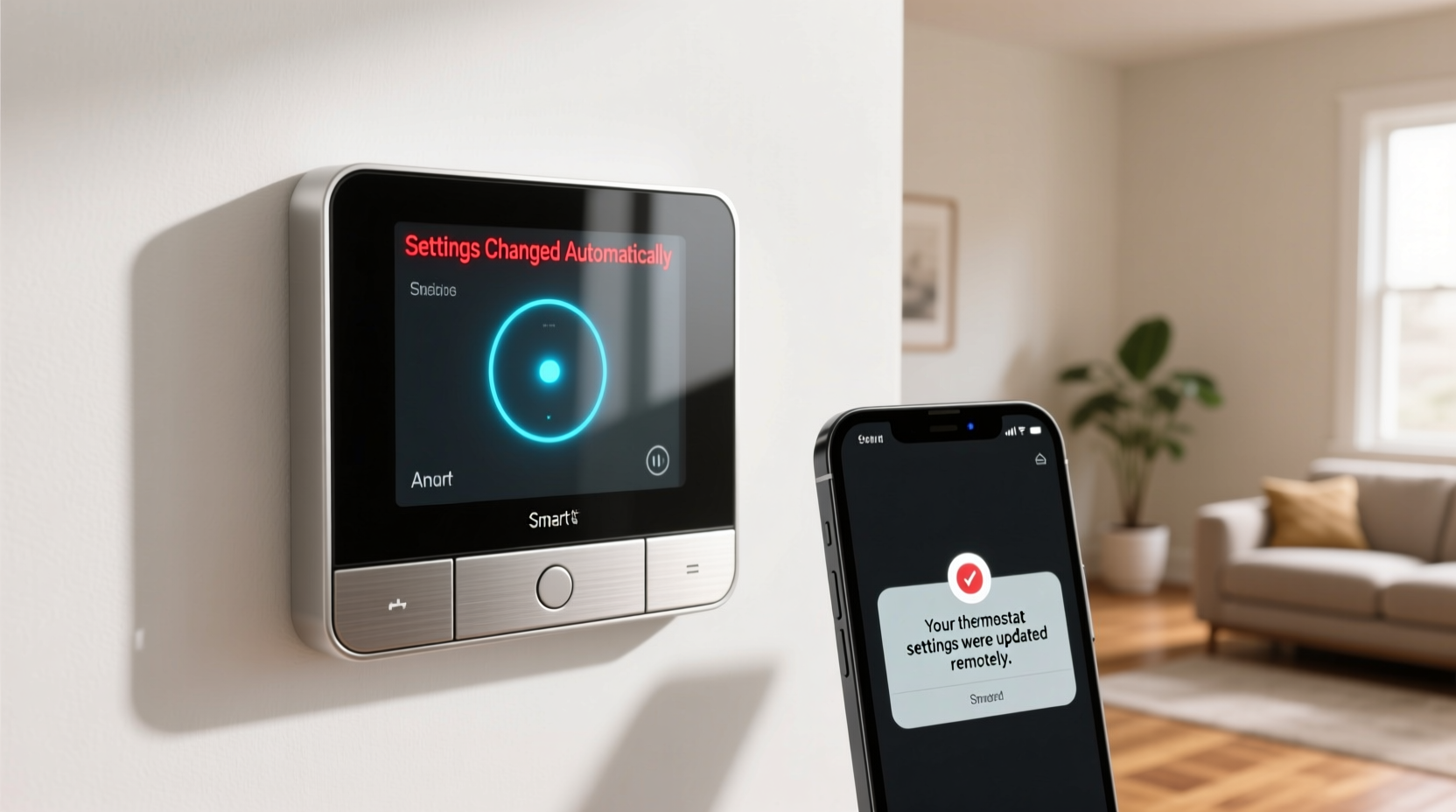
Before troubleshooting, it’s important to understand what makes a thermostat “smart.” Unlike traditional models, smart thermostats learn your habits, connect to Wi-Fi, integrate with weather data, and often support remote access via smartphone apps. They use algorithms to predict optimal heating and cooling schedules based on occupancy patterns, outdoor temperatures, and user preferences. While these capabilities enhance comfort and efficiency, they can also lead to unexpected behavior if not properly configured.
Automatic setting changes typically occur due to one of several reasons: adaptive recovery, learning mode activation, geofencing, software updates, or integration with other smart home systems. In many cases, the thermostat isn’t malfunctioning—it’s simply operating as programmed. However, when those programs don’t align with your expectations, the result feels like erratic behavior.
“Many users assume their thermostat is broken when it’s actually just doing what it was designed to do—adjust for efficiency. The key is understanding the triggers and customizing them.” — Dr. Alan Reeves, HVAC Systems Engineer
Common Causes of Automatic Setting Changes
Several built-in features can cause your smart thermostat to adjust itself. Identifying which one is responsible is the first step toward regaining control.
1. Adaptive Recovery Mode
This feature allows the thermostat to calculate how long it takes to heat or cool your home to a target temperature. Instead of starting exactly at your scheduled time, it begins earlier if needed to reach the desired temperature precisely when you want it. For example, if you set your home to warm up at 7 a.m., but it takes 45 minutes to reach 70°F, the thermostat may start heating at 6:15 a.m.—without changing the schedule visibly.
2. Learning Mode / Auto-Schedule
Brands like Nest use machine learning to create a heating and cooling schedule based on your manual adjustments over time. After a week or two of consistent input, the thermostat locks in a routine and begins making automatic changes. If you later override it, the system may revert after a few days as it continues to prioritize learned behavior over temporary changes.
3. Geofencing and Home/Away Assist
Geofencing uses your smartphone’s GPS to detect whether you’re home or away. When all linked devices leave a predefined radius, the thermostat switches to “Away” mode to save energy. It resumes normal operation when someone returns. Signal delays, inaccurate location tracking, or multiple users with inconsistent phone habits can trigger false transitions.
4. Software Updates
Manufacturers periodically push updates that reset certain preferences or re-enable default features like Auto-Schedule or Home/Away Assist. These updates can undo manual configurations, leading to confusion about why settings changed overnight.
5. Integration with Smart Home Ecosystems
If your thermostat connects to platforms like Google Assistant, Alexa, or Apple HomeKit, voice commands or automation routines might be triggering unintended changes. For instance, a routine labeled “Good Morning” could include temperature adjustments that conflict with your preferred schedule.
Step-by-Step Guide to Fix Unwanted Automatic Changes
Follow this systematic approach to identify and resolve the root cause of unwanted thermostat adjustments.
- Check for Active Learning or Auto-Schedule Features
Open your thermostat’s app and navigate to the scheduling section. Look for options like “Auto-Schedule,” “Learning Mode,” or “Smart Schedule.” If enabled, disable them to regain full manual control. - Review Geofencing Settings
Go to the “Home/Away” or “Presence” settings. Ensure only trusted devices are listed. Consider disabling geofencing temporarily to test if the issue stops. Alternatively, increase the detection radius to prevent frequent toggling. - Turn Off Adaptive Recovery
In most apps, this setting is located under “Preferences” or “System Settings.” Disabling it ensures your HVAC runs strictly according to your defined schedule. - Inspect Automation Routines
Check your smart home platform (e.g., Google Home, Alexa) for any automations involving the thermostat. Rename or delete conflicting routines. Test by disabling all automations for 24 hours. - Verify Firmware and App Updates
Ensure both the thermostat firmware and mobile app are up to date. Sometimes bugs causing erratic behavior are resolved in newer versions. Also, review release notes for any changes to default settings. - Reset and Reconfigure (if necessary)
If problems persist, perform a factory reset (consult your model’s manual). Reconnect and manually program your ideal schedule without enabling learning or geofencing initially.
Troubleshooting Table: Do’s and Don’ts
| Action | Do | Don't |
|---|---|---|
| Scheduling | Set a consistent manual schedule with clear wake, leave, return, and sleep periods. | Assume the thermostat will “figure it out” without initial guidance. |
| Geofencing | Use it only if all household members carry phones reliably and Wi-Fi/cellular signal is stable. | Enable geofencing with outdated or inconsistently used devices. |
| Updates | Regularly check for updates and read changelogs before installing. | Ignore update notifications; outdated firmware can introduce security and performance issues. |
| Voice Control | Set up voice command confirmations or PIN protections to prevent accidental changes. | Allow unrestricted voice access to temperature controls, especially in shared homes. |
| Manual Overrides | Use temporary overrides instead of permanent rescheduling for one-time changes. | Frequently adjust the schedule manually, as this can confuse learning algorithms. |
Real-World Example: The Case of the Midnight Heat Surge
Consider Sarah, a homeowner in Denver who noticed her house warming up around 2 a.m. daily, despite setting a nighttime low of 65°F. She assumed a malfunction and nearly replaced the unit. After reviewing her thermostat app, she discovered that “Home/Away Assist” was active. Her husband’s phone—which he left charging in the garage—was occasionally detected as “away” when disconnected from home Wi-Fi, then “home” upon reconnecting. This triggered the system to resume heating during the night. By removing his device from presence tracking and disabling geofencing, the issue stopped immediately.
This scenario highlights how minor configuration oversights can lead to major discomfort. Always verify which devices influence your thermostat’s decisions.
Expert Tips for Maintaining Control
- Lock Your Schedule: Some thermostats allow you to lock the current schedule, preventing future auto-adjustments. Look for a “Schedule Lock” option in advanced settings.
- Use Eco Temperatures Wisely: Set Away/Eco modes to reasonable levels (e.g., 62°F in winter, 85°F in summer) to avoid extreme swings when returning home.
- Monitor Activity Logs: High-end models provide detailed logs showing every temperature change and its cause (e.g., “Changed by app,” “Auto-Schedule adjustment”). Review these weekly to catch anomalies early.
- Label Devices in Multi-User Homes: In families with multiple smartphones, label each device clearly in the app so you can see whose presence triggered a mode change.
FAQ: Common Questions About Automatic Setting Changes
Can I completely disable all smart features and use my thermostat manually?
Yes. Most smart thermostats allow full manual control. Disable Auto-Schedule, Learning Mode, and Home/Away Assist. Once turned off, your thermostat will follow only the schedule you define, functioning much like a programmable model with Wi-Fi benefits.
Why does my thermostat change temperature when no one is home, even though we’re still inside?
This usually occurs due to unreliable geofencing signals. Phones switching between Wi-Fi and cellular networks, or poor GPS accuracy indoors, can cause false “away” detections. Try disabling geofencing or using a motion sensor (if supported) as a secondary presence indicator.
Will turning off learning mode reduce energy savings?
Potentially, but not significantly for most users. Learning modes optimize efficiency over time, but a well-designed manual schedule tailored to your actual routine can be equally effective—and more predictable.
Final Checklist: Regain Control of Your Smart Thermostat
- Disable Auto-Schedule or Learning Mode
- Turn off Adaptive Recovery if early cycling is disruptive
- Review and refine Home/Away Assist settings
- Remove unreliable devices from geofencing detection
- Check for conflicting automations in smart home apps
- Update thermostat firmware and app to latest version
- Set and lock a manual schedule that matches your lifestyle
- Monitor activity log for 48 hours to confirm stability
Conclusion: Take Back Control and Optimize Comfort
Your smart thermostat should serve your lifestyle—not dictate it. Unwanted automatic changes are rarely signs of hardware failure; they’re usually the result of powerful features working in ways you didn’t anticipate. By understanding the logic behind these adjustments and taking deliberate steps to configure your system correctly, you can enjoy the benefits of automation without sacrificing control.
Start today by auditing your current settings. Disable the features you don’t need, lock in a reliable schedule, and monitor your system’s behavior. With a few tweaks, your smart thermostat can become a truly intelligent partner in home comfort—one that listens to you, not the other way around.




 浙公网安备
33010002000092号
浙公网安备
33010002000092号 浙B2-20120091-4
Comments
No comments yet. Why don't you start the discussion?