
Smart thermostats are designed to make life easier—learning your habits, adjusting temperatures automatically, and helping reduce energy bills. But when your thermostat changes settings without your input, it can feel less like convenience and more like confusion. You're not alone if you've woken up to a chilly house or returned to an overheated living room, wondering who—or what—adjusted the temperature while you weren't looking.
This behavior is usually due to built-in automation features, connectivity issues, or incorrect configurations rather than malfunctioning hardware. Understanding the root causes and knowing how to address them empowers you to take back control of your comfort and energy efficiency. Let’s explore the most common reasons behind unexplained temperature shifts and provide actionable solutions.
Understanding Smart Thermostat Automation Features
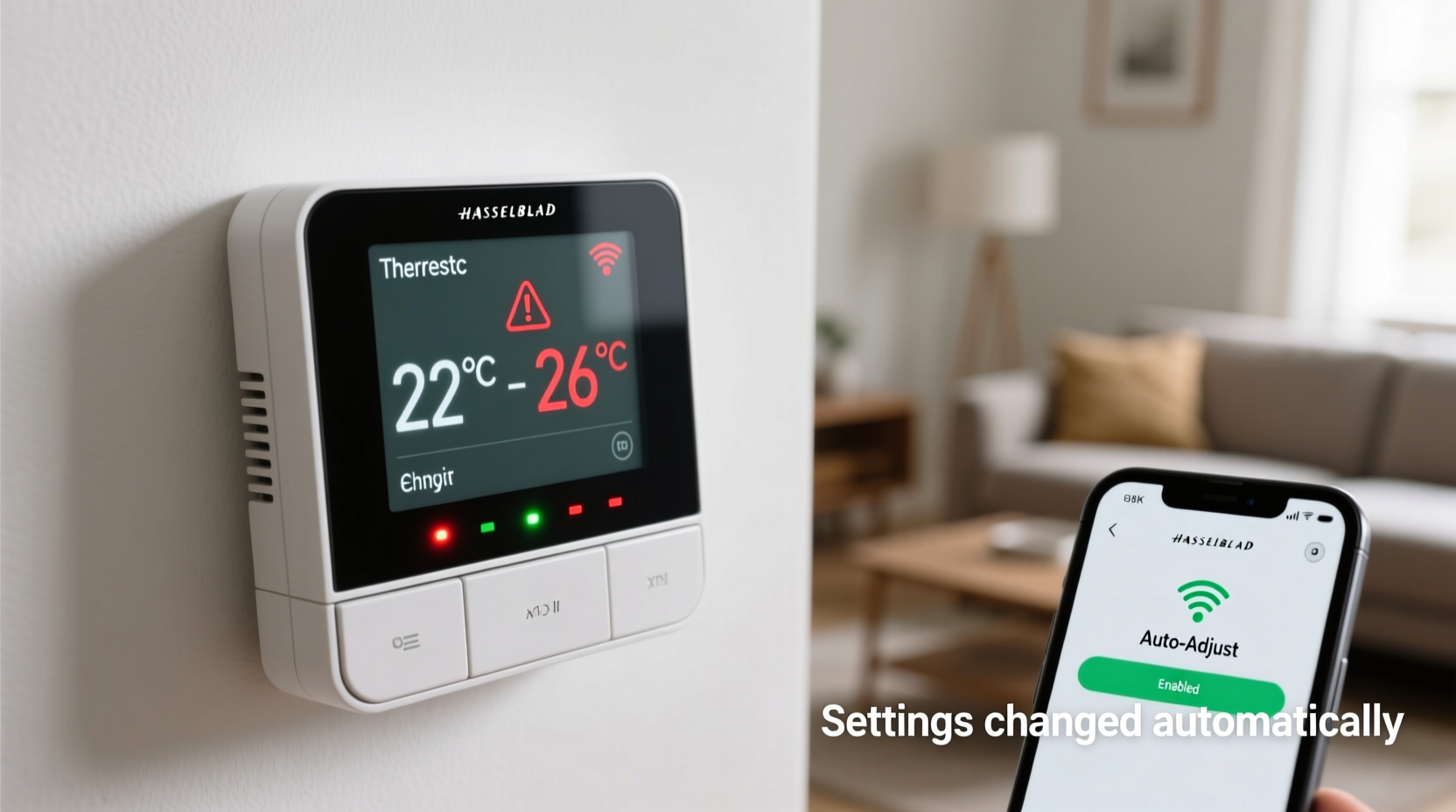
Most smart thermostats use adaptive learning, geofencing, scheduling, and energy-saving modes to optimize indoor climate. While these features are helpful, they can sometimes trigger unwanted changes if not properly configured.
- Adaptive Recovery: The thermostat predicts how long it takes to heat or cool your home to reach a scheduled temperature by a specific time. It may start heating or cooling earlier than expected, making it seem like the setting changed unexpectedly.
- Geofencing: Uses your smartphone’s location to detect when you’re leaving or approaching home. If multiple family members have the app installed, conflicting signals can cause erratic behavior.
- Predictive Scheduling: Some models (like the Nest Learning Thermostat) adjust schedules based on past behavior. If you override the schedule too often, the thermostat might misinterpret your preferences.
- Away Mode: Automatically activates when no one is detected at home, lowering or raising temperatures to save energy. It can trigger falsely due to poor Wi-Fi signal or phone battery-saving settings.
Common Causes of Unwanted Setting Changes
Before assuming your device is faulty, consider these frequent triggers:
- Incorrect Schedule Settings: A misconfigured daily schedule can lead to automatic adjustments that seem random. For example, accidentally setting “Wake” time to 3 AM instead of 7 AM will activate heating prematurely.
- Firmware Updates: After an update, some thermostats reset to default modes or re-enable features you previously turned off.
- Shared Access via App: Family members or roommates with access to the thermostat app might be adjusting settings unknowingly. Check recent activity logs in the app.
- Wi-Fi Instability: Intermittent internet connection can disrupt communication between the thermostat and cloud server, causing sync errors or fallback to safety modes.
- Sensor Interference: Direct sunlight, drafts, or nearby electronics can affect the thermostat’s internal sensors, leading to inaccurate readings and unnecessary cycling.
Troubleshooting Steps to Regain Control
Follow this step-by-step guide to identify and resolve the issue systematically.
Step 1: Review Your Schedule
Open your thermostat’s app and navigate to the scheduling section. Verify each day’s settings for Wake, Leave, Return, and Sleep periods. Ensure times and temperatures align with your actual routine. Delete any duplicate or conflicting entries.
Step 2: Check for Active Modes
Look for indicators like “Eco Mode,” “Away,” or “Home.” These modes override manual settings. In many apps, you can disable Eco Temperatures or set wider ranges to prevent drastic swings.
Step 3: Inspect User Activity Log
Most smart thermostats maintain a history of changes. Look for timestamps, user names, or device types (e.g., “Changed from iPhone”) to determine if someone else adjusted the settings.
Step 4: Evaluate Geofencing Accuracy
If geofencing is enabled, test it by walking away from home and observing when Away mode activates. Re-enter the zone and confirm it switches back. If it fails, ensure all users have location services enabled and battery optimization disabled for the app.
Step 5: Restart and Update
Power cycle the thermostat through the app or physical reset (refer to manufacturer instructions). Then check for firmware updates. Outdated software can cause erratic behavior.
Step 6: Assess Installation Environment
Ensure the thermostat isn’t placed near heat sources (lamps, TVs), cold drafts (windows, doors), or in direct sunlight. Relocating it—even a few inches—can improve sensor accuracy.
Do’s and Don’ts When Managing Smart Thermostat Settings
| Do’s | Don’ts |
|---|---|
| Set consistent wake/sleep times to help learning algorithms adapt accurately. | Don’t frequently override the schedule without reason—this confuses adaptive learning. |
| Limit app access to trusted users only. | Don’t install the thermostat in high-traffic areas where people constantly pass by, affecting motion detection. |
| Regularly review Eco or Energy Saving mode thresholds. | Don’t ignore error messages or connectivity alerts—they often precede behavioral issues. |
| Label your HVAC system wires during installation for easier troubleshooting later. | Don’t assume the problem is the thermostat—check furnace or AC operation independently. |
Real-World Example: The Case of the Midnight Heat Surge
Mark, a homeowner in Portland, noticed his house warmed to 78°F every night around 2 AM, despite setting a sleep temperature of 68°F. He initially suspected a defect and considered returning the device. After reviewing the app log, he discovered the thermostat was switching to “Home” mode unexpectedly. Further investigation revealed his teenage son had downloaded the thermostat app but kept location services turned off to conserve battery. As a result, the geofencing algorithm lost track of him and assumed the house was empty. When the son’s phone briefly connected to Wi-Fi at night, the system registered a “return” and triggered heating.
The fix? Mark disabled geofencing and switched to a fixed schedule with manual Away mode toggling. Temperature stability returned immediately. This case highlights how shared household technology requires coordinated settings—not just individual convenience.
“Many ‘malfunctions’ stem from misunderstood automation features. Users often blame the device when the real issue lies in configuration or environmental factors.” — Dr. Alan Reyes, Smart Home Systems Engineer, IEEE Member
Checklist: How to Stop Your Smart Thermostat from Changing Settings
- ✅ Review and correct the daily temperature schedule
- ✅ Disable or adjust Eco/Away modes if not needed
- ✅ Turn off geofencing or ensure all users have location services enabled
- ✅ Check recent activity log for unauthorized or unexpected changes
- ✅ Confirm stable Wi-Fi connection to the thermostat
- ✅ Inspect placement—avoid heat sources, drafts, and direct sunlight
- ✅ Perform a factory reset if problems persist (after backing up settings)
- ✅ Update firmware to the latest version
- ✅ Limit app access to essential users only
- ✅ Test HVAC system independently to rule out mechanical delays
Frequently Asked Questions
Why does my thermostat change temperature when I’m not home?
This is typically due to Away mode or geofencing activation. If no one is detected in the home for a set period, the thermostat adjusts to an Eco temperature to save energy. Ensure your phones are connected to Wi-Fi or cellular data and that location permissions are granted to the app.
Can a power outage cause my smart thermostat to reset?
Yes. Most smart thermostats have a backup battery, but prolonged outages can drain it, leading to a reboot and potential reset to default settings. After power returns, check your schedule and modes. Consider enabling auto-schedule restore if available in your model.
Is it possible for my thermostat to learn incorrectly?
Absolutely. Learning-based models rely on consistent user input. If you frequently adjust the temperature manually at random times, the thermostat may struggle to establish patterns. For best results, stick to a regular routine for at least one week to train the system properly.
Final Thoughts: Take Back Control of Your Comfort
Your smart thermostat should enhance your lifestyle, not complicate it. Unplanned temperature shifts are rarely signs of hardware failure—they’re usually symptoms of misconfigured settings, connectivity hiccups, or misunderstood automation. By methodically reviewing schedules, disabling problematic features, and ensuring proper installation conditions, you can restore reliability and peace of mind.
Remember, technology works best when it aligns with your real-life habits, not the other way around. Take a few minutes to audit your current setup using the checklist above. Small adjustments today can lead to consistent comfort and noticeable energy savings over time.




 浙公网安备
33010002000092号
浙公网安备
33010002000092号 浙B2-20120091-4
Comments
No comments yet. Why don't you start the discussion?