
Smart thermostats are designed to make home climate control more efficient, comfortable, and energy-saving. But when your carefully set temperature suddenly shifts on its own, it can feel less like innovation and more like frustration. If you’ve found yourself asking, “Why does my smart thermostat keep changing temperature settings?” you’re not alone. This behavior is common across brands like Nest, Ecobee, Honeywell, and others—and while it’s often by design, it can also signal misconfiguration or external interference. Understanding the root causes is the first step toward regaining control of your comfort.
This guide breaks down the most frequent reasons behind unexplained temperature changes, offers actionable fixes, and helps you distinguish between helpful automation and unwanted disruptions. Whether you're dealing with erratic schedules, unexpected eco-modes, or interference from mobile apps, you’ll find clear explanations and practical steps to stabilize your system.
How Smart Thermostats Are Designed to Adjust Automatically
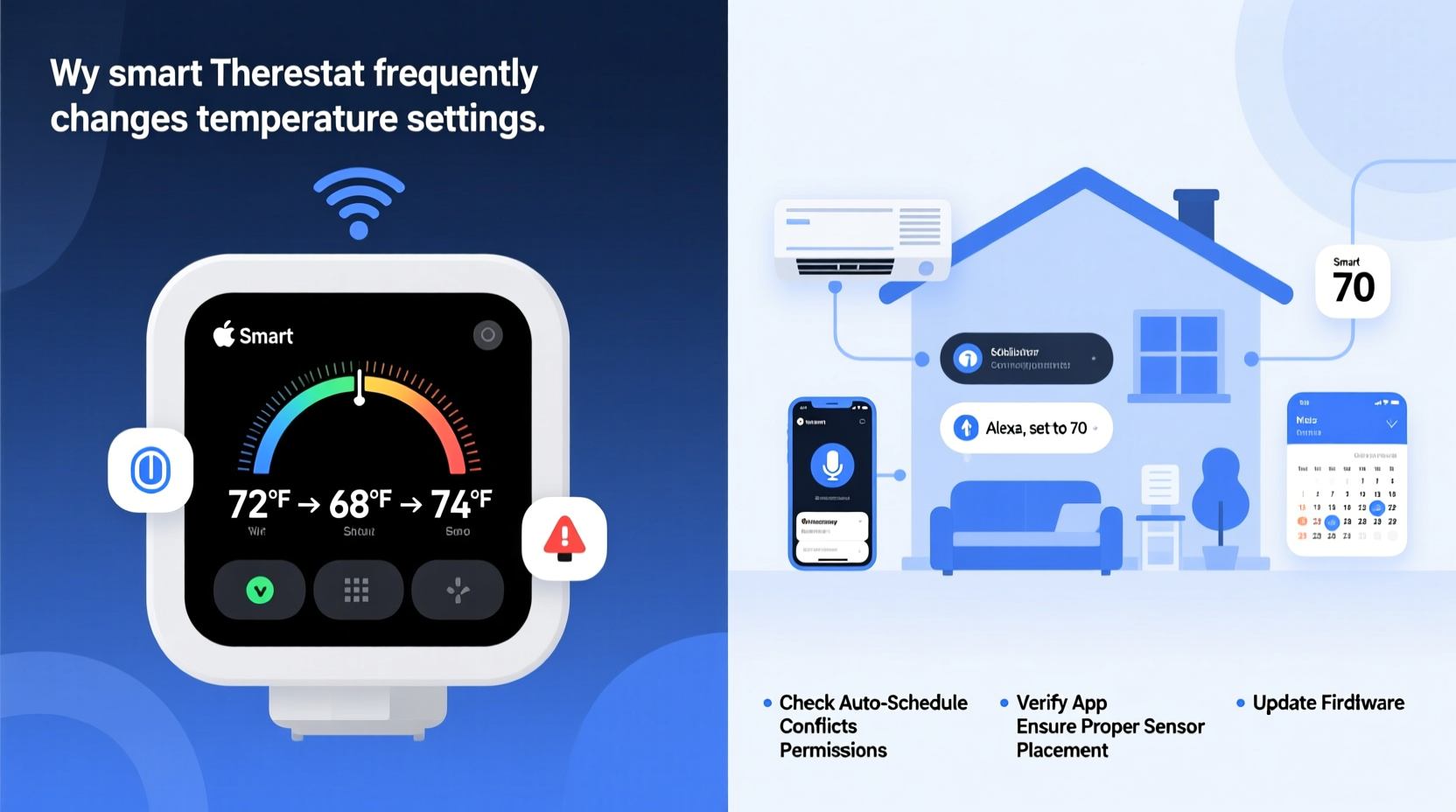
Unlike traditional thermostats, smart models learn your habits, respond to environmental conditions, and optimize for energy efficiency. Many of these automatic adjustments are intentional features—not malfunctions. For example:
- Adaptive Learning: Devices like the Google Nest learn your preferred temperatures over time and create a schedule based on when you’re typically home or away.
- Geofencing: Using your smartphone’s location, the thermostat detects when you leave or return and adjusts heating or cooling accordingly.
- Weather Intelligence: Some models pull local weather data to pre-cool or pre-heat your home before extreme temperatures hit.
- Eco Modes: When no one is home, the thermostat may switch to an energy-saving mode, raising or lowering the temperature beyond your usual range.
These features aim to save energy without sacrificing comfort—but they can be disorienting if you’re unaware they’re active. The key is understanding which behaviors are part of normal operation versus signs of a deeper issue.
Common Causes of Unwanted Temperature Changes
While some adjustments are intentional, persistent or erratic changes that don’t align with your preferences suggest underlying problems. Here are the most frequent culprits:
1. Occupancy Detection Errors
Smart thermostats use motion sensors, Wi-Fi signals, and phone location to determine occupancy. If motion isn’t detected for several hours (e.g., during work or sleep), the system may assume you’re away and switch to Eco mode. Similarly, false triggers from pets or neighboring devices can cause erratic behavior.
2. Shared Access & Mobile App Conflicts
If multiple household members have access to the thermostat app, one person’s adjustment overrides another’s. Worse, outdated app versions or conflicting commands from different devices can create instability in the system’s logic.
3. Incorrect Scheduling Settings
Even with manual schedules, overlapping or poorly defined time blocks can lead to unintended transitions. For example, a scheduled “sleep” profile might conflict with a manually set “home” temperature.
4. HVAC System Compatibility Issues
Some older heating and cooling systems don’t communicate effectively with smart thermostats. A mismatch in voltage, wiring (especially lack of a C-wire), or system type (e.g., heat pumps) can cause erratic behavior, including fluctuating settings or reset loops.
5. Software Glitches or Firmware Bugs
Like any connected device, smart thermostats rely on firmware. Updates can introduce bugs, or corrupted software can cause the device to revert to default settings or behave unpredictably.
6. External Integrations (Alexa, Google Home, etc.)
Voice assistants and smart home hubs can override thermostat settings if voice commands are misheard or automations are poorly configured. A simple phrase like “make it warmer” can trigger a change you didn’t authorize.
“Many customers report phantom adjustments only to discover a family member’s voice command or a forgotten automation rule was the real culprit.” — Daniel Ruiz, HVAC Smart Technology Consultant
Troubleshooting Checklist: Regain Control of Your Thermostat
Follow this systematic checklist to identify and resolve the source of unwanted temperature shifts:
- Review current schedule and modes: Open your thermostat app and verify all programmed times, temperatures, and active modes (Home, Away, Sleep, Eco).
- Check occupancy settings: Disable geofencing or motion-based detection temporarily to see if changes stop.
- Audit user access: Remove inactive users or outdated devices from the app. Ensure all users are on the latest app version.
- Inspect automations and integrations: Look for routines in Alexa, Google Home, or Apple HomeKit that adjust the thermostat automatically.
- Verify HVAC compatibility: Confirm your system type matches the thermostat’s requirements. Consider installing a C-wire if missing.
- Restart the thermostat: Power it down completely, wait 30 seconds, then reconnect. This clears temporary glitches.
- Update firmware: Ensure the device is running the latest software version through the manufacturer’s app.
- Reset to factory settings (if needed): As a last resort, perform a full reset and reconfigure from scratch.
Do’s and Don’ts: Managing Smart Thermostat Behavior
| Do’s | Don’ts |
|---|---|
| Set a manual schedule if you prefer full control over adaptive learning. | Assume all automatic changes are errors—some are intentional energy-saving features. |
| Regularly review connected devices and app permissions. | Allow unrestricted voice assistant access without reviewing command logs. |
| Label your temperature profiles clearly (e.g., “Workday Morning,” “Weekend Evening”). | Overwrite schedules frequently without documenting changes. |
| Use vacation mode when traveling to prevent unnecessary cycling. | Ignore error codes or connectivity alerts—they may precede erratic behavior. |
| Keep firmware updated to benefit from stability improvements. | Disconnect the thermostat from Wi-Fi permanently—it disables critical updates and remote access. |
Real-World Example: The Case of the Midnight Temperature Spike
Sarah, a homeowner in Denver, noticed her Nest thermostat consistently raised the temperature to 78°F at 2:17 a.m., waking her up sweating. She had set a sleep schedule of 68°F from 10 p.m. to 6 a.m. After ruling out manual changes, she reviewed her app and discovered an automation labeled “Morning Pre-Warm” set for 5:30 a.m.—but that wasn’t causing the 2 a.m. spike.
Further investigation revealed that her husband’s fitness tracker, integrated with Google Home, was triggering a “wake-up” routine when his sleep cycle ended early. Since he often woke briefly during the night, the system mistakenly activated the morning heating sequence. Disabling the tracker-based automation and switching to time-based scheduling resolved the issue.
This case illustrates how third-party integrations, even those meant to enhance convenience, can interfere with expected thermostat behavior. Always audit linked devices and services when troubleshooting.
Step-by-Step: How to Lock Your Smart Thermostat Settings
If you want consistent temperatures without automatic interference, follow these steps to lock down your settings:
- Disable Adaptive Learning: In your thermostat app, navigate to Settings > Learning & Schedules and turn off auto-schedule or learning features.
- Create a Manual Schedule: Define specific temperature targets for each day of the week. Be precise with start times and durations.
- Turn Off Geofencing: Go to Location or Home/Away Assist settings and disable phone-based detection.
- Lock the Interface: Enable screen lock or PIN protection to prevent physical tampering.
- Review Smart Home Automations: In platforms like Alexa or Google Home, disable any routines that adjust the thermostat.
- Set a Permanent Mode: Choose “Hold” or “Permanent Hold” on the current temperature to override upcoming schedule changes.
- Monitor Activity Log: Most apps provide a history of changes. Review it weekly to catch unauthorized or automated adjustments.
Once locked, your thermostat will follow only your specified instructions—ideal for households with predictable routines or individuals who prefer full control.
Frequently Asked Questions
Can someone else change my smart thermostat remotely?
Yes—if they have login credentials or access to a shared account. Always use strong passwords, enable two-factor authentication, and remove unused users from the app. Also, ensure your home Wi-Fi network is secure to prevent unauthorized access.
Why does my thermostat switch to Eco mode unexpectedly?
This usually happens due to occupancy detection (no motion sensed), geofencing (phone leaves range), or a scheduled Eco period. To stop it, disable Eco mode entirely or adjust the triggers in the app under “Settings” > “Eco Temperatures” or “Home/Away Assist.”
Will resetting my thermostat delete my schedule?
A soft restart won’t. However, a factory reset will erase all settings, including schedules, Wi-Fi passwords, and user preferences. Always back up your schedule details before performing a full reset.
Conclusion: Take Back Control With Confidence
Your smart thermostat should serve your comfort, not disrupt it. Unwanted temperature changes are rarely random—they stem from specific settings, integrations, or system limitations. By methodically reviewing schedules, disabling unnecessary automation, and securing access, you can transform a frustrating device into a reliable ally for home comfort.
Start by observing patterns: note when changes occur and what triggers them. Use the troubleshooting checklist to isolate the cause, and don’t hesitate to contact customer support if firmware issues persist. With the right configuration, your smart thermostat can deliver both intelligence and consistency—exactly as intended.




 浙公网安备
33010002000092号
浙公网安备
33010002000092号 浙B2-20120091-4
Comments
No comments yet. Why don't you start the discussion?