
Smart thermostats are designed to make heating and cooling more efficient, adaptive, and convenient. But when your thermostat suddenly adjusts the temperature without warning—especially when you’re not home or during sleep—it can feel less like automation and more like sabotage. If you’ve found yourself asking, “Why does my smart thermostat keep changing temps?” you're not alone. Many homeowners experience unexpected shifts that disrupt comfort, increase energy bills, or trigger frustration.
The good news is that most of these changes are not random malfunctions. They’re typically caused by specific settings, learning behaviors, or connected services that, once understood, can be adjusted or disabled. This guide breaks down the common reasons behind unexplained temperature adjustments and provides clear, actionable steps to take back control of your indoor climate.
Understanding How Smart Thermostats Work
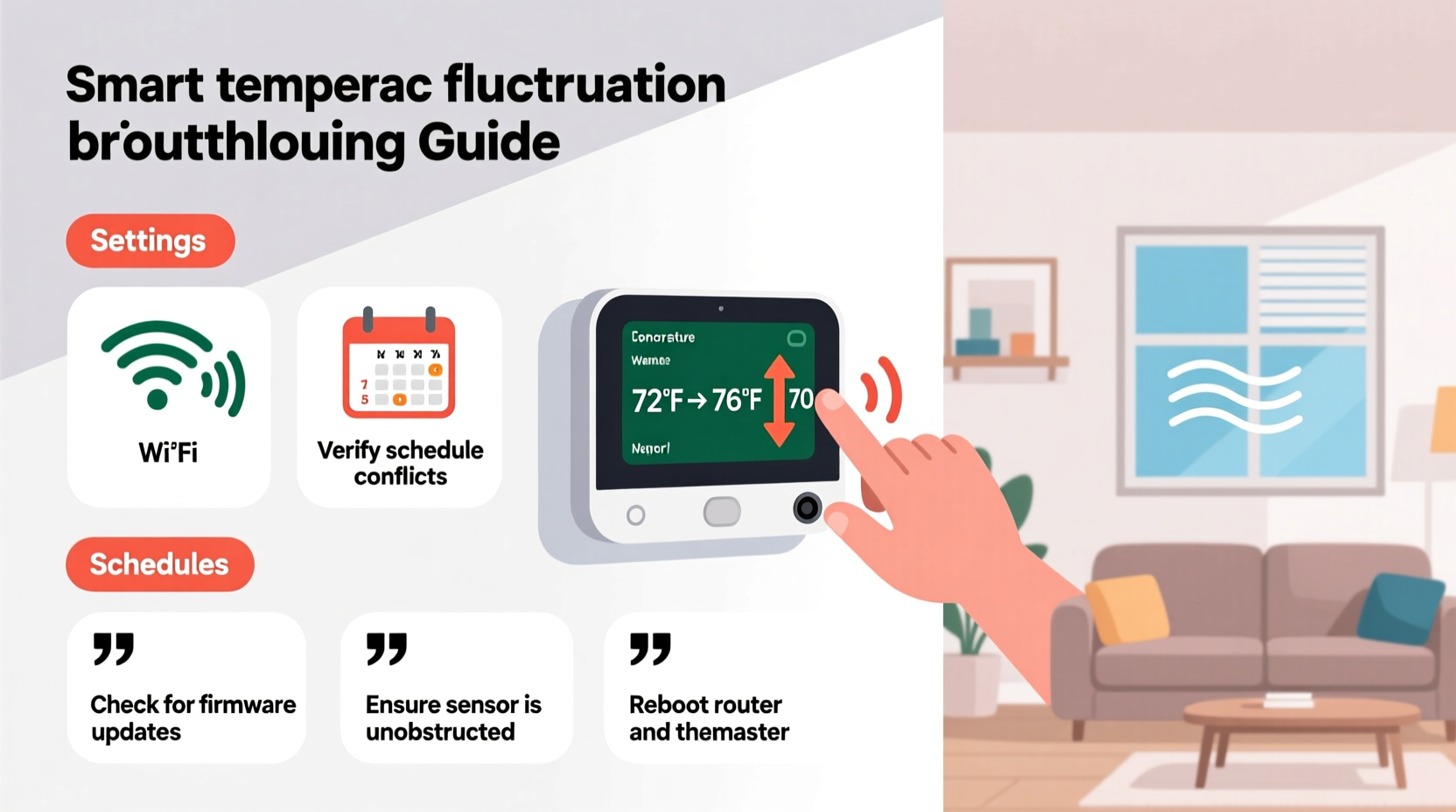
Unlike traditional thermostats, smart models use sensors, Wi-Fi connectivity, algorithms, and sometimes artificial intelligence to adjust temperatures based on patterns, occupancy, weather, and user behavior. Brands like Nest, Ecobee, Honeywell Home, and Emerson offer features such as:
- Auto-Schedule: Learns your routine over time and sets temperatures accordingly.
- Geofencing: Uses your smartphone’s location to detect when you’re coming or going.
- Weather Adaptation: Adjusts HVAC operation based on outdoor conditions.
- Energy Reports: Suggests changes to reduce consumption.
- Voice & App Integration: Allows remote adjustments via Alexa, Google Assistant, or mobile apps.
While these features enhance efficiency, they can also lead to unexpected temperature changes if not properly configured. For instance, a geofence might trigger “Away” mode too early if your phone disconnects from Wi-Fi, or a learning algorithm might misinterpret a single weekend adjustment as a new weekly pattern.
“Smart thermostats optimize for efficiency first. If comfort feels compromised, it’s often because the system is prioritizing energy savings over personal preference.” — Dr. Alan Reeves, HVAC Systems Engineer
Common Reasons Your Smart Thermostat Changes Temperature Automatically
Below are the top causes behind unwanted temperature shifts—and how each one operates under the hood.
1. Learning Mode and Auto-Scheduling
Many smart thermostats start in “learning mode,” observing when you adjust the temperature and assuming those reflect your preferences. After about a week, the system creates an auto-schedule. The problem? It may lock in incorrect assumptions. For example, if you turned down the heat during a guest visit (to offset body heat), the thermostat might think that’s your preferred nighttime setting.
2. Geofencing Triggers “Away” Mode Prematurely
Geofencing relies on your smartphone’s GPS to determine whether anyone is home. However, spotty signal, battery-saving modes, or delayed app updates can cause the thermostat to register you as “away” even when you’re still at home. Once in Away mode, it will automatically adjust to an energy-saving temperature.
3. Eco Modes and Energy-Saving Features
Most smart thermostats default to Eco, Sleep, or Economy modes outside active hours. These override manual settings after a period of time. For example, your Nest might revert to Eco Temperatures overnight unless you manually disable this feature.
4. Remote Access via Mobile App or Voice Commands
If multiple people have access to the thermostat app—or if voice assistants are linked—someone else might be adjusting the temperature remotely. A family member testing Alexa commands or a child playing with the app could inadvertently change settings.
5. Software Updates and Reset Behaviors
After a firmware update, some thermostats reset to factory defaults or re-enable certain features like Auto-Schedule. This can catch users off guard if they had previously disabled automatic adjustments.
6. Sensor Interference or Placement Issues
Smart thermostats use built-in or remote room sensors to detect occupancy and temperature. If a sensor is near a heat source (like sunlight, a lamp, or appliance), it may read higher temps and prompt cooling—even if the rest of the house is comfortable.
Step-by-Step Guide to Stop Unwanted Temperature Changes
To regain consistent control, follow this structured approach to identify and eliminate the root cause.
- Review Your Current Schedule
Open your thermostat’s app and navigate to the schedule section. Check if an auto-generated schedule conflicts with your actual routine. Edit or delete any inaccurate time blocks. - Disable Auto-Schedule (If Needed)
In Nest devices, go to Settings > Learning > Turn off Auto-Schedule. On Ecobee, disable “Smart Recovery” and “Follow Me” if sensors are causing erratic behavior. - Adjust or Disable Geofencing
In the app, look for “Home/Away Assist” or “Location Services.” You can either refine the geofence radius, require multiple devices to confirm absence, or turn it off entirely. - Set Permanent Hold on Temperatures
Instead of temporary adjustments, use the “Hold” function. This tells the thermostat to ignore the schedule until you manually change it again. On most systems, press and hold the current temperature display to set a permanent hold. - Turn Off Eco or Energy-Saving Modes
Navigate to Eco,节能, or Economy settings and disable them. Alternatively, set Eco temperatures closer to your desired range so changes are less drastic. - Check for Unauthorized Access
Review user permissions in the app. Remove unknown devices or accounts. Consider enabling two-factor authentication for added security. - Inspect Sensor Placement
Ensure the thermostat isn’t exposed to direct sunlight, drafts, or nearby electronics. If using remote sensors, verify they’re placed in frequently used rooms—not hallways or kitchens. - Update Firmware and Restart
Ensure your device is running the latest software. Then perform a soft reset through the app or by removing the faceplate briefly.
Troubleshooting Table: Diagnose and Fix Common Issues
| Symptom | Possible Cause | Solution |
|---|---|---|
| Temp drops at night even after manual adjustment | Eco or Sleep mode enabled | Disable Eco mode or adjust its temperature range |
| Thermostat switches to “Away” while you’re home | Geofencing error or phone offline | Refine geofence, add secondary device, or disable location-based control |
| Temperature changes mid-day unexpectedly | Auto-Schedule learned incorrect pattern | Review and edit schedule; disable learning mode |
| System heats/cools when no one is in the room | Poor sensor placement or false occupancy detection | Relocate thermostat or disable motion-based triggers |
| Changes occur after power outage or update | Firmware reset to defaults | Reconfigure settings and re-disable auto-features |
Real-World Example: The Case of the Midnight Chill
Consider Sarah, a homeowner in Portland, Oregon, who kept waking up cold at 2:17 a.m. every night. Her Nest thermostat was consistently dropping the bedroom temperature from 68°F to 60°F, despite her manually resetting it each evening. She assumed it was a glitch.
After reviewing her app logs, she discovered that her Nest had created a recurring “Sleep” schedule starting at 2:15 a.m., likely triggered by her staying up late one night and lowering the temp slightly. Because she hadn’t reviewed the auto-generated schedule, the thermostat assumed this was intentional. By disabling Auto-Schedule and setting a fixed bedtime routine in the app, Sarah eliminated the issue within minutes.
This case illustrates how easily automated systems can misinterpret isolated actions. Regular monitoring of your thermostat’s behavior prevents long-term discomfort.
Checklist: Prevent Future Unwanted Changes
- ✅ Review and lock your daily temperature schedule
- ✅ Disable Auto-Schedule if you prefer full manual control
- ✅ Turn off or fine-tune geofencing and Away mode
- ✅ Set permanent holds instead of temporary adjustments
- ✅ Disable Eco or Sleep modes, or customize their settings
- ✅ Audit user access and remove unnecessary accounts
- ✅ Ensure proper thermostat and sensor placement
- ✅ Check for firmware updates monthly
- ✅ Test changes in the app before relying on automation
- ✅ Keep a log of unexpected changes for troubleshooting
Frequently Asked Questions
Can I use my smart thermostat manually without any automation?
Yes. Most smart thermostats allow fully manual operation. Simply disable Auto-Schedule, Eco modes, and geofencing. You’ll lose some energy-saving benefits, but gain complete control over when and how temperatures change.
Why does my thermostat change temperature when I’m not home?
This is usually due to “Away” mode being triggered by geofencing or motion sensors. If no one is home, the system assumes you want energy savings and adjusts to preset Eco temperatures. To prevent this, disable Away mode or set Eco temps closer to your comfort level.
Will disabling learning mode make my thermostat less efficient?
Potentially, but not necessarily. While learning mode can optimize heating and cooling based on habits, many users find they save just as much—or more—by setting a consistent, intentional schedule. Manual programming avoids errors from misinterpreted behavior.
Regain Control and Comfort
Your smart thermostat should serve your lifestyle—not dictate it. Unwanted temperature changes are rarely signs of hardware failure; they’re usually the result of well-intentioned automation gone unchecked. By understanding the features driving these shifts and taking deliberate steps to configure them, you can enjoy both comfort and efficiency without surprise chills or overheating.
Start by auditing your current settings, disabling features you don’t actively use, and establishing a reliable schedule. Monitor your system for a few days, and make small refinements as needed. With the right setup, your smart thermostat can become a seamless part of your home—one that responds to you, not the other way around.




 浙公网安备
33010002000092号
浙公网安备
33010002000092号 浙B2-20120091-4
Comments
No comments yet. Why don't you start the discussion?