
Smart thermostats are designed to make home climate control more efficient, comfortable, and energy-saving. But when your smart thermostat suddenly changes the temperature without warning—especially after you’ve set a schedule—it can be frustrating and confusing. Many homeowners report their devices seem to “override” settings on their own, leading to uncomfortable indoor conditions and higher energy bills. The truth is, most of these issues aren’t random malfunctions—they stem from specific behaviors, settings, or environmental factors that trigger unintended manual overrides. Understanding the root causes and how to address them ensures your smart thermostat works as intended: intelligently, efficiently, and predictably.
How Smart Thermostats Work (and When They Don’t)
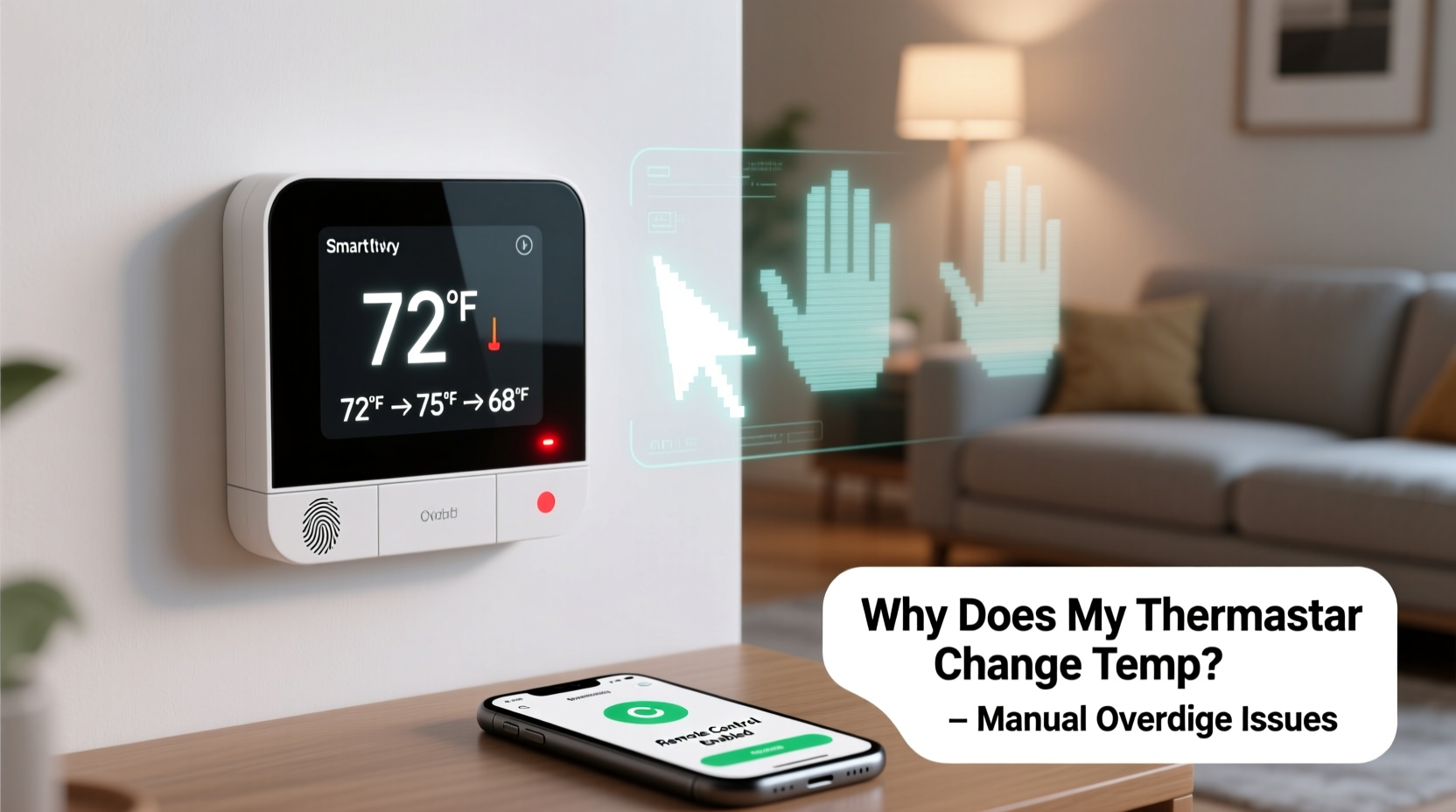
Modern smart thermostats use sensors, learning algorithms, Wi-Fi connectivity, and occupancy detection to optimize heating and cooling based on your habits and preferences. Devices like the Nest Learning Thermostat, Ecobee, Honeywell Home, and others adapt over time to create personalized schedules. However, they also allow manual adjustments—either through touch controls, voice commands, or mobile apps. These manual inputs are treated as temporary overrides, meaning the system will eventually return to its programmed schedule.
The problem arises when users perceive the thermostat as “changing itself,” when in reality, it’s responding to an override—sometimes initiated unintentionally. Common override triggers include:
- Physical interaction with the thermostat (e.g., turning the dial)
- Voice commands via Alexa or Google Assistant
- Changes made remotely through a smartphone app
- Occupancy or motion sensors detecting activity
- Geofencing features adjusting based on phone location
- Faulty sensor readings or software bugs
When multiple users have access to the thermostat or family members adjust settings unknowingly, tracking down the source becomes difficult. The thermostat doesn’t distinguish between intentional and accidental input—it only responds.
Common Causes of Unwanted Temperature Changes
1. Accidental Physical Touch
Thermostats mounted in high-traffic areas—like hallways or near doorways—are prone to accidental bumps or touches. A child playing, a pet brushing past, or even someone reaching for a light switch might nudge the device, triggering a manual adjustment.
This is especially common with rotary-style interfaces (like early Nest models), where a slight turn registers as a new temperature command. Even touchscreens can misinterpret brief contact as input.
2. Remote App Adjustments by Family Members
If multiple people in the household have access to the thermostat’s app, one person may adjust the temperature without informing others. For example, someone feeling cold at night might raise the heat via their phone, unaware that this creates a temporary override.
These changes often go unnoticed until the next day, when occupants wonder why the house is too warm or why the HVAC ran all night.
3. Voice Assistant Integration Gone Awry
Voice commands via Amazon Alexa, Google Assistant, or Apple HomeKit offer convenience—but they’re not foolproof. Misheard phrases like “set temperature to 75” instead of “what’s the temperature?” can result in unintended changes.
In homes with always-listening devices, background noise or overlapping conversations may trigger false activations.
“Voice integration adds convenience but introduces new failure points. Always review voice command history if unexplained changes occur.” — David Lin, Smart Home Systems Engineer
4. Geofencing and Occupancy Detection Errors
Geofencing uses your smartphone’s GPS to detect when you leave or return home, automatically switching between “Away” and “Home” modes. However, GPS signals can be unreliable indoors, causing the thermostat to think you’ve left when you haven’t—or vice versa.
Similarly, built-in motion sensors may fail to detect presence during quiet periods (like reading or sleeping), prompting the system to enter “Away” mode prematurely.
5. Software Glitches or Firmware Bugs
Like any connected device, smart thermostats rely on firmware that can contain bugs. Updates may introduce new issues, such as incorrect scheduling logic or improper override handling.
Some users have reported thermostats reverting to default settings or failing to resume scheduled programs after an override due to software inconsistencies.
Troubleshooting Checklist: Stop Unwanted Overrides
Follow this step-by-step checklist to identify and resolve the cause of erratic temperature changes:
- Review the activity log in your thermostat’s app to see recent changes and how they were made (touch, app, voice).
- Disable voice control temporarily to test if voice assistants are causing unintended adjustments.
- Check geofencing accuracy by ensuring all household phones have location services enabled and the app is running in the background.
- Adjust motion sensitivity or disable occupancy sensing if it frequently misreads activity.
- Lock the thermostat interface using a PIN or physical lock mode (available on Nest, Ecobee, etc.) to prevent accidental or unauthorized changes.
- Update firmware to the latest version to patch known bugs.
- Reset and reconfigure the device if problems persist, ensuring proper setup of schedules and modes.
Do’s and Don’ts of Smart Thermostat Management
| Do | Don't |
|---|---|
| Set a consistent schedule and stick to it | Constantly override settings manually |
| Use thermostat locking features to prevent tampering | Allow unrestricted app access to all family members |
| Test geofencing by walking away and returning home | Assume geofencing works perfectly out of the box |
| Regularly check for firmware updates | Ignore update notifications or delay patches |
| Place thermostat away from direct sunlight or drafts | Install thermostat near windows, vents, or heat sources |
Real-World Example: The Case of the Midnight Heat Surge
Sarah, a homeowner in Portland, noticed her house was unusually warm each morning. Her Nest thermostat showed a spike to 78°F at 2:30 AM daily, despite her sleep schedule calling for 68°F. She reviewed the app history and discovered the changes were labeled “Manual – App.”
After questioning her family, she learned her teenage son had been using the Nest app to slightly increase the temperature when he got up to use the bathroom at night. He didn’t realize his actions triggered a two-hour override that delayed the return to the scheduled temperature.
Solution: Sarah enabled thermostat locking with a PIN and discussed setting boundaries around smart device usage. She also adjusted the “Heat Up Time” setting so future overrides would end sooner, minimizing energy waste.
This case highlights how small, well-intentioned actions can disrupt system performance—and why visibility and communication matter in shared households.
Preventing Future Override Issues: Best Practices
Enable Screen Lock or PIN Protection
Most smart thermostats offer a lock feature to prevent physical or app-based changes without authorization. On Nest, this is called “Schedule Lock”; on Ecobee, it’s “Hold Lock.” Enabling this stops anyone without the code from altering settings.
To set it up:
- Open your thermostat’s mobile app.
- Navigate to Settings > Security or Preferences.
- Enable lock mode and set a PIN.
- Choose whether to allow temporary holds or block all changes.
Optimize Geofencing for Accuracy
Geofencing relies on smartphone location data, which can be delayed or inaccurate. Improve reliability by:
- Ensuring all users have location services turned on for the thermostat app.
- Setting a larger geofence radius (e.g., 0.5–1 mile) to avoid premature “Away” triggers.
- Using multiple phones for presence detection (Ecobee supports this natively).
- Disabling aggressive power-saving modes that restrict background app activity.
Adjust Hold Duration and Recovery Settings
Some thermostats let you control how long a manual override lasts before resuming the schedule. By default, many devices apply a 2-hour hold. If you prefer immediate reversion, adjust this in settings.
You can also enable “Auto-Schedule Resume” or similar options to ensure the thermostat never stays in manual mode indefinitely.
Frequently Asked Questions
Why does my thermostat override my schedule every day?
Daily overrides usually stem from repeated manual input—either physical, app-based, or voice-triggered. Check the activity log for patterns. It could also be due to an “Away” mode activation from geofencing or motion sensors, followed by a return-to-home adjustment.
Can I stop manual overrides completely?
Yes, by enabling PIN or schedule lock features. This prevents any changes without authentication. Note: Emergency adjustments may still be possible through the app with credentials, depending on the model.
Does a factory reset fix override issues?
A reset can help if the issue is caused by corrupted settings or firmware glitches. However, it won’t prevent future overrides unless you reconfigure security settings afterward. Always back up your schedule before resetting.
Conclusion: Take Control of Your Climate Comfort
Your smart thermostat should simplify life, not complicate it. Unwanted temperature changes are rarely signs of hardware failure—they’re typically the result of overlooked settings, user behavior, or integration quirks. By auditing your system’s logs, securing access, and fine-tuning automation features like geofencing and voice control, you can eliminate erratic behavior and restore reliable performance.
Smart home technology thrives on intentionality. Small adjustments in setup and usage can lead to major improvements in comfort and efficiency. Don’t let manual override issues undermine your investment—take action today to configure your thermostat for consistency, control, and peace of mind.




 浙公网安备
33010002000092号
浙公网安备
33010002000092号 浙B2-20120091-4
Comments
No comments yet. Why don't you start the discussion?