
Streaming entertainment has transformed the way we watch television. With a library of movies, series, and live content at our fingertips, smart TVs promise convenience and quality. Yet nothing disrupts the experience faster than constant buffering—those spinning wheels that halt your show mid-climax. While frustrating, buffering is rarely random. It's typically a symptom of underlying issues in your network, device settings, or service delivery. Understanding the root causes and applying targeted fixes can restore seamless playback and elevate your home viewing experience.
Understanding How Streaming Works
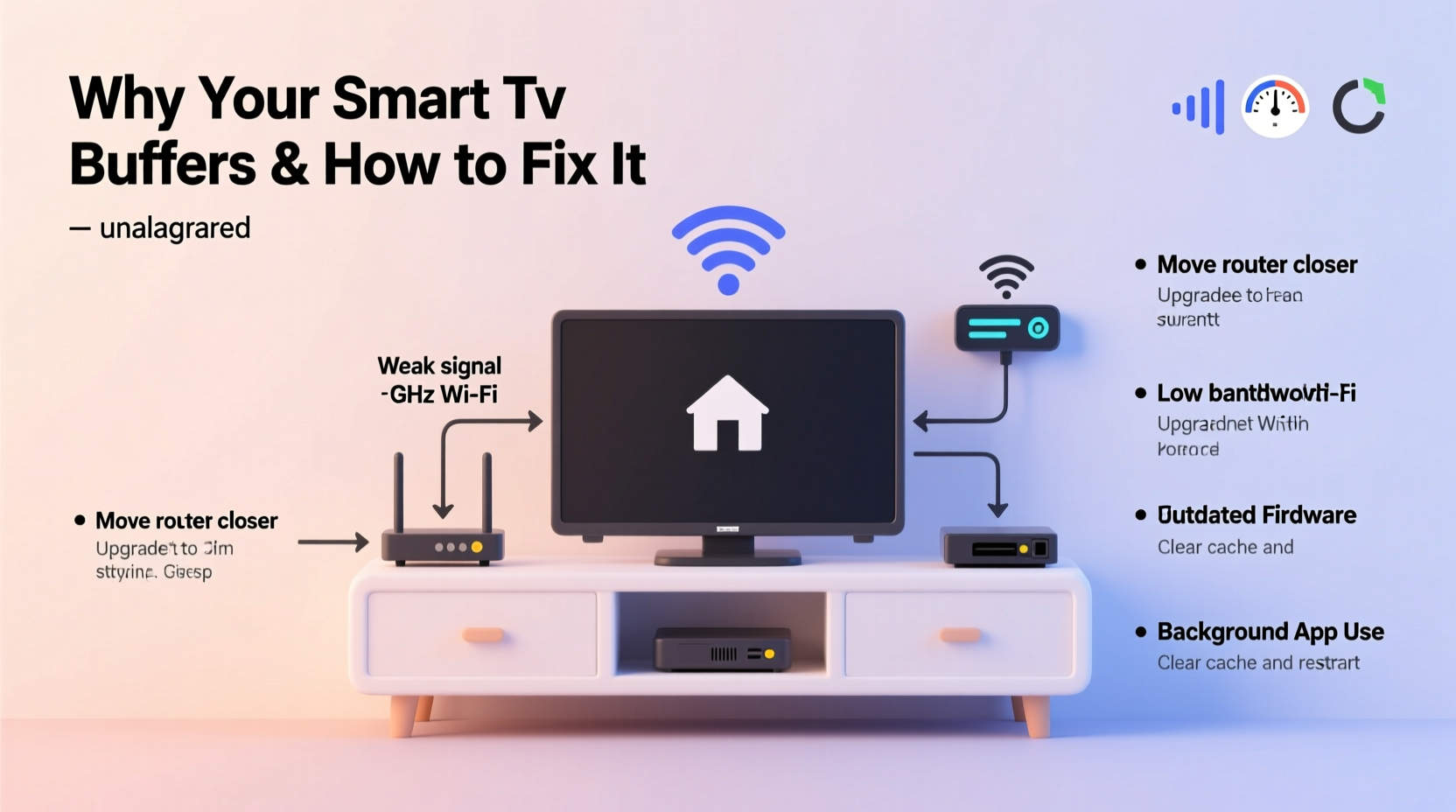
Before troubleshooting, it helps to understand what happens when you press play. Your smart TV retrieves video data from a remote server—Netflix, Hulu, Disney+, or another platform—over the internet. This data is sent in small chunks called packets. The TV downloads these packets ahead of time and stores them temporarily in a buffer. If the download speed drops or network congestion occurs, the buffer empties faster than it fills, causing playback to pause while the system catches up.
The required bandwidth depends on video quality. Standard definition (SD) may need only 3 Mbps, while 4K Ultra HD content demands 25 Mbps or more. When your connection fails to meet these thresholds consistently, buffering becomes inevitable.
“Buffering isn’t always about slow internet—it’s often about inconsistent throughput and poor network management.” — Dr. Lena Patel, Network Performance Analyst at Broadband Insights Group
Common Causes of Smart TV Buffering
Multiple factors can interrupt the steady flow of data between your ISP and your TV. Identifying which one affects you is the first step toward resolution.
Insufficient Internet Speed
If your broadband plan doesn’t support high-bandwidth streaming, especially during peak hours, your TV will struggle. Many households assume their advertised speed is guaranteed, but real-world performance often falls short due to network congestion, outdated equipment, or signal interference.
Wi-Fi Signal Interference
Smart TVs are often placed far from routers, behind walls, or near large metal objects like refrigerators. These obstacles weaken Wi-Fi signals. Additionally, devices such as microwaves, cordless phones, and neighboring networks operate on the same 2.4 GHz frequency band, causing interference.
Router Limitations
Older routers lack modern standards like MU-MIMO (Multi-User, Multiple Input, Multiple Output), beamforming, or dual/tri-band support. Without these, they can't efficiently manage multiple connected devices, leading to latency and packet loss.
Smart TV Hardware Constraints
Not all smart TVs are created equal. Lower-end models may have underpowered processors, limited RAM, or outdated Wi-Fi adapters. Over time, software bloat and background apps can further degrade performance.
Service Provider Throttling or Server Issues
Some ISPs throttle bandwidth during peak usage times or when detecting high-data activities like 4K streaming. Alternatively, the issue might lie with the streaming service itself—server outages or regional delivery bottlenecks can affect even users with excellent connections.
Step-by-Step Guide to Optimize Streaming Performance
Resolving buffering requires a methodical approach. Follow this sequence to isolate and fix the problem.
- Test Your Internet Speed
Use a trusted tool like Speedtest.net directly on your smart TV if possible, or on a device connected via Ethernet to the same network. Check both download speed and ping. For 4K streaming, aim for at least 25 Mbps down and less than 50 ms ping. - Check Network Congestion
Determine how many devices are using your network simultaneously. Multiple smartphones, tablets, gaming consoles, and smart home gadgets can consume bandwidth. Prioritize your TV by disconnecting non-essential devices during streaming. - Move Closer to the Router or Use a Wired Connection
Ethernet is vastly more stable than Wi-Fi. If your TV is near a router or modem, use a Cat 6 cable. If not, consider powerline adapters or a mesh Wi-Fi system to extend coverage. - Switch Wi-Fi Bands
If your router supports 5 GHz, connect your TV to it instead of 2.4 GHz. The 5 GHz band offers faster speeds and less interference, though with shorter range. Avoid using 2.4 GHz unless necessary. - Update Firmware and Apps
Ensure your smart TV’s operating system and streaming apps are up to date. Manufacturers often release patches that improve network efficiency and fix bugs affecting playback stability. - Adjust Streaming Quality Settings
In platforms like Netflix or YouTube, manually reduce video quality to 1080p or even 720p if your connection fluctuates. This reduces bandwidth demand and prevents frequent rebuffering. - Reboot Networking Equipment
Power cycle your modem and router every few weeks. Unplug them for 30 seconds before restarting. This clears memory leaks and resets IP assignments, often restoring lost performance.
Optimization Checklist
Keep this checklist handy whenever you notice buffering:
- ✅ Run a speed test near your TV
- ✅ Connect via Ethernet if possible
- ✅ Switch to 5 GHz Wi-Fi network
- ✅ Close unused apps on the smart TV
- ✅ Update TV firmware and streaming apps
- ✅ Reduce video quality during peak hours
- ✅ Limit number of active devices on network
- ✅ Position router centrally, away from obstructions
- ✅ Consider upgrading to a mesh Wi-Fi system
- ✅ Contact ISP if speeds are consistently below promised rates
Do’s and Don’ts of Smart TV Streaming
| Do | Don’t |
|---|---|
| Use a wired Ethernet connection for critical viewing sessions | Rely solely on distant Wi-Fi for 4K streaming |
| Place your router in a central, elevated location | Hide your router inside cabinets or basements |
| Upgrade your internet plan if consistently below 25 Mbps | Assume your ISP-provided router is optimal long-term |
| Clear app cache on your smart TV monthly | Leave dozens of unused apps running in the background |
| Monitor streaming settings across platforms | Set auto-quality and forget about it on unstable networks |
A Real-World Example: Fixing Persistent Buffering in a Suburban Home
Consider Sarah, a homeowner in Austin, Texas, who upgraded to a 4K smart TV but found her favorite shows kept pausing. Her internet plan was 100 Mbps, so she assumed speed wasn’t the issue. After testing, however, she discovered her Wi-Fi speed at the TV was only 12 Mbps due to thick drywall and a poorly positioned router in the garage.
She followed a structured fix: moved the router to the living room, switched her TV to the 5 GHz band, and updated her outdated streaming app. When minor buffering persisted, she connected via Ethernet using a long cable along the baseboard. The result? Instantaneous 4K playback with no interruptions. She later invested in a mesh system to maintain strong coverage throughout the house without unsightly wires.
Sarah’s case illustrates that advertised speeds don’t guarantee real-world performance—and small changes can yield dramatic improvements.
Advanced Solutions for Stubborn Buffering
When basic fixes fall short, consider deeper interventions.
Upgrade Your Router
If your router is more than three years old, it likely lacks modern features. Look for Wi-Fi 6 (802.11ax) models with QoS (Quality of Service) controls. QoS lets you prioritize traffic to specific devices—like your smart TV—ensuring it gets bandwidth first during congestion.
Use a Streaming Device Instead
Sometimes, the smart platform built into your TV is the bottleneck. External devices like Apple TV 4K, NVIDIA Shield, or Roku Ultra often have superior processors, better Wi-Fi chips, and more consistent software updates. They can outperform built-in systems even on older TVs.
Monitor Bandwidth Usage
Access your router’s admin panel (usually via 192.168.1.1) to view real-time device usage. Identify bandwidth hogs—such as automatic cloud backups or game console updates—and schedule them for off-peak hours.
Request a Line Quality Check from Your ISP
Persistent low speeds may stem from line degradation, faulty modems, or neighborhood oversubscription. Request a technician visit to test signal levels and replace hardware if needed. You may also negotiate a temporary speed boost or plan upgrade.
Frequently Asked Questions
Why does my TV buffer even when other devices work fine?
This often points to the TV’s internal Wi-Fi adapter or software limitations. While a smartphone might handle weak signals well, smart TVs require sustained throughput for video streams. The TV could also be running outdated firmware or background processes that interfere with playback.
Is 100 Mbps internet enough for 4K streaming?
Theoretically, yes—since 4K typically needs 25 Mbps. However, real-world conditions matter. If multiple devices are active, or if your Wi-Fi degrades the signal, actual throughput to the TV may drop below threshold. A 100 Mbps plan should comfortably support several 4K streams over Ethernet, but Wi-Fi reliability becomes critical.
Can too many apps on my smart TV cause buffering?
Indirectly, yes. Background apps consume memory and CPU resources, which can delay network processing and reduce responsiveness. Some apps auto-update or sync data in the background, creating intermittent network spikes. Regularly clearing unused apps and cache improves overall system performance.
Final Recommendations and Next Steps
Constant buffering doesn’t have to be part of your streaming routine. Most issues stem from correctable network inefficiencies rather than inherent flaws in your equipment. Start with simple steps—test your speed, switch to 5 GHz, update software—and progress to hardware upgrades if needed. Prioritize wired connections for primary viewing areas, and consider external streaming boxes if your TV’s native platform underperforms.
Remember, streaming quality is a balance of bandwidth, device capability, and network management. By taking control of these elements, you ensure every movie night unfolds without interruption.




 浙公网安备
33010002000092号
浙公网安备
33010002000092号 浙B2-20120091-4
Comments
No comments yet. Why don't you start the discussion?