
Streaming entertainment should be smooth, not stuttering. Yet, many smart TV owners face the frustration of constant buffering—even when their internet speed tests show excellent performance. If your 4K movie keeps pausing or your live sports stream freezes every few minutes, the problem isn’t always your ISP. Multiple hidden factors, from Wi-Fi interference to outdated firmware, can disrupt your viewing experience. Understanding these underlying causes is the first step toward fixing them.
This guide dives into the real reasons behind persistent buffering, even on high-speed connections, and offers actionable, tested solutions you can apply immediately. Whether you're using a Samsung, LG, Roku, or Android TV, the fixes here are universal and effective.
Understanding Buffering: What It Really Means
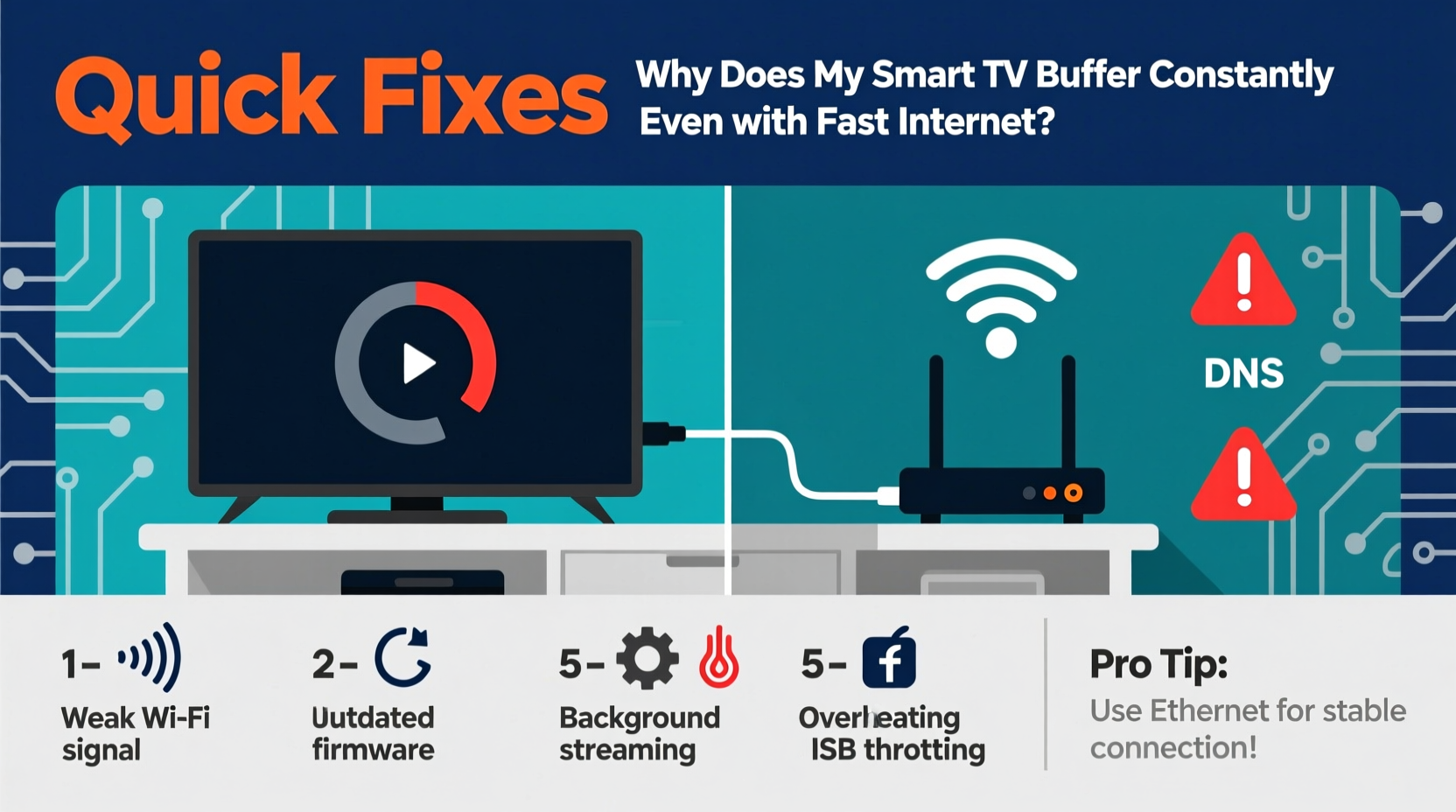
Buffering occurs when your smart TV temporarily downloads part of a video before playing it. This process ensures smooth playback by compensating for minor fluctuations in internet speed. However, when the download rate drops below the required bitrate for the content—say, 15 Mbps for 4K HDR—you see that spinning wheel.
It’s important to recognize that “fast internet” doesn’t always mean “stable streaming.” Your advertised speed (e.g., 200 Mbps) reflects peak performance under ideal conditions. Real-world throughput, especially over Wi-Fi, can be much lower due to congestion, distance, or device limitations.
“Even with gigabit speeds, inconsistent latency or packet loss can cause more buffering than slow bandwidth.” — David Lin, Network Engineer at Broadband Insights Group
Common Causes of Smart TV Buffering (Despite Fast Internet)
Before jumping to conclusions about your internet plan, consider these often-overlooked culprits:
- Wi-Fi signal degradation: Walls, appliances, and distance weaken signals, reducing actual bandwidth to your TV.
- Router congestion: Too many devices sharing bandwidth during peak hours can starve your TV.
- Outdated router firmware: Older firmware may not support modern QoS (Quality of Service) features or security protocols.
- Smart TV software bugs: Streaming apps like Netflix or YouTube may have glitches or require updates.
- Background processes: Some smart TVs run automatic updates or cloud syncs in the background, consuming bandwidth.
- DNS bottlenecks: Slow DNS resolution delays app loading and video start-up times.
Step-by-Step Guide to Stop Smart TV Buffering
Follow this proven sequence to diagnose and eliminate buffering issues:
- Test your actual internet speed at the TV location. Use a smartphone or laptop connected to the same Wi-Fi network. Run a speed test via Fast.com or Speedtest.net. If results are below 50% of your plan’s speed, Wi-Fi is likely the bottleneck.
- Move closer to the router or use a wired connection. Ethernet eliminates Wi-Fi variables. If running a cable isn’t practical, consider powerline adapters or mesh extenders.
- Reboot your router and smart TV. Unplug both for 60 seconds, then restart. This clears temporary glitches and resets IP assignments.
- Update your smart TV’s operating system and apps. Check settings for system updates and manually update streaming apps via the app store.
- Change your DNS settings. Replace your ISP’s default DNS with Google (8.8.8.8 / 8.8.4.4) or Cloudflare (1.1.1.1). This often improves app responsiveness and reduces buffering delays.
- Enable Quality of Service (QoS) on your router. Prioritize your smart TV’s MAC address or assign it higher bandwidth during streaming hours.
- Lower the video resolution temporarily. In Netflix or YouTube settings, switch to 1080p or 720p to reduce data demand and test stability.
Checklist: Quick Fixes to Apply Now
Use this checklist to resolve buffering in under 30 minutes:
- ✅ Reboot router and smart TV
- ✅ Run a speed test near the TV
- ✅ Switch to 5GHz Wi-Fi (if available)
- ✅ Close unused apps on the TV
- ✅ Update the TV’s OS and streaming apps
- ✅ Change DNS to 1.1.1.1 or 8.8.8.8
- ✅ Pause downloads or updates on other devices
- ✅ Reduce video quality in app settings
When Wi-Fi Isn’t Enough: Wired vs. Wireless Solutions
While Wi-Fi offers convenience, it’s inherently less reliable than a wired connection. The table below compares options for delivering stable internet to your smart TV:
| Solution | Speed Stability | Setup Difficulty | Best For |
|---|---|---|---|
| Ethernet Cable | Excellent | Low (if near router) | Home theaters, fixed setups |
| Powerline Adapters | Good | Moderate | Homes with older wiring |
| Mesh Wi-Fi System | Very Good | Moderate | Large homes, multiple dead zones |
| Wi-Fi Extender | Fair | Easy | Budget-conscious users |
| 5GHz Wi-Fi Only | Good (short range) | Easy | Tvs within 15 feet of router |
If your router is across the house or behind thick walls, a mesh Wi-Fi system like Eero or TP-Link Deco can dramatically improve signal strength. These systems use multiple nodes to blanket your home in consistent coverage.
Mini Case Study: How Sarah Fixed Her Buffering Problem
Sarah had a 200 Mbps fiber connection and a new Samsung QLED TV, yet her Netflix streams buffered every evening. Speed tests on her phone showed full speed, but the TV struggled after 8 PM.
After testing various fixes, she discovered two key issues: First, her router was in the basement, and the signal weakened through two floors. Second, her kids’ gaming consoles were downloading large updates during dinner.
She upgraded to a mesh Wi-Fi system and enabled QoS to prioritize the TV between 7–10 PM. She also scheduled game updates for early morning. Within days, buffering stopped completely—even during 4K streaming marathons.
“The issue wasn’t speed—it was timing and signal strength. Once I addressed both, the difference was night and day.” — Sarah T., Homestreaming Enthusiast
Advanced Tips for Persistent Buffering Issues
If basic fixes don’t work, dig deeper with these advanced strategies:
- Check for electromagnetic interference. Microwaves, cordless phones, and baby monitors operate on the same 2.4GHz frequency as Wi-Fi. Keep your router away from such devices.
- Limit connected devices. Disconnect unused gadgets from Wi-Fi. Each connected device consumes overhead, even when idle.
- Factory reset your smart TV. As a last resort, wipe the TV’s settings. This removes corrupted app data and resets network configurations.
- Use a streaming stick with better Wi-Fi. Devices like the latest Roku Ultra or Amazon Fire Stick 4K Max have stronger antennas than built-in TV Wi-Fi.
- Monitor bandwidth usage. Many routers offer real-time traffic dashboards. Use them to identify what’s hogging bandwidth.
FAQ: Common Questions About Smart TV Buffering
Why does my TV buffer only during peak hours?
Your internet may suffer from network congestion during evenings when neighbors stream or game. Even with fast service, shared infrastructure (like cable networks) can slow down. A wired connection or QoS settings help mitigate this.
Does restarting the router really help?
Yes. Routers accumulate memory leaks and connection errors over time. A reboot clears the cache, refreshes the IP lease, and often restores optimal performance. Make it a weekly habit.
Can my smart TV be too old for 4K streaming?
Possibly. TVs from 2016 or earlier may have weak processors or outdated Wi-Fi chips (802.11n or earlier), making 4K streaming unreliable. Consider adding an external 4K streaming device instead.
Conclusion: Take Control of Your Streaming Experience
Constant buffering is more than an annoyance—it breaks immersion and wastes time. But with the right approach, it’s almost always fixable. Start with simple steps like rebooting and updating, then progress to optimizing your Wi-Fi or switching to Ethernet. Most importantly, don’t assume your internet speed tells the whole story. Stability, signal strength, and device management matter just as much.
Streaming should be effortless. By applying the fixes outlined here, you can reclaim smooth playback, whether you’re watching documentaries, sports, or the latest series. Don’t settle for spinny wheels—take action today and enjoy every frame as it was meant to be seen.




 浙公网安备
33010002000092号
浙公网安备
33010002000092号 浙B2-20120091-4
Comments
No comments yet. Why don't you start the discussion?