
Streaming entertainment has become a cornerstone of modern home life. With platforms like Netflix, Hulu, Disney+, and Amazon Prime Video offering vast libraries at our fingertips, the last thing anyone wants is a frozen screen or endless buffering wheel. Yet, despite having a high-end smart TV and a reliable internet plan, many users still face persistent buffering issues. The frustration is real—especially when you're settling in for a much-anticipated movie night or live sports event.
Buffering occurs when your smart TV can’t download video data fast enough to maintain continuous playback. While it might seem like a problem with the streaming app or your TV’s performance, the root causes are often more nuanced. From network congestion to outdated firmware, several factors can disrupt the seamless delivery of content. Understanding these causes—and knowing how to address them—is essential to restoring smooth, uninterrupted viewing.
Understanding How Streaming Works on Smart TVs
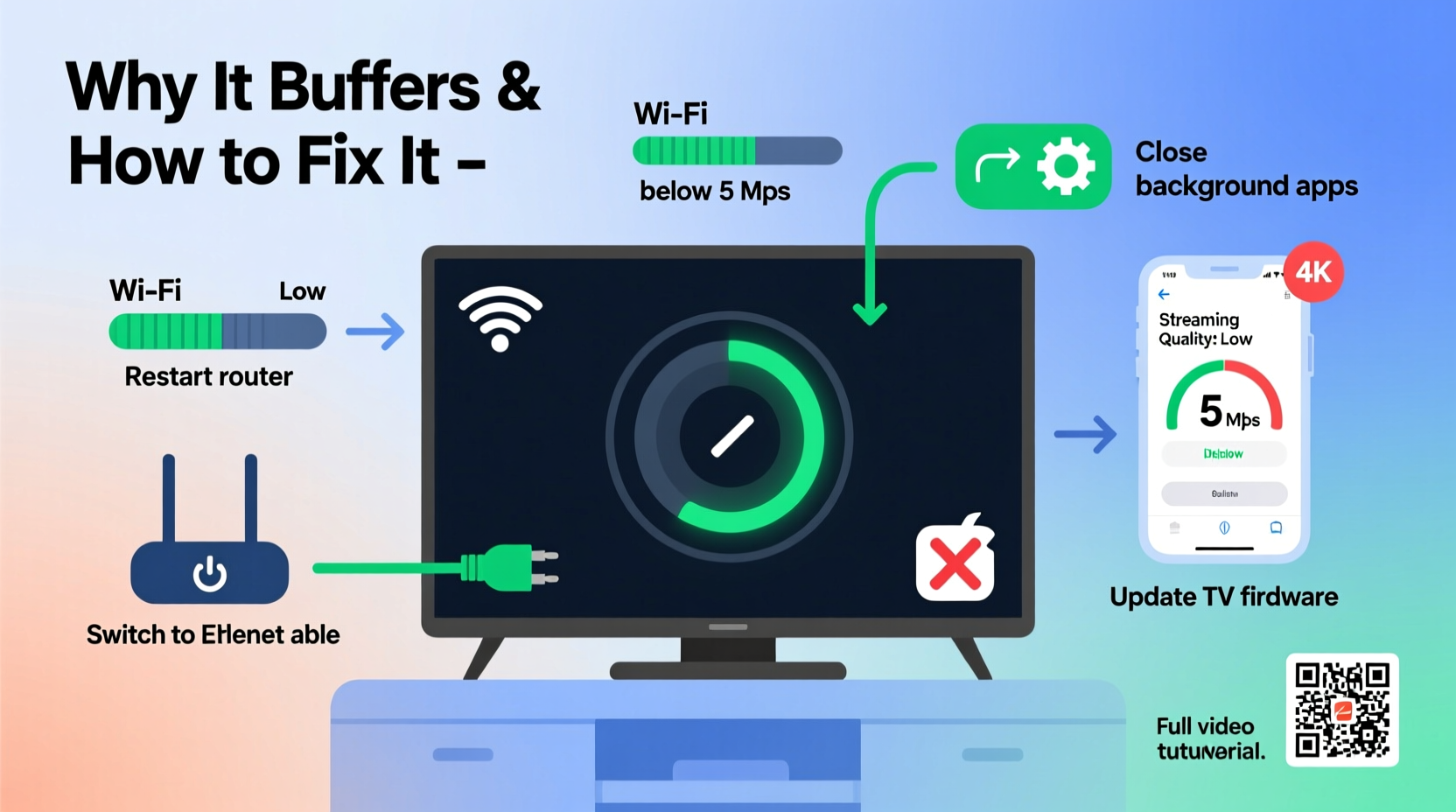
When you press play on a streaming service, your smart TV sends a request over your home network to the content provider’s servers. The video data is then transmitted in small segments called “chunks” and temporarily stored (buffered) in your device’s memory. This buffer acts as a safety net: if your connection slows momentarily, playback continues using the preloaded data.
The amount of data required depends on the video quality. Standard definition (SD) streams typically use 1–3 Mbps, while high-definition (HD) needs 5–8 Mbps. For 4K Ultra HD content, bandwidth demands jump to 15–25 Mbps. If your internet speed falls below these thresholds—or fluctuates significantly—the buffer depletes faster than it refills, causing the stream to pause and re-buffer.
But speed isn't the only factor. Latency (delay in data transmission), packet loss (data that fails to reach its destination), and Wi-Fi interference can all degrade streaming performance even if your plan promises high speeds.
“Streaming quality isn’t just about bandwidth—it’s about consistency. A stable 10 Mbps connection often outperforms an erratic 100 Mbps one.” — David Lin, Network Engineer at Broadband Insights Group
Common Causes of Smart TV Buffering
Buffering is rarely due to a single issue. More often, it's the result of overlapping technical and environmental factors. Identifying the primary culprit requires a methodical approach.
1. Insufficient Internet Speed
Your internet plan may not deliver enough bandwidth for high-quality streaming, especially during peak usage hours. Households with multiple devices simultaneously streaming, gaming, or downloading files place heavy demands on available bandwidth.
2. Weak Wi-Fi Signal
Smart TVs are often placed far from the router, behind walls, or near large metal objects (like refrigerators or entertainment centers), all of which weaken Wi-Fi signals. A weak signal leads to lower throughput and higher latency, both of which contribute to buffering.
3. Network Congestion
Even with strong Wi-Fi, too many connected devices can saturate your network. Background updates, cloud backups, smart home gadgets, and mobile devices all consume bandwidth, leaving less for your TV.
4. Outdated TV Firmware or App Software
Manufacturers regularly release firmware updates to improve stability, security, and streaming efficiency. An outdated operating system or streaming app may struggle with current video codecs or network protocols, leading to inefficient data handling.
5. Router Limitations
Older routers may lack support for modern standards like dual-band Wi-Fi (2.4 GHz and 5 GHz), MU-MIMO (multi-user, multiple input, multiple output), or Quality of Service (QoS) settings. These features are crucial for managing traffic efficiently across multiple devices.
6. Server-Side Issues
Sometimes, the problem lies beyond your control. During major events—such as live sports or new show releases—streaming platforms experience surges in demand. This can overload their servers, resulting in delayed content delivery regardless of your local setup.
Step-by-Step Guide to Prevent Buffering
Resolving buffering issues involves optimizing both your hardware and network environment. Follow this sequence to systematically eliminate common causes.
- Check Your Internet Speed
Use a trusted speed test tool on your smart TV or a device connected to the same network. Ensure your download speed meets or exceeds the recommended rates for your desired resolution. - Restart Your Devices
Power cycle your smart TV, router, and modem. Unplug them for 30 seconds before reconnecting. This clears temporary glitches and refreshes network connections. - Move Closer to the Router or Use Ethernet
If possible, connect your TV directly to the router via an Ethernet cable. Wired connections provide faster, more stable performance than Wi-Fi. If wiring isn’t feasible, consider relocating your router closer to the TV or using a Wi-Fi extender. - Switch to the 5 GHz Wi-Fi Band
Most modern routers offer dual bands. The 5 GHz band provides faster speeds and less interference than the crowded 2.4 GHz band. Connect your smart TV to the 5 GHz network if supported. - Update Firmware and Apps
Navigate to your TV’s settings menu and check for system updates. Also, ensure all streaming apps are updated to their latest versions through the app store or launcher. - Limit Connected Devices
Temporarily disconnect non-essential devices during streaming sessions. Pause downloads, stop background updates, and ask household members to avoid bandwidth-heavy activities. - Enable QoS Settings on Your Router
Log into your router’s admin panel and enable Quality of Service. Prioritize traffic to your smart TV’s IP or MAC address to reserve bandwidth for streaming. - Lower Streaming Resolution Temporarily
If buffering persists, manually reduce the video quality in your streaming app settings. This reduces bandwidth needs and helps maintain continuity until network conditions improve.
Do’s and Don’ts: Smart TV Streaming Best Practices
| Do’s | Don’ts |
|---|---|
| Use an Ethernet connection whenever possible | Place your router inside a cabinet or behind metal objects |
| Keep your router firmware up to date | Ignore software update notifications on your smart TV |
| Reboot your network equipment monthly | Stream 4K content on a 10 Mbps connection |
| Use a mesh Wi-Fi system in large homes | Run large downloads while watching movies |
| Close unused apps on your smart TV | Assume your ISP is always at fault without testing |
Real Example: Solving Buffering in a Multi-Device Household
Consider Sarah, a homeowner in Austin, Texas, who frequently experienced buffering on her 4K smart TV despite having a 100 Mbps internet plan. Her children were simultaneously gaming online, her husband was on a video call, and multiple smart devices were syncing in the background. Initial troubleshooting revealed her router was five years old and only supported single-band Wi-Fi.
She began by connecting her TV directly to the router via Ethernet, which immediately improved stability. Next, she upgraded to a dual-band mesh Wi-Fi system and configured QoS to prioritize the living room devices. She also scheduled automatic updates for off-peak hours and set her streaming apps to default to 1080p unless she manually selected 4K.
The result? No more mid-show interruptions. Even during family movie nights with multiple devices active, her streaming remained smooth and responsive.
Expert Tips to Optimize Your Streaming Experience
- Monitor Network Usage: Many routers include dashboards that show real-time bandwidth consumption per device. Use this to identify bandwidth hogs.
- Position Your Router Strategically: Place it centrally, elevated, and away from thick walls or appliances that emit electromagnetic interference.
- Use DNS Optimization: Switching to public DNS services like Google DNS (8.8.8.8) or Cloudflare (1.1.1.1) can sometimes improve connection speed and reliability.
- Invest in a Streaming-Friendly Router: Look for models with dedicated media streaming optimization, such as those certified under the “Wi-Fi Certified Home Design” program.
Frequently Asked Questions
Why does my smart TV buffer even with fast internet?
Fast advertised speeds don’t guarantee consistent performance. Issues like Wi-Fi interference, outdated firmware, or internal TV processing delays can still cause buffering. Additionally, peak-time throttling by your ISP or server congestion from the streaming platform may be factors. Always test actual speeds at the TV and consider a wired connection for maximum reliability.
Can a VPN cause my smart TV to buffer?
Yes. While some smart TVs support VPNs natively, most require router-level configuration. A VPN encrypts your traffic and routes it through remote servers, which adds latency and can reduce effective bandwidth. If you're using a distant or overloaded VPN server, streaming performance will likely suffer. Choose a nearby server location with low load for better results.
Is it worth upgrading my internet plan to fix buffering?
It depends. If your current plan delivers less than 25 Mbps and you’re trying to stream 4K content, an upgrade is justified. However, if you already have 100+ Mbps but still experience issues, the bottleneck is likely your Wi-Fi setup or internal network management—not raw speed. Focus on improving signal strength and reducing congestion before increasing your plan cost.
Conclusion: Take Control of Your Streaming Experience
Buffering doesn’t have to be a regular part of your viewing routine. By understanding the interplay between your internet connection, network hardware, and smart TV settings, you can diagnose and resolve most issues effectively. Simple changes—like switching to a wired connection, updating firmware, or adjusting router placement—can yield dramatic improvements.
Streaming should be effortless. With the right setup, you can enjoy crisp, uninterrupted playback in the highest quality your connection supports. Start applying these strategies today, and reclaim your binge-watching peace of mind.




 浙公网安备
33010002000092号
浙公网安备
33010002000092号 浙B2-20120091-4
Comments
No comments yet. Why don't you start the discussion?