
Streaming entertainment should be seamless, especially when you’ve invested in a high-speed internet plan and a premium smart TV. Yet, many users still face frustrating buffering—spinning wheels interrupting movies, shows, or live sports. The paradox of buffering on a fast connection is more common than you think, and the root causes often lie beyond raw bandwidth numbers. Understanding these hidden culprits and applying targeted fixes can transform your viewing experience from choppy to flawless.
Buffering occurs when your smart TV can’t download data quickly enough to maintain continuous playback. While slow internet is an obvious cause, modern networks are rarely the sole issue. Instead, network congestion, hardware limitations, software inefficiencies, and external interference all contribute. This guide dives into the real reasons behind persistent buffering and provides actionable, proven solutions that go beyond restarting your router.
Understanding the Real Causes of Smart TV Buffering
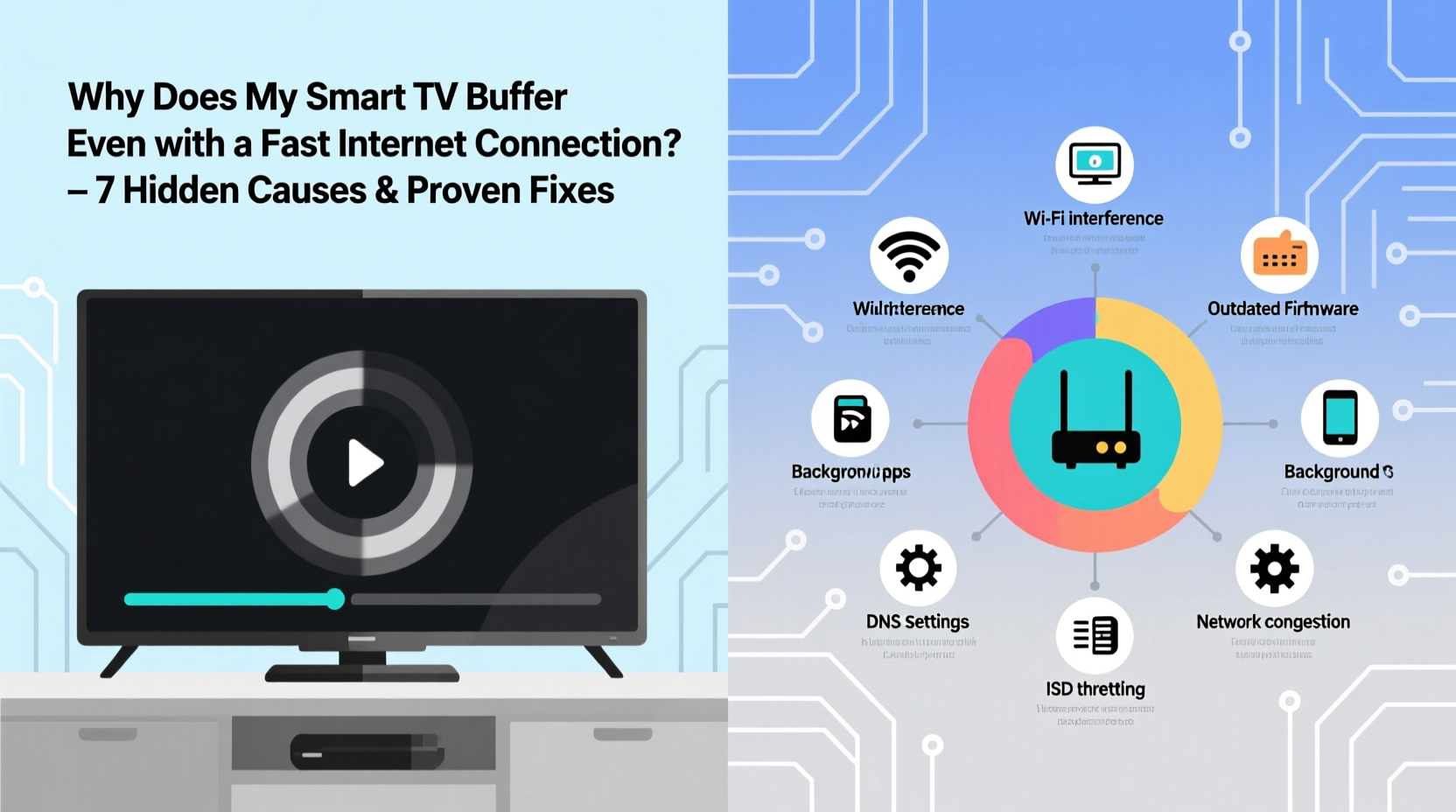
A fast internet speed—say 100 Mbps or higher—should theoretically support multiple 4K streams without issue. But streaming performance depends on more than just download speed. Several technical factors influence how efficiently data travels from the service provider (like Netflix or YouTube) to your screen:
- Wi-Fi signal strength: Distance, walls, and household appliances can weaken Wi-Fi signals, reducing effective throughput.
- Network congestion: Multiple devices using bandwidth simultaneously (phones, tablets, laptops) can saturate your network.
- Smart TV hardware limitations: Older or budget models may have underpowered processors or outdated Wi-Fi chips.
- DNS inefficiency: Slow domain resolution can delay content loading, even with high-speed connections.
- Server-side throttling: Streaming platforms sometimes limit bitrates based on perceived network conditions.
These issues create bottlenecks that prevent your fast internet from being fully utilized by your TV.
Common Misconceptions About Internet Speed and Streaming
Many users assume that as long as their internet plan promises high speeds, streaming will be smooth. However, several myths persist:
- \"Speed test results equal streaming performance\": A speed test measures peak capacity under ideal conditions. Real-world streaming involves sustained data flow, which can falter due to latency or jitter.
- \"More Mbps always means better streaming\": Beyond a certain threshold (typically 25–50 Mbps for 4K), additional speed doesn’t improve quality unless other variables are optimized.
- \"Restarting the router fixes everything\": While helpful, reboots only provide temporary relief if underlying issues like outdated firmware or poor channel selection remain.
The key is consistency—not peak speed. A stable 30 Mbps connection often outperforms an unstable 200 Mbps one when it comes to uninterrupted video playback.
Step-by-Step Guide to Eliminate Buffering Permanently
Solving buffering requires a methodical approach. Follow this sequence to isolate and resolve the issue:
- Test your actual internet speed at the TV location. Use a smartphone or laptop connected to the same Wi-Fi network as your TV. Tools like Fast.com or Speedtest.net reveal real-world performance.
- Check for network congestion. Disconnect non-essential devices or schedule heavy downloads (e.g., game updates) during off-peak hours.
- Switch DNS servers. Default ISP DNS can be slow. Change your router settings to use Google DNS (8.8.8.8 and 8.8.4.4) or Cloudflare (1.1.1.1).
- Update your smart TV’s firmware. Outdated software can contain bugs affecting network performance. Check Settings > Support > Software Update.
- Optimize Wi-Fi channel usage. Use a Wi-Fi analyzer app to find the least congested 2.4 GHz or 5 GHz channel and set it manually in your router.
- Use Quality of Service (QoS) settings. Prioritize your smart TV in your router’s QoS menu to ensure it gets sufficient bandwidth.
- Lower stream quality temporarily. In apps like Netflix, reduce video quality to 1080p to test if buffering stops—this helps diagnose bandwidth vs. hardware issues.
Each step targets a different layer of the streaming ecosystem, increasing the likelihood of a permanent fix.
Hardware Hacks That Make a Real Difference
Your smart TV is only as good as its weakest component. Many built-in Wi-Fi receivers struggle with signal penetration and interference, especially in larger homes.
| Solution | How It Helps | Cost Range |
|---|---|---|
| Ethernet cable (wired connection) | Eliminates Wi-Fi instability; delivers full bandwidth | $10–$20 |
| Wi-Fi 6 mesh system | Extends strong signal throughout home; reduces dead zones | $200–$500 |
| Streaming stick with Ethernet adapter | Allows wired connection even on TVs without ports | $40–$70 |
| USB Wi-Fi extender for TV | Boosts reception if internal antenna is weak | $25–$50 |
For maximum reliability, a wired Ethernet connection remains the gold standard. Even a short cable run behind baseboards can eliminate 90% of streaming issues.
“Most buffering problems aren’t about speed—they’re about stability. A wired connection or Wi-Fi 6 upgrade can make a bigger difference than doubling your internet plan.” — David Lin, Network Engineer at Broadband Insights Group
Mini Case Study: Fixing Chronic Buffering in a Two-Story Home
Consider Mark, a homeowner with a 150 Mbps fiber connection and a 4-year-old Samsung smart TV. Despite fast internet, his Netflix streams frequently paused every few minutes. Initial troubleshooting revealed:
- Speed test on phone near TV: 45 Mbps down
- Router located in basement, TV on second floor
- 12+ devices connected simultaneously
- No QoS settings enabled
Mark applied the following fixes in order:
- Installed a Wi-Fi 6 mesh node upstairs
- Updated router firmware and switched to Cloudflare DNS
- Enabled QoS to prioritize the TV
- Ran a 15-foot Ethernet cable from the mesh node to the TV
Result: Speed at the TV jumped to 138 Mbps with zero packet loss. Buffering stopped completely, even during peak evening hours.
Software and App-Level Fixes You Shouldn’t Ignore
Even with perfect hardware, poorly configured apps can cause buffering. Streaming platforms store cache data that degrades over time, leading to crashes and stalling.
Essential App Maintenance Checklist
- Clear cache for each streaming app monthly
- Delete and reinstall apps that consistently lag
- Disable autoplay trailers and background downloads in app settings
- Turn off HDR or Dolby Vision if your network struggles with high bitrates
- Log out and back into accounts to refresh authentication tokens
For example, YouTube on smart TVs often buffers due to excessive background preloading. Disabling “Autoplay” and “Background play” in settings reduces strain on both network and device memory.
When Your ISP Is the Hidden Culprit
Some internet providers engage in traffic shaping—intentionally slowing video streams during peak times. Others impose data caps that trigger throttling after a certain usage threshold.
To detect ISP-related throttling:
- Run a speed test while streaming a video (note any drastic drops).
- Use a trusted VPN to encrypt your traffic. If buffering stops, your ISP may be throttling unencrypted video streams.
- Check your billing plan for fair usage policies or hidden bandwidth limits.
If a VPN resolves the issue, you have evidence of selective throttling. Contact your ISP or consider switching providers.
FAQ: Common Questions About Smart TV Buffering
Why does my smart TV buffer only during peak hours?
This typically indicates network congestion either in your home (multiple users) or within your ISP’s infrastructure. Neighborhood-wide demand spikes can reduce available bandwidth, even on fast plans. Using QoS or shifting streaming to off-peak times helps.
Can too many devices really slow down my smart TV?
Yes. Each connected device consumes bandwidth and router processing power. A single 4K stream uses 15–25 Mbps. Add cloud backups, video calls, and gaming, and your network can easily become overloaded—even with high-speed internet.
Is my smart TV too old to stream properly?
Possibly. TVs older than 5 years may lack HEVC decoding, efficient Wi-Fi chips, or sufficient RAM. These limitations increase buffering regardless of internet speed. Consider adding a modern streaming device like an Apple TV 4K or Roku Ultra for smoother performance.
Conclusion: Take Control of Your Streaming Experience
Buffering on a fast internet connection isn’t inevitable—it’s a solvable problem rooted in overlooked technical details. From optimizing Wi-Fi channels to upgrading hardware and confronting ISP practices, the solutions are within reach. Don’t accept spinning wheels as normal. By systematically addressing network stability, device capability, and software efficiency, you can unlock the full potential of your internet plan and enjoy seamless, high-quality streaming every time you turn on your TV.




 浙公网安备
33010002000092号
浙公网安备
33010002000092号 浙B2-20120091-4
Comments
No comments yet. Why don't you start the discussion?