
Streaming entertainment should be seamless—crisp visuals, uninterrupted playback, and instant access to your favorite shows. Yet, even with a high-speed internet plan, many users still experience frustrating buffering on their smart TVs. The issue isn’t always about bandwidth; it’s often a combination of network inefficiencies, device limitations, and overlooked settings. Understanding the root causes behind this common problem is the first step toward eliminating lag and restoring smooth playback.
Buffering occurs when your smart TV can't download data quickly enough to keep up with playback. While slow internet is a frequent culprit, modern users are increasingly baffled when buffering persists despite paying for fast connections. The truth is, your overall internet speed is just one piece of a much larger puzzle. Network congestion, Wi-Fi interference, outdated firmware, and even the streaming service itself can all contribute to performance issues.
Understanding the Real Causes Behind Smart TV Buffering
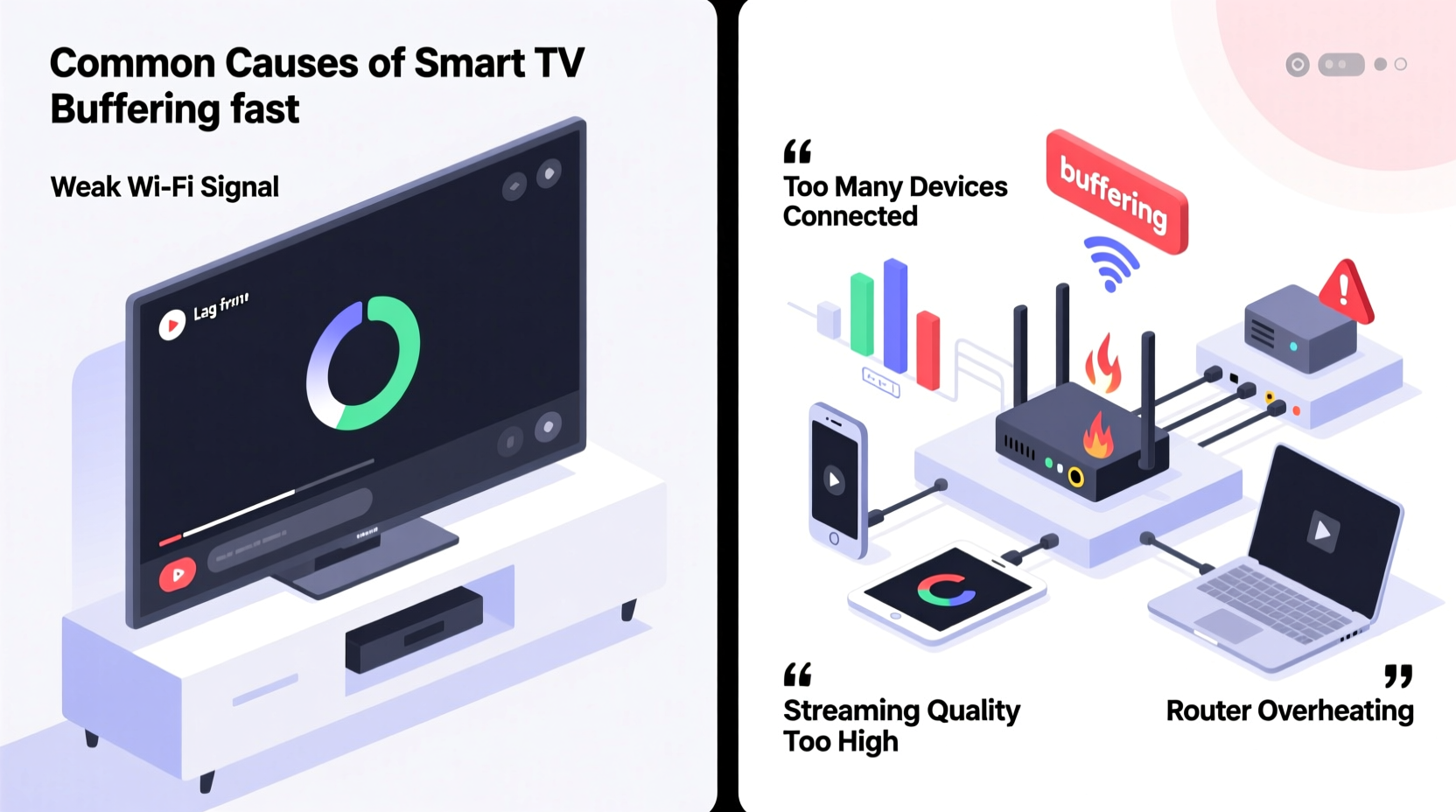
Before jumping into fixes, it's important to recognize that \"fast internet\" doesn't guarantee consistent performance. Internet Service Providers (ISPs) advertise peak speeds under ideal conditions, but real-world usage varies significantly. Streaming requires stable, low-latency connections—not just raw download speed. A connection rated at 100 Mbps might deliver only 30–50 Mbps during peak hours due to network congestion or signal degradation.
Smart TVs also face unique challenges compared to smartphones or laptops. They typically have less powerful processors, limited RAM, and older Wi-Fi chips. Many models rely on 2.4 GHz Wi-Fi bands, which are slower and more prone to interference than 5 GHz. Additionally, built-in apps like Netflix, Hulu, or YouTube may not be optimized for long-term use and can accumulate cache or run background processes that degrade performance over time.
Another often-overlooked factor is Quality of Service (QoS) settings on your router. If multiple devices are using bandwidth-intensive applications—such as cloud backups, video calls, or game downloads—your smart TV may get deprioritized, leading to inconsistent streaming quality.
“Even with gigabit internet, poor Wi-Fi placement or outdated hardware can bottleneck your entire home network.” — David Lin, Senior Network Engineer at Broadband Insights Group
Step-by-Step Guide to Eliminate Smart TV Buffering
Resolving buffering issues requires a systematic approach. Follow these steps in order to identify and fix the underlying cause:
- Test Your Actual Internet Speed
Use a wired Ethernet connection to test your internet speed directly on a laptop connected to the same network. Tools like Speedtest.net or Fast.com will show your real download speed, upload speed, and latency. Compare results with what your ISP promises. If speeds are significantly lower, contact your provider. - Check Wi-Fi Signal Strength on Your Smart TV
Navigate to your smart TV’s network settings and review the signal strength. A weak signal (below -70 dBm) indicates poor reception. Move the router closer, remove obstructions, or consider a Wi-Fi extender. - Switch from 2.4 GHz to 5 GHz Wi-Fi
If your router supports dual-band Wi-Fi and your smart TV is within range, connect to the 5 GHz network. It offers faster speeds and less interference, though with shorter range. - Restart Your Router and Smart TV
Power cycle both devices. Unplug them for 30 seconds, then plug them back in. This clears temporary glitches and resets network handshakes. - Clear App Cache and Data
Go to your smart TV’s settings, find the streaming app (e.g., Netflix), and clear its cache. On some platforms like Android TV, you can also clear app data to reset it completely. - Update Firmware and Apps
Ensure your smart TV’s operating system and all streaming apps are up to date. Manufacturers release updates that improve stability and compatibility. - Reduce Network Load
Pause large downloads, cloud syncs, or gaming sessions on other devices while streaming. This frees up bandwidth for your TV. - Enable QoS Settings on Your Router
Log into your router’s admin panel and prioritize media streaming traffic. Assign higher priority to your smart TV’s IP address to ensure consistent delivery.
Common Mistakes That Worsen Buffering
Even well-intentioned users can unknowingly make problems worse. Here are typical errors that lead to persistent buffering:
- Ignoring router placement: Placing the router in a closet, basement, or behind metal objects severely limits signal strength.
- Using outdated routers: Routers more than 3–5 years old may not support modern Wi-Fi standards (like Wi-Fi 5 or Wi-Fi 6), limiting throughput.
- Overloading the network: Running multiple 4K streams, gaming consoles, and smart home devices simultaneously can exhaust available bandwidth.
- Assuming all “fast” plans are equal: Some ISPs throttle streaming traffic or offer inconsistent speeds during peak times.
- Not restarting devices regularly: Like computers, smart TVs and routers benefit from periodic reboots to clear memory leaks and refresh connections.
Do’s and Don’ts: Smart TV Streaming Best Practices
| Do | Don’t |
|---|---|
| Use Ethernet for critical streaming devices | Rely solely on distant Wi-Fi signals |
| Position your router centrally and elevated | Place the router near microwaves or cordless phones |
| Update your router firmware monthly | Ignore firmware update notifications |
| Limit simultaneous 4K streams based on your bandwidth | Stream 4K on multiple devices with only 50 Mbps service |
| Reboot your network weekly | Leave routers running for months without restarts |
Mini Case Study: Solving Persistent Buffering in a Modern Home
Consider the case of Sarah, a homeowner with a 200 Mbps fiber connection and a 4-year-old Samsung smart TV. Despite her fast plan, she experienced constant buffering when watching Disney+ in 4K. Initial troubleshooting revealed her Wi-Fi signal was weak (-78 dBm) because the router was in the garage, two walls away from the living room.
She first tried a Wi-Fi extender, but performance remained inconsistent. Then, she switched her TV to the 5 GHz band—improving speed from 18 Mbps to 65 Mbps. Still, occasional stuttering occurred during evening hours. A deeper investigation showed her children were downloading games on consoles and uploading videos via cloud backup tools simultaneously.
The final solution involved three steps: relocating the router to a central hallway, enabling QoS to prioritize the TV, and scheduling large downloads for off-peak hours. After these changes, buffering ceased entirely. Her actual streaming bandwidth stabilized at 85 Mbps, more than sufficient for 4K content.
When Hardware Is the Limiting Factor
Sometimes, no amount of software tweaking can overcome aging hardware. Older smart TVs, especially those from 2015–2018, often have underpowered chipsets and limited memory. These devices struggle with modern 4K HDR content and complex app interfaces, leading to internal processing delays that mimic buffering.
In such cases, upgrading to a dedicated streaming device often provides better value than buying a new TV. Devices like Apple TV 4K, NVIDIA Shield, or Roku Ultra come with faster processors, ample RAM, and regular software updates. They also support advanced features like Dolby Vision, HDMI 2.1, and superior Wi-Fi 6 connectivity.
A simple rule of thumb: if your smart TV is more than five years old and frequently lags—even after cleaning cache and updating software—it may be time to bypass its built-in apps entirely and use an external streamer.
FAQ: Common Questions About Smart TV Buffering
Does internet speed really matter for HD vs. 4K streaming?
Yes. Standard HD (1080p) streaming typically requires 5–8 Mbps, while 4K Ultra HD needs at least 25 Mbps per stream. However, consistent speed matters more than peak speed. Fluctuations or high latency can disrupt playback even above minimum thresholds.
Can my neighbor’s Wi-Fi affect my smart TV?
Yes, especially on the 2.4 GHz band. Overlapping channels from nearby networks create interference. Use a Wi-Fi analyzer app to find the least congested channel and adjust your router settings accordingly.
Is it better to use a wired connection or Wi-Fi 6?
Ethernet is still the gold standard for reliability. Wi-Fi 6 improves wireless performance significantly, but physical obstacles and distance still impact signal quality. For stationary devices like TVs, always prefer a wired connection if feasible.
Final Checklist: Stop Buffering for Good
- ✅ Test actual internet speed using a wired device
- ✅ Confirm smart TV is on 5 GHz Wi-Fi (if supported)
- ✅ Move router closer or install a mesh Wi-Fi system
- ✅ Clear cache and update all streaming apps
- ✅ Reboot router and smart TV weekly
- ✅ Enable QoS and prioritize media traffic
- ✅ Limit concurrent high-bandwidth activities
- ✅ Consider switching to a streaming stick or box if TV is outdated
Conclusion: Take Control of Your Streaming Experience
Buffering on a smart TV despite fast internet is a solvable problem—not a permanent limitation. By understanding the interplay between network conditions, device capabilities, and usage habits, you can dramatically improve your viewing experience. Small adjustments like switching Wi-Fi bands, clearing app data, or relocating your router often yield immediate results. For long-term reliability, investing in modern networking gear and external streaming devices pays dividends in performance and peace of mind.




 浙公网安备
33010002000092号
浙公网安备
33010002000092号 浙B2-20120091-4
Comments
No comments yet. Why don't you start the discussion?