
Streaming on your smart TV should be seamless—crisp visuals, immersive sound, and zero interruptions. Yet, if you're frequently greeted with spinning wheels and “buffering” messages, the experience quickly turns frustrating. Buffering doesn’t just break immersion; it signals underlying issues in your network, device settings, or service delivery. The good news is that most causes are fixable with the right knowledge and tools. This guide breaks down the root reasons behind persistent buffering and delivers actionable solutions to significantly improve your streaming quality.
Understanding Why Buffering Happens
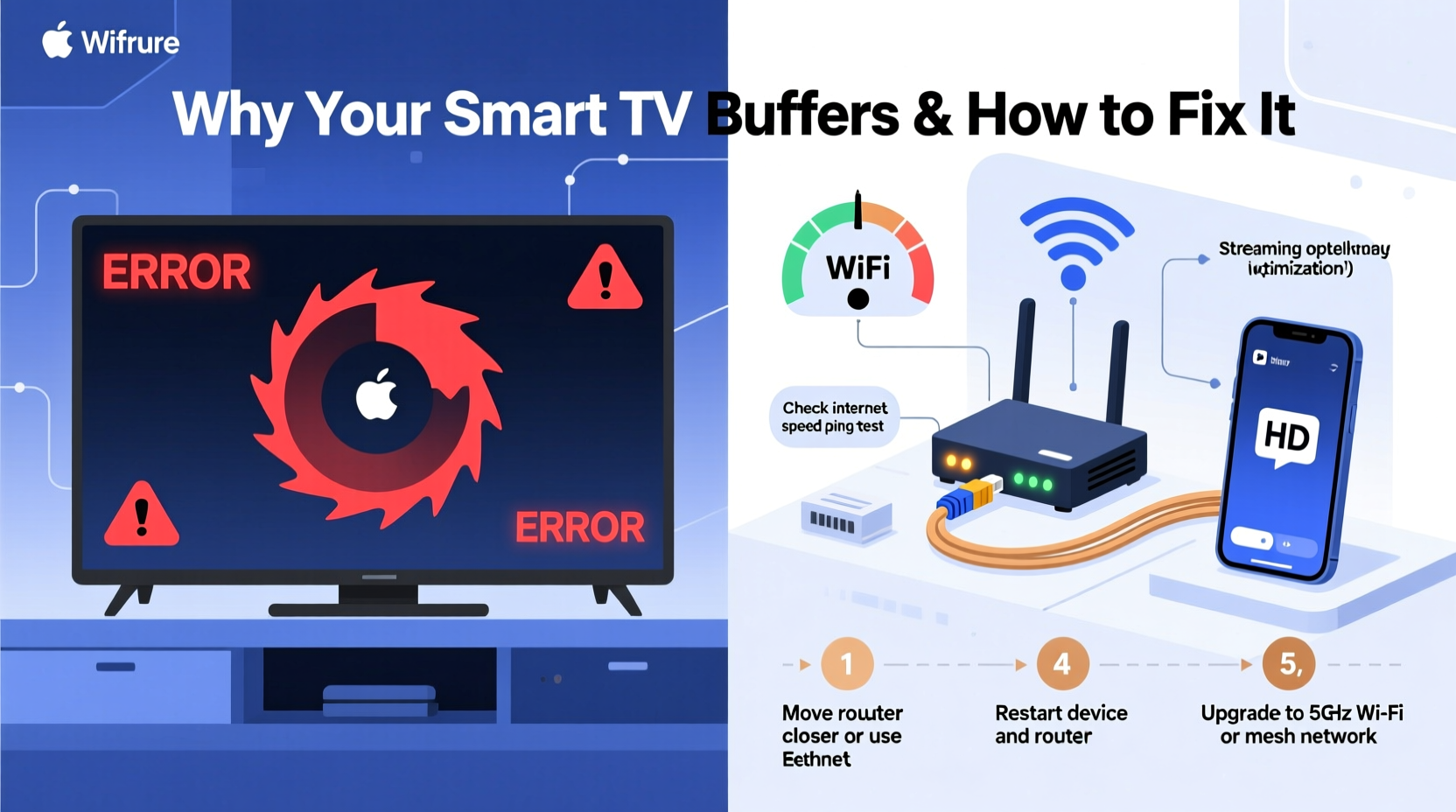
Buffering occurs when your smart TV can’t download video data fast enough to maintain continuous playback. Streaming services like Netflix, Hulu, and Disney+ rely on a steady flow of data from the internet to your device. When that flow is interrupted or too slow, the player pauses to \"buffer\"—download more data—before resuming. While occasional buffering might be normal during peak hours, consistent delays point to deeper problems.
The primary culprits fall into three categories: internet speed, network congestion, and device limitations. Your broadband connection may not meet the minimum requirements for high-definition (HD) or 4K content. Even if your plan promises high speeds, real-world performance often varies due to Wi-Fi interference, router placement, or outdated hardware. Additionally, multiple devices sharing bandwidth—such as smartphones, laptops, or gaming consoles—can strain your network, leaving insufficient data for smooth streaming.
Common Causes of Smart TV Buffering
Not all buffering issues stem from your internet provider. Many originate within your home setup. Identifying the specific cause is the first step toward resolution.
- Slow or inconsistent internet speed: If your connection drops below the required threshold for your streaming resolution, buffering becomes inevitable.
- Wi-Fi signal weakness: Distance from the router, physical obstructions (walls, appliances), or interference from other electronics can degrade signal strength.
- Outdated firmware or apps: Smart TVs run on software that requires regular updates. Outdated versions may have bugs affecting streaming performance.
- Router limitations: Older routers may not support modern Wi-Fi standards (like Wi-Fi 5 or Wi-Fi 6), limiting throughput and range.
- Peak usage times: During evenings or major events, ISPs may experience congestion, slowing speeds across the board.
- Too many connected devices: Each device consumes bandwidth. Simultaneous downloads, cloud backups, or video calls reduce available capacity for your TV.
“Many users assume their internet plan guarantees consistent speeds, but real-world conditions like signal interference and device load heavily influence actual performance.” — David Lin, Network Infrastructure Specialist
How to Boost Streaming Quality: A Step-by-Step Guide
Improving your streaming experience isn’t about guesswork—it’s about systematic optimization. Follow this sequence to identify and resolve the most likely bottlenecks.
- Test your internet speed at the TV location. Use a speed test app on your smart TV or connect a device near the TV to measure actual download and upload speeds. Compare results to your ISP’s advertised rates.
- Restart your router and modem. Power cycle both devices by unplugging them for 30 seconds. This clears temporary glitches and refreshes the connection.
- Move your router closer to the TV or eliminate obstacles. Position the router centrally, away from metal objects, microwaves, or thick walls that block signals.
- Switch from Wi-Fi to Ethernet. If possible, connect your smart TV directly to the router using a Cat 6 cable. Wired connections are faster and more stable than wireless.
- Update your smart TV’s software and apps. Check the settings menu for system updates and ensure streaming apps are current.
- Reduce network congestion. Pause large downloads on other devices or schedule them during off-peak hours.
- Upgrade your router if necessary. Consider a dual-band or tri-band model with MU-MIMO support for better handling of multiple devices.
- Adjust streaming quality settings. Lower the resolution temporarily in your app settings to see if buffering stops—this helps isolate whether speed is the issue.
Do’s and Don’ts of Smart TV Streaming
| Do’s | Don’ts |
|---|---|
| Use a wired Ethernet connection whenever possible | Place your router inside a cabinet or behind metal objects |
| Position your router centrally and elevated | Ignore firmware updates for your TV or router |
| Limit background downloads during streaming | Stream 4K content on a connection slower than 25 Mbps |
| Reboot your network equipment weekly | Assume your internet speed is always what your ISP advertises |
| Use Wi-Fi extenders or mesh systems for large homes | Overload your network with 10+ active devices simultaneously |
Real-World Example: Solving Persistent Buffering in a Multi-Device Household
Consider Sarah, a remote worker living with two teenagers who stream videos daily. Her 4K smart TV constantly buffered during dinner hours, despite having a 100 Mbps internet plan. Initial troubleshooting revealed her router was in the basement, far from the living room TV. Speed tests near the TV showed only 12 Mbps download. After moving the router upstairs and switching to a dual-band Wi-Fi 6 model, speeds improved to 78 Mbps. She also enabled QoS to prioritize the TV and scheduled large file backups for late-night hours. The result? No buffering for over three weeks, even during family movie nights.
This case highlights how environmental factors and household usage patterns impact performance—issues that aren’t immediately obvious without systematic testing.
When Hardware Is the Limiting Factor
Even with excellent internet, older smart TVs may struggle due to limited processing power or outdated Wi-Fi chips. Some models from 2015–2018 used early-generation Wi-Fi 4 (802.11n) technology, which maxes out at around 150 Mbps under ideal conditions—but real-world performance is often much lower. Newer 4K HDR content demands more from both bandwidth and decoding capabilities.
If your TV is more than five years old, consider using an external streaming device like an Amazon Fire Stick 4K, Apple TV 4K, or Roku Ultra. These devices typically feature superior Wi-Fi antennas, faster processors, and regular software updates, often outperforming built-in smart platforms. In many cases, adding a dedicated streamer resolves buffering where internal apps fail.
Optimizing Router Settings for Streaming
Your router is the traffic controller of your home network. Optimizing its settings can dramatically improve streaming stability.
- Use the 5 GHz band: Unlike the crowded 2.4 GHz band, 5 GHz offers faster speeds and less interference—ideal for streaming. Ensure your TV connects to this band if supported.
- Change Wi-Fi channels manually: In densely populated areas, neighboring networks can interfere. Log into your router and switch to a less congested channel (e.g., 36, 40, 44, or 48 on 5 GHz).
- Enable UPnP (Universal Plug and Play): This allows your smart TV to automatically open ports for smoother communication with streaming servers.
- Set up a guest network: Offload smartphones, tablets, and IoT devices to a separate network to free up bandwidth on your main one.
For larger homes, a mesh Wi-Fi system (like Google Nest Wi-Fi or Eero) can eliminate dead zones by using multiple nodes to blanket your space with strong signal coverage.
Streaming Quality Checklist
Follow this checklist to systematically eliminate buffering causes and enhance your viewing experience:
- ✅ Test internet speed at the TV location
- ✅ Restart modem and router
- ✅ Update smart TV operating system and apps
- ✅ Connect via Ethernet instead of Wi-Fi (if possible)
- ✅ Move router closer to the TV or use a Wi-Fi extender
- ✅ Switch to the 5 GHz Wi-Fi band
- ✅ Limit bandwidth-heavy activities during streaming
- ✅ Upgrade router to Wi-Fi 5 or Wi-Fi 6 standard
- ✅ Install a dedicated streaming device if TV is outdated
- ✅ Schedule automatic reboots for router (via app or timer)
Frequently Asked Questions
Why does my smart TV buffer even with fast internet?
Fast internet on paper doesn’t guarantee consistent delivery. Issues like Wi-Fi interference, outdated firmware, or internal TV hardware limitations can still cause buffering. Also, speed tests often measure performance near the router—your TV may receive much less due to distance or obstacles.
Can too many devices cause my TV to buffer?
Yes. Every connected device shares your total bandwidth. If multiple people are gaming, downloading, or video calling, there may not be enough left for high-bitrate streaming. Use QoS settings or limit concurrent heavy usage.
Is it better to use a streaming stick instead of the built-in smart system?
Often, yes. External streamers usually have better processors, updated software, and stronger Wi-Fi reception. They’re also easier to replace or upgrade than an entire TV. Models like the Chromecast with Google TV or Apple TV offer superior performance over aging smart platforms.
Final Thoughts: Take Control of Your Streaming Experience
Buffering shouldn’t be a regular part of your entertainment routine. By understanding the interplay between your internet service, network setup, and device capabilities, you can diagnose and resolve the root causes effectively. Start with simple fixes—restarting your router, updating software, or switching to Ethernet—and progress to hardware upgrades if needed. Small adjustments often yield dramatic improvements.




 浙公网安备
33010002000092号
浙公网安备
33010002000092号 浙B2-20120091-4
Comments
No comments yet. Why don't you start the discussion?