
Streaming entertainment should be seamless. Yet, even with a high-speed internet plan, many users find their smart TVs constantly pausing, spinning, or displaying that dreaded buffering icon. It’s frustrating—especially when you’ve paid for premium service and are ready to enjoy your favorite show. The truth is, buffering isn’t always about internet speed. Multiple factors, from network congestion to outdated firmware, can disrupt your stream. Understanding the root causes and applying targeted solutions can restore smooth playback and get you back to binge-watching without interruptions.
Understanding the Real Causes of Smart TV Buffering
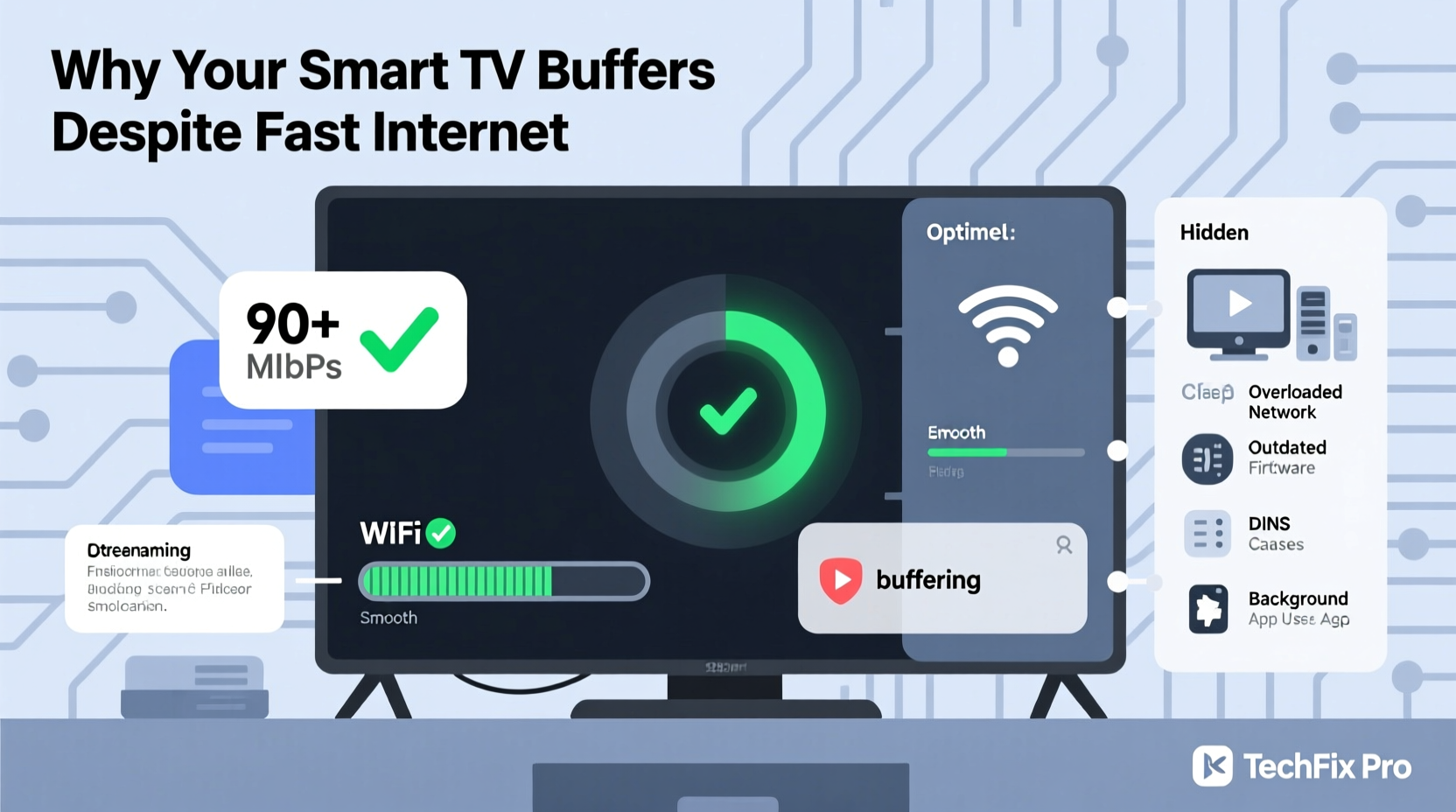
Buffering occurs when your smart TV temporarily downloads part of a video before playing it. If the download rate slows down, the buffer empties faster than it fills, causing the stream to pause. While slow internet is a common culprit, it's far from the only one. Even with 100 Mbps or higher speeds, several hidden issues may still interfere.
- Network Congestion: Multiple devices using bandwidth simultaneously (e.g., smartphones, laptops, gaming consoles) can saturate your network.
- Wi-Fi Signal Strength: Distance from the router, physical obstructions (walls, appliances), or interference from other electronics weaken signal quality.
- Router Limitations: Older or low-end routers may struggle with modern streaming demands, especially on the 2.4 GHz band.
- Smart TV Hardware: Some budget models have underpowered processors or limited RAM, making them prone to lag during high-bitrate streams.
- App or Firmware Issues: Outdated streaming apps or unpatched TV operating systems can cause performance hiccups.
- Server-Side Problems: Streaming platforms like Netflix or Hulu occasionally face outages or throttling from ISPs.
Identifying which factor applies to your setup is the first step toward resolution.
Step-by-Step Troubleshooting Guide
Follow this logical sequence to isolate and fix the source of buffering:
- Restart All Devices: Power cycle your smart TV, router, and modem. Unplug them for 30 seconds before reconnecting. This clears temporary glitches and resets network connections.
- Check Internet Speed at the Source: Use a wired connection (Ethernet) to a computer near the router and run a speed test at speedtest.net. Compare results with your ISP’s advertised speeds.
- Test Wi-Fi Signal Near the TV: Move a smartphone or tablet to where your TV is located and check Wi-Fi strength. Fewer than three bars indicates weak signal.
- Limit Active Devices: Temporarily disconnect other devices using bandwidth (e.g., downloads, cloud backups, video calls).
- Switch Streaming Resolution: In your app settings (e.g., YouTube, Netflix), manually lower the video quality to 720p or lower to reduce data demand.
- Clear App Cache: Navigate to your TV’s settings, find the problematic app (like Prime Video), and clear its cache. This removes corrupted temporary files.
- Update Software: Check for system updates in your TV’s settings menu. Manufacturers often release patches to improve stability and streaming efficiency.
If buffering persists after these steps, deeper investigation is needed.
Optimizing Your Network for Smooth Streaming
Your home network is the backbone of streaming performance. Even fast internet can underperform due to poor configuration.
Use Ethernet Whenever Possible
Wired connections eliminate Wi-Fi interference and deliver consistent speeds. If your TV is near the router, connect it via an Ethernet cable. For distant setups, consider powerline adapters or a long-range Wi-Fi extender.
Upgrade to a Dual-Band or Mesh Router
If you're still using an older single-band router, upgrading can dramatically improve performance. Modern dual-band routers offer both 2.4 GHz (longer range) and 5 GHz (faster, less congested) frequencies. Connect your smart TV to the 5 GHz band for best results.
Multipath interference from walls and appliances often degrades signals. A mesh Wi-Fi system (like Google Nest Wi-Fi or Eero) provides blanket coverage and automatically routes traffic through the strongest path.
Change Wi-Fi Channel to Reduce Interference
Neighboring networks on the same channel can cause slowdowns. Access your router’s admin page (usually via 192.168.1.1 or 192.168.0.1) and switch to a less crowded channel. On the 2.4 GHz band, channels 1, 6, and 11 are non-overlapping and ideal choices.
| Issue | Solution | Expected Outcome |
|---|---|---|
| Weak Wi-Fi signal | Move router closer or use Wi-Fi extender | Stronger connection, fewer dropouts |
| Network congestion | Limit active devices or set QoS rules | Prioritized bandwidth for TV |
| Outdated router | Upgrade to dual-band or mesh system | Faster, more reliable streaming |
| App-specific lag | Clear cache or reinstall app | Improved app responsiveness |
Real-World Example: Solving Persistent Buffering in a Suburban Home
Consider Sarah, a homeowner in Austin, Texas, with a Samsung QLED smart TV and a 200 Mbps fiber connection. Despite her fast plan, she experienced frequent buffering during peak evening hours. Her initial assumption was ISP throttling, but further testing revealed otherwise.
She ran a speed test on her laptop near the router—results showed full 200 Mbps download. But when she tested from her living room using a tablet, speeds dropped to 35 Mbps. The issue wasn't her internet plan; it was Wi-Fi degradation across two thick interior walls.
Her solution? She switched her TV from the 2.4 GHz to the 5 GHz Wi-Fi band, which immediately improved speeds to 120 Mbps. Still not optimal, she then installed a mesh Wi-Fi node halfway between the router and TV. Post-installation, her smart TV consistently achieved over 150 Mbps, eliminating all buffering.
This case illustrates how environmental factors and suboptimal network setup can undermine even excellent internet service.
“Most buffering complaints I see aren’t due to slow internet—they’re due to poor signal delivery. The last 10 feet between the router and TV matter more than the fiber line outside.” — Marcus Lin, Network Engineer at Broadband Solutions Inc.
Essential Checklist to Stop Smart TV Buffering
Use this actionable checklist to systematically address and resolve buffering issues:
- ✅ Restart your smart TV, router, and modem
- ✅ Run a speed test on a device near the TV
- ✅ Connect via Ethernet if possible
- ✅ Switch Wi-Fi to the 5 GHz band
- ✅ Update your smart TV’s operating system
- ✅ Clear cache for streaming apps (Netflix, Disney+, etc.)
- ✅ Close unused apps running in the background
- ✅ Limit the number of active devices during streaming
- ✅ Upgrade to a mesh Wi-Fi system if signal is weak
- ✅ Contact your ISP if speeds don’t match your plan
Completing this list typically resolves 90% of buffering cases.
When the Problem Isn’t Your Network
Sometimes, the bottleneck lies within the smart TV itself. Budget or older models may lack the processing power to decode high-resolution streams efficiently. 4K HDR content requires significant resources, and if your TV struggles, it may buffer regardless of internet speed.
Additionally, some manufacturers preload smart TVs with bloatware—unused apps that run background processes and consume memory. Over time, this degrades performance.
To mitigate hardware limitations:
- Disable or uninstall unnecessary apps.
- Turn off voice assistants or automatic updates if they’re resource-heavy.
- Use a dedicated streaming device (e.g., Roku, Apple TV, Fire Stick) instead of built-in apps. These devices are optimized for performance and often deliver smoother playback than native TV interfaces.
In fact, many tech reviewers recommend bypassing smart TV platforms altogether for better reliability and faster load times.
Frequently Asked Questions
Does internet speed really affect smart TV buffering?
Yes, but only up to a point. For HD streaming, 5–10 Mbps is sufficient. 4K requires 25 Mbps or more. However, once you exceed those thresholds, additional speed won’t help if other issues—like Wi-Fi interference or device overload—are present.
Can too many devices cause my smart TV to buffer?
Absolutely. Each device consumes bandwidth. Simultaneous 4K streaming, large downloads, or cloud backups can saturate your network. Use QoS settings or schedule heavy downloads during off-peak hours to prevent conflicts.
Why does my TV buffer only during certain times of day?
This is often due to “network congestion” during peak usage hours (typically 7 PM to 10 PM). Neighbors’ increased internet use can clog local nodes, especially on cable networks. Consider switching to fiber or using a wired connection to maintain consistency.
Conclusion: Take Control of Your Streaming Experience
Buffering on a smart TV despite fast internet is a common but solvable problem. It rarely comes down to a single cause. Instead, it’s usually a combination of network inefficiencies, outdated hardware, or overlooked settings. By methodically testing your connection, optimizing your Wi-Fi, and maintaining your device, you can achieve smooth, uninterrupted streaming every time.
Don’t accept constant pauses as normal. With the right adjustments, your smart TV can perform as well as your internet allows. Apply the fixes outlined here, start with the basics, and work your way through the checklist. Most importantly, monitor changes and document what works—because seamless streaming isn’t a luxury, it’s an expectation.




 浙公网安备
33010002000092号
浙公网安备
33010002000092号 浙B2-20120091-4
Comments
No comments yet. Why don't you start the discussion?