
Streaming entertainment should be seamless. Yet, nothing disrupts the experience faster than a smart TV that keeps buffering—pausing mid-scene, reducing video quality, or freezing entirely. This issue affects millions of users across brands like Samsung, LG, Roku, and Amazon Fire TV. While buffering is often blamed on the internet, the real cause can be more nuanced, involving everything from network congestion to outdated firmware. The good news: most buffering problems are fixable with targeted steps. This guide breaks down the root causes and delivers practical, tested solutions to restore smooth playback.
Understanding Why Buffering Happens
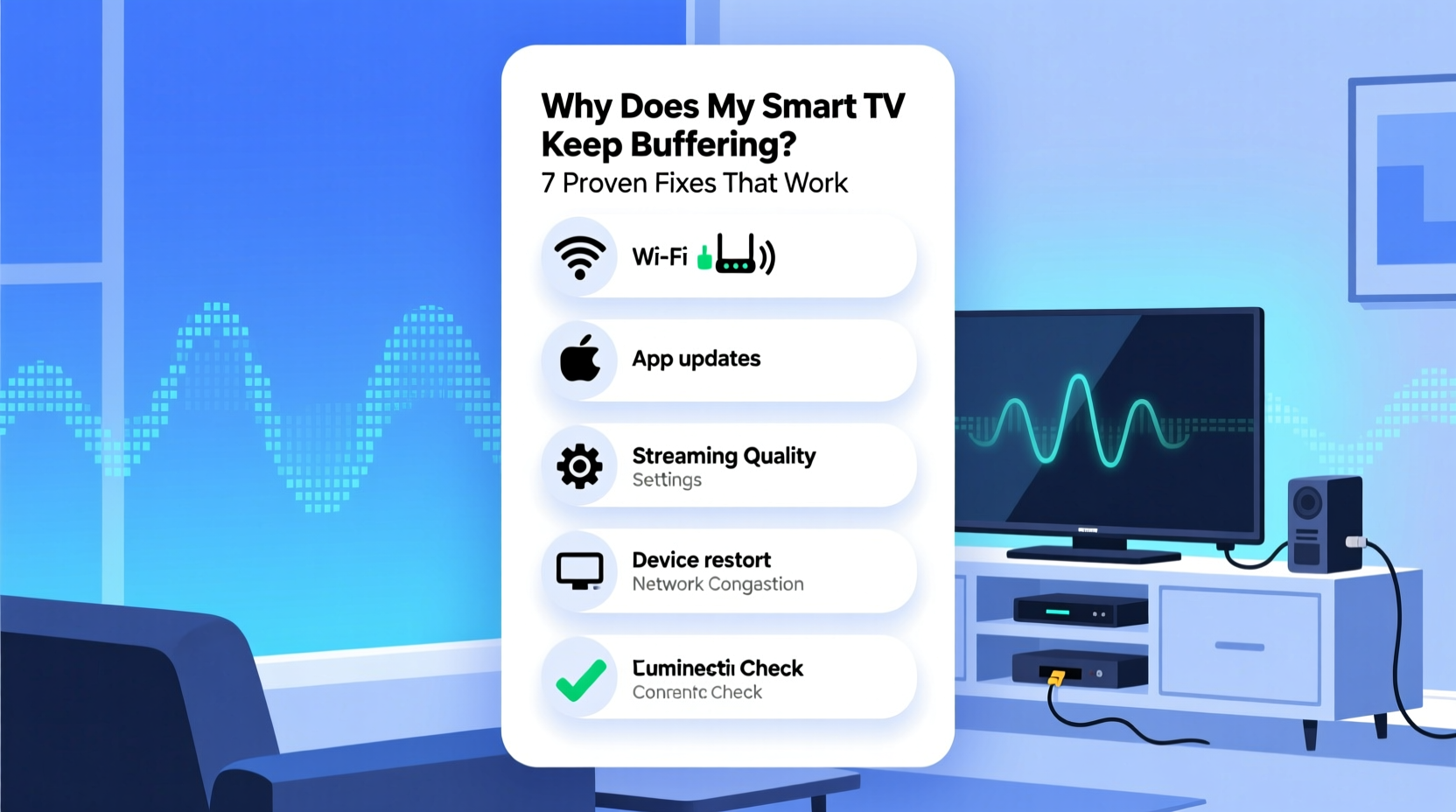
Buffering occurs when your smart TV can’t download data fast enough to maintain continuous playback. Video streams are delivered in small chunks over your internet connection. If the download speed drops below what’s needed for the current resolution (e.g., 4K, HD), the player pauses to \"buffer\" more data before continuing. This isn't always due to slow internet—it could stem from Wi-Fi interference, device limitations, or service-side throttling.
Common triggers include:
- Insufficient bandwidth for high-resolution streaming
- Wi-Fi signal degradation due to distance or obstacles
- Network congestion during peak usage hours
- Outdated router firmware or TV software
- Background apps consuming bandwidth
- ISP throttling specific services like Netflix or YouTube
“Buffering is rarely about one single factor. It's usually a chain reaction starting with weak signal strength or overloaded networks.” — David Lin, Network Infrastructure Engineer at Broadband Insights Group
Step-by-Step Guide to Fix Smart TV Buffering
Follow this logical sequence to identify and resolve the source of your buffering issues. Start from the simplest fixes and progress to advanced diagnostics.
- Restart Your Devices: Power cycle your smart TV, router, and modem. Unplug them for 60 seconds, then reconnect. This clears temporary glitches and resets network handshakes.
- Check Internet Speed: Run a speed test using another device connected to the same network. For HD streaming, you need at least 5 Mbps; for 4K, aim for 25 Mbps or higher. Use sites like speedtest.net or fast.com.
- Move Closer to the Router: If your TV relies on Wi-Fi, ensure it’s within optimal range. Thick walls, metal appliances, and microwaves interfere with signals.
- Reduce Network Load: Pause downloads, cloud backups, or other streaming devices during viewing. Multiple 4K streams can saturate a 100 Mbps connection.
- Update Firmware: Check for system updates on your smart TV and router. Outdated software may contain bugs affecting network performance.
- Switch DNS Servers: Default ISP DNS can be slow. Try Google DNS (8.8.8.8 / 8.8.4.4) or Cloudflare (1.1.1.1) via your TV’s network settings.
- Use Ethernet Instead of Wi-Fi: A wired connection eliminates wireless interference and provides stable throughput. Even a short Ethernet cable can make a dramatic difference.
Do’s and Don’ts When Troubleshooting Buffering
| Do | Don’t |
|---|---|
| Use a wired Ethernet connection whenever possible | Place your router behind furniture or near large metal objects |
| Position your router centrally in the home | Ignore firmware update notifications on your TV or router |
| Limit simultaneous high-bandwidth activities | Assume your ISP is always at fault without testing |
| Test multiple streaming platforms (Netflix, Hulu, Disney+) to isolate the issue | Stream 4K content if your plan supports only up to 10 Mbps |
| Contact your ISP if speeds are consistently below advertised rates | Overlook overheating routers—ensure proper ventilation |
Real Example: Solving Persistent Buffering in a Two-Story Home
Consider Mark, a homeowner in Austin, Texas, who experienced constant buffering on his LG OLED TV despite having a 150 Mbps internet plan. He’d restart devices weekly, but the problem returned. After ruling out account or app issues, he conducted a speed test directly on the TV—results showed only 18 Mbps. Further investigation revealed the router was in the basement, two floors away, with concrete walls blocking the signal.
Mark tried several fixes: relocating the router to the first floor improved speeds to 65 Mbps, but buffering persisted during evening use. He then enabled Quality of Service (QoS) settings on his router to prioritize the TV’s MAC address. Finally, he connected the TV via Ethernet using a wall-routed cable. Result: uninterrupted 4K streaming, even during family movie nights with multiple devices active.
This case illustrates how multiple factors—distance, interference, and lack of traffic prioritization—can combine to create persistent issues. One fix alone wasn’t enough; a layered approach was required.
Advanced Fixes for Stubborn Buffering Issues
If basic steps don’t resolve the problem, consider these deeper interventions:
Upgrade Your Router
Older routers (802.11n or earlier) struggle with modern demands. Upgrade to a dual- or tri-band Wi-Fi 6 (802.11ax) router. These support higher throughput, better device management, and reduced latency. Place it in a central location, elevated and unobstructed.
Enable QoS (Quality of Service)
QoS lets you prioritize certain devices or applications. In your router settings, assign high priority to your smart TV’s IP or MAC address. This ensures streaming traffic gets bandwidth even when others are gaming or downloading.
Use a Wi-Fi Extender or Mesh System
If wiring isn’t feasible, a mesh network (like Google Nest Wi-Fi or Eero) provides seamless coverage. Unlike basic extenders, mesh systems create a unified network with intelligent path selection, minimizing dead zones.
Change Wi-Fi Channel
Wireless congestion from neighboring networks can degrade performance. Use a free tool like Wi-Fi Analyzer (on Android) to find the least crowded 2.4 GHz or 5 GHz channel, then set it manually in your router.
Clear App Cache and Data
Streaming apps accumulate corrupted cache over time. On your smart TV, go to Settings > Apps > [App Name] > Clear Cache. For Android TV models, also clear storage data if the app crashes frequently.
Troubleshooting Checklist
Use this checklist to methodically eliminate potential causes:
- ✅ Restart TV, router, and modem
- ✅ Confirm internet speed meets streaming requirements
- ✅ Move closer to the router or reduce physical barriers
- ✅ Connect via Ethernet for a direct link
- ✅ Update TV operating system and streaming apps
- ✅ Switch to a faster DNS provider (e.g., 1.1.1.1)
- ✅ Limit other devices using bandwidth
- ✅ Test different streaming services to isolate the issue
- ✅ Enable QoS and prioritize your TV
- ✅ Consider upgrading to a Wi-Fi 6 router or mesh system
Frequently Asked Questions
Does my smart TV’s age affect buffering?
Yes. Older smart TVs may have slower processors, limited RAM, or outdated Wi-Fi chips (e.g., 802.11n). They struggle with high-bitrate 4K HDR content, especially on modern platforms. Even with strong internet, hardware limitations can cause stuttering. Consider using an external streaming stick (like Chromecast or Roku) which often performs better than built-in apps.
Can my ISP be throttling my streaming?
Possibly. Some ISPs throttle bandwidth-heavy services during peak times. To test, use a VPN while streaming. If buffering stops, your ISP may be selectively slowing traffic. While legal in many regions, this practice is controversial. Contact customer support or consider switching providers if throttling is confirmed.
Is 5G Wi-Fi better than 2.4G for streaming?
Generally, yes. 5 GHz offers faster speeds and less interference, making it ideal for HD and 4K streaming. However, its range is shorter and it doesn’t penetrate walls as well as 2.4 GHz. For best results, connect your TV to 5 GHz if it’s within one room of the router. Use 2.4 GHz for devices farther away that don’t require high bandwidth.
Conclusion: Take Control of Your Streaming Experience
Buffering doesn’t have to be a regular part of your viewing routine. With a systematic approach—starting with simple restarts and progressing to strategic upgrades—you can diagnose and fix the root cause. Whether it’s switching to Ethernet, updating firmware, or optimizing your router settings, each step brings you closer to uninterrupted entertainment. Don’t accept subpar performance as inevitable. Modern smart TVs are capable of flawless streaming when supported by a healthy network environment.




 浙公网安备
33010002000092号
浙公网安备
33010002000092号 浙B2-20120091-4
Comments
No comments yet. Why don't you start the discussion?