
Smart TVs have transformed the way we consume media, offering seamless access to streaming platforms, web content, and smart home integrations. Yet, one of the most frustrating issues users face is frequent Wi-Fi disconnections. Whether you're halfway through a movie or trying to cast content from your phone, an unstable connection disrupts the experience. The good news: most causes are diagnosable and fixable. This guide dives into the technical and environmental reasons behind Wi-Fi dropouts on smart TVs and provides actionable solutions for a permanent fix.
Common Causes Behind Smart TV Wi-Fi Disconnections
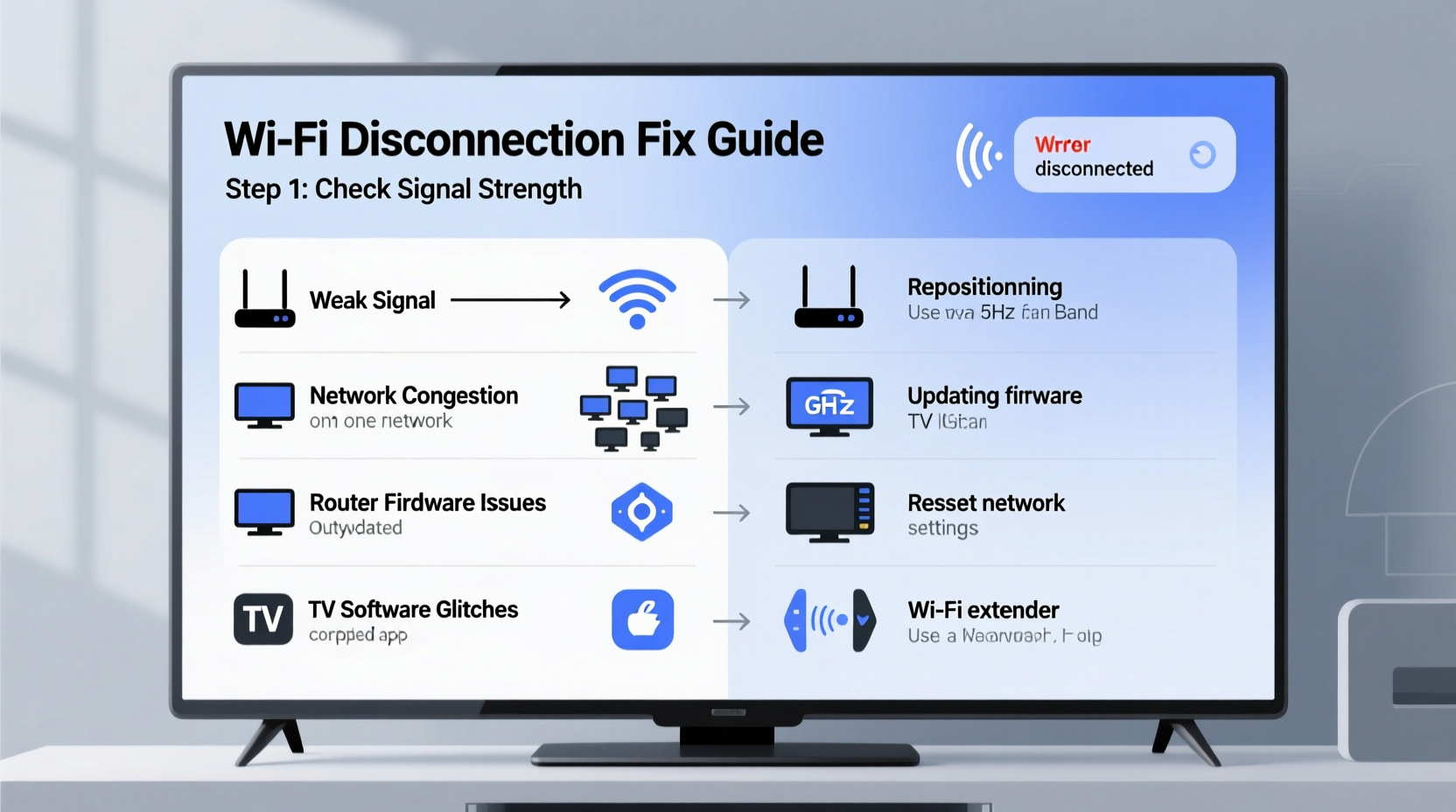
Wi-Fi instability isn’t always about your internet plan. Smart TVs, unlike phones or laptops, often have less advanced wireless hardware. Their placement in the home, internal software limitations, and router compatibility can all contribute to intermittent connectivity.
- Weak signal strength: If your TV is far from the router or separated by thick walls, the signal may degrade.
- Router congestion: Too many devices using bandwidth simultaneously can overload your network.
- Outdated firmware: Both your TV and router need regular updates to maintain compatibility and security.
- Interference from other electronics: Microwaves, cordless phones, and even Bluetooth devices operate on the 2.4 GHz band and can interfere with Wi-Fi.
- DNS issues: Incorrect or overloaded DNS servers can cause timeouts and failed connections.
- IP address conflicts: When two devices are assigned the same IP, communication breaks down.
Step-by-Step Guide to Diagnose and Fix the Issue
Before jumping into complex solutions, follow this structured troubleshooting process to identify the root cause and apply targeted fixes.
- Check other devices: Confirm if only your TV is affected. If phones and laptops also lose connection, the issue lies with the router or ISP.
- Move closer to the router: Temporarily place your TV near the router to test signal strength. If the connection stabilizes, distance or obstacles are likely culprits.
- Run a speed test on the TV: Use built-in tools (e.g., Samsung’s Network Test or LG’s Connection Diagnosis) to measure download speed, ping, and packet loss.
- Reboot the router and TV: Power cycle both devices. Unplug them for 60 seconds before restarting.
- Forget and re-add the Wi-Fi network: Go to your TV’s network settings, remove the current Wi-Fi, and reconnect manually.
- Switch between 2.4 GHz and 5 GHz bands: 5 GHz offers faster speeds but shorter range; 2.4 GHz travels farther but is more prone to interference.
Advanced Fixes for Persistent Disconnections
If basic steps fail, deeper adjustments are necessary. These require slightly more technical involvement but deliver long-term stability.
Update Firmware on Your TV and Router
Manufacturers release firmware updates to patch bugs, improve performance, and enhance network compatibility. Outdated firmware is a common but overlooked cause of disconnection.
- On Samsung TVs: Settings > Support > Software Update > Update Now.
- On LG TVs: Settings > All Settings > General > About This TV > Check for Updates.
- On Roku TVs: Settings > System > System Update > Check Now.
- For routers: Log in to your router’s admin page (usually via 192.168.1.1) and check for firmware updates under the administration tab.
“Over 40% of reported Wi-Fi issues on smart TVs are resolved simply by updating firmware—both on the device and the router.” — David Lin, Senior Network Engineer at NetSecure Solutions
Assign a Static IP Address to Your TV
Dynamic IP addresses can change during reboots, leading to conflicts or authentication failures. Assigning a static IP ensures your TV always uses the same address, reducing handshake errors.
- Note your TV’s current IP, subnet mask, gateway, and DNS (found in Network Settings).
- Access your router’s admin panel.
- Navigate to DHCP settings or connected devices.
- Reserve an IP address for your TV based on its MAC address.
This prevents IP conflicts and improves network reliability.
Optimize Router Placement and Configuration
Your router’s location and settings play a crucial role in maintaining a stable connection to your smart TV.
Position Matters
Place your router centrally, elevated, and away from metal objects, mirrors, and large appliances. Avoid enclosing it in cabinets. The goal is unobstructed line-of-sight to your TV whenever possible.
Use Quality of Service (QoS) Settings
QoS prioritizes bandwidth for specific devices or activities. You can assign high priority to your smart TV to prevent buffering during peak usage times.
| Device | Traffic Type | Recommended QoS Priority |
|---|---|---|
| Smart TV | Streaming (Netflix, YouTube) | High |
| Gaming Console | Online Gaming | High |
| Smartphone | Browsing/Email | Medium |
| IoT Devices | Background Sync | Low |
Switch to 5 GHz Band for Shorter Distances
If your TV is within 15–20 feet of the router without major obstructions, connect to the 5 GHz network. It offers faster speeds and less interference than the crowded 2.4 GHz band.
Hardware Solutions for Permanent Stability
Sometimes, software tweaks aren't enough. Physical upgrades can provide the most reliable long-term fix.
Use an Ethernet Cable for a Wired Connection
The single most effective solution? Bypass Wi-Fi entirely. Connect your smart TV directly to the router using an Ethernet cable. This eliminates signal interference, latency, and dropouts.
If running a cable across the room isn’t ideal, consider:
- Cable concealers: Flat raceways that blend into baseboards.
- Powerline adapters: Use your home’s electrical wiring to transmit data. Plug one adapter near the router (connected via Ethernet), another near the TV, and link them wirelessly or via cable.
- Mesh Wi-Fi systems: Replace standard routers with mesh nodes that blanket your home in consistent coverage.
Upgrade to a Modern Router or Mesh System
If you’re still using a router from five or more years ago, it may lack support for modern Wi-Fi standards like 802.11ac or Wi-Fi 6. Older routers struggle with multiple high-bandwidth devices.
Modern mesh systems like Google Nest Wifi, Eero, or TP-Link Deco automatically steer devices to the strongest signal and manage traffic efficiently.
Mini Case Study: John’s Living Room Streaming Struggles
John had a 4-year-old Samsung QLED TV that kept dropping Wi-Fi every 10–15 minutes, especially during evening streaming. His router was in the basement, two floors below, with concrete walls in between. He tried rebooting and changing DNS settings, but the problem persisted.
After testing, he discovered his TV was connecting to the 2.4 GHz band, which was saturated by neighbors’ networks. He upgraded to a dual-band mesh system, placing a node on the main floor near the TV. He also reserved a static IP for the TV and enabled QoS for streaming devices.
Result: No disconnections for over three months. Buffering disappeared, and casting from mobile devices became instant.
Checklist: How to Fix Smart TV Wi-Fi Disconnections Permanently
Follow this comprehensive checklist to ensure all potential issues are addressed:
- ✅ Reboot both the TV and router.
- ✅ Test Wi-Fi speed directly on the TV.
- ✅ Forget and reconnect to the Wi-Fi network.
- ✅ Update TV and router firmware.
- ✅ Switch between 2.4 GHz and 5 GHz bands to test stability.
- ✅ Assign a static IP address to the TV via router settings.
- ✅ Change DNS to Google (8.8.8.8 / 8.8.4.4) or Cloudflare (1.1.1.1).
- ✅ Enable QoS and prioritize the TV for streaming.
- ✅ Reposition the router for better line-of-sight.
- ✅ Consider a wired Ethernet connection or powerline adapter.
- ✅ Upgrade to a modern mesh Wi-Fi system if signal remains weak.
Frequently Asked Questions
Why does my smart TV disconnect from Wi-Fi when I turn on the microwave?
Microwaves emit electromagnetic radiation around 2.4 GHz, the same frequency used by many Wi-Fi networks. This interference can temporarily disrupt your signal. To fix this, switch your TV to the 5 GHz band or relocate the router away from the kitchen.
Can a virus cause my smart TV to lose Wi-Fi connection?
While rare, smart TVs running outdated operating systems can be vulnerable to malware that affects network performance. Always keep firmware updated and avoid installing third-party apps from untrusted sources. Resetting the TV to factory settings can eliminate persistent software issues.
Does turning off Wi-Fi on other devices help my smart TV stay connected?
Yes. Reducing the number of active devices on your network frees up bandwidth and reduces congestion. This is especially helpful during peak usage hours. Use your router’s QoS settings to deprioritize low-importance devices.
Conclusion: Take Control of Your Smart TV’s Connectivity
A smart TV that constantly drops Wi-Fi is more than an annoyance—it undermines the entire value of having a connected entertainment system. The root causes vary, from simple signal weakness to outdated firmware or suboptimal router settings. By methodically diagnosing the issue and applying the right combination of software adjustments and hardware upgrades, you can achieve a stable, permanent connection.
Start with the basics: restart, update, and reconfigure. Then move toward structural improvements like wired connections or mesh networks. The effort pays off in uninterrupted streaming, smoother app performance, and greater peace of mind. Don’t settle for buffering and dropouts—your smart TV deserves better.




 浙公网安备
33010002000092号
浙公网安备
33010002000092号 浙B2-20120091-4
Comments
No comments yet. Why don't you start the discussion?