
Many smart TV owners have experienced a frustrating inconsistency: the interface feels smooth when navigating menus or launching apps, yet the moment they hit play on a streaming service, the screen stutters, buffers, or freezes. This disconnect can be puzzling—after all, if the TV handles basic operations well, shouldn’t it handle video playback just as smoothly? The answer lies in understanding how different tasks demand different resources from your device. Streaming video is far more complex than browsing lightweight app interfaces, and several technical factors can tip the balance between seamless playback and persistent lag.
This article breaks down the underlying reasons behind this common issue, explains the technical differences between browsing and streaming, and provides actionable solutions to restore smooth performance. Whether you're using a Samsung, LG, Roku, or Android TV-based system, the principles apply across platforms.
The Hidden Demands of Streaming vs. Browsing
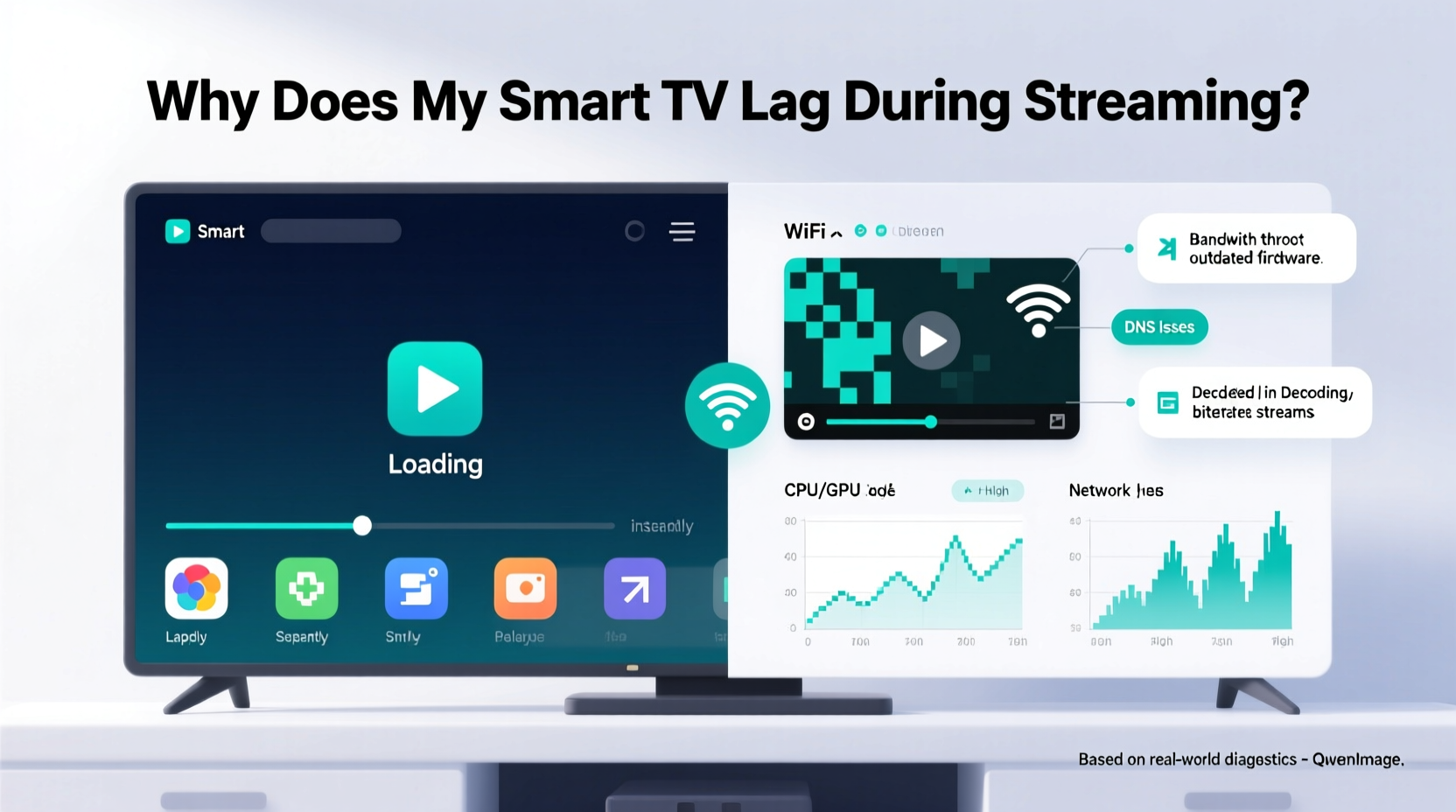
At first glance, browsing apps and streaming content may seem like similar digital activities. But under the hood, they place vastly different loads on your smart TV’s hardware and network connection.
Browsing involves loading static elements—icons, text, thumbnails, and simple animations. These require minimal processing power and bandwidth. Most modern smart TVs are equipped with enough memory and CPU strength to render these UI components fluidly, even on lower-end models.
Streaming, however, is a high-intensity operation. It requires:
- Continuous data transfer: High-definition (HD) or 4K video demands a steady stream of data, often at 5–25 Mbps depending on resolution and codec.
- Real-time decoding: Video files are compressed using codecs like H.264 or VP9. Your TV must decode these frames instantly without dropping any.
- Buffering management: To prevent interruptions, the player preloads chunks of video. If the network slows, buffering fails, causing stutter.
- Audio-video synchronization: Audio must stay perfectly in sync with rapidly changing visuals, requiring precise timing.
When any part of this chain falters—network speed, processor load, software optimization—the result is lag, freezing, or rebuffering.
Common Causes of Streaming Lag on Smart TVs
1. Network Bandwidth Bottlenecks
Your home Wi-Fi might handle light web traffic efficiently but struggle under sustained video loads. While loading an app menu may use less than 1 Mbps, streaming 4K content can spike to 20+ Mbps. If other devices are downloading, gaming, or backing up data simultaneously, available bandwidth shrinks, leading to degraded streaming performance.
Wi-Fi congestion is especially common in densely populated areas or homes with multiple connected devices. Walls, appliances, and distance from the router further weaken signal strength, increasing packet loss and latency.
2. Outdated or Inefficient App Optimization
Not all streaming apps are created equal. Developers frequently update apps for smartphones and computers, but smart TV versions—especially on older operating systems—may receive fewer updates. An outdated Netflix or YouTube app might lack support for efficient codecs or adaptive bitrate algorithms, forcing your TV to work harder with suboptimal code.
Some apps also run background processes that consume memory, such as personalized recommendations or automatic downloads, which can interfere with playback stability.
3. Hardware Limitations of Older Smart TVs
Smart TVs manufactured before 2018 often feature underpowered processors and limited RAM (typically 1.5GB or less). These specs were adequate for HD streaming at the time but struggle with today’s higher-resolution content and heavier app interfaces.
For example, decoding 4K HDR video using the VP9 codec requires significant GPU power. If your TV’s chipset doesn’t support hardware acceleration for that codec, the CPU must handle decoding in software—a process that quickly overwhelms older systems.
4. Software Bloat and Background Processes
Modern smart TVs run full operating systems (Tizen, webOS, Android TV), which means they multitask. Even when you’re watching a movie, background services may be checking for updates, syncing accounts, or running voice assistant listeners. Over time, accumulated cache and fragmented storage can degrade performance.
Unlike phones or computers, smart TVs rarely get “clean boots.” They often remain in standby mode, allowing memory leaks and inactive processes to accumulate, subtly reducing available resources for critical tasks like video decoding.
5. Server-Side or CDN Performance Issues
Sometimes, the problem isn’t your TV or network at all. Streaming platforms rely on Content Delivery Networks (CDNs) to serve video from servers geographically close to users. During peak hours or regional outages, these servers can become overloaded, leading to slower delivery regardless of your local setup.
“Even with perfect hardware and network conditions, a congested CDN can introduce delays that mimic local lag.” — Raj Patel, Senior Network Engineer at StreamLogic Inc.
Step-by-Step Guide to Diagnose and Fix Streaming Lag
Follow this structured troubleshooting plan to identify and resolve the root cause of your smart TV’s streaming issues.
- Test your internet speed directly on the TV. Use a built-in speed test tool (if available) or install a browser app to run a test via Fast.com or Speedtest.net. Ensure download speeds meet the requirements for your desired resolution.
- Restart your router and TV. Power cycle both devices to clear temporary glitches, refresh IP addresses, and reset active connections.
- Switch from Wi-Fi to Ethernet. Connect your TV directly to the router using a CAT6 cable. This eliminates wireless interference and ensures maximum throughput.
- Close unused apps and clear cache. Navigate to Settings > Apps > [Streaming App] > Clear Cache. Do this for Netflix, Hulu, Disney+, etc.
- Update all apps and system software. Check for firmware updates in the TV’s settings menu and ensure all streaming apps are current.
- Lower the streaming resolution temporarily. In the app settings, force 1080p instead of auto/4K to see if performance improves.
- Check for signal interference. Move the router closer to the TV or eliminate obstacles like microwaves or thick walls.
- Limit connected devices. Pause downloads or streaming on other devices during heavy viewing sessions.
- Factory reset the TV (last resort). Backup preferences first, then reset to wipe corrupted data and return to optimal performance.
Comparison: Browsing vs. Streaming Resource Usage
| Task | Bandwidth Used | CPU/GPU Load | Memory Usage | Latency Sensitivity |
|---|---|---|---|---|
| Browsing Apps | 0.5 – 2 Mbps | Low | Minimal | Low |
| HD Streaming (1080p) | 5 – 8 Mbps | Moderate to High | Moderate | High |
| 4K Streaming (UHD) | 15 – 25 Mbps | Very High | High | Very High |
| App Launch/Navigation | 1 – 3 Mbps (initial burst) | Low | Low | Medium |
This table highlights why lag occurs specifically during streaming: the combination of high bandwidth, real-time processing, and strict timing makes it far more demanding than casual navigation.
Mini Case Study: Resolving Persistent Netflix Lag on a 2017 LG OLED
John, a homeowner in Austin, Texas, noticed his LG OLED55B7A would freeze every few minutes while watching Netflix in 4K, despite feeling snappy when switching inputs or opening apps. His phone showed excellent Wi-Fi speed, so he assumed the network was fine.
After testing with an Ethernet cable, the lag disappeared—revealing that his 5GHz Wi-Fi signal, though strong in bars, suffered from packet loss due to interference from a nearby neighbor’s router on the same channel.
He then logged into his router and changed the Wi-Fi channel from auto to Channel 36 (less congested), updated the TV’s firmware, and cleared the Netflix app cache. Post-fix, 4K streaming remained stable even over Wi-Fi.
This case illustrates how multiple small factors—wireless interference, outdated firmware, and app bloat—can combine to create a lagging experience that only appears under specific conditions.
Checklist: Optimize Your Smart TV for Smooth Streaming
Use this checklist monthly to maintain peak performance:
- ✅ Run a speed test on the TV itself
- ✅ Reboot the router and TV
- ✅ Update system software and all streaming apps
- ✅ Clear cache for major streaming platforms
- ✅ Switch to wired Ethernet if possible
- ✅ Disable unused startup apps and voice assistants
- ✅ Monitor for overheating (ensure ventilation around TV)
- ✅ Test with a secondary device (e.g., streaming stick) to isolate hardware issues
Frequently Asked Questions
Why does my TV work fine with YouTube but lag on Disney+?
Different apps use different video codecs, server infrastructures, and buffering strategies. Disney+ often streams in higher bitrates with Dolby Vision or Atmos, requiring more bandwidth and processing power. YouTube, by contrast, uses aggressive compression and adaptive streaming, making it more forgiving on weaker systems.
Can a factory reset fix streaming lag?
Yes, in cases where software corruption, excessive cache, or background bloat has degraded performance, a factory reset can restore responsiveness. However, it should be used after trying simpler fixes like clearing cache or updating firmware.
Does screen size affect streaming performance?
No, screen size itself doesn’t impact performance. However, larger TVs are more likely to be 4K models, which stream higher-resolution content that demands more resources. So indirectly, yes—larger TVs often require more robust setups to avoid lag.
Conclusion: Take Control of Your Streaming Experience
Lag during streaming doesn’t mean your smart TV is broken—it usually signals a mismatch between demand and capability. By understanding the unique pressures of video playback versus app navigation, you can pinpoint whether the bottleneck lies in your network, hardware, software, or external services.
Most issues are fixable with simple adjustments: upgrading your connection, optimizing settings, or leveraging external streaming devices. The key is systematic troubleshooting and recognizing that smooth browsing doesn’t guarantee smooth streaming.




 浙公网安备
33010002000092号
浙公网安备
33010002000092号 浙B2-20120091-4
Comments
No comments yet. Why don't you start the discussion?