
It’s a familiar frustration: you charge your smartwatch overnight, put it on in the morning full of promise, and by lunchtime, the screen is dim or dead. For many users, this isn’t an anomaly—it’s routine. Despite sleek designs and advanced features, smartwatch battery life remains a persistent pain point. The good news? Most of the time, the issue isn’t faulty hardware but inefficient usage patterns. With a few strategic adjustments, you can double—or even triple—your daily battery endurance without sacrificing essential functionality.
Smartwatches are packed with sensors, wireless radios, and high-resolution displays, all powered by tiny batteries. Unlike smartphones, which have seen dramatic improvements in energy efficiency, wearables still struggle with balancing performance and longevity. But understanding what drains your device and how to manage those demands empowers you to take control. This guide breaks down the real culprits behind rapid battery drain and delivers actionable, tested strategies to keep your watch alive well past sunset.
What Drains Your Smartwatch Battery Fastest?
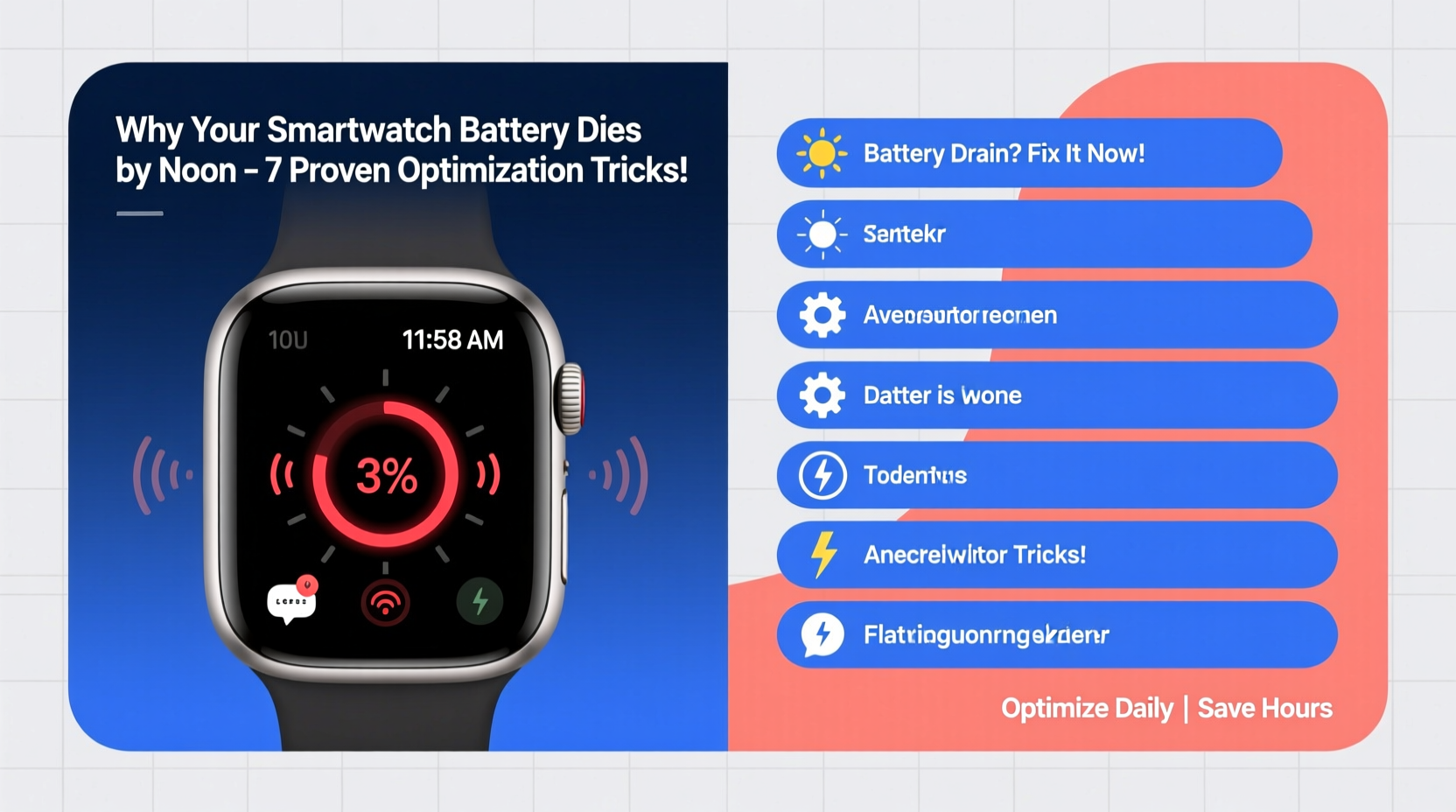
Battery drain doesn’t happen randomly. Specific features and settings consume disproportionate amounts of power. Identifying these energy hogs is the first step toward meaningful improvement.
- Always-On Display (AOD): Keeping the screen lit constantly—even at low brightness—can reduce battery life by up to 40% over a single day.
- Heart Rate Monitoring: Continuous tracking uses the optical sensor nonstop, which draws significant power, especially during workouts.
- GPS Tracking: Activating built-in GPS for runs, hikes, or cycling sessions spikes energy use. Some models lose 15–20% per hour with GPS active.
- Bluetooth & Wi-Fi: While necessary for connectivity, maintaining constant links to your phone or network consumes background power.
- Notifications & Apps: Frequent alerts, third-party apps running in the background, and animated watch faces add up quickly.
- Brightness Settings: A bright screen looks great outdoors but shortens battery life drastically indoors where visibility isn’t an issue.
7 Proven Optimization Tricks to Extend Battery Life
You don’t need to downgrade your smartwatch to get better battery performance. These seven practical fixes target the biggest sources of drain while preserving usability.
1. Adjust Screen Brightness and Timeout
The display is one of the most power-hungry components. Reducing brightness and shortening how long the screen stays on after activation can make a noticeable difference.
Set brightness to automatic or manually lower it in indoor environments. Change the screen timeout from 15 seconds to 5 or 8 seconds. On many watches, this simple change adds 1–2 hours of daily use.
2. Limit Background App Refresh
Third-party apps often sync data in the background, checking for updates every few minutes. Over time, this creates continuous strain on both processor and radio modules.
Go into your watch’s app settings and disable auto-refresh for non-essential apps like weather widgets, social media, or news tickers. Keep only critical services like messaging or fitness trackers enabled.
3. Use Power-Saving Modes Strategically
Most modern smartwatches include built-in power-saving modes that disable non-critical functions. Activate them during long days when charging isn’t possible.
For example, Apple Watch has “Power Reserve” mode; Samsung Galaxy Watch offers “Battery Saver”; Fitbit devices feature “Battery Save” profiles. These disable notifications, raise-to-wake, and heart rate monitoring—but keep time visible and alarms functional.
4. Turn Off Unnecessary Sensors
Unless you're actively exercising, there's no need for 24/7 heart rate monitoring or SpO2 scans. Disable continuous health tracking in your fitness app settings.
Similarly, turn off skin temperature sensing (if available) and ambient light sensors unless needed. Each disabled sensor reduces background processing load and extends battery longevity.
5. Optimize Notification Frequency
Every buzz, beep, or flash uses energy. If your watch vibrates 50+ times a day for trivial updates, you’re wasting battery.
Customize which apps send alerts. Allow calls, texts, and calendar reminders—but mute email, social media, and promotional notifications. Fewer interruptions mean longer uptime and less distraction.
6. Choose Efficient Watch Faces
Fancy animated or live-updating watch faces look impressive but consume extra power. Complex complications (like live weather or step counters) require frequent refreshes.
Switch to minimalist faces with static elements. For instance, a black-and-white digital face with basic time/date uses far less energy than a colorful analog design with animations.
7. Manage Connectivity Settings
When your smartwatch connects via Bluetooth to your phone, it maintains a constant communication link. If cellular or Wi-Fi is enabled, the drain increases further.
Turn off Wi-Fi and LTE when not needed. If you’re near your phone, rely on Bluetooth only. For outdoor activities, consider pre-syncing music instead of streaming wirelessly to save bandwidth and battery.
“Battery life on wearables is highly dependent on user behavior. We’ve seen cases where disabling just two features—Always-On Display and continuous heart rate—extended runtime from 14 to over 30 hours.” — Dr. Lena Torres, Senior Wearable Engineer at Nordic Semiconductor
Step-by-Step Daily Optimization Routine
Implementing changes once helps, but consistency yields lasting results. Follow this five-minute evening routine to prepare your smartwatch for optimal performance the next day.
- Review Battery Usage (3 min): Open your companion app (e.g., Wear OS, Galaxy Wearable, or Apple Health) and check which apps consumed the most power today.
- Disable Unused Features (1 min): Turn off GPS, Wi-Fi, or microphone access for apps that don’t need them.
- Activate Tomorrow’s Mode (30 sec): Set a temporary battery saver profile if you expect a long day without access to charging.
- Select a Low-Power Watch Face (30 sec): Swap to a dark, static face to minimize screen energy draw.
- Charge Smartly (Overnight): Plug in between 70–80%, avoid letting it drop below 20% regularly to preserve long-term battery health.
Do’s and Don’ts: Battery Optimization Table
| Do | Don’t |
|---|---|
| Use automatic brightness | Keep screen brightness maxed out all day |
| Enable battery saver on heavy-use days | Run GPS continuously without purpose |
| Limit background app refresh | Install dozens of rarely used apps |
| Choose simple, dark-themed watch faces | Use animated or live-updating faces daily |
| Turn off unnecessary sensors overnight | Leave SpO2 or ECG scanning on 24/7 |
| Update firmware regularly | Ignore software updates—they often include battery optimizations |
Real-World Example: How Sarah Extended Her Watch’s Life from 12 to 36 Hours
Sarah, a project manager in Seattle, relied on her Galaxy Watch6 for meetings, fitness tracking, and staying connected. But she found herself charging it midday almost daily—a problem when back-to-back meetings left no private moment to plug in.
After reviewing her battery stats, she discovered that her animated watch face and continuous heart rate monitoring were responsible for over 60% of the drain. She switched to a static monochrome face, turned off SpO2 scanning, limited notifications to calls and texts, and disabled Wi-Fi except when at home.
The result? Her watch now lasts from 7 AM Monday to 7 PM Tuesday—over 36 hours—on a single charge. Even on busy days, she ends with 30% remaining. “I didn’t give up anything important,” she said. “Just stopped doing things I didn’t actually need.”
FAQ: Common Smartwatch Battery Questions
Why does my smartwatch battery drain overnight when I’m not using it?
Even idle watches run background processes: syncing data, checking for updates, measuring sleep metrics, or receiving push notifications. To reduce nighttime drain, enable Do Not Disturb, disable unnecessary sensors, or use Airplane mode during sleep (while keeping alarms active).
Is it bad to charge my smartwatch every night?
No, nightly charging is fine as long as you avoid extreme heat and don’t leave it plugged in for days. Modern lithium-ion batteries handle partial charges well. However, try not to let it drop below 20% too often, as deep discharges stress the cell over time.
Can a software update fix poor battery life?
Yes. Manufacturers frequently release firmware updates that improve power management. For example, Wear OS 4 included optimizations that extended Pixel Watch battery life by up to 25%. Always install official updates promptly.
Final Tips for Long-Term Battery Health
Optimization isn’t just about squeezing more hours from a single charge—it’s also about preserving your battery’s lifespan over months and years. Lithium-ion cells degrade with time, especially under stress.
- Avoid exposing your watch to extreme temperatures, especially heat (like leaving it in a hot car).
- Don’t store it fully discharged for long periods.
- Use original or certified chargers—cheap alternatives may deliver unstable voltage.
- Occasionally recalibrate the battery by draining it to 5% and charging fully in one session.
Conclusion: Take Control of Your Smartwatch Battery Today
Your smartwatch shouldn’t die before lunch. With intelligent settings, mindful usage, and a few small habit shifts, you can transform its performance. Start tonight: review your battery usage, disable one unnecessary feature, and pick a simpler watch face. Small actions compound into major gains.
Remember, technology should serve you—not chain you to a charger. By optimizing your device, you reclaim convenience, reliability, and peace of mind. Share your own battery-saving tips in the comments and help others break free from the midday power panic.




 浙公网安备
33010002000092号
浙公网安备
33010002000092号 浙B2-20120091-4
Comments
No comments yet. Why don't you start the discussion?