
Smartwatches promise seamless connectivity, health tracking, and convenience—all from your wrist. But nothing disrupts the experience faster than a dying battery by midday. You charge it overnight, only to find it struggling to last 12 hours. While some battery drain is expected, excessive depletion often stems from overlooked or hidden settings that silently consume power. Most users blame hardware or age, but the real culprits are usually software behaviors and background processes running unchecked.
This article dives deep into the lesser-known settings and habits draining your smartwatch battery. From aggressive notifications to unnoticed location tracking, we’ll reveal what’s really happening behind the scenes—and how to reclaim your battery life with precision adjustments.
Hidden Settings That Secretly Drain Your Battery
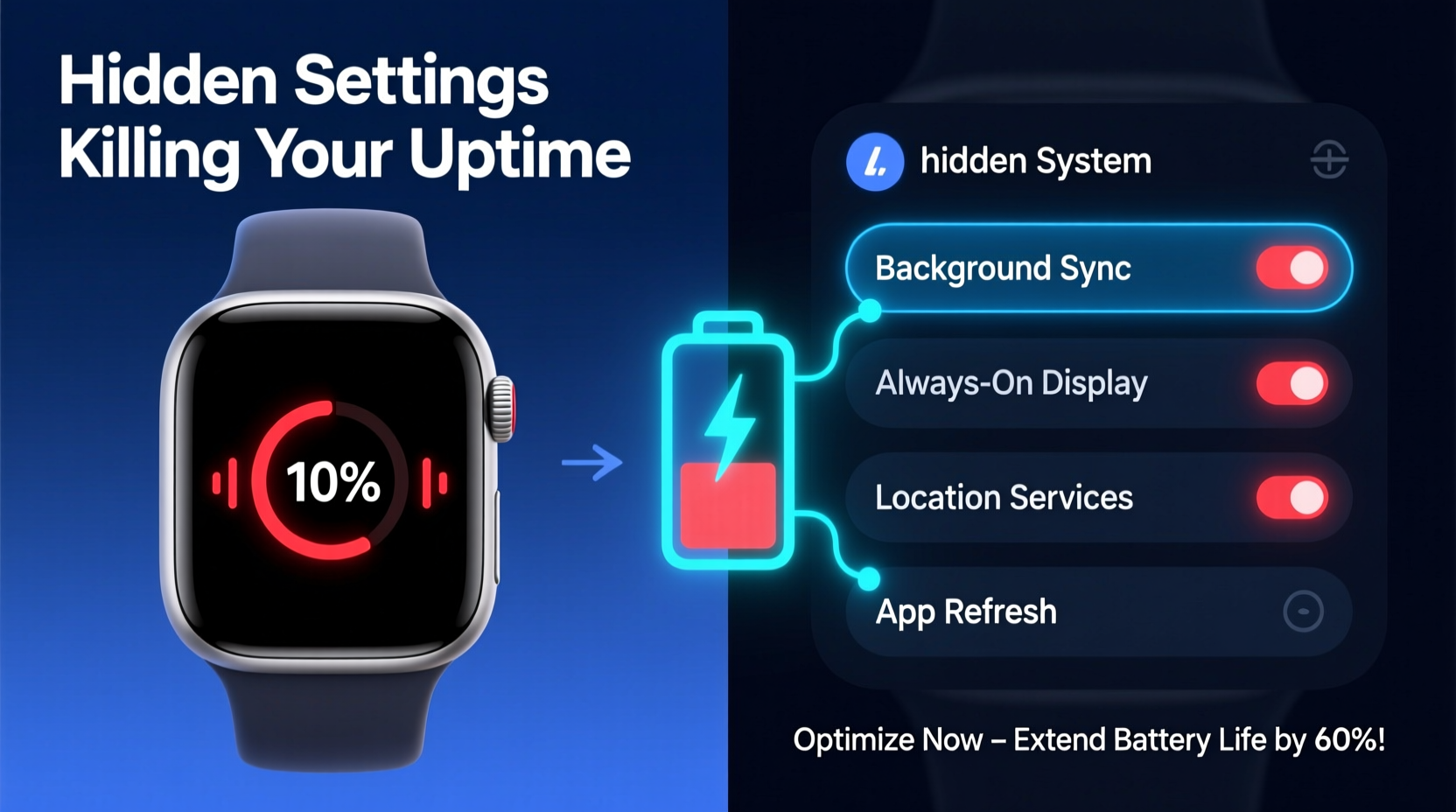
Manufacturers optimize smartwatches for features, not longevity. As a result, default settings often prioritize responsiveness over efficiency. These \"invisible\" energy hogs include:
- Always-On Display (AOD): Keeps the screen lit even when idle. While convenient, this feature can reduce battery life by up to 30% depending on brightness and watch face complexity.
- Frequent Heart Rate Monitoring: Continuous heart rate sampling every few seconds—common in fitness-focused models—constantly activates sensors and uses significant power.
- Background App Refresh: Apps like weather, messaging, or social media sync data periodically, even when unused. This background chatter adds up quickly.
- Persistent GPS Tracking: Some workout apps continue logging location after exercise ends, especially if auto-pause fails or manual stoppage is forgotten.
- Voice Assistant Activation: “Hey Siri” or “OK Google” listening modes keep microphones active and ready, drawing continuous power.
How Sync Frequency Impacts Power Consumption
Every time your smartwatch syncs with your phone or cloud service, radios (Bluetooth, Wi-Fi) activate, processors wake up, and screens may light. The more frequent the sync, the higher the cumulative drain. Many apps default to syncing every 5–10 minutes—even for non-critical updates like step counts or unread emails.
Consider this: a single Bluetooth handshake consumes about 1–3mA. Multiply that across dozens of sync events per day, and you’ve created a constant low-level drain that never allows the device to enter deep sleep mode.
“Battery life isn’t just about capacity—it’s about how often the system wakes up. Minimizing unnecessary wake cycles is the most effective way to extend uptime.” — Dr. Lena Torres, Embedded Systems Engineer at MIT Media Lab
The Role of Watch Faces and Animations
Custom watch faces aren’t just aesthetic—they’re functional programs. Complications (like live weather, calendar previews, or animated backgrounds) require regular data pulls and screen redraws. A flashy animated face might look impressive, but it’s doing far more than just telling time.
For example:
| Watch Face Type | Data Fetch Frequency | Avg. Daily Battery Impact |
|---|---|---|
| Simple Analog (no complications) | Once per hour | ~3% |
| Digital with Weather & Steps | Every 10–15 mins | ~12% |
| Animated Background + Calendar | Constant polling | ~20–25% |
The difference between a minimalist and a feature-rich face can be the equivalent of an extra workout session’s worth of battery usage.
Real-World Case: Sarah’s Week-Long Battery Test
Sarah, a nurse working 12-hour shifts, relied on her smartwatch for alarms, heart rate monitoring, and communication. Her device—a premium brand model—routinely died by 3 PM despite nightly charging. Frustrated, she conducted a personal experiment over seven days:
- Day 1–2: Normal usage: AOD on, all notifications enabled, animated watch face, GPS workouts tracked.
- Day 3: Disabled AOD and switched to a black analog face.
- Day 4: Turned off continuous heart rate monitoring; set to manual checks only.
- Day 5: Limited app notifications to calls, texts, and critical alerts.
- Day 6: Disabled voice assistant wake words.
- Day 7: Combined all changes and tested full-day endurance.
Results:
- Initial battery life: ~10 hours
- After disabling AOD: +3 hours
- After switching watch face: +1.5 hours
- After pausing continuous HR: +2 hours
- After notification filtering: +1.5 hours
- Final combined improvement: 18+ hours
Sarah’s experience highlights how small, invisible drains compound into major losses—and how targeted adjustments yield dramatic gains without sacrificing core functionality.
Step-by-Step Guide to Maximize Smartwatch Battery Life
Follow this systematic approach to identify and eliminate battery vampires on any smartwatch platform (Apple Watch, Wear OS, Samsung Galaxy Watch, etc.).
- Review Battery Usage Stats
Navigate to Settings > Battery > Battery Usage. Identify which apps or services consume the most power. Focus first on those exceeding 15% daily use without justification. - Disable Always-On Display
Go to Display Settings and toggle off “Always On.” If unavailable, reduce screen timeout from 30 seconds to 10. <3>
Adjust Heart Rate Monitoring
- Limit Background App Refresh
Disable automatic refresh for non-essential apps like news, social media, or weather. Allow only mission-critical ones (e.g., messaging). - Reduce Notification Load
Visit Notifications settings. Disable banners, sounds, and haptics for apps that don’t require immediate attention. Prioritize only urgent alerts. - Turn Off Unnecessary Sensors
Disable ambient light sensor adjustments if you manually control brightness. Also consider turning off blood oxygen (SpO2) monitoring unless medically needed. - Use Airplane Mode Overnight
Enable Airplane Mode during sleep or long periods of disuse. You’ll still get alarms and timers, but radios won’t drain power. - Update Firmware Regularly
Manufacturers often release efficiency patches. Check for OS updates monthly under System > Software Update.
In Health or Fitness settings, change from “Continuous” to “On Demand” or “During Workouts Only.”
Checklist: Optimize Your Smartwatch in 10 Minutes
Perform this quick audit weekly to maintain peak efficiency:
- ✅ Turn off Always-On Display
- ✅ Set screen brightness to 60% or lower
- ✅ Switch to a static, dark-themed watch face
- ✅ Disable voice assistant wake phrases
- ✅ Limit heart rate and SpO2 monitoring frequency
- ✅ Revoke background access for non-essential apps
- ✅ Disable Wi-Fi if always near your phone
- ✅ Schedule Do Not Disturb during work or sleep hours
- ✅ Restart your watch once a week to clear memory leaks
- ✅ Review battery stats and adjust accordingly
Do’s and Don’ts of Smartwatch Battery Management
| Do | Don’t |
|---|---|
| Use grayscale mode if available (reduces OLED pixel load) | Run GPS-intensive apps unnecessarily |
| Charge before dropping below 20% | Leave the watch plugged in past 100% regularly |
| Enable Theater Mode during meetings | Keep all app notifications enabled |
| Use built-in power-saving modes during travel | Install third-party watch faces with unknown resource demands |
| Turn off haptic feedback intensity | Assume older watches can't be optimized |
Frequently Asked Questions
Why does my smartwatch battery die faster in cold weather?
Lithium-ion batteries are sensitive to temperature. In cold environments (below 50°F / 10°C), chemical reactions slow down, reducing effective capacity. The watch may shut down prematurely even if charge remains. Keep your device close to body heat in winter to maintain performance.
Does updating my smartwatch OS hurt battery life?
Occasionally, yes—especially with major updates that introduce new features or bugs. However, most updates include battery optimizations. If you notice sudden drain post-update, wait 48 hours for adaptive learning to stabilize, then recalibrate by fully charging and discharging once.
Can I replace my smartwatch battery instead of upgrading?
Yes, but availability varies. Apple offers battery service for older Watches (~$69). Samsung and Fitbit also provide replacement options. Third-party shops exist, but risk voiding waterproofing or damaging components. Weigh cost vs. benefit—if replacement exceeds 40% of a new model’s price, consider upgrading.
Conclusion: Take Control of Your Uptime
Your smartwatch doesn’t have to be tethered to a charger every night. The rapid battery drain many users experience isn’t inevitable—it’s the result of misconfigured settings and unconscious usage patterns. By identifying the hidden energy consumers and applying strategic tweaks, you can double your device’s usable lifespan between charges.
Battery optimization isn’t about sacrificing functionality; it’s about intentional design. Choose what matters—notifications, health tracking, convenience—and disable what doesn’t. A few minutes of setup now can save you hours of frustration later.




 浙公网安备
33010002000092号
浙公网安备
33010002000092号 浙B2-20120091-4
Comments
No comments yet. Why don't you start the discussion?