
Waking up to a nearly dead smartwatch—despite charging it fully the night before—is more than frustrating. It disrupts morning routines, disables health tracking, and forces you into constant recharging cycles. While some battery drop overnight is normal, losing 30%, 50%, or even 80% of charge while idle suggests underlying issues. The good news: most causes are fixable with simple adjustments. This guide breaks down why smartwatches lose power overnight and delivers practical, tested solutions to reclaim battery life.
Understanding Normal vs. Abnormal Battery Drain
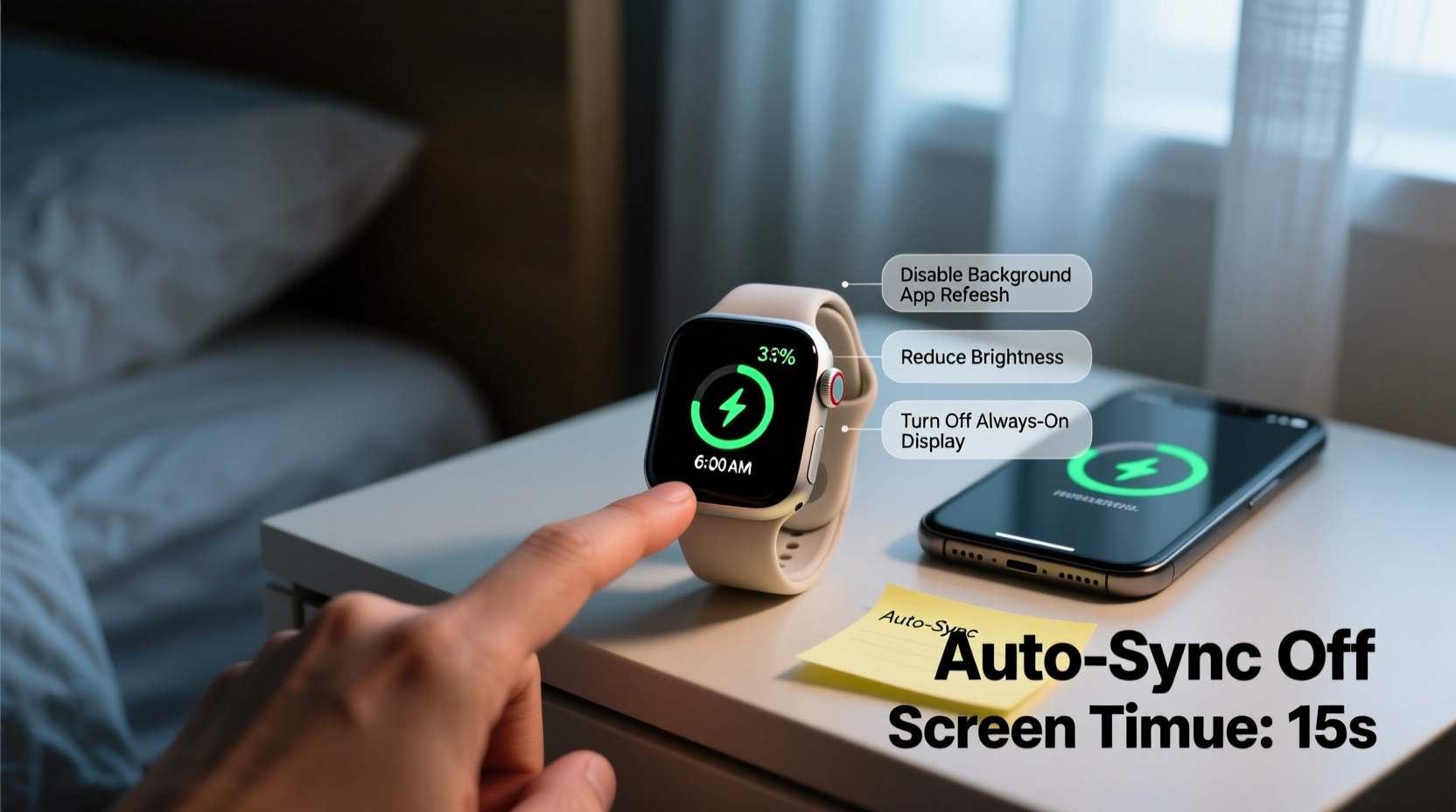
Smartwatches are designed to last 1–2 days on a single charge under typical use. Overnight, when the device is mostly idle, a healthy battery should lose no more than 5–15%. Factors like background syncing, firmware updates, or sensor checks can cause minor drops. However, excessive drain points to configuration problems, software bugs, or hardware inefficiencies.
Abnormal battery loss often stems from:
- Overactive apps running in the background
- Frequent notifications from connected apps
- Poor Bluetooth connection stability
- Outdated or buggy operating system versions
- Always-on display settings
- Location or heart rate monitoring overuse
“Battery degradation starts the moment a lithium-ion cell is used, but poor software optimization accelerates drain far more than age alone.” — Dr. Lena Torres, Power Systems Engineer at WearTech Labs
Top 5 Fixes That Actually Work
Before assuming your smartwatch needs repair or replacement, try these proven fixes. Most users report significant improvements within 24 hours of applying these changes.
1. Disable Always-On Display (AOD)
The always-on display is one of the biggest energy hogs. Keeping the screen lit—even dimly—forces the processor and display driver to remain active. On devices like the Apple Watch or Samsung Galaxy Watch, disabling AOD can reduce overnight drain by up to 60%.
2. Limit Background App Refresh and Syncing
Many apps sync data continuously, even when not in use. Fitness trackers, messaging apps, and email clients may wake the watch repeatedly to fetch updates. Restrict this behavior through your phone’s companion app.
For Apple Watch:
- Open the Apple Watch app on iPhone
- Go to My Watch > General > Background App Refresh
- Turn off for non-essential apps
For Wear OS (Google) or Samsung Galaxy Watch:
- Open Galaxy Wearable or Wear OS app
- Navigate to Notifications or App Management
- Select individual apps and disable auto-sync or background activity
3. Reduce Notification Frequency
Every notification vibrates, lights the screen, and wakes the processor. If your watch buzzes every few minutes—from social media, emails, or fitness reminders—it never enters deep sleep mode.
To minimize disruption:
- Disable non-critical app alerts
- Enable “Do Not Disturb” during sleep hours
- Use silent or vibrate-only modes selectively
4. Turn Off Unnecessary Sensors
Continuous heart rate monitoring, SpO2 scans, and GPS tracking consume substantial power. While useful during workouts, having them run 24/7 drastically shortens battery life.
Recommended settings:
| Sensor | Recommended Setting | Impact on Battery |
|---|---|---|
| Heart Rate | Every 10 minutes (not continuous) | Moderate reduction in drain |
| Blood Oxygen (SpO2) | Manual or nightly scan only | High impact if disabled |
| GPS | Off unless tracking exercise | Significant savings |
| Temperature Sensing | Disabled unless needed | Minor but cumulative |
5. Update Firmware and Restart Weekly
Manufacturers regularly release firmware patches that fix memory leaks and optimize power management. An outdated OS may contain bugs causing phantom drain.
Steps to update:
- Ensure your smartwatch has at least 50% charge
- Connect to Wi-Fi (required for most updates)
- Check for updates in Settings > Software Update
- Install and restart after completion
Additionally, perform a full restart once a week. This clears cached processes and resets connectivity modules that may be stuck in high-power states.
Step-by-Step Nightly Optimization Routine
Implement this 5-minute routine before bed to maximize overnight battery retention:
- Enable Airplane Mode – Turns off Bluetooth, Wi-Fi, and cellular. You’ll still get alarms and local timers. Re-enable in the morning.
- Disable Heart Rate & SpO2 Monitoring – Use manual mode unless tracking sleep apnea or medical conditions.
- Turn Off Haptic Feedback – Reduce or mute vibrations. Set to “Minimal” or “None” temporarily.
- Close Unused Apps – Swipe up and close any open apps lingering in memory.
- Set Do Not Disturb from 10 PM to 7 AM – Prevents interruptions and keeps the screen dark.
Real-World Example: Sarah’s 72-Hour Fix
Sarah, a nurse in Chicago, relied on her Samsung Galaxy Watch 5 for shift tracking and health alerts. She noticed her battery dropped from 100% to 18% overnight, despite minimal usage. After consulting a tech forum, she followed a structured troubleshooting process:
- Day 1: Disabled always-on display and reduced heart rate polling to 10-minute intervals. Result: Overnight drain dropped to 45%.
- Day 2: Turned off background refresh for Instagram, Gmail, and Slack. Enabled Airplane Mode at night. Drain fell to 28%.
- Day 3: Updated watch firmware and performed a factory reset (after backup). Final result: Only 12% lost overnight.
Sarah now maintains optimal battery life without sacrificing core functionality. Her key takeaway: “Small tweaks compound. I didn’t need a new watch—just better settings.”
Checklist: Overnight Battery Optimization
Use this checklist nightly until battery behavior stabilizes:
- ✅ Disable Always-On Display
- ✅ Enable Do Not Disturb or Sleep Mode
- ✅ Turn off continuous heart rate monitoring
- ✅ Disable SpO2 scanning overnight
- ✅ Activate Airplane Mode (re-enable in morning)
- ✅ Close unused apps from recent menu
- ✅ Ensure firmware is up to date
- ✅ Restart watch weekly
When Hardware Might Be the Issue
If all software fixes fail, consider hardware-related causes:
- Aging Battery: Lithium-ion cells degrade after 2–3 years. Capacity diminishes, leading to faster discharge.
- Poor Charging Habits: Frequently draining to 0% or charging overnight can shorten battery lifespan.
- Physical Damage: Cracked screens or water exposure may cause internal shorts or sensor malfunctions.
Most manufacturers offer battery replacement services. For example, Apple charges around $79 for out-of-warranty battery service on Apple Watch models. Samsung and Fitbit also provide official repair options.
“After two years, expect 80% of original capacity. Below that, replacement is more cost-effective than daily frustration.” — Marcus Lin, Senior Technician at iFixWear
Frequently Asked Questions
Is it bad to charge my smartwatch overnight?
Modern smartwatches stop charging once they reach 100%, so occasional overnight charging is safe. However, habitual full-cycle charging accelerates long-term battery wear. For best longevity, aim to keep charge between 20% and 80%.
Why does my watch battery drop when not worn?
Even idle watches run background tasks—syncing data, checking location, updating weather. If battery drains rapidly while stored, check for rogue apps or pending updates. A factory reset often resolves hidden software conflicts.
Can a factory reset fix battery drain?
Yes. A reset clears corrupted settings, stuck processes, and misbehaving apps. Always back up health data first. After resetting, reconfigure only essential apps and monitor battery performance over 48 hours.
Final Thoughts: Take Control of Your Smartwatch Battery
Excessive overnight battery drain isn’t inevitable. With the right settings and habits, most smartwatches can maintain reliable charge through the night. Start with the simplest fixes—disabling always-on display and managing notifications—then progress to deeper optimizations like firmware updates and scheduled airplane mode. Track your results over three nights to measure improvement.
Remember, your smartwatch is designed to enhance your life, not create dependency on chargers. Small adjustments today lead to longer battery life, fewer interruptions, and greater peace of mind. Don’t accept poor performance as normal—take action and reclaim your device’s potential.




 浙公网安备
33010002000092号
浙公网安备
33010002000092号 浙B2-20120091-4
Comments
No comments yet. Why don't you start the discussion?