
Smartwatches have become essential tools for tracking fitness, managing notifications, and staying connected. But nothing disrupts the experience faster than a battery that dies by midday. You charge it overnight, only to find it struggling at 3 PM—even with moderate use. The frustration is real, but the causes are often predictable. More importantly, they’re fixable.
Battery drain isn’t always about hardware limitations. In fact, most cases stem from overlooked software settings, background processes, or usage habits. With the right adjustments, many users report extending their smartwatch battery life by 30% to 50%, sometimes even doubling it. This guide dives into the real reasons behind rapid battery depletion and provides actionable, tested solutions—including lesser-known settings buried deep in menus.
The Hidden Culprits Behind Fast Battery Drain
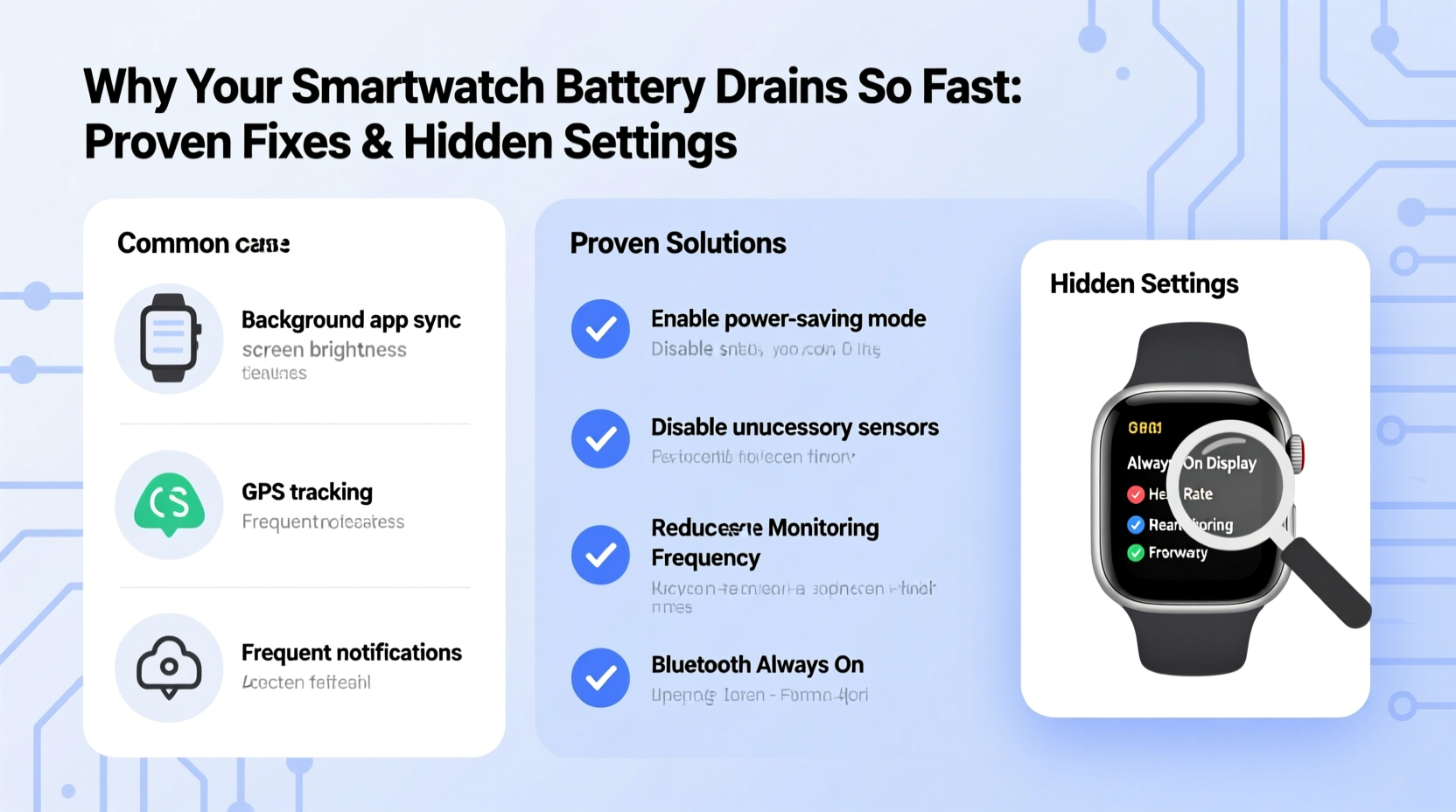
Before jumping into fixes, it’s crucial to understand what’s actually consuming power. While screen brightness and GPS are obvious suspects, several less visible factors play an equally damaging role.
- Always-On Display (AOD): Keeps the screen lit even when idle. While convenient, it can consume up to 25% of daily battery on some models.
- Frequent Heart Rate Monitoring: Continuous heart rate tracking runs the sensor every few seconds, creating constant power draw.
- Background App Refresh: Apps syncing data in the background—especially weather, social media, or email—drain energy silently.
- Persistent Bluetooth & Wi-Fi: Even when not actively transferring data, maintaining connections uses power.
- Watch Faces with Animations: Complications, live updates, and animated designs look great but cost battery life.
- Voice Assistant Activation: Having “Hey Siri” or “OK Google” enabled means the mic is always listening.
Proven Fixes to Extend Smartwatch Battery Life
Most manufacturers don’t emphasize battery-saving modes during setup, leaving users unaware of powerful built-in tools. Here are seven effective strategies backed by user testing and technical analysis.
1. Disable Always-On Display
This single setting is the biggest offender across Apple Watch, Samsung Galaxy Watch, and Wear OS devices. Turning it off forces the screen to sleep when not in active use.
To disable: Go to Settings > Display > Always-On Display (or Screen Timeout) and toggle it off. On Apple Watch, set Wake Duration to \"Wake for 70 Seconds\" instead of \"Raise to Wake.\"
2. Reduce Heart Rate Monitoring Frequency
Unless you're training for a marathon or monitoring a medical condition, continuous heart rate tracking is overkill. Most watches allow interval-based monitoring.
In Garmin Connect or Samsung Health, adjust settings to record heart rate every 10 minutes instead of continuously. Some apps even offer \"Workout Only\" mode.
3. Turn Off Unnecessary Notifications
Every alert vibrates, lights up the screen, and wakes the processor. Over a day, hundreds of minor alerts accumulate significant drain.
Selectively allow notifications only from critical apps like Messages, Calls, and Calendar. Disable them for social media, news, and promotional apps.
4. Use Airplane Mode Strategically
If you're exercising, sleeping, or in areas with poor signal, enabling Airplane Mode disables radios (Bluetooth, Wi-Fi, cellular), slashing power consumption.
You can still track workouts and use offline music. Re-enable connectivity afterward.
5. Limit Background App Refresh
Many third-party apps sync data constantly. For example, a weather app updating every 15 minutes keeps the processor active.
On Wear OS: Settings > Apps > [App Name] > Background Restrictions > Allow background activity → Off.
On Apple Watch: Open iPhone’s Watch app > My Watch > [App] > Background Refresh > Off.
“Users who disable non-essential background refresh see up to 40% improvement in standby battery time.” — Dr. Lin Zhao, Senior Power Systems Engineer at Fitbit
Hidden Settings That Make a Big Difference
Manufacturers bury useful battery-saving features under layers of menus. These aren't marketed heavily because they affect user experience—but they work.
Reduce Haptic Feedback Intensity
Vibration motors consume more power than screen flashes. Reducing the strength and frequency of taps and alerts helps.
Apple Watch: Settings > Haptics > Haptic Strength → Lower the slider.
Wear OS: Settings > Sound & Notification > Vibration Intensity → Set to Medium or Low.
Disable Wrist Raise to Wake
This convenience feature activates the display every time you move your wrist. If you check your watch frequently, this can trigger dozens of unnecessary wake-ups.
Instead, rely on pressing the side button. It gives you control over when the screen turns on.
Turn Off Voice Assistant Listening
\"Hey Siri\" and \"OK Google\" require the microphone to be always-on, which uses both CPU and battery.
Disabling this feature saves passive drain. You can still manually activate voice assistants by holding a button.
Use Theater Mode During Sleep or Meetings
Theater Mode disables screen wake on wrist raise and silences haptics—perfect for conserving battery when you won’t be checking the watch.
Enable it before bedtime; your watch will last longer into the next morning.
Step-by-Step Battery Optimization Routine
Follow this 10-minute weekly routine to keep your smartwatch running efficiently:
- Review Battery Usage (5 min): Check Settings > Battery > Battery Usage to identify top-consuming apps.
- Uninstall or Restrict Power-Hungry Apps: Remove apps you rarely use or restrict their background activity.
- Update Software: Install the latest firmware—updates often include battery optimizations.
- Reset Sync Frequency: Adjust health tracking intervals (e.g., SpO2, heart rate) to manual or workout-only.
- Switch Watch Face: Choose a simple, monochrome design with minimal complications.
- Reboot Your Watch: Clears memory leaks and stops rogue processes draining power.
Performing this once a week prevents gradual performance degradation and maintains consistent battery longevity.
Do’s and Don’ts: Smartwatch Battery Management Table
| Do’s | Don’ts |
|---|---|
| Use dark watch faces on AMOLED screens | Leave Bluetooth headphones connected all day |
| Enable Power Saving Mode during long flights or hikes | |
| Charge between 20% and 80% regularly | Let the battery drop to 0% frequently |
| Turn off unnecessary sensors (SpO2, ECG) | Keep multiple third-party watch faces installed |
| Use airplane mode at night | Ignore software updates |
Real-World Example: How Sarah Doubled Her Battery Life
Sarah, a fitness instructor in Portland, used her Samsung Galaxy Watch 6 daily for workouts, calls, and music control. She found herself charging it twice a day—once in the morning and again after class.
After reviewing her battery stats, she discovered that her animated watch face and continuous SpO2 monitoring were responsible for 60% of the drain. She switched to a minimalist analog face, disabled blood oxygen scanning, and turned off wrist raise.
She also scheduled Theater Mode from 10 PM to 6 AM and limited notification access to just messaging and phone calls. The result? Her battery lasted 38 hours instead of 18—more than enough to get through her busiest days without recharging.
Expert-Backed Checklist for Long-Lasting Battery
Use this checklist monthly to ensure optimal performance:
- ✅ Disable Always-On Display
- ✅ Reduce heart rate and SpO2 monitoring frequency
- ✅ Delete unused apps with background sync
- ✅ Switch to a dark, static watch face
- ✅ Turn off voice assistant hotwords
- ✅ Enable Power Saving Mode during low-use periods
- ✅ Reboot the device weekly
- ✅ Update operating system and apps
- ✅ Monitor battery usage trends
- ✅ Avoid full discharge cycles
Frequently Asked Questions
Why does my smartwatch battery drain overnight?
Even when idle, your watch may be syncing data, receiving notifications, or running health scans. To prevent this, enable Airplane Mode or Do Not Disturb with Theater Mode activated before bed. Also, ensure no app is stuck in a loop syncing data.
Does turning off GPS really save battery?
Yes. GPS uses significant power, especially when combined with cellular or Wi-Fi triangulation. For walking or casual runs, use \"Phone GPS\" mode (where your phone handles location). Reserve built-in GPS for when your phone isn’t with you.
Is it bad to charge my smartwatch every night?
No, modern smartwatches use lithium-ion batteries with smart charging circuits that stop charging at 100%. However, keeping the battery between 30% and 80% most of the time prolongs overall lifespan. Avoid letting it drop below 20% regularly.
Final Thoughts: Take Control of Your Smartwatch Battery
Rapid battery drain isn’t inevitable. It’s usually the result of unchecked settings and outdated habits. By making small, deliberate changes—disabling always-on displays, managing background apps, and leveraging hidden power modes—you regain control over your device’s efficiency.
These fixes don’t compromise functionality; they eliminate waste. Whether you rely on your smartwatch for health tracking, productivity, or peace of mind, optimizing battery life ensures it stays with you throughout the day, not tethered to a charger.




 浙公网安备
33010002000092号
浙公网安备
33010002000092号 浙B2-20120091-4
Comments
No comments yet. Why don't you start the discussion?