
Smartwatches have become essential companions for fitness tracking, notifications, and daily organization. But nothing disrupts the experience faster than a battery that dies by midday. You charge it overnight, only to find it at 20% before dinner. If this sounds familiar, you're not alone. Many users face rapid battery drain despite following standard usage patterns. The good news: most causes are fixable with the right adjustments. This guide dives into the real reasons behind fast battery depletion and provides actionable, tested solutions to get more from each charge.
Understanding Smartwatch Battery Drain: Common Causes
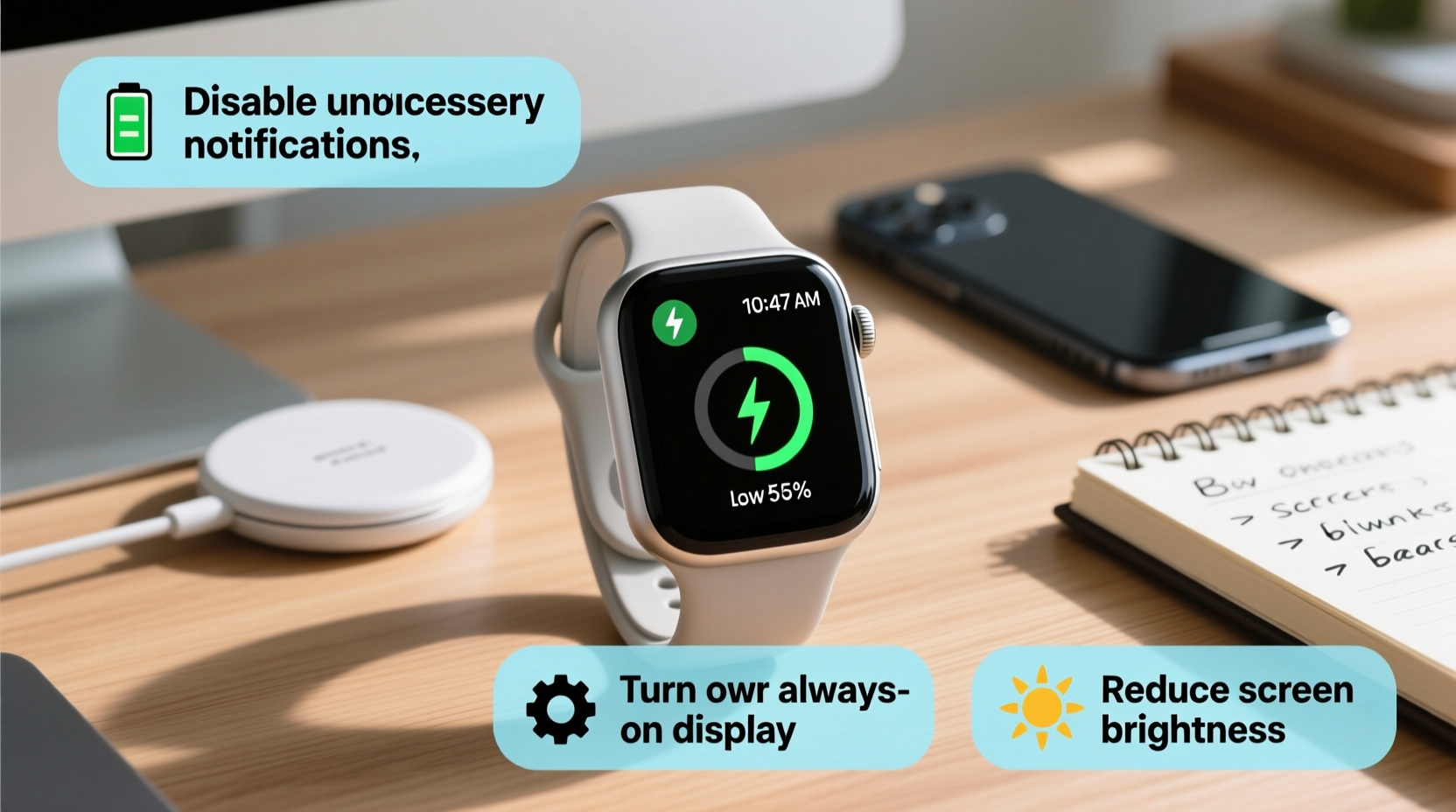
Before jumping into fixes, it’s crucial to understand what drains your smartwatch battery. Unlike smartphones, smartwatches operate on smaller batteries with limited capacity, making them more sensitive to background processes and settings. Several factors contribute to accelerated battery consumption:
- Bright screen settings: High brightness and long screen-on duration significantly impact power use.
- Always-On Display (AOD): While convenient, AOD keeps the screen active even when idle, consuming constant energy.
- Frequent heart rate monitoring: Continuous health tracking uses sensors that run in the background.
- Notifications overload: Every alert—email, social media, calls—triggers vibrations, screen wake-ups, and data syncing.
- Poor app optimization: Third-party apps may run background processes or fail to close properly.
- GPS and location services: Regular GPS use during workouts or navigation eats up battery quickly.
- Software bugs: Outdated or buggy firmware can cause abnormal battery drain due to inefficient resource management.
Step-by-Step Guide to Diagnose and Fix Battery Drain
Follow this structured approach to identify and resolve the root causes of your smartwatch’s poor battery life.
- Check battery usage stats: Navigate to your smartwatch’s battery settings to see which apps or features are consuming the most power. On Wear OS, go to Settings > Battery > Usage. On Apple Watch, open the Watch app on your iPhone and tap My Watch > Battery.
- Restart your device: A simple reboot clears temporary glitches and stops rogue processes. Hold the power button and restart—don’t skip this basic step.
- Update software: Ensure both your watch and paired smartphone are running the latest OS versions. Manufacturers often release patches that improve battery efficiency.
- Remove recently installed apps: If battery drain started after installing a new app, uninstall it temporarily to test if performance improves.
- Reset settings (not full erase): Reset all settings to default without losing data. On Samsung Galaxy Watch, go to Settings > General > Reset > Reset Settings. On Apple Watch, reset via the Watch app under My Watch > General > Reset.
- Monitor charging habits: Avoid letting the battery drop below 20% regularly or charging past 100%. Lithium-ion batteries degrade faster under extreme cycles.
“Battery degradation begins as early as six months with poor charging practices. Keeping your smartwatch between 20% and 80% optimizes longevity.” — Dr. Alan Reyes, Power Systems Engineer at MobileTech Labs
Essential Optimization Tips That Actually Work
Most users overlook small but impactful settings changes. These practical tweaks can extend battery life by 30–50%, depending on usage.
1. Adjust Screen Brightness and Timeout
The display is one of the biggest power consumers. Lowering brightness and reducing how long the screen stays on dramatically conserves energy.
2. Turn Off Always-On Display
AOD is convenient but costly. Disabling it can add several hours to your battery life. Instead, rely on tap-to-wake or button activation.
3. Limit Heart Rate and Health Monitoring Frequency
You don’t need continuous heart rate tracking unless medically necessary. Switch to periodic monitoring or disable it during sleep or low-activity periods.
4. Disable Unnecessary Notifications
Every buzz and screen flash uses power. Go through your notification settings and mute non-essential apps like social media, games, or shopping alerts.
5. Reduce Background App Refresh
Some apps refresh data constantly, even when unused. Disable auto-refresh for weather, email, or fitness apps unless critical.
6. Use Airplane Mode Strategically
When you don’t need connectivity—during workouts, meetings, or sleep—turn on Airplane Mode. This disables Bluetooth, Wi-Fi, and cellular (on LTE models), slashing power use.
7. Optimize GPS Usage
Use GPS only when needed. For casual walks, disable GPS and rely on step counting. Save GPS-intensive tracking for dedicated runs or hikes.
8. Uninstall Problematic Apps
Third-party apps, especially poorly coded ones, can cause excessive background activity. Remove any apps that show high battery usage or haven’t been updated in over six months.
Do’s and Don’ts: Smartwatch Battery Best Practices
| Do’s | Don’ts |
|---|---|
| ✅ Charge between 20% and 80% for daily use | ❌ Let the battery drop to 0% regularly |
| ✅ Update firmware monthly | ❌ Ignore software updates |
| ✅ Use dark watch faces (especially on AMOLED screens) | ❌ Use bright, animated watch faces 24/7 |
| ✅ Disable AOD when not needed | ❌ Leave AOD on just for convenience |
| ✅ Restart your watch weekly | ❌ Run the same session for days without rebooting |
| ✅ Turn off haptic feedback intensity | ❌ Keep vibration strength at maximum |
Real-World Example: How Sarah Extended Her Galaxy Watch Battery by 2 Days
Sarah, a busy project manager, bought a Samsung Galaxy Watch6 expecting two-day battery life. Instead, she was charging it every night. After researching, she discovered her always-on display, full notification sync, and a third-party weather app updating every 10 minutes were the culprits.
She took these steps:
- Disabled AOD and switched to a minimalist black watch face.
- Muted notifications for Slack, Instagram, and news apps.
- Uninstalled a poorly rated fitness tracker app that ran in the background.
- Set heart rate monitoring to “Manual Only” except during workouts.
- Enabled power-saving mode after 9 PM.
Result: Her battery now lasts 48 hours consistently, even with moderate use. She no longer worries about midday charging and feels more confident using GPS during weekend hikes.
Troubleshooting Checklist: Restore Your Smartwatch Battery Life
Use this checklist to systematically address battery issues. Complete each step and monitor improvements over 2–3 days.
- ☐ Check battery usage breakdown in settings
- ☐ Restart the smartwatch
- ☐ Update watch and phone operating systems
- ☐ Lower screen brightness and timeout duration
- ☐ Disable Always-On Display
- ☐ Turn off unnecessary notifications
- ☐ Limit heart rate and SpO2 monitoring frequency
- ☐ Disable GPS when not in use
- ☐ Uninstall unused or high-drain third-party apps
- ☐ Enable battery saver mode during inactive hours
- ☐ Perform a soft reset (settings reset, not factory)
- ☐ Monitor charging patterns—avoid full discharges
Frequently Asked Questions
How long should a smartwatch battery last in a day?
Most modern smartwatches should last 24–36 hours with typical use—receiving notifications, tracking steps, and occasional app use. Heavy GPS or streaming use may reduce this to 8–12 hours. Devices marketed as \"multi-day\" should last 48–72 hours under normal conditions.
Is it bad to charge my smartwatch overnight?
Modern smartwatches stop charging at 100%, so occasional overnight charging isn’t harmful. However, doing this daily accelerates long-term battery degradation. For optimal lifespan, unplug once charged or use scheduled charging (available on Apple Watch and Wear OS) to cap at 80%.
Why does my smartwatch battery drain overnight when I’m not using it?
Nighttime drain usually comes from background syncing, health monitoring (like sleep tracking), or misbehaving apps. Even in sleep mode, some watches continue heart rate checks or receive push notifications. Disable non-essential background features or enable airplane mode while sleeping to prevent this.
Final Thoughts: Take Control of Your Smartwatch Battery Life
Rapid battery drain isn’t inevitable. With targeted adjustments, most users can double their usable battery life. The key is identifying which features consume the most power and making intentional trade-offs. Convenience shouldn’t come at the cost of reliability. By optimizing settings, managing apps, and adopting smarter charging habits, you’ll spend less time tethered to a charger and more time benefiting from your wearable tech.




 浙公网安备
33010002000092号
浙公网安备
33010002000092号 浙B2-20120091-4
Comments
No comments yet. Why don't you start the discussion?