
Smartwatches have become essential tools for tracking fitness, monitoring health metrics, and staying connected. Among their most relied-upon features is step counting—a metric used by millions to gauge daily activity levels. However, many users report a frustrating issue: their smartwatch logs hundreds or even thousands of steps during car rides when they haven’t taken a single stride. This phenomenon not only skews fitness data but can also mislead goal tracking and progress reports. Understanding why this happens—and how to fix it—is crucial for anyone relying on accurate wearable data.
How Smartwatches Track Steps
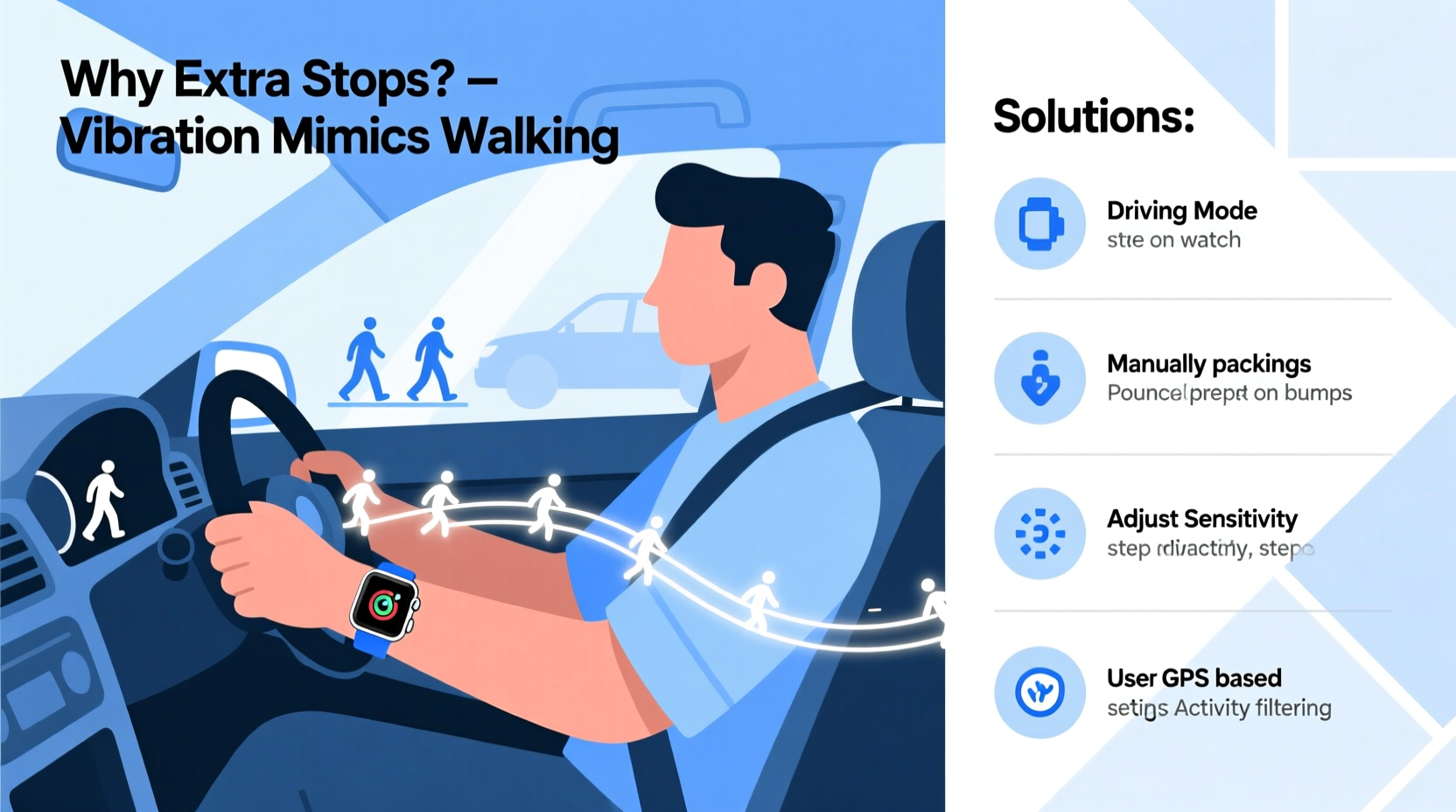
At the heart of every smartwatch’s step-tracking capability lies a tiny component called an accelerometer. This sensor detects motion in three dimensions—up and down, side to side, forward and back. When you walk or run, the rhythmic pattern of your arm movements creates a distinct waveform that the watch interprets as steps. Advanced models also use gyroscopes and machine learning algorithms to refine detection, reducing false positives from non-walking motions.
However, no system is perfect. While walking produces a consistent, predictable signal, other activities—especially those involving vibrations or repetitive hand movements—can mimic that same pattern. Driving is one such activity. The constant jostling from road bumps, steering adjustments, and gear shifts introduces motion signals that closely resemble walking patterns, especially if the watch is worn loosely or the algorithm isn’t finely tuned.
“Even minor vibrations transmitted through the steering wheel can register as micro-movements. Over time, these accumulate into phantom steps.” — Dr. Alan Zhou, Biomechanics Researcher at Stanford Wearable Lab
Why Driving Triggers False Step Counts
The primary reason smartwatches count steps while driving is due to vibration-induced motion detected by the accelerometer. But several factors amplify this error:
- Road conditions: Rough roads, potholes, and uneven pavement increase vehicle vibrations, which transfer through the driver’s arms.
- Steering behavior: Frequent small corrections, lane changes, or holding the wheel with both hands create subtle but detectable arm oscillations.
- Watch placement: Wearing the watch too loosely allows more movement relative to the wrist, increasing false readings.
- Algorithm sensitivity: Some brands prioritize detecting low-intensity movement (like slow walking), making them more prone to misinterpreting driving tremors.
In urban environments with frequent stop-and-go traffic, the effect is often worse. Each brake application, engine idle vibration, or turn of the wheel adds another burst of motion data. Over a 30-minute commute, this can easily result in 500–1,000 falsely recorded steps.
Solutions to Prevent Extra Step Counting While Driving
While eliminating all false steps may be unrealistic, several effective strategies can dramatically reduce inaccuracies.
1. Adjust Wrist Detection Sensitivity
Most modern smartwatches allow users to adjust motion sensitivity settings. For example, on certain Wear OS devices, you can access \"Motion & Gestures\" settings and fine-tune responsiveness. Reducing sensitivity helps filter out minor vibrations without compromising actual walking detection.
2. Wear the Watch More Snugly
A loose-fitting watch moves independently of your skin, amplifying small motions. A snug fit ensures the device moves as one with your wrist, minimizing false triggers. Aim for a fit where the watch stays in place during arm swings but doesn’t restrict blood flow.
3. Use Driving or Theater Mode
Many watches include a “Theater Mode” or “Driving Mode” that disables automatic screen wake-ups and sometimes pauses fitness tracking. Activating this before driving stops unnecessary data collection. On Apple Watch, enabling Theater Mode silences alerts and prevents raise-to-wake—but step counting continues unless manually paused.
4. Manually Pause Activity Tracking
If your smartwatch supports manual pause in workout mode, start a dummy walk workout and immediately pause it. This tells the system you're not actively exercising. Alternatively, some third-party health apps let you disable step counters entirely during set hours.
5. Leverage GPS-Based Filtering
Watches equipped with GPS can cross-reference motion data with location speed. If the device detects high-speed travel (e.g., moving at 40+ mph), it should infer that steps aren't being taken. Unfortunately, not all manufacturers implement this logic consistently. Devices like Garmin and Fitbit tend to do better here than budget-oriented models.
6. Calibrate Your Device Regularly
Calibration improves accuracy by teaching the watch what your real walking pattern looks like. Walk a known distance (e.g., a measured track) while wearing the watch, then input the data into the companion app. This helps the algorithm distinguish between true gait and artificial motion.
Comparison of Major Brands’ Performance During Driving
| Brand | Step Inflation Risk (Driving) | GPS Filtering? | User Adjustment Options |
|---|---|---|---|
| Apple Watch | Moderate | Yes (in Workout mode) | Limited (no direct step disable) |
| Fitbit | Low-Moderate | Yes | Good (edit/delete steps in app) |
| Garmin | Low | Yes (auto-pauses when stationary despite motion) | Excellent (activity profiles, sensitivity settings) |
| Samsung Galaxy Watch | Moderate-High | Limited | Fair (Bixby Routines can automate tracking) |
| Budget Brands (Amazfit, Xiaomi) | High | No | Poor (few calibration options) |
This table illustrates that higher-end brands generally perform better in filtering irrelevant motion. Garmin stands out for its intelligent auto-pause feature, which uses multiple sensors to determine inactivity—even amid vibrations.
Mini Case Study: Commuter Misreads Data for Weeks
James, a 34-year-old software developer in Chicago, noticed his weekly step average was abnormally high—over 15,000 per day—despite working a desk job. He wasn’t particularly active outside work, yet his Fitbit consistently showed him hitting double his goal. After reviewing his logs, he realized spikes occurred on days with long commutes. One Friday, after a two-hour round trip, his watch recorded 2,300 steps—all accumulated while seated.
He tested different fixes: first tightening his band, then trying airplane mode during drives. Neither fully solved the issue. Finally, he created a Bixby Routine on his Samsung phone (paired with a Galaxy Watch) that automatically disabled step counting between 7–9 AM and 5–7 PM on weekdays. Within a week, his data normalized, revealing his true average was closer to 7,000 steps—a number he could realistically improve.
James’s experience highlights how easily driving can distort health metrics—and how automation can restore accuracy with minimal effort.
Actionable Checklist: Stop Phantom Steps While Driving
- Ensure your smartwatch fits snugly on your wrist.
- Enable Driving or Theater Mode before starting your car.
- Manually pause any ongoing workouts or tracking sessions.
- Use automation tools (like Bixby, Shortcuts, or Tasker) to disable step counting during commute times.
- Regularly calibrate your device using a known walking route.
- Review weekly summaries in your health app and delete obviously false entries.
- Consider upgrading to a brand with advanced motion filtering if inaccuracies persist.
Expert Recommendations for Long-Term Accuracy
Dr. Lena Patel, a digital health specialist at Johns Hopkins Medicine, emphasizes that inaccurate tracking doesn’t just affect vanity metrics—it can undermine behavioral goals. “When people think they’ve already hit 8,000 steps by noon due to driving, they’re less likely to take a post-dinner walk,” she explains. “This creates a feedback loop where perceived activity replaces real movement.”
She recommends periodic audits of wearable data. “Once a month, compare your smartwatch totals against a simple pedometer or smartphone-only step counter. If discrepancies exceed 15%, recalibrate or reevaluate usage habits.”
“Accuracy matters because motivation depends on trust. If users don’t believe their numbers, they disengage.” — Dr. Lena Patel, Digital Health Specialist
Frequently Asked Questions
Can GPS help prevent false step counts while driving?
Yes, GPS can significantly reduce errors. When a smartwatch detects rapid movement over distance (e.g., traveling at highway speeds), it can infer that steps aren’t being taken. High-end models like Garmin and Apple Watch use this data to suppress step logging during transit. However, GPS must be enabled and updated regularly for this to work effectively.
Is there a way to completely turn off step counting temporarily?
Directly disabling step counting isn’t always available in default settings, but workarounds exist. On iOS, use Screen Time restrictions to limit Health app background updates. Android users can employ Tasker or MacroDroid to toggle accessibility services that interfere with sensor reading. Alternatively, placing the watch in Airplane Mode disables syncing and reduces sensor activity, though it won’t stop local step logging in all cases.
Do passenger smartwatches also record fake steps?
Passengers typically experience fewer false steps than drivers, but they’re still at risk. Armrest touches, phone handling, seat adjustments, and vehicle vibrations can trigger motion sensors. The effect is usually less pronounced than for drivers, who constantly interact with the steering wheel, but long trips may still add 200–500 erroneous steps.
Conclusion: Take Control of Your Fitness Data
Your smartwatch should reflect reality, not generate fiction. Extra steps counted while driving might seem harmless, but they erode confidence in your fitness tracking, distort goal achievement, and potentially discourage genuine physical activity. By understanding the mechanics behind false readings and applying targeted fixes—from proper wear to automation and calibration—you regain control over your data integrity.
Start today: audit last week’s step log, identify suspicious spikes, and apply one solution from this guide. Whether it’s tightening your strap, scheduling tracking pauses, or switching modes, small changes yield significant improvements in accuracy. Trustworthy data leads to smarter decisions, better habits, and real progress.




 浙公网安备
33010002000092号
浙公网安备
33010002000092号 浙B2-20120091-4
Comments
No comments yet. Why don't you start the discussion?