
Smartwatches have become essential companions, delivering notifications, health tracking, and hands-free control over smartphones. Yet few frustrations match the disruption of a sudden disconnection—missing calls, losing fitness data, or failing to receive alerts at critical moments. While occasional hiccups may seem normal, frequent dropouts point to underlying issues that can be diagnosed and resolved. Understanding the root causes of unstable connections and applying targeted fixes restores reliability and trust in your wearable tech.
The relationship between a smartwatch and its paired smartphone hinges on Bluetooth—a short-range wireless technology designed for low power consumption but not immune to interference or misconfiguration. Unlike Wi-Fi, which prioritizes bandwidth, Bluetooth balances energy efficiency with stability, making it more sensitive to environmental and software variables. When disconnections occur, they’re rarely random; instead, they reflect identifiable patterns tied to hardware limitations, network congestion, or device settings.
Common Causes of Smartwatch Disconnections
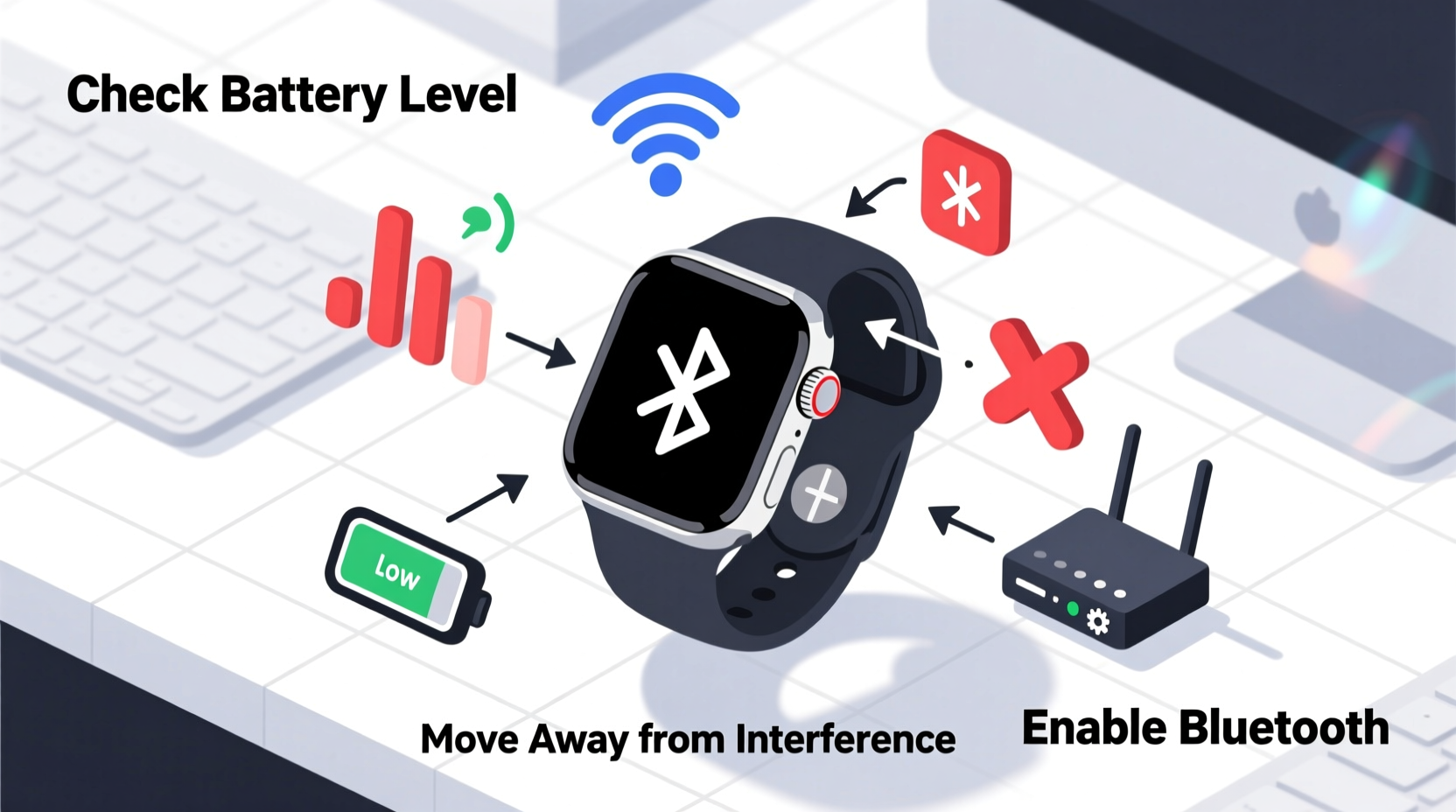
Before troubleshooting, it’s essential to recognize the most frequent culprits behind unstable smartwatch connections. Each factor interacts with the others, creating compound effects that degrade performance over time.
- Bluetooth Interference: Walls, metal objects, microwaves, and other wireless devices (like routers or cordless phones) emit signals in the 2.4 GHz band, overlapping with Bluetooth frequencies. This interference weakens signal strength, especially in dense urban environments or office spaces.
- Distance and Obstruction: Bluetooth Classic, used by most smartwatches, has an effective range of about 30 feet (10 meters) in open space. Physical barriers like walls, furniture, or even the human body reduce this significantly. Turning your back to your phone while wearing the watch can temporarily sever the link.
- Battery Optimization Settings: Modern smartphones aggressively manage background processes to extend battery life. On Android, apps like Wear OS or Samsung Galaxy Watch can be restricted from running in the background, causing the connection to drop when the screen turns off.
- Firmware Bugs: Outdated or buggy firmware on either the watch or phone can introduce instability. Manufacturers regularly release patches to fix connectivity flaws, so falling behind on updates increases vulnerability.
- Multipoint Pairing Conflicts: Some watches support pairing with multiple devices (e.g., phone and laptop). If both attempt to communicate simultaneously, priority conflicts arise, leading to dropped signals.
- Signal Congestion: In areas with many active Bluetooth devices—gyms, public transit, or conferences—the airwaves become crowded, increasing packet loss and retransmission delays.
Step-by-Step Guide to Stabilize Your Connection
Stabilizing your smartwatch connection requires systematic testing and adjustment. Follow this sequence to isolate and resolve the issue efficiently.
- Restart Both Devices: A soft reboot clears temporary glitches in the Bluetooth stack. Turn off your smartwatch and phone completely, wait 30 seconds, then power them back on.
- Forget and Re-Pair the Devices: Go to your phone’s Bluetooth settings, select your watch, and choose “Forget.” Then, initiate pairing again through the companion app (Wear OS, Galaxy Wearable, etc.). This rebuilds the secure bond and refreshes encryption keys.
- Disable Battery Saver Modes: On Android, go to Settings > Apps > [Your Watch App] > Battery and set usage to “Unrestricted.” On iPhone, ensure Background App Refresh is enabled for the companion app under Settings > General > Background App Refresh.
- Update Firmware and Apps: Check for updates on both devices. For watches, navigate to Settings > System > Updates. Ensure the companion app on your phone is also up to date via the App Store or Google Play.
- Reduce Wireless Interference: Temporarily disable nearby devices using the 2.4 GHz band (e.g., wireless speakers, older Wi-Fi networks). Switch your router to 5 GHz if dual-band capable, freeing up spectrum for Bluetooth.
- Test in a Low-Interference Environment: Move to a quiet room or outdoor area with minimal electronics. If the connection stabilizes, interference is likely the primary cause.
- Reset Network Settings (if needed): As a last resort, reset network settings on your phone. This clears all saved Wi-Fi networks, Bluetooth pairings, and APNs. Afterward, re-pair your watch carefully.
Device-Specific Optimization Tips
Different platforms handle Bluetooth differently. Tailoring your approach based on your ecosystem improves results.
| Platform | Key Fix | Additional Notes |
|---|---|---|
| Wear OS (Google) | Enable “Always Connected” mode in Wear OS app | This keeps the watch connected via Wi-Fi when out of Bluetooth range, reducing strain on the primary link. |
| Samsung Galaxy Watch | Disable Power Saving Mode in Galaxy Wearable app | Samsung’s default power management often suspends background sync, breaking real-time alerts. |
| Apple Watch | Ensure Wrist Detection and Bluetooth are always on | iPhones maintain stronger Bluetooth persistence, but disabling wrist detection disables automatic reconnection logic. |
| Fitness-Focused Watches (Garmin, Fitbit) | Sync manually after workouts to prevent data loss | These watches prioritize sensor accuracy over constant connectivity, so brief disconnections during activity are normal. |
Mini Case Study: Office Worker with Intermittent Dropouts
Mark, a project manager in a downtown high-rise, noticed his Galaxy Watch 6 frequently lost connection during meetings. His phone remained in his jacket pocket across the room, separated by glass partitions and HVAC ducts. Initially blaming the building’s structure, he tested walking closer—only to find the issue persisted.
After reviewing battery settings, he discovered that One UI had automatically restricted background activity for Galaxy Wearable after three days of inactivity. By adjusting the app to “No restrictions” and enabling “Keep Wi-Fi on during sleep,” his disconnections dropped from 5–6 per day to zero. The real culprit wasn’t distance, but silent software throttling.
“Many users assume hardware failure when facing connectivity drops, but over 70% of cases stem from overlooked software settings.” — Dr. Lena Torres, Senior Connectivity Engineer at Nordic Semiconductor
Preventive Maintenance Checklist
To maintain long-term stability, integrate these practices into your routine:
- ✅ Check for firmware updates monthly
- ✅ Verify background permissions every two weeks
- ✅ Restart both devices weekly
- ✅ Clean Bluetooth cache on Android (Settings > Apps > Show System Apps > Bluetooth > Storage > Clear Cache)
- ✅ Avoid placing phone in metal-lined pockets or wallets
- ✅ Use Wi-Fi syncing when available to reduce Bluetooth dependency
- ✅ Limit simultaneous Bluetooth connections (e.g., don’t pair watch, earbuds, and car at once unless necessary)
When Hardware May Be the Issue
While most problems are software-related, hardware degradation can contribute—especially in older devices. Over time, repeated charging cycles, exposure to moisture, or physical shocks can damage internal antennas or Bluetooth modules.
Symptoms of hardware failure include:
- Complete inability to pair, even after factory reset
- Connection drops within inches of the phone
- Excessive heat near the watch crown or case back during sync attempts
- Inconsistent behavior across multiple phones
If you’ve ruled out software and environmental factors, contact the manufacturer. Most smartwatches come with a one-year warranty covering component defects. Third-party repair shops may offer antenna diagnostics, though water damage often voids coverage.
Frequently Asked Questions
Why does my smartwatch disconnect when I leave the room?
Bluetooth has limited range and struggles with walls, especially concrete or insulated ones. If your phone stays behind while you walk away, the signal weakens until the connection breaks. To mitigate this, enable Wi-Fi syncing if supported, allowing the watch to update when both devices are on the same network.
Can a phone case cause disconnection issues?
Yes. Cases with metal plates (for magnetic mounts or wallets) can block or distort Bluetooth signals. Test without the case or switch to a non-metallic alternative. Similarly, avoid placing your phone near magnets or electronic badges.
Is it harmful to constantly reconnect my smartwatch?
No. Frequent pairing attempts do not damage hardware. However, excessive reboots may indicate deeper issues worth investigating. The Bluetooth protocol is designed for dynamic connections, so occasional drops and reconnections are normal under fluctuating conditions.
Conclusion: Take Control of Your Connection
Random disconnections are rarely truly random—they’re symptoms of mismatched expectations, hidden settings, or environmental stress. By methodically addressing interference, optimizing software configurations, and understanding platform-specific behaviors, you regain consistent, reliable performance from your smartwatch.
Don’t accept poor connectivity as inevitable. Apply the checklist, monitor changes, and adjust as needed. Small tweaks today prevent hours of frustration tomorrow. Your smartwatch is designed to enhance your life, not interrupt it.




 浙公网安备
33010002000092号
浙公网安备
33010002000092号 浙B2-20120091-4
Comments
No comments yet. Why don't you start the discussion?