
Smartwatches have become essential companions—tracking fitness, delivering notifications, and keeping us connected without reaching for our phones. But nothing disrupts that seamless experience like a sudden disconnection. One moment your watch is showing messages; the next, it’s flashing “Phone Not Connected.” This inconsistency isn’t just annoying—it can undermine trust in your device. The good news: most disconnections aren’t signs of hardware failure. They’re usually fixable with the right knowledge and adjustments. Understanding the root causes and applying targeted solutions can restore stability and keep your wearable working as intended.
Common Causes of Smartwatch Disconnections
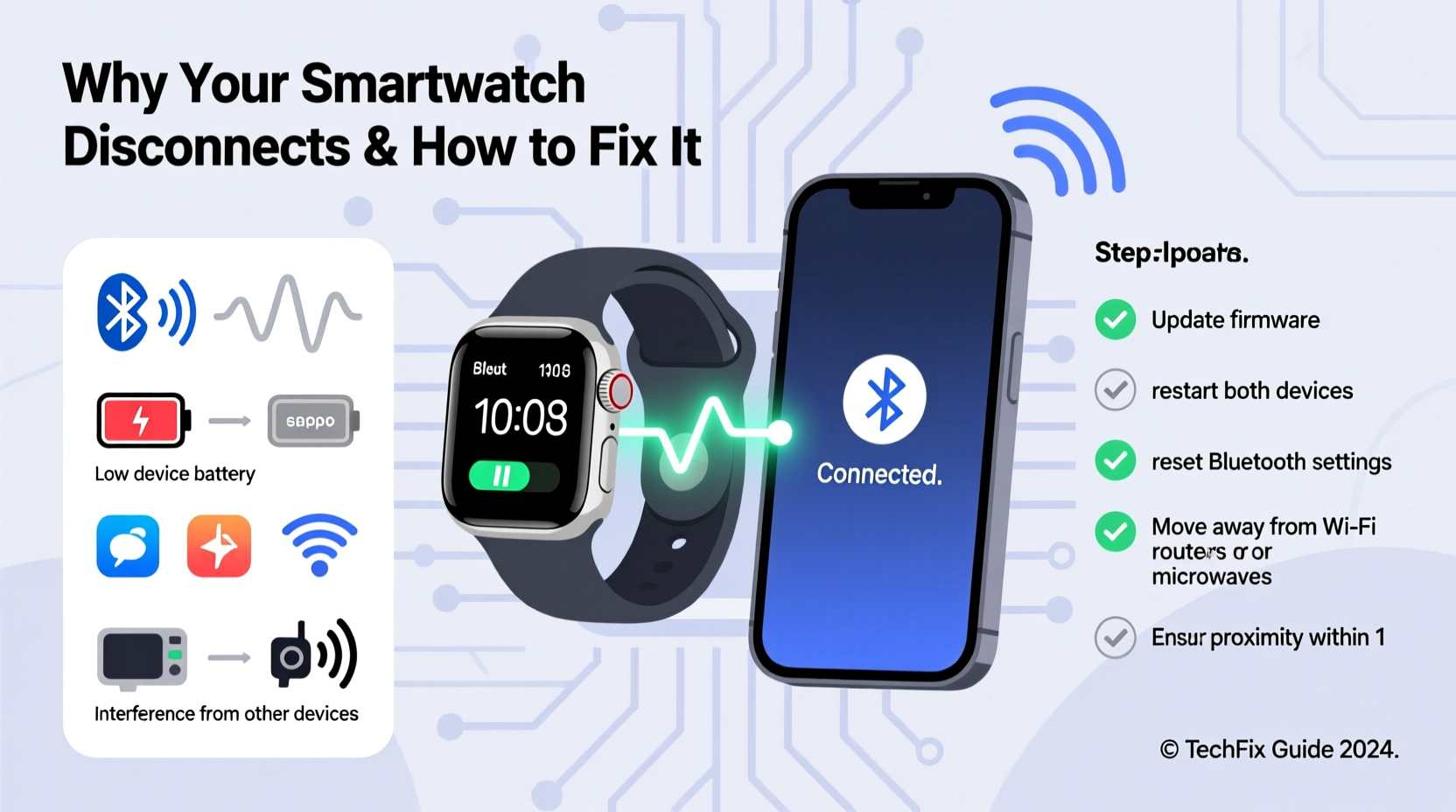
Bluetooth technology powers the link between your smartwatch and phone, but it's not infallible. Interference, software bugs, power-saving settings, and outdated firmware can all weaken or sever this connection. Below are the most frequent culprits behind random disconnections:
- Bluetooth interference: Wi-Fi routers, microwaves, and other wireless devices emit signals in the 2.4 GHz band, which overlaps with Bluetooth. In crowded environments (offices, apartments), signal congestion can cause dropouts.
- Outdated software: Both your phone and smartwatch rely on up-to-date operating systems and companion apps. Older versions may contain unresolved bugs affecting Bluetooth stability.
- Aggressive battery optimization: Android and iOS aggressively manage background processes to save power. Sometimes, they suspend the companion app, breaking the Bluetooth tether.
- Physical distance and obstacles: Walls, metal objects, and even your body can block or weaken Bluetooth signals. Moving too far from your phone—or placing it in a bag or pocket—can trigger disconnections.
- Pairing glitches: Corrupted pairing data or multiple failed attempts can leave residual conflicts that prevent a clean connection.
- Low battery on either device: When either the phone or watch runs critically low, background services may be disabled to preserve core functions.
Step-by-Step Guide to Stabilize Your Connection
Fixing a flaky smartwatch connection doesn’t require technical expertise—just methodical troubleshooting. Follow this sequence to eliminate common issues and restore reliability.
- Restart both devices: A soft reboot clears temporary glitches in memory and resets Bluetooth modules. Turn off your phone and smartwatch, wait 30 seconds, then power them back on.
- Forget and re-pair the devices: On your phone, go to Bluetooth settings, find your watch, and select “Forget This Device.” Then, use the companion app (e.g., Wear OS by Google, Galaxy Wearable, Apple Watch app) to pair again from scratch.
- Update all software: Check for system updates on both devices. For Android watches, open the Wear OS app. For Apple Watch, go to Settings > General > Software Update. Ensure your phone’s OS and the companion app are also current.
- Disable battery optimization for the companion app: On Android, go to Settings > Apps > [Companion App] > Battery > Unrestricted. This prevents the OS from killing the app in the background.
- Reset network settings (if needed): If problems persist, reset network settings on your phone. This clears all saved Wi-Fi networks, Bluetooth pairings, and APNs. Note: You’ll need to reconnect to Wi-Fi afterward.
- Check for interfering apps: Some third-party apps claim to boost performance or save battery but interfere with Bluetooth services. Temporarily disable such tools to test if they’re causing the issue.
Do’s and Don’ts: Maintaining a Stable Bluetooth Link
| Do’s | Don’ts |
|---|---|
| Keep both devices charged above 20% | Ignore software update notifications |
| Use the official companion app for setup | Manually pair via Bluetooth settings instead of the app |
| Place your phone in a consistent location (e.g., jacket pocket) | Store your phone in a metal-lined wallet or Faraday case |
| Reboot devices weekly to clear cache | Leave your phone in airplane mode unintentionally |
| Test connectivity in low-interference areas first | Assume hardware failure after one disconnection |
Real-World Example: Fixing a Persistent Disconnect Issue
Jamal, a project manager in Chicago, relied on his Samsung Galaxy Watch 5 for calendar alerts and step tracking. Over two weeks, he noticed increasing disconnections—sometimes lasting minutes—especially during morning commutes. He assumed the watch was faulty and considered returning it. Instead, he followed a structured diagnostic process.
First, he restarted both devices. No change. Next, he updated the Galaxy Wearable app and ensured his phone was on the latest One UI version. Still intermittent. Then, he discovered that a battery-saving app he installed was restricting background activity for the wearable service. After disabling it and setting the companion app to “Unrestricted” in battery settings, the disconnections stopped entirely. Jamal later realized the issue worsened on trains—where Bluetooth congestion is high—but with proper configuration, his watch now maintains a reliable link even in dense urban environments.
This case illustrates how user-installed software and environmental factors combine to create complex symptoms. Resolving it required more than guesswork—it demanded understanding the ecosystem.
“Most smartwatch disconnections stem from software mismanagement, not hardware defects. The key is isolating variables systematically.” — Dr. Lena Torres, Senior Embedded Systems Engineer at a leading wearable tech firm
Proactive Maintenance Checklist
Prevention is more effective than constant troubleshooting. Use this checklist monthly to keep your smartwatch connection strong:
- ✅ Reboot both phone and watch at least once per week
- ✅ Verify that no pending software updates exist
- ✅ Confirm the companion app has unrestricted battery access (Android)
- ✅ Review Bluetooth settings to ensure no duplicate or ghosted devices appear
- ✅ Clean the watch charging contacts—dirt can affect performance and syncing
- ✅ Test connectivity after installing new apps or profiles
- ✅ Avoid using third-party Bluetooth boosters or “optimizers”
Frequently Asked Questions
Why does my Apple Watch disconnect when I leave the room?
Apple Watch relies solely on Bluetooth when not connected to Wi-Fi or cellular. If walls or distance block the signal, disconnection is normal. However, if it fails to reconnect upon return, check iPhone settings: ensure Background App Refresh is on for the Watch app and that Low Power Mode isn’t active.
Can a phone case cause Bluetooth disconnection?
Yes. Cases with magnetic closures, metal plates (for car mounts), or thick shielding materials can interfere with Bluetooth signals. Test connectivity by temporarily removing the case. If the link stabilizes, consider switching to a thinner, non-metallic design.
My smartwatch keeps reconnecting every few minutes. Is it broken?
Not necessarily. Rapid connect-disconnect cycles often point to a corrupted Bluetooth profile or conflicting services. Try resetting network settings on your phone. If the problem persists across multiple phones, then hardware fault becomes more likely—and warranty support should be pursued.
Advanced Tips for Power Users
For those comfortable with deeper system controls, additional steps can enhance reliability:
- Use static Bluetooth MAC address filtering: Advanced users can assign fixed priorities to trusted devices via router settings (if supported), reducing interference from other 2.4 GHz sources.
- Monitor Bluetooth logs (Android developers): Enable Developer Options and use tools like
adb logcatto capture Bluetooth stack errors. Look for patterns like “GATT disconnect” or “connection timeout.” - Leverage Wi-Fi sync (when available): Watches like the Apple Watch or Wear OS devices can sync over Wi-Fi when the phone is nearby but out of Bluetooth range. Ensure both devices are on the same network and Wi-Fi syncing is enabled.
- Minimize paired devices: The more Bluetooth devices connected to your phone (earbuds, speakers, trackers), the greater the load on the radio. Disconnect unused peripherals to reduce congestion.
While these methods aren’t necessary for average users, they offer insight for diagnosing stubborn cases where standard fixes fall short.
When to Consider Hardware or Replacement
If you’ve completed all software and configuration steps and still face disconnections, consider hardware issues. Signs include:
- No Bluetooth detection even in close proximity
- Failure to pair with any phone
- Overheating near the watch’s edge (possible antenna damage)
- Intermittent behavior that worsens over time
In such cases, contact the manufacturer. Most smartwatches come with a one-year warranty covering defects. If out of warranty, weigh repair costs against upgrading to a newer model with improved Bluetooth 5.0+ stability and better interference resistance.
Conclusion: Take Control of Your Smartwatch Experience
Random disconnections don’t have to be part of daily life. With a clear understanding of Bluetooth dynamics, disciplined maintenance, and strategic settings adjustments, you can achieve a consistently reliable link between your smartwatch and phone. Start with simple steps—restart, re-pair, update—then progress to deeper optimizations if needed. Most issues resolve with patience and precision, not replacement. Your wearable is designed to simplify your life, not complicate it. By applying these insights, you reclaim that promise and enjoy everything your smartwatch was built to deliver.




 浙公网安备
33010002000092号
浙公网安备
33010002000092号 浙B2-20120091-4
Comments
No comments yet. Why don't you start the discussion?