
Smartwatches have become essential companions for fitness tracking, notifications, and daily productivity. But nothing disrupts the experience like a device that dies by midday. If you’re constantly searching for a charger or skipping workouts because your watch won’t last, you’re not alone. Battery drain is one of the most common frustrations among smartwatch users — but it’s often preventable. The reasons range from software settings to usage habits, and understanding them is the first step toward lasting power.
Why Smartwatch Batteries Drain Faster Than Expected
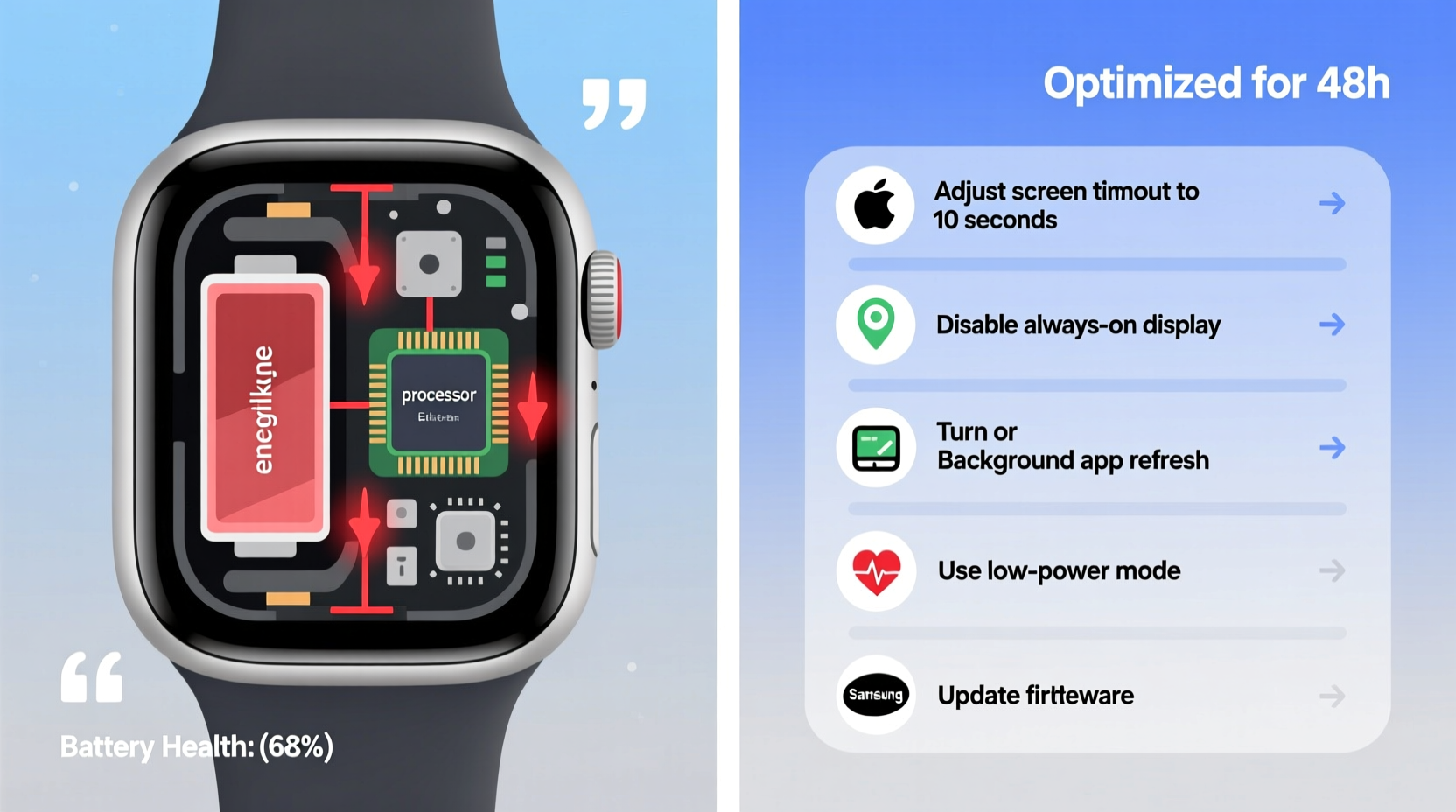
Unlike smartphones, smartwatches operate under tight energy constraints. Their compact size limits battery capacity, while their sensors and displays demand consistent power. However, excessive drain usually points to inefficient usage rather than hardware flaws.
Common culprits include:
- Bright display settings: Auto-brightness can spike brightness in sunlight, consuming extra power.
- Always-on display (AOD): While convenient, AOD keeps the screen active even when idle.
- Frequent app syncing: Apps that constantly pull data in the background shorten battery life.
- GPS and heart rate monitoring: These sensors are highly accurate but power-intensive.
- Notifications overload: Receiving dozens of alerts per hour triggers repeated screen wake-ups.
- Outdated firmware: Bugs in older software versions can cause memory leaks or unoptimized processes.
A study by Battery University highlights that continuous sensor activation accounts for up to 40% of wearable battery consumption. Combine that with high screen usage, and it’s easy to see why some watches barely make it through a full day.
How to Extend Your Smartwatch Battery Life
Extending battery life doesn’t mean sacrificing all features. With strategic adjustments, you can maintain core functionality while significantly improving longevity between charges.
Optimize Display Settings
The screen is typically the biggest power consumer. Reducing its demands has immediate impact.
- Lower screen brightness manually instead of relying on auto-adjust.
- Shorten screen timeout — set it to 3–5 seconds instead of 10 or more.
- Turn off “always-on” mode unless absolutely necessary.
- Use dark watch faces, especially on AMOLED screens, where black pixels consume no power.
Manage Sensor Usage
Sensors provide valuable health insights, but they don’t all need to run continuously.
- Switch heart rate monitoring to “on-demand” or “during workouts only.”
- Disable blood oxygen (SpO2) tracking at night unless medically required.
- Limit GPS use to outdoor activities; rely on phone-connected GPS when possible.
Control Notifications and Background Syncing
Every buzz and beep wakes the processor and lights the screen. Over time, this adds up.
- Selectively allow notifications — mute social media, email, and non-critical apps.
- Increase sync intervals for weather, calendar, and fitness apps.
- Use “Do Not Disturb” during sleep or focused work hours.
Update Firmware Regularly
Manufacturers frequently release updates that improve battery efficiency. For example, Samsung’s One UI Watch 5 update reduced background CPU usage by 18%, according to user-reported benchmarks.
Ensure automatic updates are enabled, or manually check for new versions weekly via your paired smartphone app.
Use Power-Saving Modes Strategically
Most smartwatches offer a low-power mode that disables non-essential features. Activate it:
- During long flights or meetings.
- Before extended hikes where charging isn’t possible.
- When battery drops below 30% and you’re away from a charger.
Do’s and Don’ts for Smartwatch Battery Longevity
| Do’s | Don’ts |
|---|---|
| Charge your watch when it reaches 20–30% | Let it drop to 0% regularly |
| Use original or certified chargers | Use third-party chargers with unknown voltage output |
| Enable airplane mode overnight if not tracking sleep | Leave Bluetooth and Wi-Fi running 24/7 unnecessarily |
| Restart your watch weekly to clear memory cache | Run multiple heavy apps simultaneously for long periods |
| Store in moderate temperatures (15°C–25°C) | Leave it in hot cars or freezing conditions |
“Lithium-ion batteries degrade fastest when exposed to heat and deep discharges. Keeping charge between 20% and 80% dramatically extends usable lifespan.” — Dr. Alan Reyes, Battery Systems Engineer at MIT
Real-World Example: How Sarah Doubled Her Watch’s Battery Life
Sarah, a nurse working 12-hour shifts, relied on her smartwatch for shift reminders, hydration alerts, and step tracking. But her device consistently died by 3 PM — right in the middle of her shift.
She reviewed her settings and discovered several issues:
- Always-on display was enabled.
- Heart rate monitor ran every 5 minutes.
- All app notifications were mirrored from her phone.
- She charged the watch only when it hit 5%.
After making these changes:
- Disabled always-on display.
- Set heart rate monitoring to “every 30 minutes” outside workouts.
- Muted non-urgent notifications.
- Started charging at 30% and unplugged at 80%.
The result? Her battery now lasts over 36 hours. She charges every other night and no longer worries about missing critical alerts during work.
Step-by-Step Guide to Optimize Battery Weekly
Make battery optimization part of your routine. Follow this checklist every Sunday to ensure peak performance.
- Check battery health: Review usage stats in your companion app (e.g., Wear OS, Galaxy Wearable, Apple Health).
- Reboot the device: Clears cached data and resets any stuck processes.
- Review recent updates: Install pending OS or app updates for efficiency fixes.
- Audit installed apps: Uninstall those you haven’t used in the past week.
- Adjust notification settings: Remove redundant alerts from messaging or social apps.
- Verify sensor schedules: Ensure sleep tracking starts only at bedtime.
- Inspect charging cable: Look for fraying or loose connections that reduce charging efficiency.
Frequently Asked Questions
How long should a smartwatch battery last on a full charge?
Most modern smartwatches last 1–2 days under typical use. High-end models like the Apple Watch Series 9 average 18 hours, while fitness-focused devices like Garmin Forerunner series can last up to 7 days in smartwatch mode. Battery life varies significantly based on settings and usage patterns.
Is it bad to charge my smartwatch overnight?
Modern smartwatches stop charging once they reach 100%, so occasional overnight charging is safe. However, habitual full cycles accelerate long-term degradation. For best battery health, aim to keep levels between 20% and 80% whenever possible.
Does turning off Bluetooth save battery?
Yes — disabling Bluetooth reduces constant communication with your phone, which saves power. However, you’ll lose call, message, and app notifications. Consider toggling it off during workouts if you’re using offline music or GPS-only modes.
Final Checklist: 10 Actions to Extend Smartwatch Battery Life
Implement these proven steps to get the most out of each charge:
- ✅ Turn off always-on display
- ✅ Lower screen brightness manually
- ✅ Set screen timeout to 5 seconds or less
- ✅ Use dark-themed watch faces
- ✅ Limit heart rate and SpO2 monitoring frequency
- ✅ Mute non-essential notifications
- ✅ Update firmware monthly
- ✅ Enable power-saving mode during downtime
- ✅ Avoid extreme temperatures
- ✅ Charge between 20% and 80% for daily use
Conclusion: Take Control of Your Smartwatch Battery
Your smartwatch doesn’t have to be chained to a charger. Most battery issues stem from overlooked settings and habits, not faulty hardware. By adjusting display behavior, managing sensor usage, and adopting smarter charging routines, you can easily double your device’s daily endurance. Think of it as digital wellness — small, consistent actions yield significant long-term benefits.




 浙公网安备
33010002000092号
浙公网安备
33010002000092号 浙B2-20120091-4
Comments
No comments yet. Why don't you start the discussion?