
Smartwatches have become essential companions for fitness tracking, notifications, and daily productivity. But nothing disrupts that seamless experience like a battery that dies by midday. If you're constantly tethered to a charger or skipping workouts because your watch won’t last, you're not alone. Many users face rapid battery drain—often due to overlooked settings, background apps, or hardware wear. The good news is that most issues are fixable with targeted adjustments. Understanding why your smartwatch battery depletes quickly—and how to address it—can restore reliability and extend device lifespan.
Understanding Smartwatch Battery Behavior
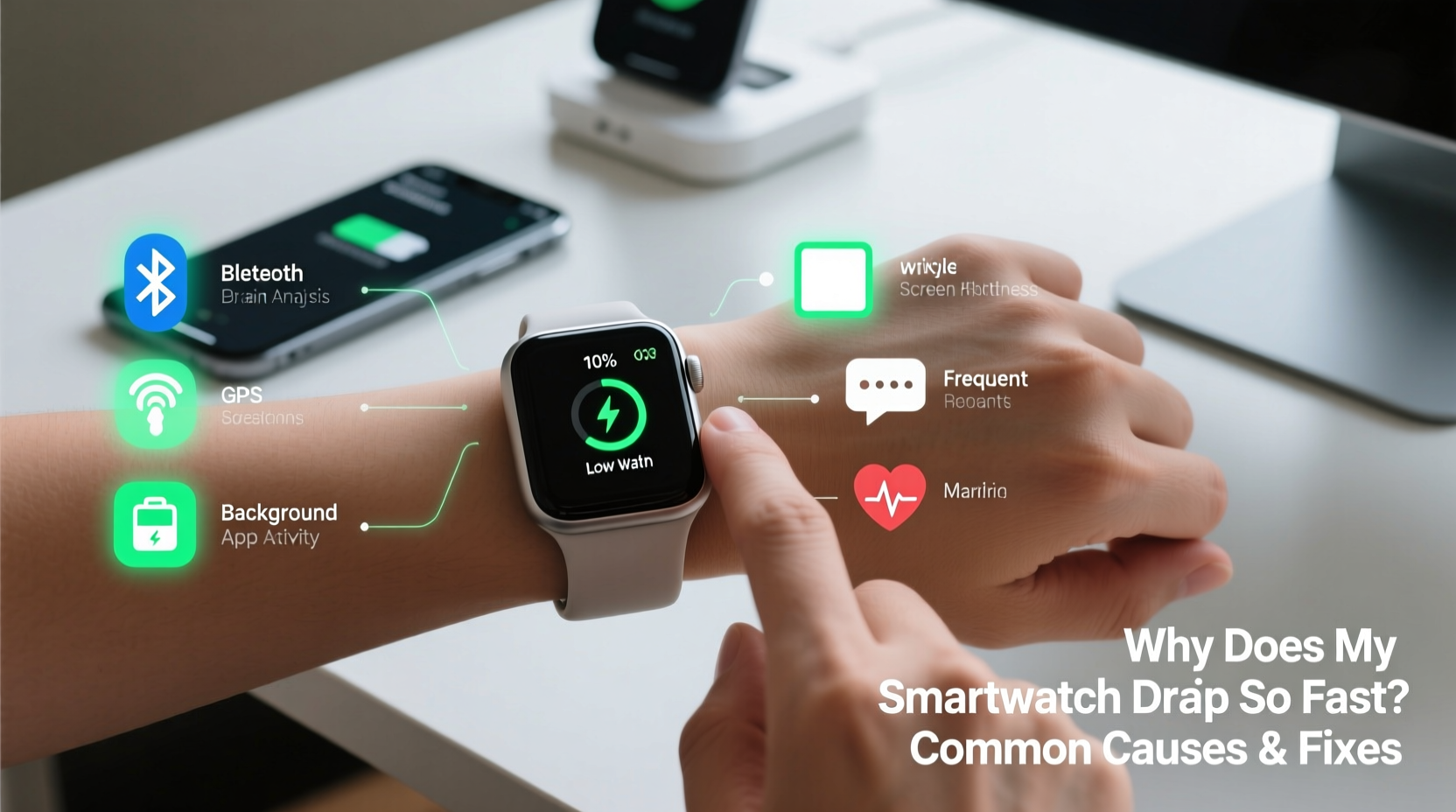
Unlike smartphones, smartwatches operate on smaller batteries with limited capacity, typically ranging from 200mAh to 450mAh depending on the model. They run power-intensive features such as heart rate sensors, GPS, always-on displays, and Bluetooth connectivity—all while syncing continuously with your phone. This constant activity creates a high baseline energy demand.
Battery degradation also plays a role over time. Lithium-ion batteries, used in nearly all modern smartwatches, degrade after repeated charge cycles. After about 500 full cycles (roughly 1.5 to 2 years of regular use), capacity can drop by 15–20%. This means even if your usage habits haven’t changed, older watches naturally lose charge faster.
“Battery longevity isn’t just about charging habits—it’s a combination of software efficiency, user behavior, and environmental conditions.” — Dr. Lena Park, Wearable Technology Researcher at MIT Media Lab
Top 5 Causes of Rapid Smartwatch Battery Drain
1. Always-On Display Settings
One of the biggest culprits behind short battery life is the always-on display (AOD) feature. While convenient, keeping the screen lit—even dimly—uses significant power. On devices like the Apple Watch Series 8 or Samsung Galaxy Watch 6, AOD can consume up to 30% more battery per day compared to turning it off.
2. Background App Refresh and Third-Party Apps
Many third-party apps continue running in the background, checking for updates or syncing data even when unused. Fitness trackers, messaging apps, or weather widgets often refresh every few minutes, draining power unnecessarily. Some poorly optimized apps may even contain memory leaks or infinite loops that increase CPU load.
3. Frequent Notifications and Haptic Feedback
Every alert—whether a buzz, vibration, or screen wake—draws power. If your watch receives dozens of notifications hourly, each accompanied by haptics and screen activation, cumulative energy use adds up quickly. Stronger haptic intensity settings further amplify this drain.
4. GPS and Continuous Health Monitoring
Using GPS during runs or hikes consumes substantial power. Similarly, continuous monitoring features like SpO2, ECG, or 24/7 heart rate tracking require sensors to stay active, increasing power draw. Enabling “sleep tracking” overnight may reduce battery by 20–40%, depending on duration and sensor usage.
5. Poor Bluetooth Connection and Phone Syncing
If your smartwatch struggles to maintain a stable Bluetooth connection with your phone, it repeatedly attempts to reconnect, which increases radio transmission power. Being too far from your phone or having interference from walls or other electronics forces the watch to work harder, accelerating battery depletion.
Step-by-Step Guide to Extend Your Smartwatch Battery Life
Follow this practical timeline to diagnose and resolve battery issues efficiently. Implement these steps over one evening or across a few days to see measurable improvements.
- Day 1 – Audit Current Usage
Check your watch’s battery usage menu (e.g., Settings > Battery on Apple Watch or Galaxy Wearable app). Identify which apps or services consume the most power. Note any surprises—like a music app using more than fitness tracking. - Day 1 – Adjust Display Settings
Reduce screen brightness manually or enable auto-brightness. Turn off always-on display unless absolutely necessary. Set shorter screen timeout (e.g., 10 seconds instead of 30). - Day 2 – Manage Notifications
Go into your companion app (Apple Watch app, Galaxy Wearable, etc.) and disable non-essential alerts. Mute social media, email, or promotional notifications. Keep only calls, texts, and calendar reminders. - Day 2 – Limit Background Activity
Disable background refresh for unnecessary apps. Uninstall rarely used third-party apps. Restart your watch after changes to clear cached processes. - Day 3 – Optimize Health & Fitness Features
Switch from continuous heart rate monitoring to on-demand checks. Disable automatic SpO2 scanning at night unless medically required. Use GPS only during outdoor activities—not all day. - Ongoing – Maintain Charging Habits
Avoid letting the battery drop below 20% regularly. Charge between 20% and 80% when possible to prolong cell health. Use manufacturer-approved chargers.
Battery-Saving Checklist
Use this actionable checklist weekly to ensure optimal performance:
- ✅ Disable always-on display
- ✅ Lower screen brightness
- ✅ Turn off unnecessary notifications
- ✅ Limit background app refresh
- ✅ Use GPS only when needed
- ✅ Disable sleep tracking if not essential
- ✅ Update watch OS and apps regularly
- ✅ Restart the device once a week
- ✅ Keep Bluetooth connection stable (stay near phone)
- ✅ Avoid extreme temperatures (heat/cold)
Comparison: Common Smartwatches and Typical Battery Life
| Smartwatch Model | Advertised Battery Life | Real-World Average | Key Power Consumers |
|---|---|---|---|
| Apple Watch Series 9 | Up to 18 hours | 12–16 hours | AOD, frequent notifications, workout tracking |
| Samsung Galaxy Watch 6 | Up to 40 hours | 24–36 hours | Always-on display, Bixby prompts, LTE usage |
| FITBIT Sense 2 | Up to 6 days | 4–5 days | Stress tracking, continuous HR, GPS walks |
| Garmin Venu 2 | Up to 11 days (smart mode) | 8–10 days | Music storage, Pulse Ox, daily workouts |
| Amazfit GTR 4 | Up to 14 days | 10–12 days | SpO2 monitoring, animated watch faces |
Note: Real-world performance varies based on individual settings. Heavy GPS or LTE use can cut expected life by 30–50%.
Real Example: Sarah’s Marathon Training Struggle
Sarah, a runner training for her first half-marathon, relied on her Apple Watch SE to track pace and distance. She noticed that during long weekend runs, her watch would die before she finished—sometimes shutting down at mile 8. Initially, she assumed it was normal. After researching, she discovered that enabling both GPS and Bluetooth music streaming simultaneously drained her battery in under 90 minutes.
She adjusted her routine: downloading playlists directly to her watch eliminated the need for constant Bluetooth audio streaming. She also disabled notifications during runs and turned off wrist raise-to-wake. These changes extended her battery life to over 3 hours—enough to complete her longest sessions. By optimizing settings specific to her use case, Sarah avoided mid-run blackouts and completed her training successfully.
When Hardware Is the Problem
Sometimes, no amount of software tweaking helps. If your smartwatch is more than two years old and shows signs like:
- Battery drops 20% in 30 minutes with minimal use
- Device shuts down unexpectedly at 30% or higher
- Charges inconsistently or overheats during charging
…then the battery itself may be failing. Lithium-ion cells degrade over time, especially if frequently exposed to heat (e.g., left in a hot car or worn during intense sauna sessions). In such cases, replacing the battery or upgrading the device becomes the most effective solution.
Manufacturers like Apple and Samsung offer official battery replacement services. For Apple Watch, out-of-warranty service costs around $79. Third-party repair shops may offer lower prices but risk using substandard parts or damaging water resistance seals.
Frequently Asked Questions
How long should a smartwatch battery last in a day?
Most modern smartwatches are designed to last 1–2 days under typical use. Apple Watches usually require daily charging, while models like Garmin or Amazfit can last several days. If your watch dies in less than 8 hours without heavy use, there’s likely a setting or hardware issue.
Does updating my watch software affect battery life?
Yes—updates can temporarily increase battery usage as the system indexes new features or rebuilds caches. However, most updates include battery optimizations. If drain persists beyond 48 hours post-update, review settings or restart the device.
Is it bad to charge my smartwatch overnight?
Modern smartwatches stop charging once they reach 100%, so occasional overnight charging is safe. However, consistently keeping the battery at 100% for extended periods can accelerate long-term degradation. For best longevity, unplug once fully charged or use scheduling features if available.
Final Thoughts: Take Control of Your Smartwatch Battery
Rapid battery drain doesn’t have to be the norm. Most issues stem from adjustable settings rather than inherent flaws. By auditing app usage, fine-tuning display and sensor preferences, and understanding real-world performance limits, you can significantly extend your smartwatch’s uptime. Small changes—like disabling always-on display or muting non-critical alerts—add up to meaningful gains.
If you’ve tried all optimizations and still face poor battery life, consider whether your device has reached its natural end-of-life cycle. Newer models often bring improved efficiency and better power management. But for now, apply these strategies and reclaim control over your wearable’s performance.




 浙公网安备
33010002000092号
浙公网安备
33010002000092号 浙B2-20120091-4
Comments
No comments yet. Why don't you start the discussion?