
Smartwatches have become essential companions, delivering notifications, tracking fitness, and keeping us connected without constantly checking our phones. But nothing disrupts the experience faster than a sudden disconnection. If your smartwatch frequently loses its link to your phone, you're not alone—and more importantly, it's usually fixable. The root causes range from simple software glitches to deeper hardware limitations. Understanding these issues is the first step toward restoring seamless connectivity.
Bluetooth technology, while reliable in ideal conditions, can be sensitive to interference, distance, and device compatibility. Smartwatches rely on a continuous Bluetooth Low Energy (BLE) connection to sync data and relay alerts. When that connection drops, functionality suffers—missed calls, delayed messages, and stalled health tracking. This guide breaks down the most common reasons for disconnections and provides practical, tested solutions to keep your devices in sync.
Common Causes of Smartwatch Disconnections
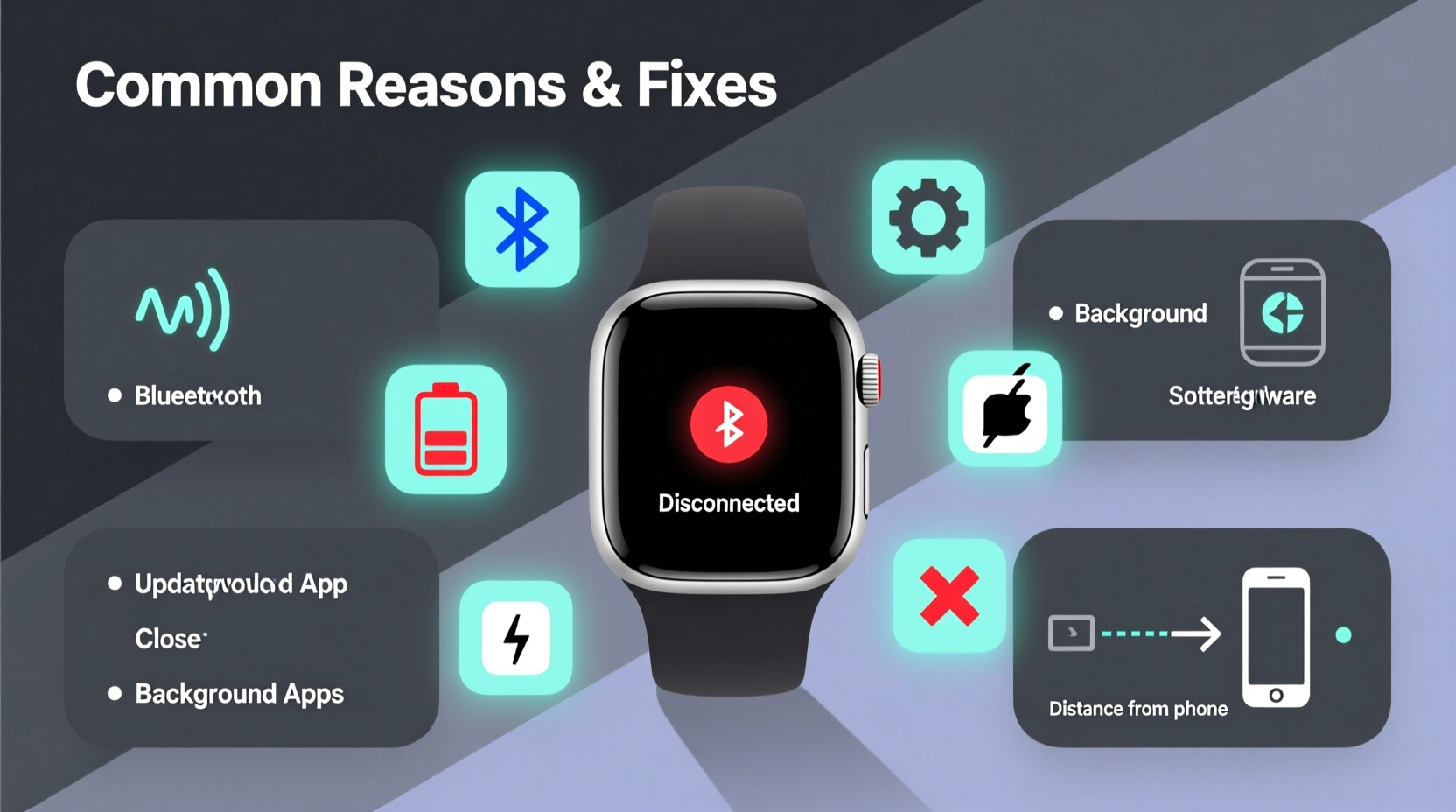
The frustration of a disconnected smartwatch often stems from overlooked or misunderstood factors. While some issues are temporary, others point to long-term habits or technical flaws. Identifying the cause helps determine whether a quick reset will suffice or if deeper intervention is needed.
- Bluetooth interference: Walls, metal objects, microwaves, and even Wi-Fi routers can disrupt Bluetooth signals.
- Outdated software: Both the smartwatch OS and phone apps require regular updates for optimal performance.
- Battery-saving modes: Aggressive power management on either device may disable background processes like Bluetooth.
- Distance and physical barriers: Moving too far from your phone or placing obstacles between them weakens the signal.
- App-specific bugs: Companion apps like Wear OS, Galaxy Wearable, or Apple Watch app may malfunction after updates.
- Device incompatibility: Older phones or watches may not support current Bluetooth standards or pairing protocols.
- Full cache or storage: A cluttered system can slow communication and trigger disconnections.
Step-by-Step Troubleshooting Guide
When your smartwatch disconnects repeatedly, follow this systematic approach to diagnose and resolve the issue. Begin with the simplest fixes before progressing to advanced resets.
- Check proximity: Ensure your phone is within 30 feet (10 meters) and in line of sight. Move closer and see if reconnection occurs automatically.
- Toggle Bluetooth: On your phone, turn Bluetooth off and back on. This forces a fresh handshake between devices.
- Restart both devices: Power cycle your smartwatch and smartphone. This clears memory leaks and resets network modules.
- Forget and re-pair the device:
- Go to your phone’s Bluetooth settings.
- Find your smartwatch and select “Forget” or “Unpair.”
- On the watch, go to Settings > Connections > Bluetooth and unpair the phone.
- Reboot both devices.
- Pair them again through the companion app.
- Update software: Check for OS updates on both the phone and watch. Install any pending updates immediately.
- Disable battery optimization for the companion app:
- Android: Go to Settings > Apps > [Companion App] > Battery > Unrestricted.
- iOS: Ensure Background App Refresh is enabled for the Apple Watch app.
- Clear app cache (Android): In Settings > Apps > [Companion App] > Storage > Clear Cache.
“Bluetooth stability hinges on consistent firmware support. Many disconnection issues stem from outdated drivers or unpatched bugs.” — Dr. Lena Torres, Wireless Systems Engineer at MIT Media Lab
Do’s and Don’ts: Best Practices for Stable Connectivity
Maintaining a reliable connection isn’t just about fixing problems—it’s also about preventing them. Small daily habits can significantly improve your smartwatch’s performance.
| Do | Don't |
|---|---|
| Keep both devices updated with the latest OS and app versions. | Ignore software update notifications on your watch or phone. |
| Use the official companion app for setup and management. | Try third-party apps to force pair your watch. |
| Charge your devices regularly to avoid low-power shutdowns. | Let your phone or watch battery drop below 5% frequently. |
| Limit background apps that consume Bluetooth resources. | Run multiple Bluetooth devices (earbuds, speakers, car systems) simultaneously without monitoring impact. |
| Store devices close together when not in use (e.g., on the same nightstand). | Leave your phone in another room while wearing the watch for extended periods. |
Real-World Example: Sarah’s Intermittent Disconnection Issue
Sarah, a fitness instructor in Austin, relied on her Samsung Galaxy Watch 6 to track workouts and receive client messages. Over two weeks, she noticed frequent disconnections during classes—her watch would lose notifications mid-session. Initially, she assumed it was due to movement, but the problem persisted even at home.
She tried restarting the watch multiple times with no lasting effect. Then, she checked her phone’s battery settings and discovered that the Galaxy Wearable app was restricted from running in the background. After changing the setting to “Unrestricted,” the disconnections stopped. Further investigation revealed that a recent Android update had reset her app permissions. By adjusting this one setting, Sarah restored full functionality without needing a factory reset or service visit.
This case highlights how automatic system changes—especially after updates—can silently affect app behavior. Regular audits of app permissions help prevent such surprises.
Advanced Fixes for Persistent Problems
If basic troubleshooting fails, consider deeper system-level actions. These steps should be taken carefully, as they may erase data or require reconfiguration.
Reset Network Settings on Your Phone
This clears all saved Wi-Fi networks, Bluetooth pairings, and cellular settings. It often resolves deep-seated connection conflicts.
- iPhone: Settings > General > Transfer or Reset iPhone > Reset > Reset Network Settings.
- Android: Settings > System > Reset Options > Reset Wi-Fi, mobile & Bluetooth.
After resetting, re-pair your smartwatch using the companion app.
Factory Reset the Smartwatch
As a last resort, wipe the watch entirely. Be sure to back up any important data (like workout history) if possible.
- Open Settings on your watch.
- Navigate to System > Reset > Erase All Data.
- Confirm the action and wait for the process to complete.
- Set up the watch as new and pair it again.
Check for Hardware Defects
If disconnections continue across multiple phones or environments, the issue may be hardware-related. Signs include:
- Inability to maintain any Bluetooth connection.
- Frequent crashes or freezes on the watch interface.
- No improvement after multiple factory resets.
Contact the manufacturer or authorized service center for diagnostics. Most smartwatches come with at least a one-year warranty covering defects.
Preventive Maintenance Checklist
To minimize future disruptions, adopt this monthly maintenance routine:
- ✅ Update the smartwatch operating system.
- ✅ Update the companion app on your phone.
- ✅ Reboot both devices.
- ✅ Verify Bluetooth permissions and background activity settings.
- ✅ Clean the watch sensors and charging contacts gently with a dry microfiber cloth.
- ✅ Review connected Bluetooth devices and remove unused ones.
- ✅ Confirm that location services are enabled (required for some BLE functions on Android).
Frequently Asked Questions
Why does my smartwatch disconnect when I leave the room?
Bluetooth has a limited range, typically up to 30 feet in open space. Walls, furniture, and electronic interference reduce this range. If your phone remains stationary (e.g., on a charger), moving beyond its effective radius will break the connection. Some watches attempt to reconnect automatically when back in range; others require manual syncing.
Can a phone case cause disconnection issues?
Yes. Thick metal cases or those with magnetic mounts can interfere with Bluetooth and NFC signals. Try removing the case temporarily to test connectivity. If the connection stabilizes, consider switching to a thinner, non-metallic case.
Does turning off my phone’s screen affect the connection?
Not directly. However, if your phone enters aggressive power-saving mode or kills background apps when the screen turns off, the companion app may stop syncing. Ensure the app is exempt from battery optimization to maintain a persistent connection.
Final Thoughts and Next Steps
A smartwatch that keeps disconnecting doesn’t mean it’s faulty or obsolete. In most cases, the solution lies in routine maintenance, proper configuration, and awareness of environmental factors. Modern wearables are designed for constant connectivity, but they depend on well-maintained ecosystems—your phone’s software, Bluetooth health, and usage habits all play critical roles.
Start by applying the step-by-step guide above. Most users resolve their issues within minutes using simple resets or permission adjustments. For ongoing reliability, integrate the preventive checklist into your monthly tech routine. Technology should simplify life, not complicate it. With a few proactive measures, your smartwatch can deliver the seamless experience it was built for.




 浙公网安备
33010002000092号
浙公网安备
33010002000092号 浙B2-20120091-4
Comments
No comments yet. Why don't you start the discussion?